Overview
This article will focus on how to copy Targeted Practices to other classrooms.
Steps to Follow
When you have multiple classrooms, follow the steps below to copy the practice without reinventing the wheel!
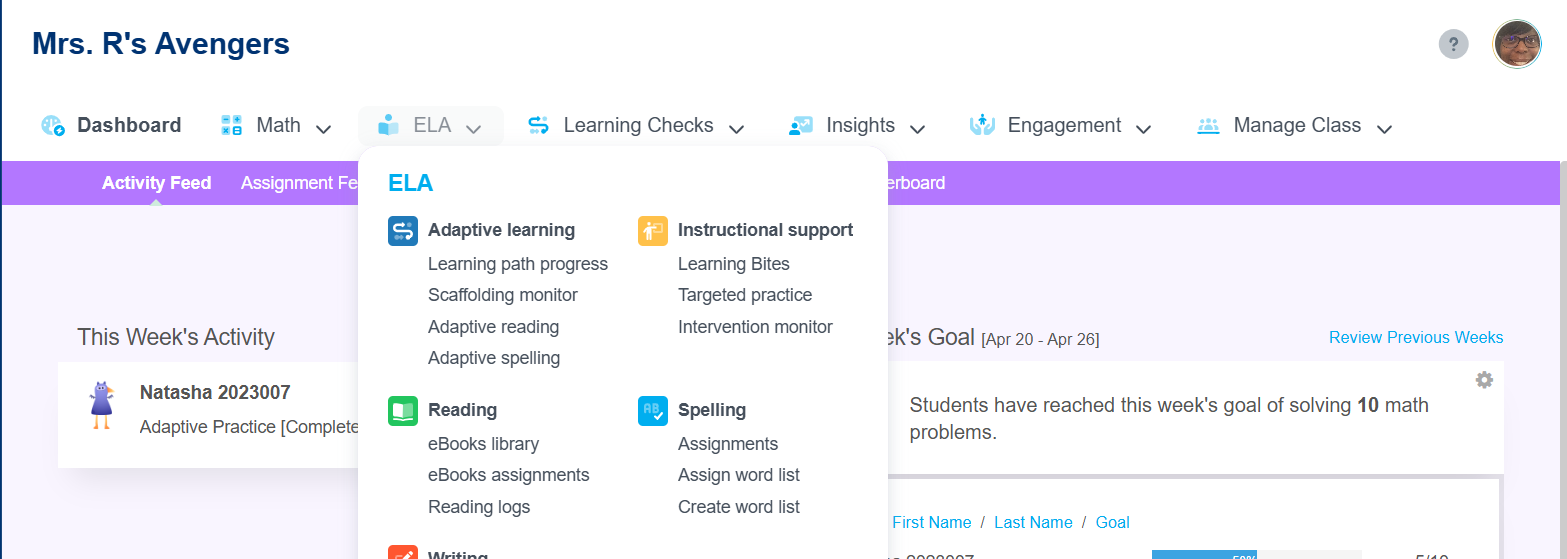
- Navigate to the targeted practice page and find the specific practice you would like to assign to another classroom (you must be the primary or the co-teacher).
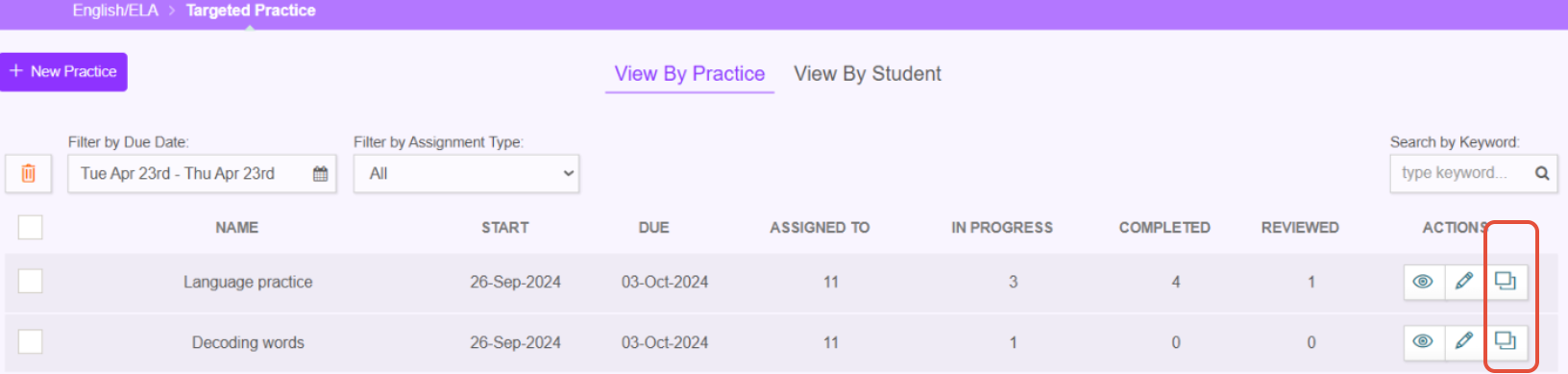
- Next, click the copy icon.
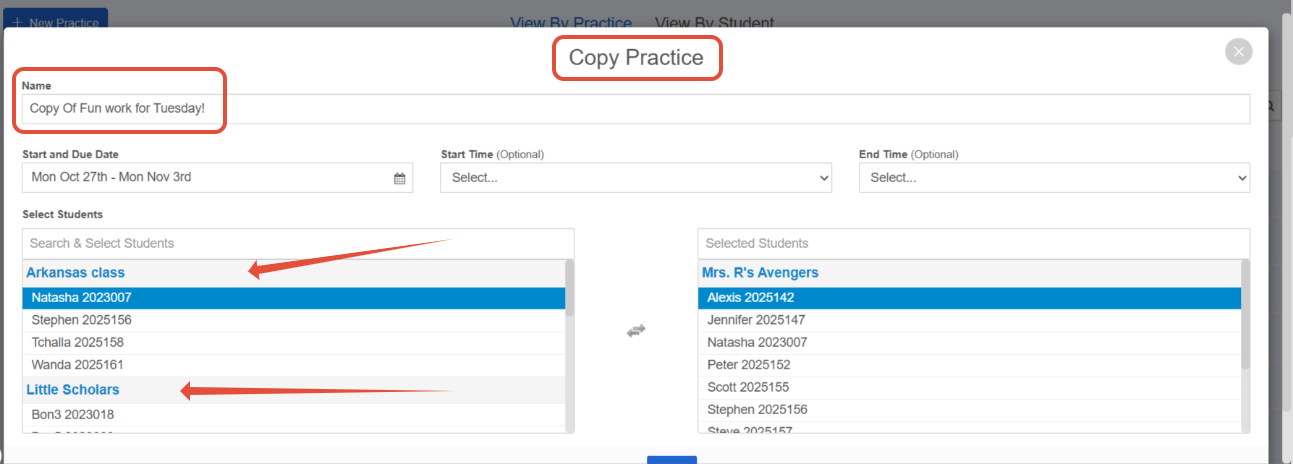
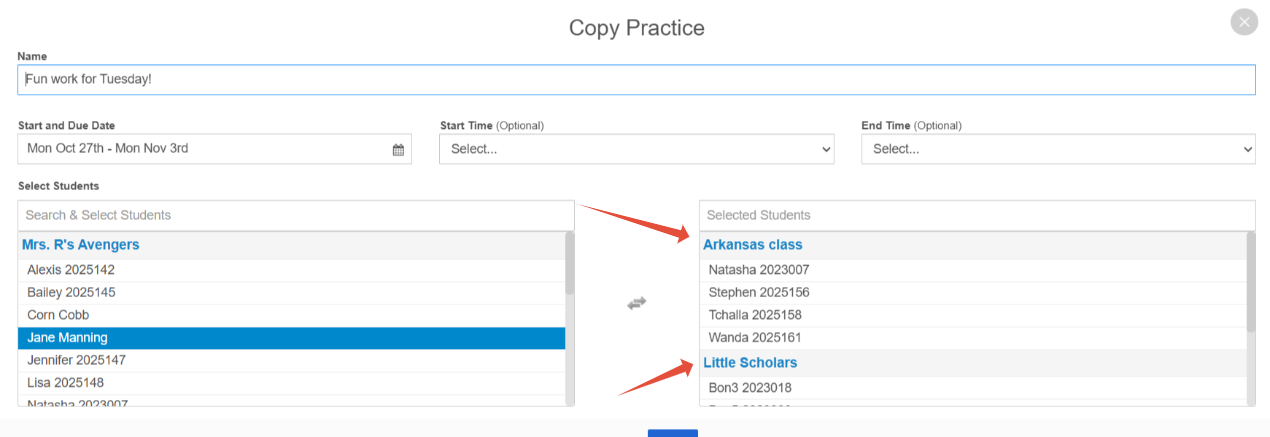
- A list of your classrooms will be displayed on the left-hand side. The right-hand side will display the classroom(s) and students currently assigned to this practice. The teacher has the option to rename the copied assignment to remove the term "copy."
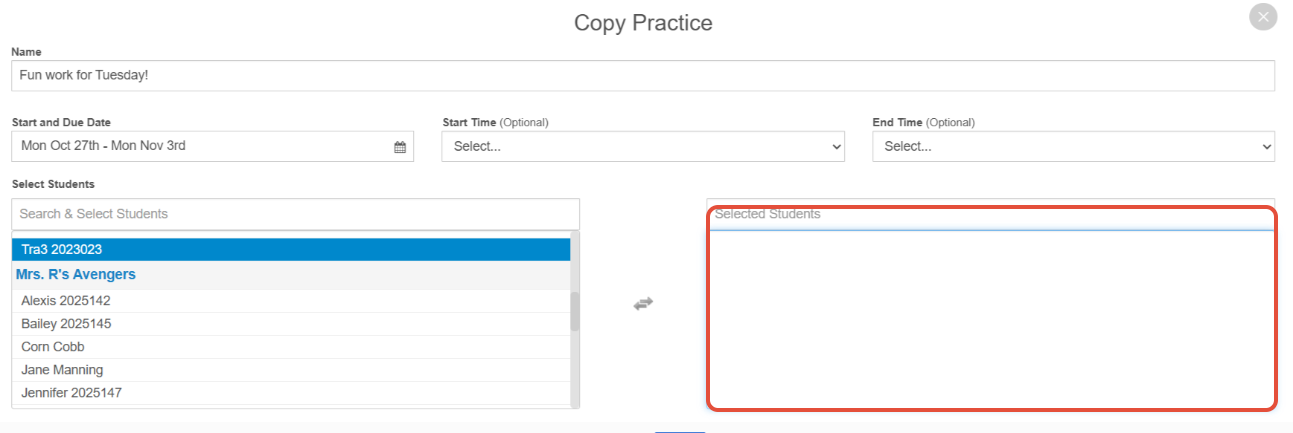
- Clear the initial student selection from the right-hand side by clicking the classroom name. These students have already been assigned the task and can be removed from the new task. This is illustrated in the image.
- Then, click the classroom header or individual students who need the new assignment. In the image, the teacher has selected two new classrooms to assign the task to.
Related Resources
- Pathways Learning: Using Targeted Practice (Math & ELA) Assignments
- Learning Video: Using Targeted Practice
- Pathways Learning: Recommended Practice, Leaderboards, and Certificates
Was this article helpful?
That’s Great!
Thank you for your feedback
Sorry! We couldn't be helpful
Thank you for your feedback
Feedback sent
We appreciate your effort and will try to fix the article