Overview
This article answers several questions about the recommended amount of practice in Pathways Learning and some best practices for increasing student engagement. Please use the table of contents below to navigate to specific sections for more detailed information.
Table of Contents
- Managing the Weekly Goal
- Best Practices to Achieve the Weekly Goal
- Using the Leaderboards
- Celebrating Student Accomplishments with Certificates
- Related Resources
Managing the Weekly Goal
The recommended amount of practice in Pathways Learning is called the weekly goal. Teachers can manage this goal in their class settings for Math and ELA.
- Weekly goal settings are accessed on top of the goal board.
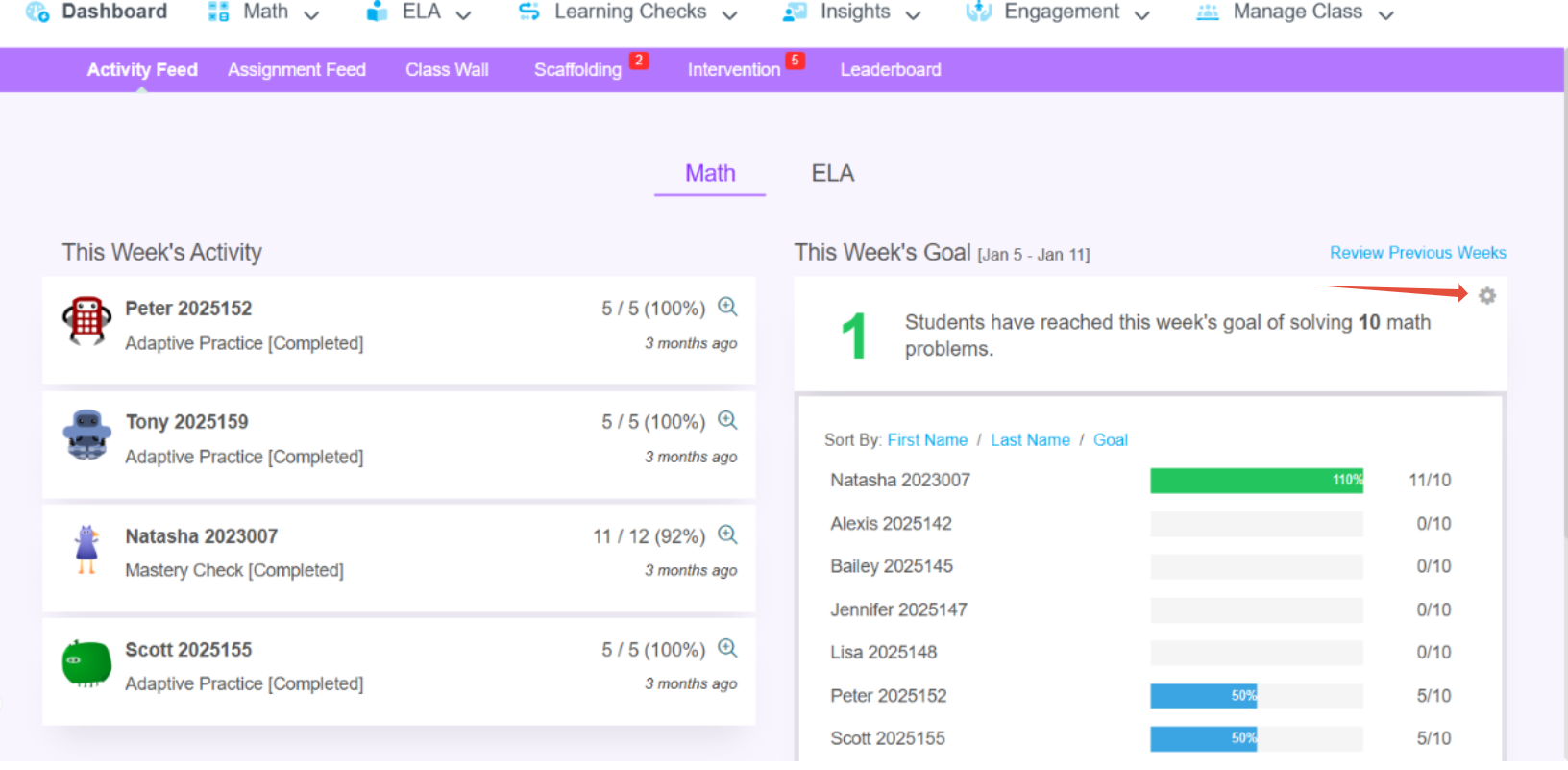
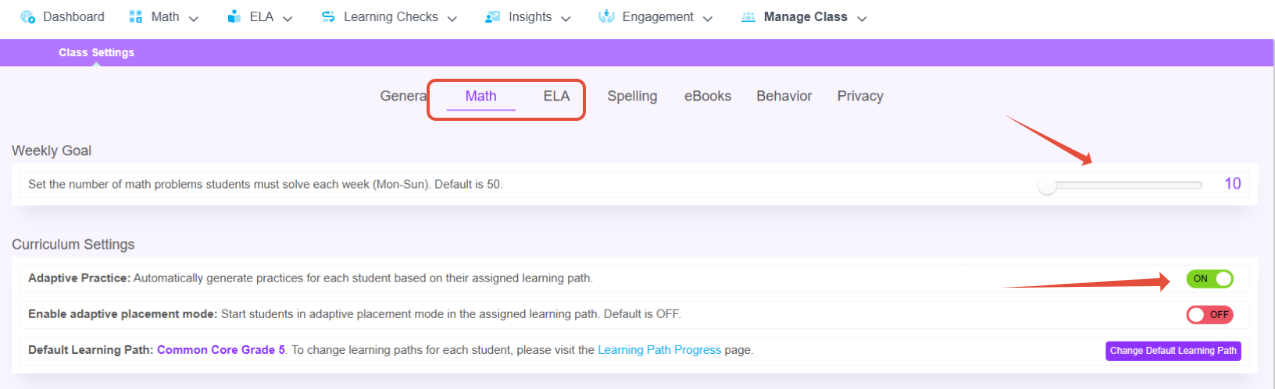
- To adjust your weekly goal, navigate to the class settings for Math and ELA and use the slider to set your desired target. If you do not teach a specific subject, ensure you disable Adaptive Practice for that subject to prevent it from appearing in the students' goals.
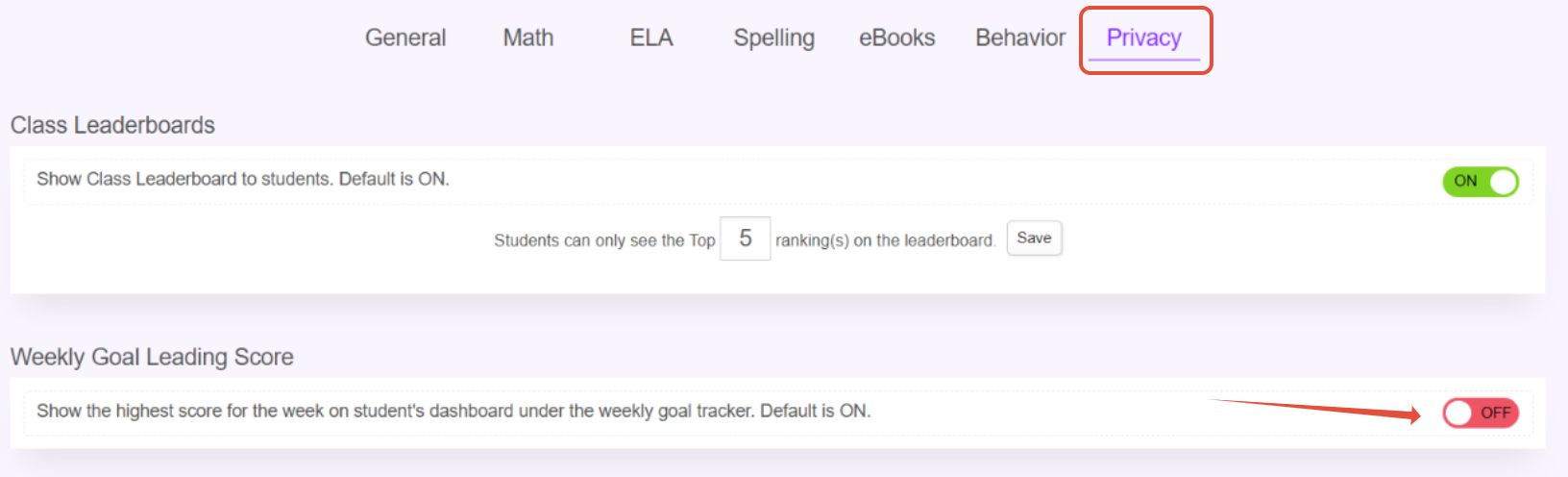
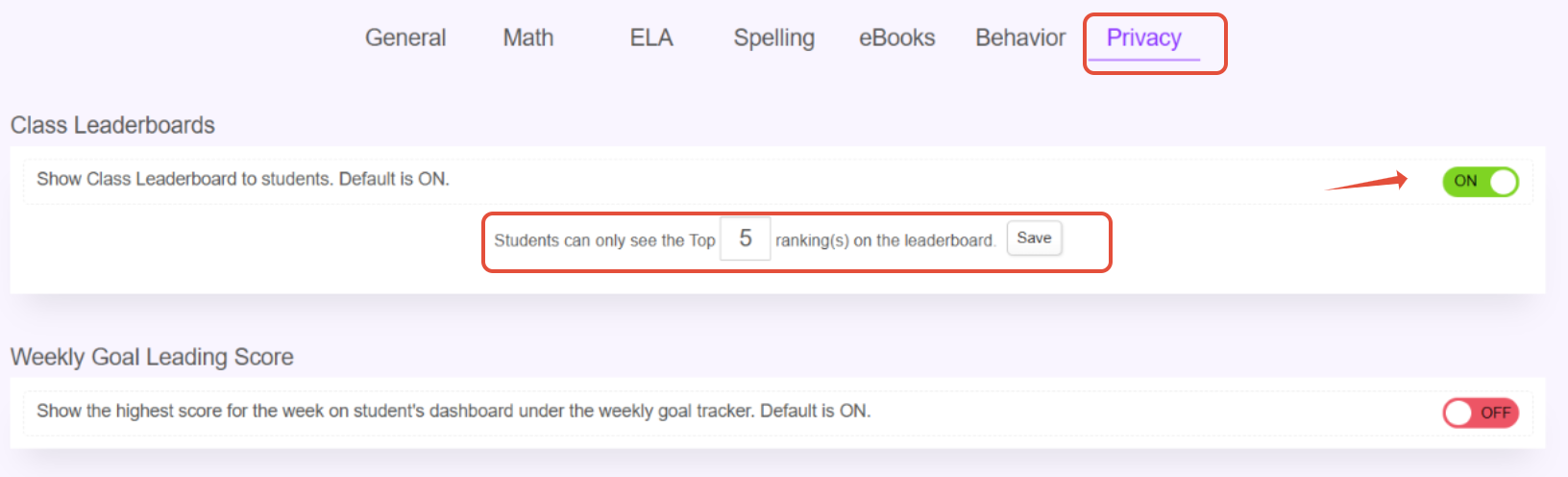
- By default, students can see if they have the highest amount on the goal board. Teachers can change this in privacy settings.
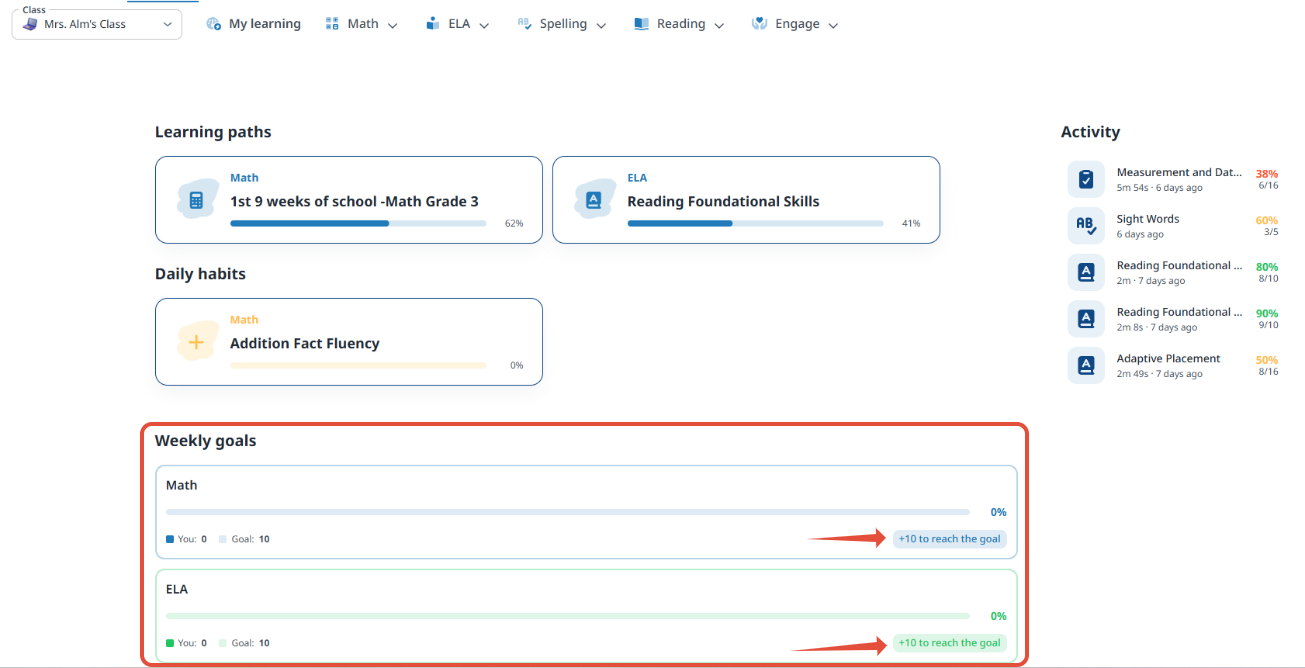
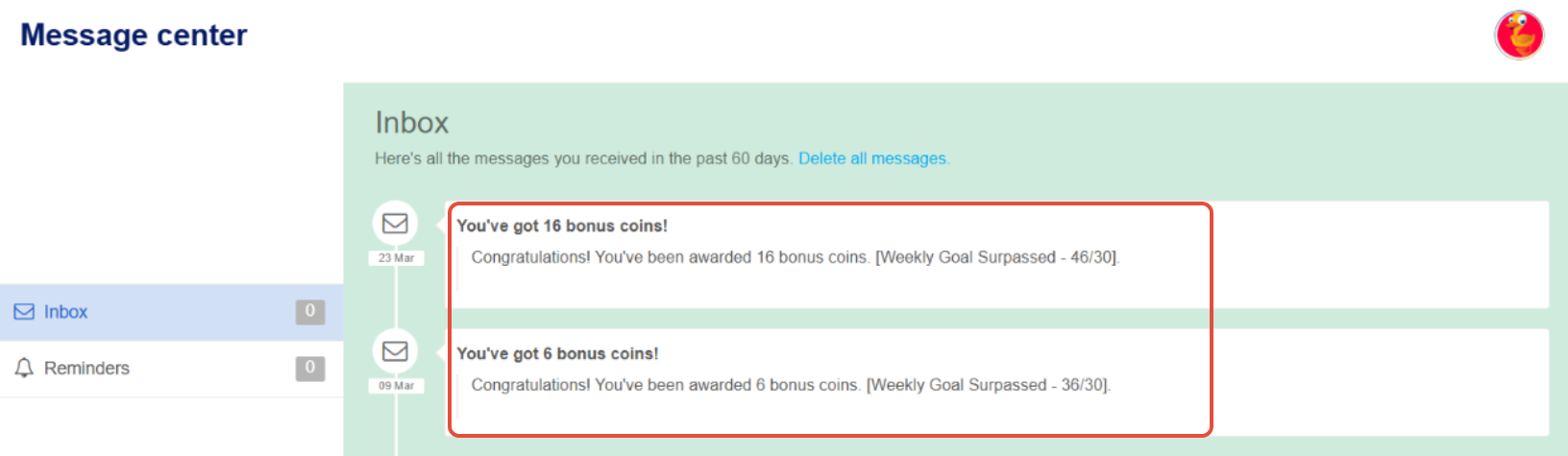
- Encourage students to exceed their goals! This moves them closer to mastering all concepts in their path and earns them bonus coins.
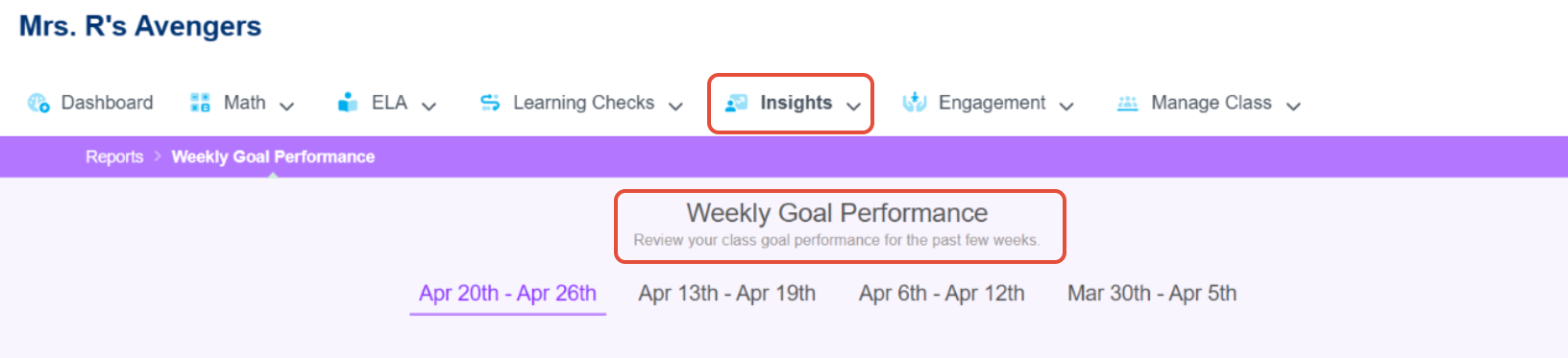
- In addition, the weekly goal performance report allows teachers to see the past 4 weeks.
Best Practices to Achieve the Weekly Goal
- Have students launch Pathways Learning Math or ELA tasks 3-4 times a week for at least 30 minutes per day.
- Encourage at home use.
- The weekly goal only considers questions answered correctly in completed tasks. If the task is in progress, the problems answered correctly won't be considered until the student completes the task.
- If creating Targeted Practice assignments, avoid making them longer than 50 questions to ensure student completion and that correct responses contribute to the weekly goal.
Using the Leaderboards
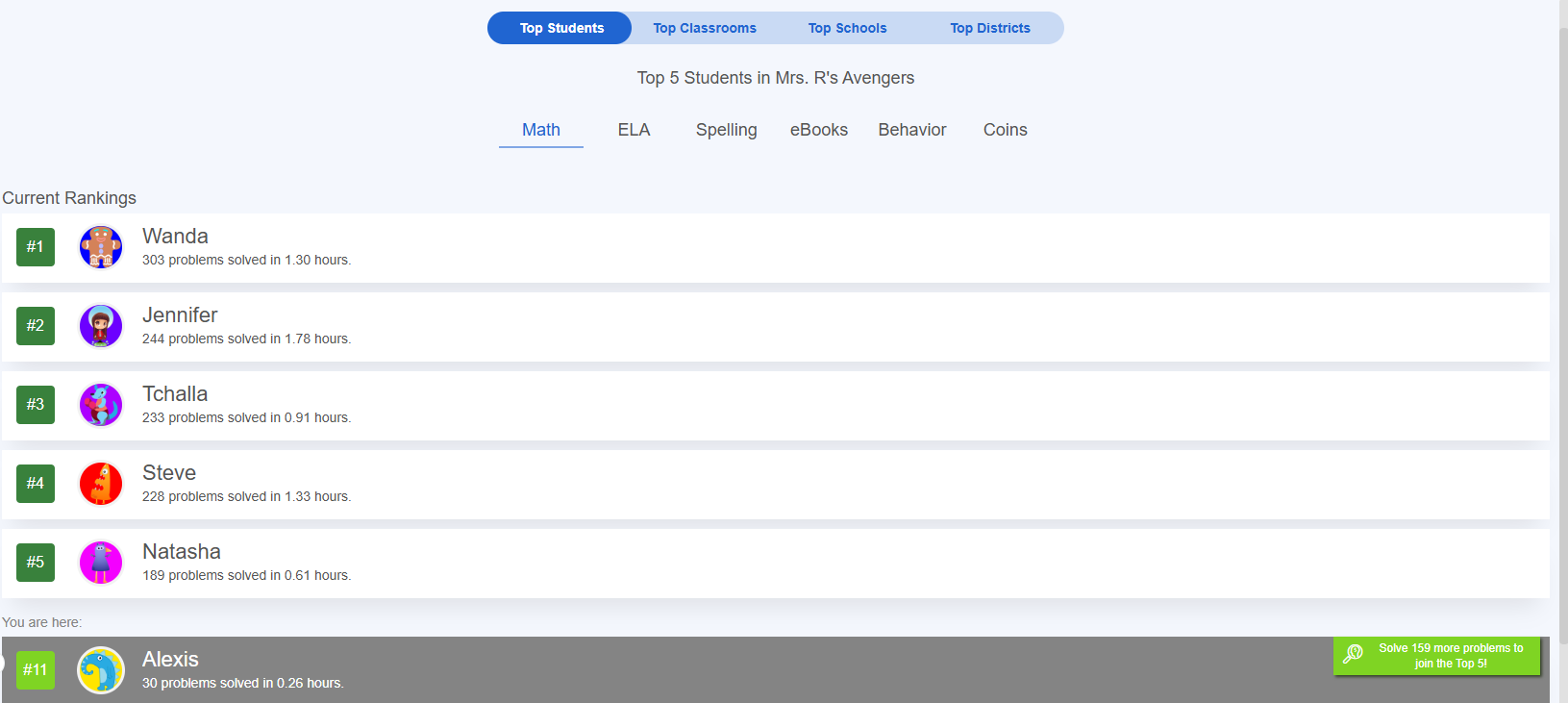
While goals for students automatically reset each week, teachers can manage the Leaderboards manually.
- In the privacy tab within class settings, teachers can choose to disable (not display) all leaderboards. The default option is for the leaderboards to be displayed. Teachers can also change the number of students that will show up on the leaderboards. By default this is set to the top 10 students.
- Teachers can use any of the six classroom leaderboards to showcase different student strengths and reset as necessary for contests. In addition, there are leaderboards across classrooms in the school, schools in the district and Pathways Learning community.
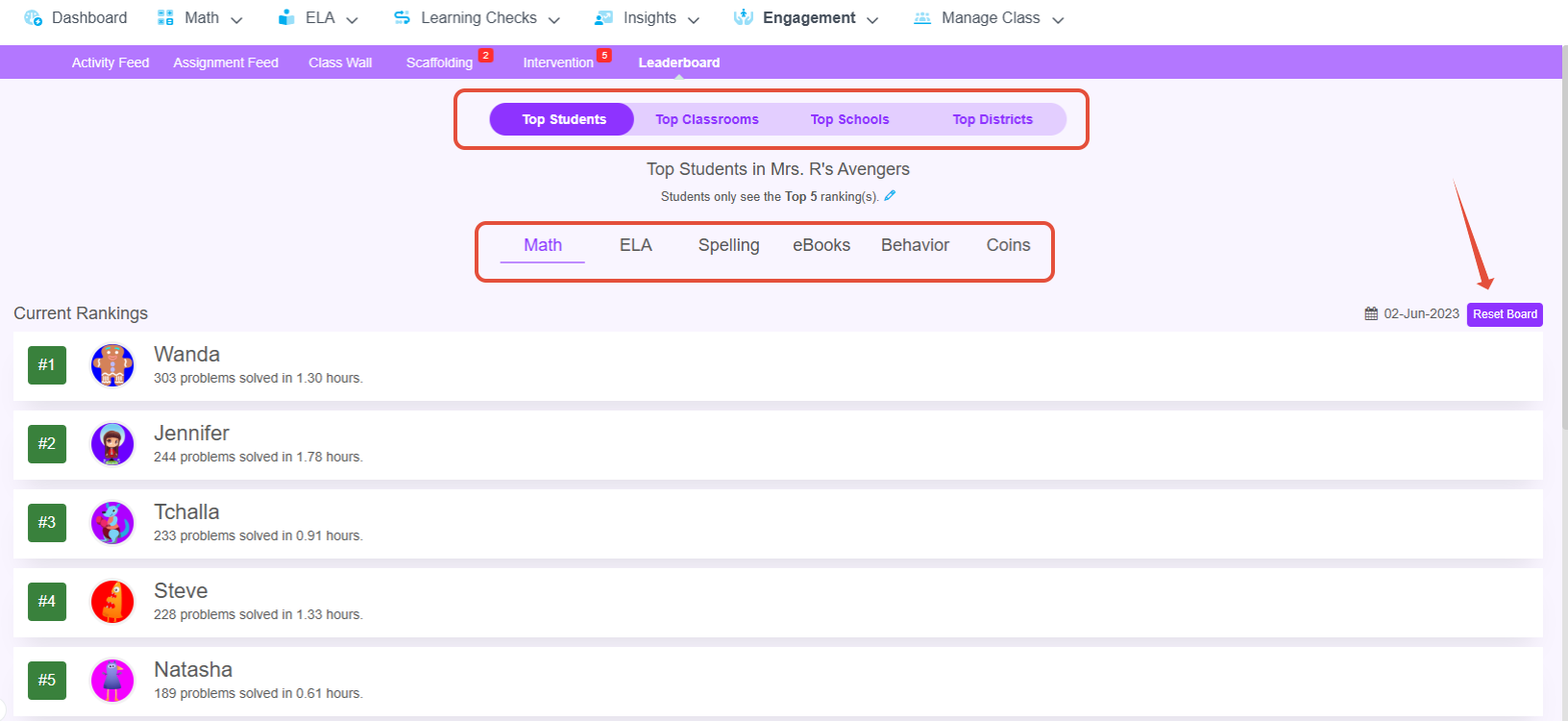
- Students can view the Leaderboards based on the classroom's settings.
Celebrating Student Accomplishments with Certificates
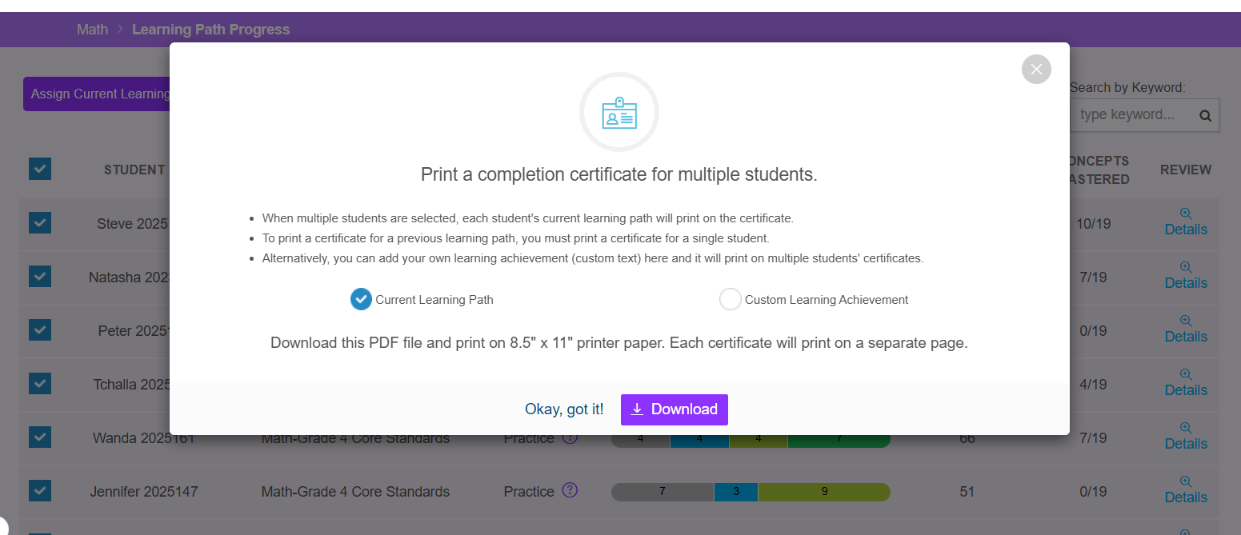
As students complete their paths, certificates are easy to customize and gives them something to hang on their wall! On the Learning Path Progress page, choose the certificate print option and then click "Download." The files will download to your device.
Related Resources
Was this article helpful?
That’s Great!
Thank you for your feedback
Sorry! We couldn't be helpful
Thank you for your feedback
Feedback sent
We appreciate your effort and will try to fix the article