Overview
This article provides a comprehensive guide to navigating Learning Paths, helping teachers monitor and understand student progress as they engage with their assigned paths. Please use the table of contents below to navigate to specific sections for more detailed information.
Table of Contents
Mastery Status and Mastery Score
As students practice, each concept in the path can reflect one of six mastery statuses. This can be visualized on the Learning Path Progress page and several reports.
- Grey: Concepts not attempted or not passed during placement mode.
- Blue: Concepts currently being worked on
- Orange: Concepts receiving automatic additional support (scaffolding)
- Red: Concepts which need teacher support (intervention)
- Light green: Proficient concepts ready for a quick quiz called a Mastery Check
- Dark green: Mastered concepts
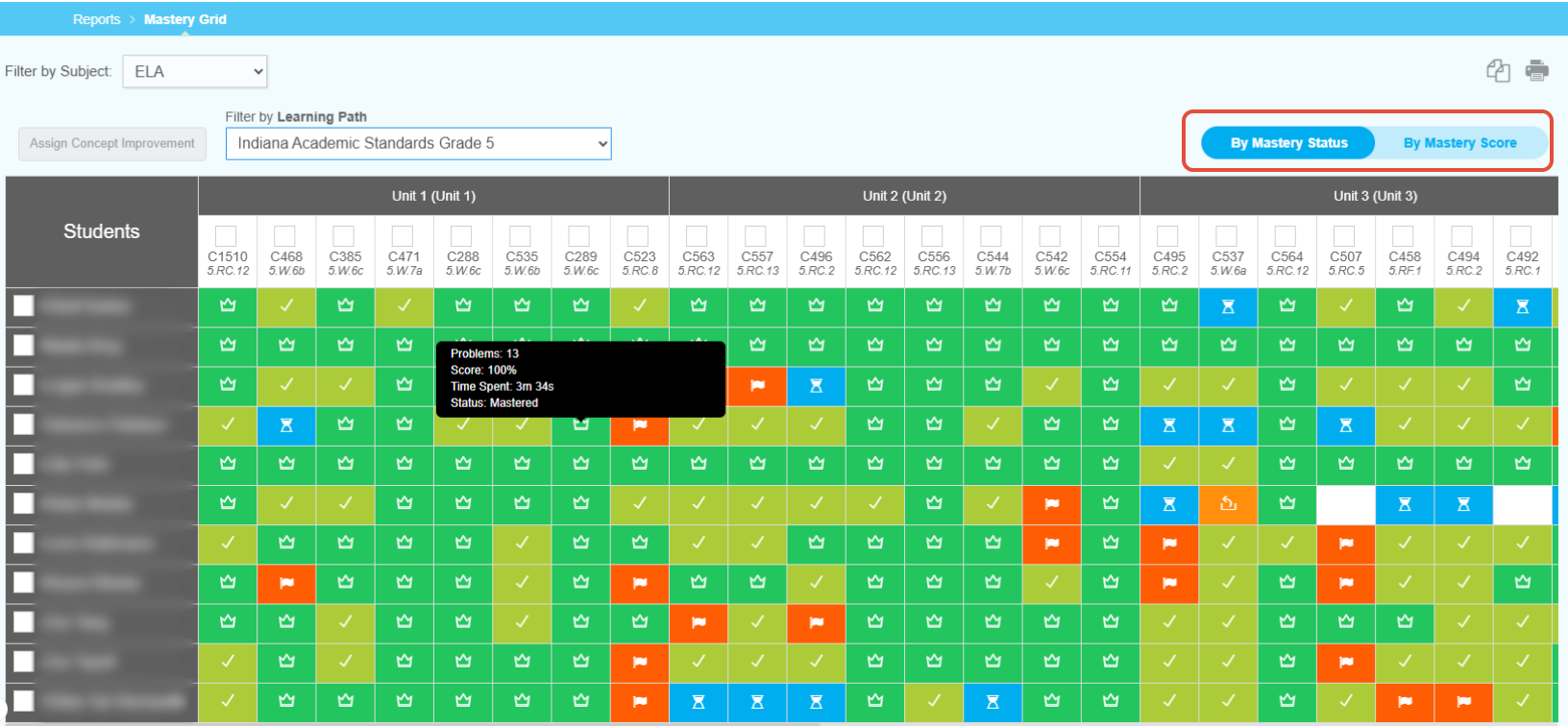
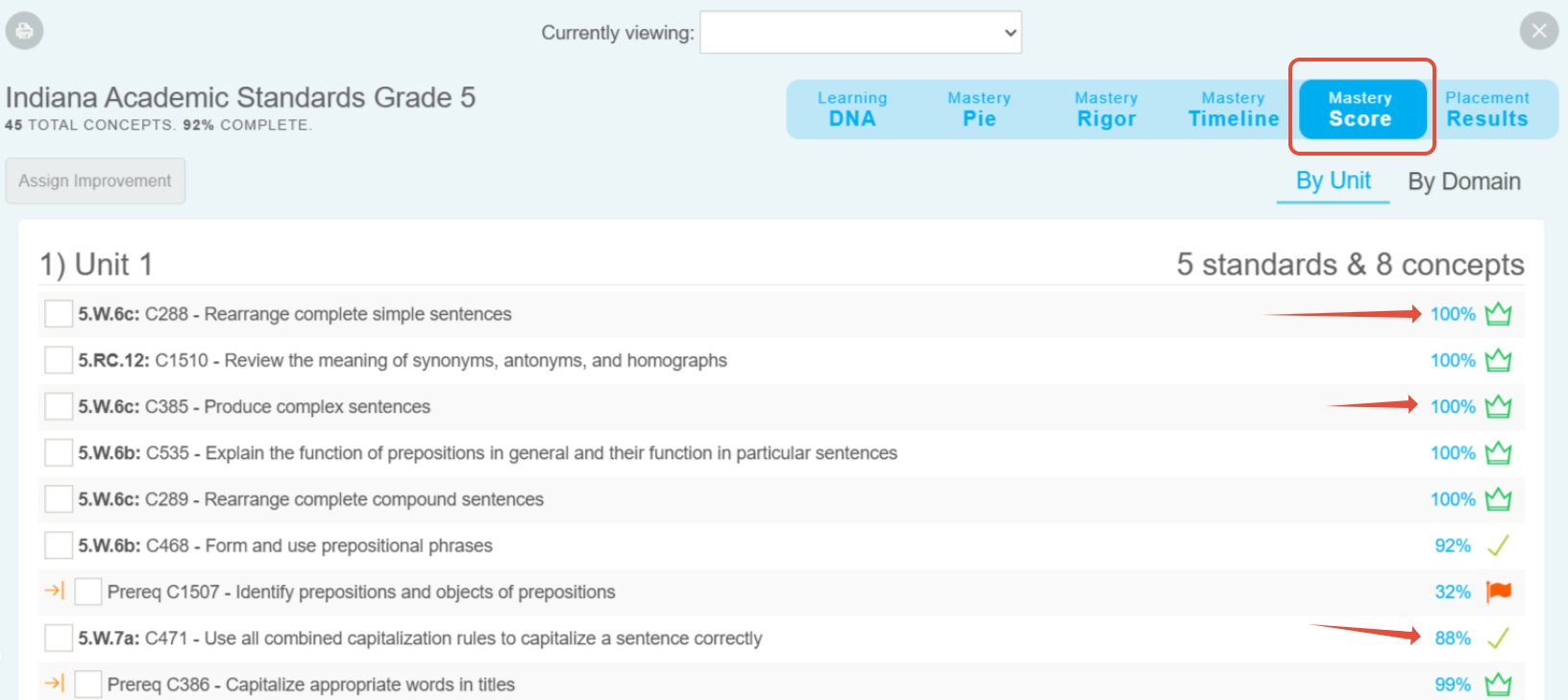
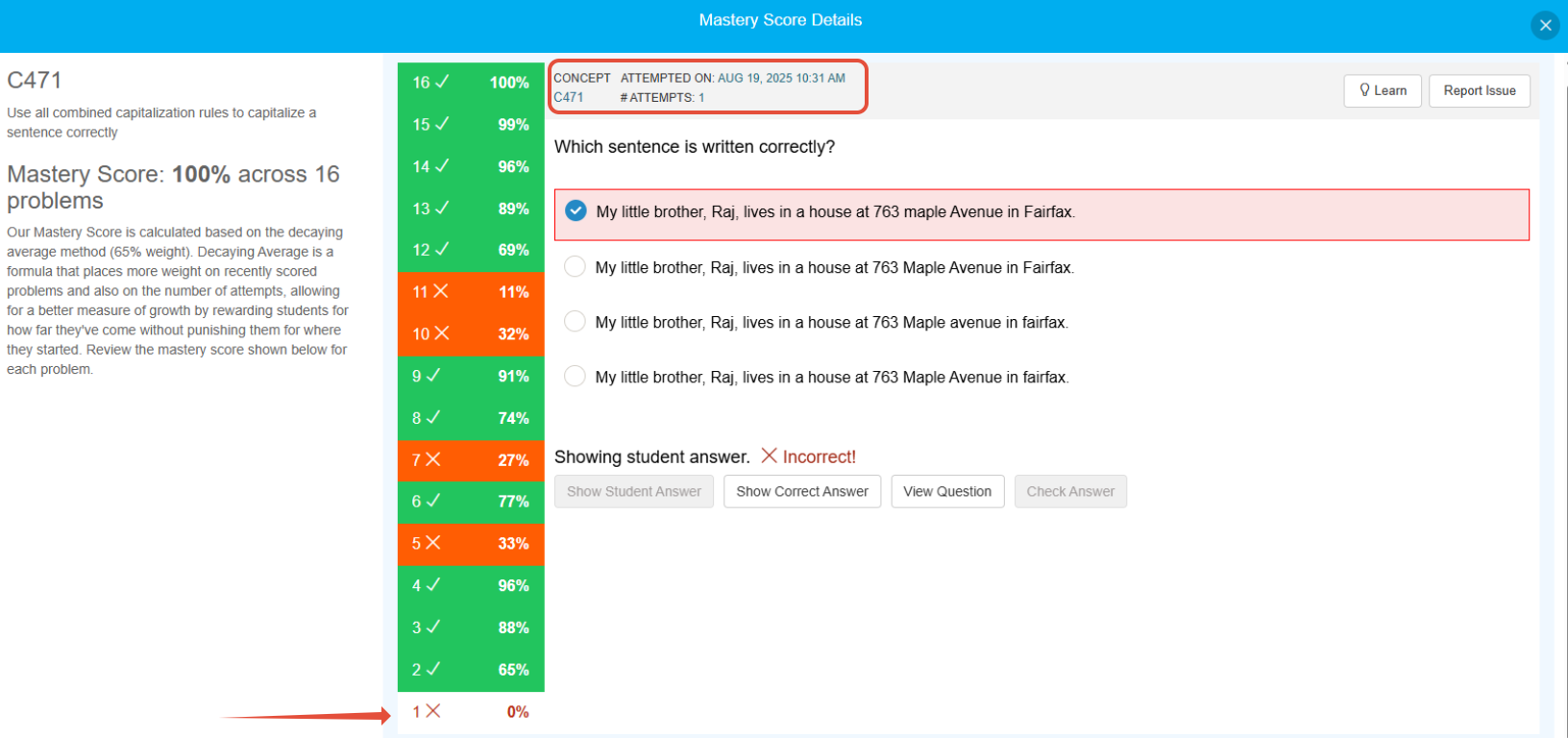
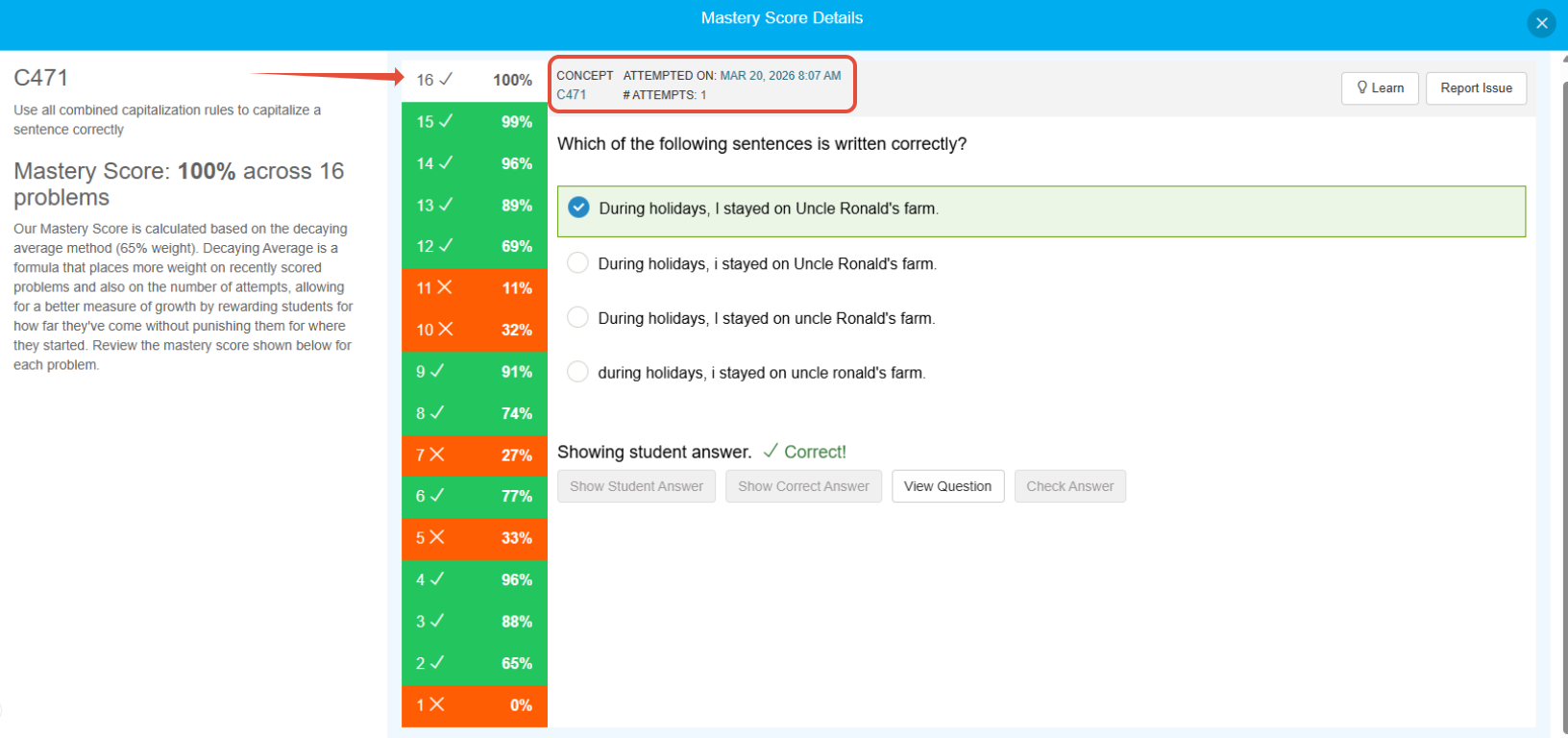
By the end of the path, each concept should be dark green reflecting that students have practiced that concept at least 5 times. The mastery score is calculated using a decaying average and every concept considered "Mastered" will reflect a score of 95% or better. In several places, you can hover over the score, honeycomb or cell, and see valuable information about how that concept was practiced by a student.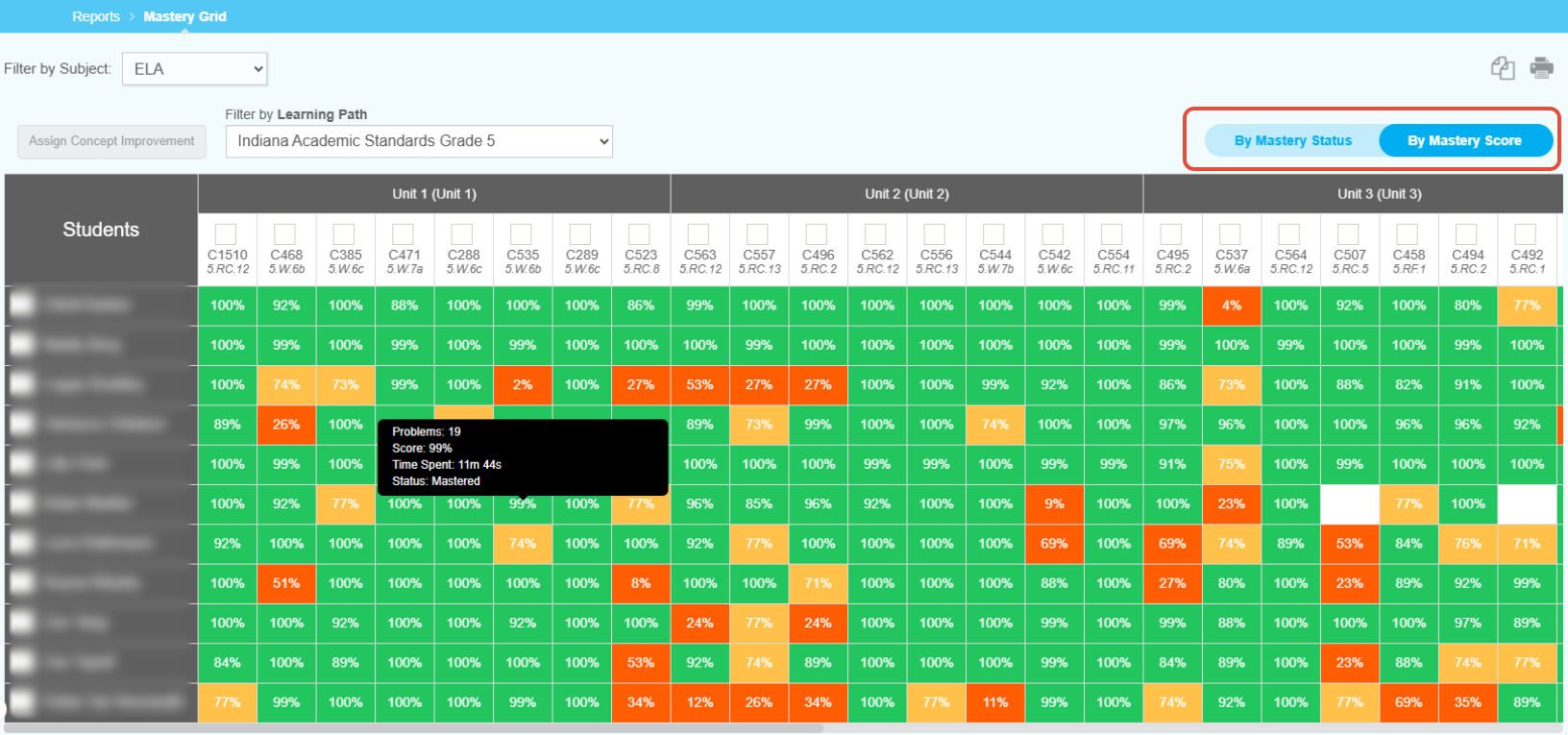
In this example, the student practiced Concept 471 sixteen times. The first question was on August 19th and the sixteenth question was on March 20th. What a journey!
Learning Path Progress Page
After launching the classroom, the Learning Path Progress page is found under Math or ELA. On the Learning Path progress page you will be able to view comprehensive data for each student in the class. 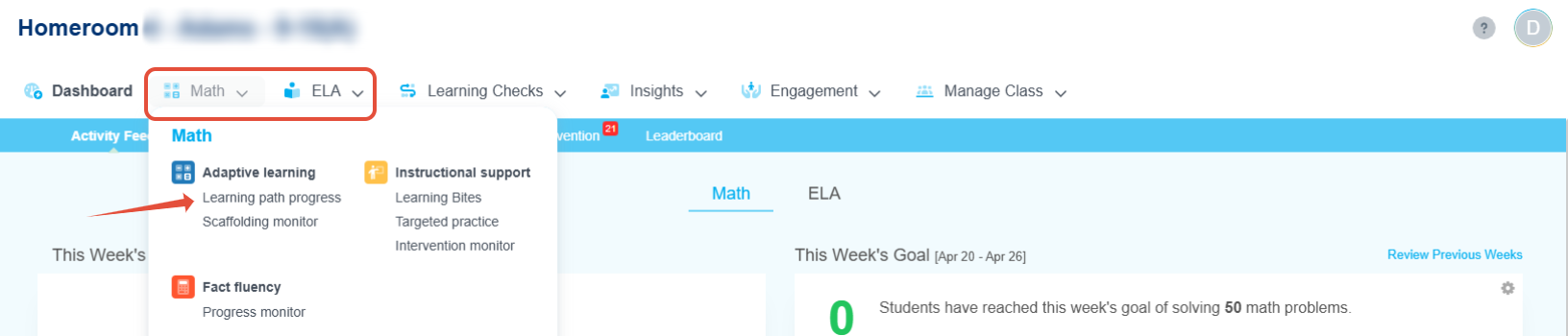
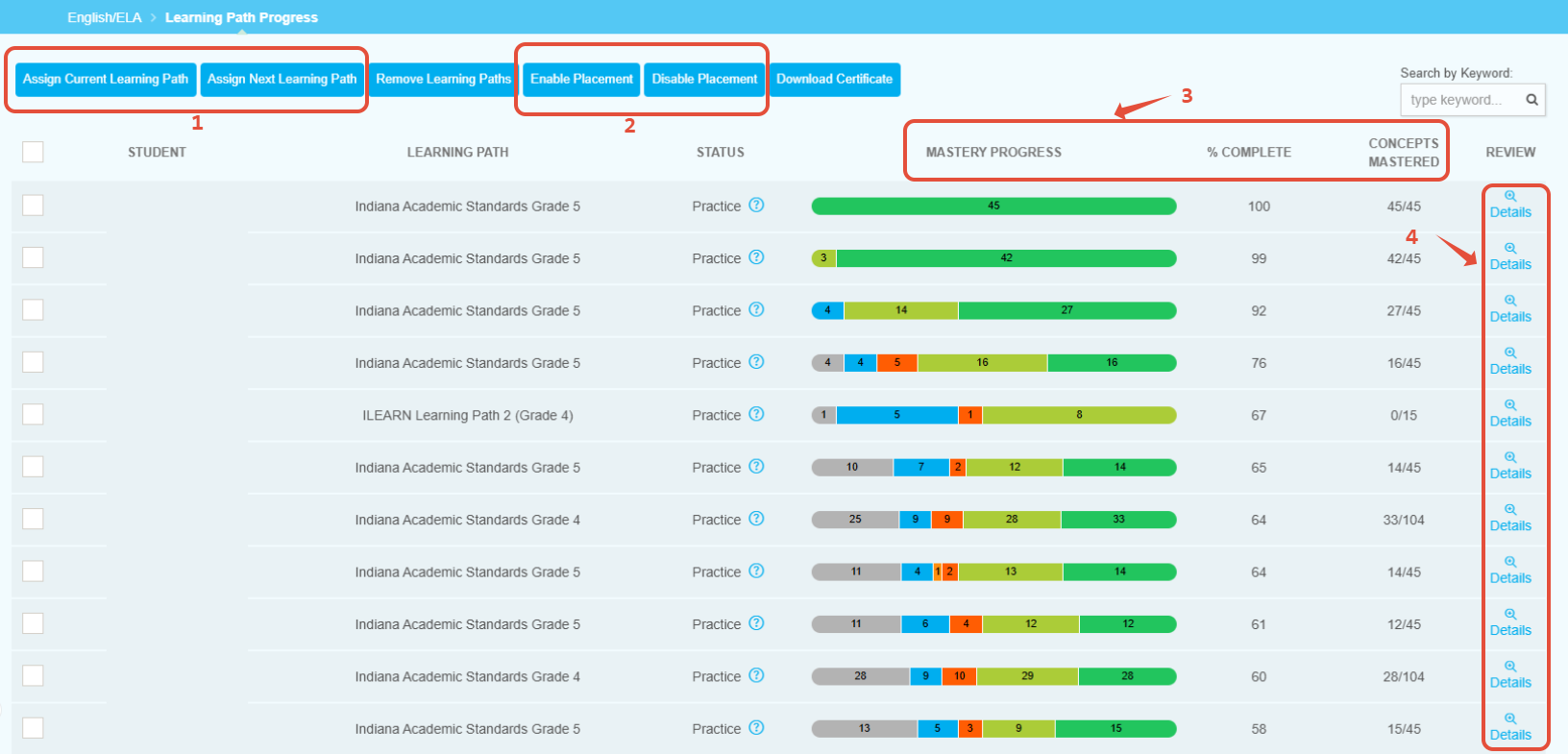
- Learning Path shows you what path a student is on. If it is blank, click Assign Current Learning Path to place the student in a path. Click Assign Next Learning Path to set up the next path seamlessly.
- The status of the path will be either placement or practice. You can enable or disable by clicking the appropriate button. click the button. Read more about placement mode here.
- The % of the Learning Path completed is directly related to the Mastery Progress bar. This reflects concepts in various states of mastery. When students get to 90% they may experience a brief delay so have other tasks ready! The number of concepts mastered is directly related to the automatic Mastery Check practice sessions students receive periodically. Read more about this process here.
- Review allows you to dig deeper into the progress that students are making in their Learning Path.
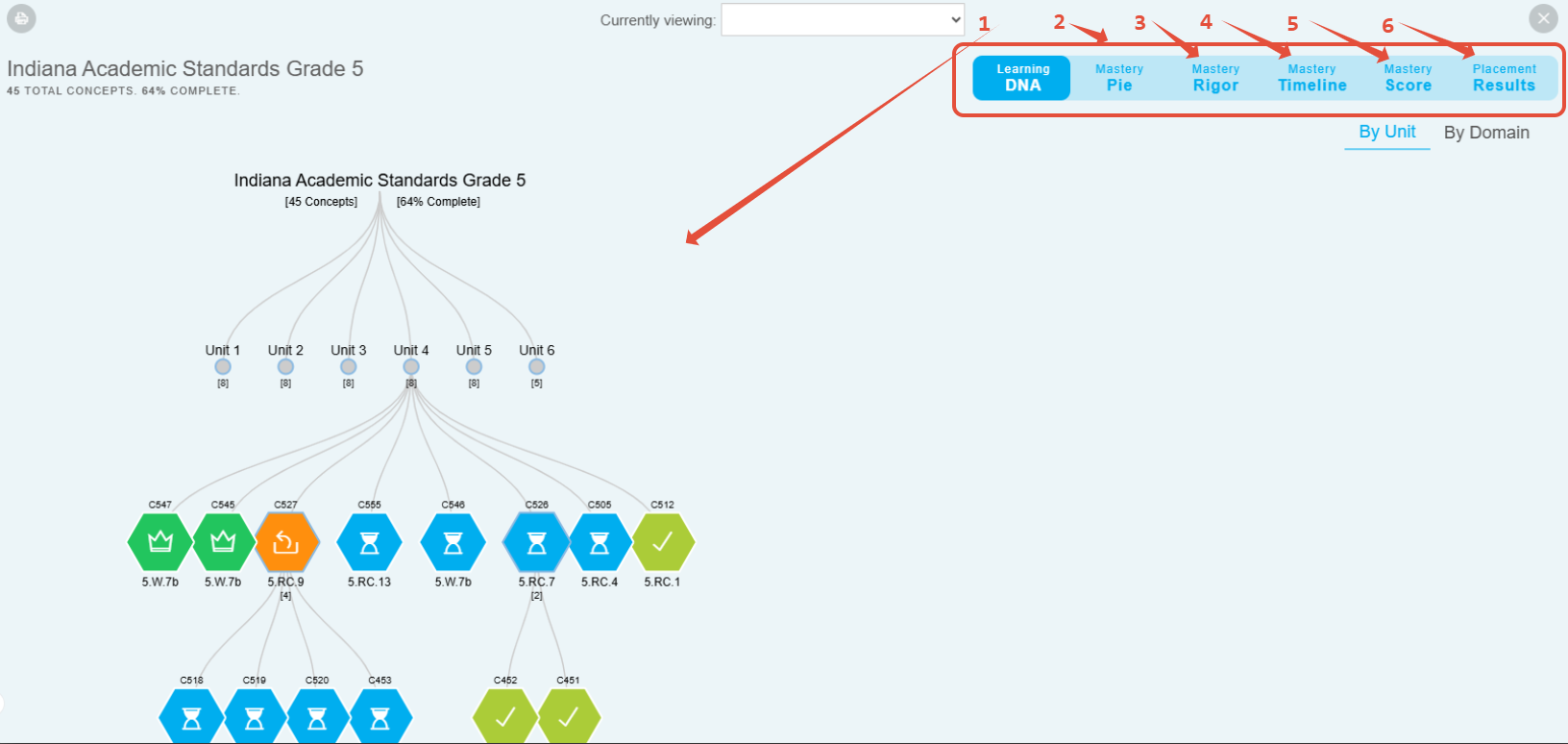
- The Learning DNA view allows a teacher to drill down into an individual student's Learning Path to observe the status of each concept.
- The Mastery Pie view of the Learning Path breaks down the % of each unit that's complete.
- The Mastery Rigor view of the Learning Path shows you how many questions it takes for the student to master the concept. The horizontal line represents the rigor (# of questions per concept a student will see during adaptive practice). The default rigor is 10 questions unless it is changed. Learn more about rigor and other settings here.
- The Mastery Timeline view of the Learning Path shows you how many concepts students have practiced (blue) relative to how many have been mastered (green). The horizontal line at the top represents how many concepts are in the path and the overall % complete.
- The Mastery Score view of the Learning Path displays the concepts in an outline form. Concepts pulled into the path for prerequisite practice can be seen indented. Concepts flagged red are flagged for teacher-driven intervention. You can provide students with a concept improvement assignment from this page. In the image, the student struggled with using decimal notation and Pathways Learning opened a supporting concept to assist. The student was successful and is back to working at grade level.
- The Placement Results view of the Learning Path is applicable when the student has been in placement mode. It will tell you how many concepts were proficient, not proficient, or in progress during this mode. Scroll down to see progress unit by unit. Proficient concepts don't need to be practiced!
Related Resources
Was this article helpful?
That’s Great!
Thank you for your feedback
Sorry! We couldn't be helpful
Thank you for your feedback
Feedback sent
We appreciate your effort and will try to fix the article