Overview
In this article we will provide a deeper understanding of how automatic scaffolding works. Please use the table of contents below to navigate to specific sections for more detailed information.
Table of Contents
- What is Scaffolding and Remediation?
- Unpacking the Scaffolding Monitor
- Reviewing Scaffolding from the Learning Path Progress Page
- Related Resources
What is Scaffolding and Remediation?
As students launch their Learning Paths, automatic remediation is the process Pathways Learning uses to provide support when they consistently struggle. This is visualized in two ways.
View #1 is called the Learning DNA and it is presented as a "tree." Expand the honeycombs to dig deeper.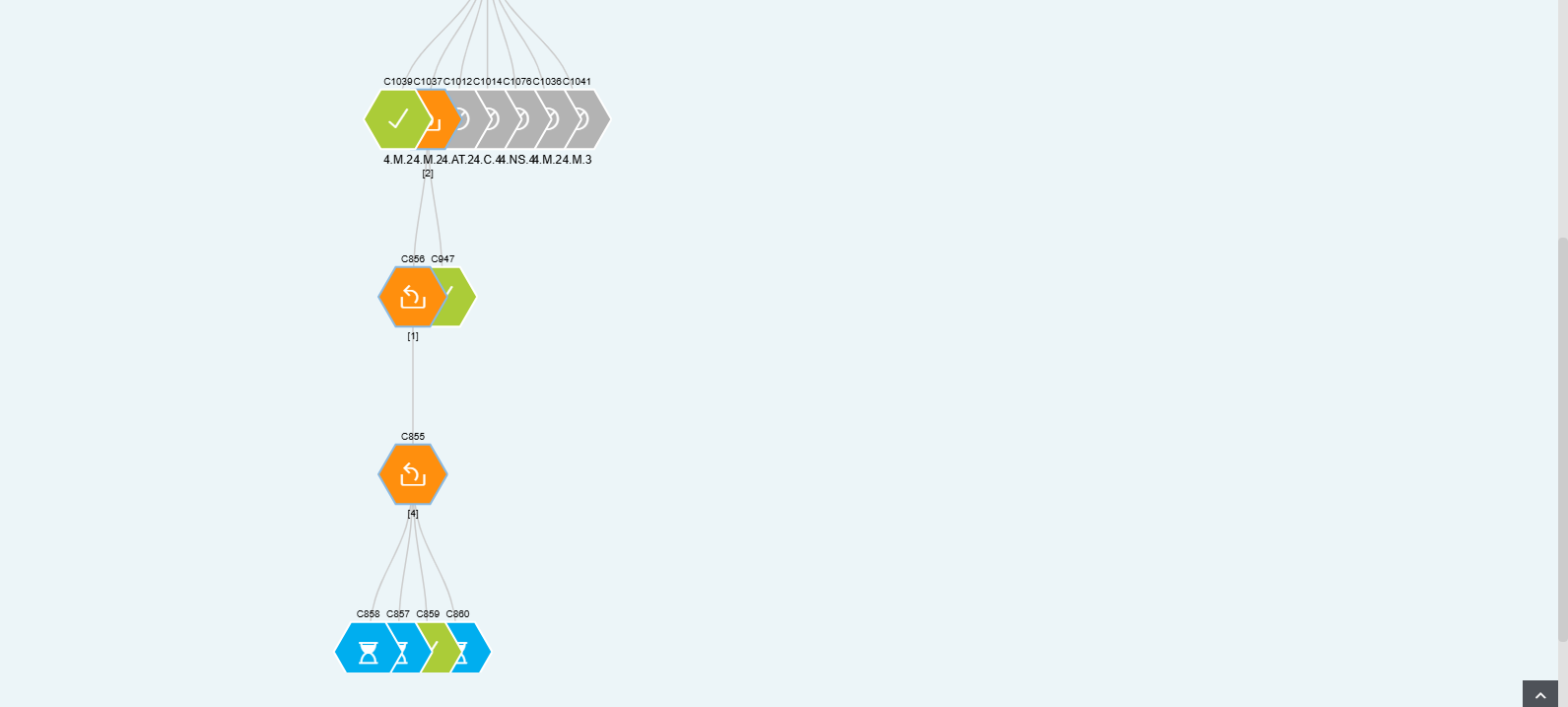
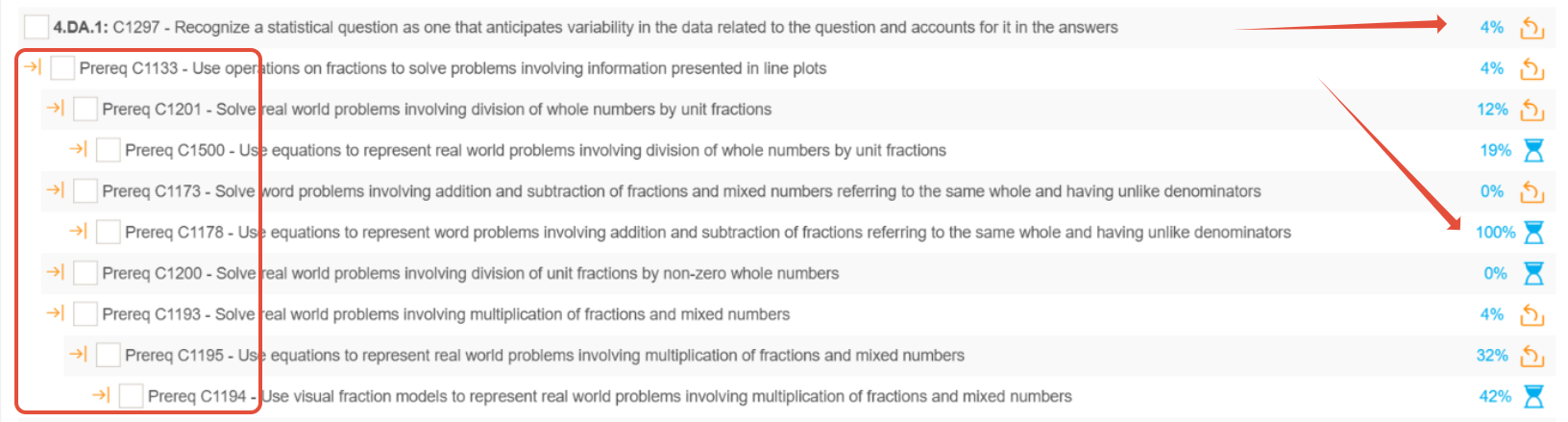
View #2 is called the Mastery Score view and presents the same concepts in an outline, allowing for more detail to be consumed and understood.
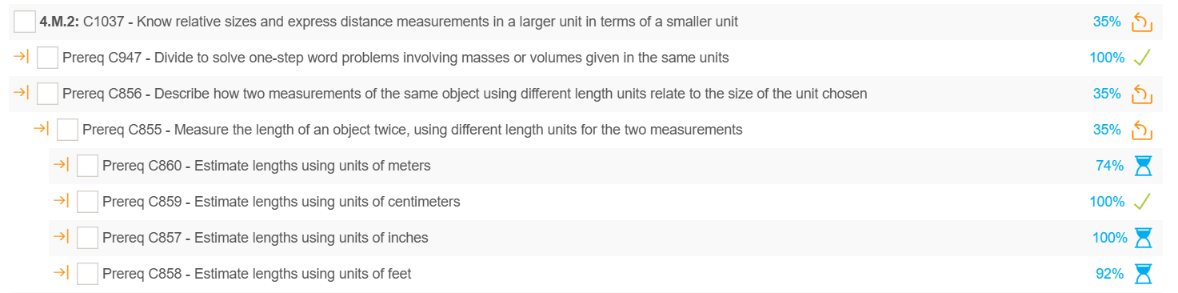
Both views illustrate the student's struggle with Concept 1037. Over time, Pathways Learning presented the student with several supporting concepts. These additional practice sessions included short video lessons, called Learning Bites, and practice questions. As the student demonstrates proficiency in these prerequisite concepts, they will return to the original grade-level concept to apply their learning and achieve proficiency.
Unpacking the Scaffolding Monitor
The Scaffolding Monitor centralizes all instances of scaffolding into one area. Scaffolding doesn't require the teacher to take action. The only action is for students to launch their paths to receive the support.
- Launch your classroom.
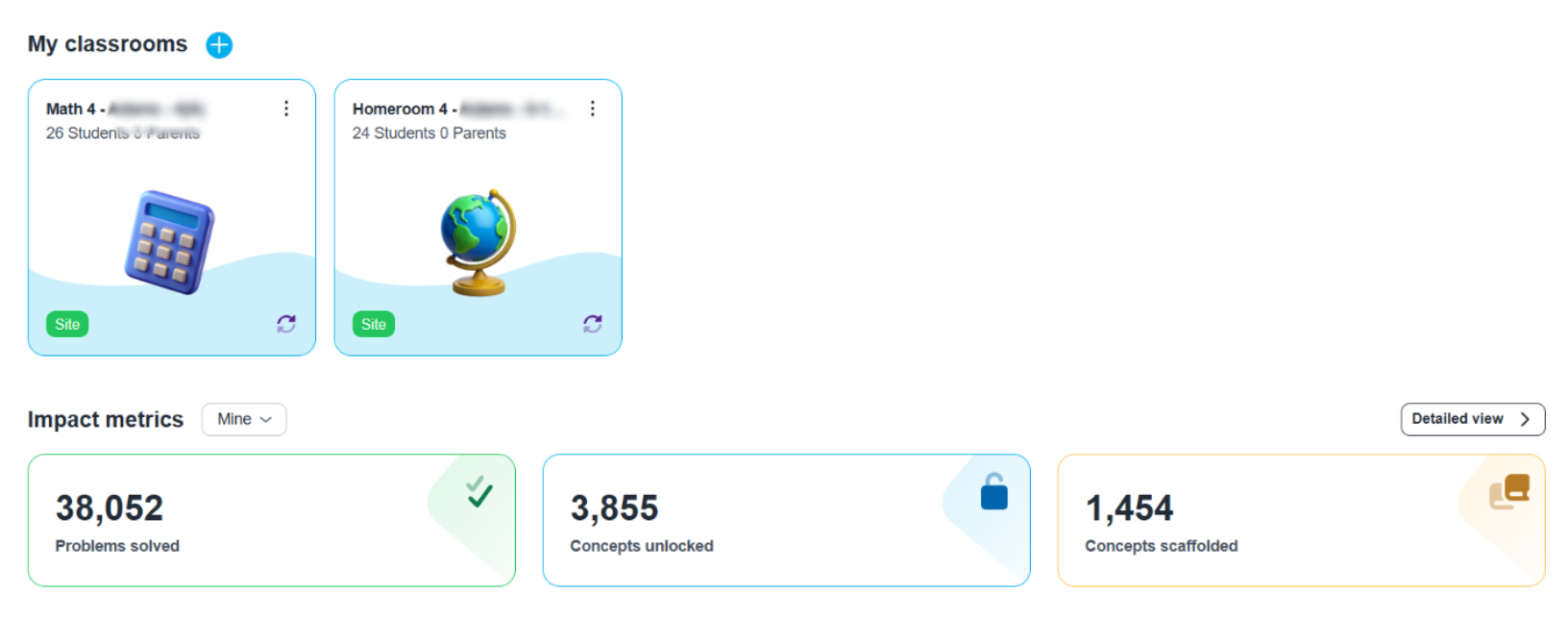
- On the Dashboard Menu Bar click Scaffolding.

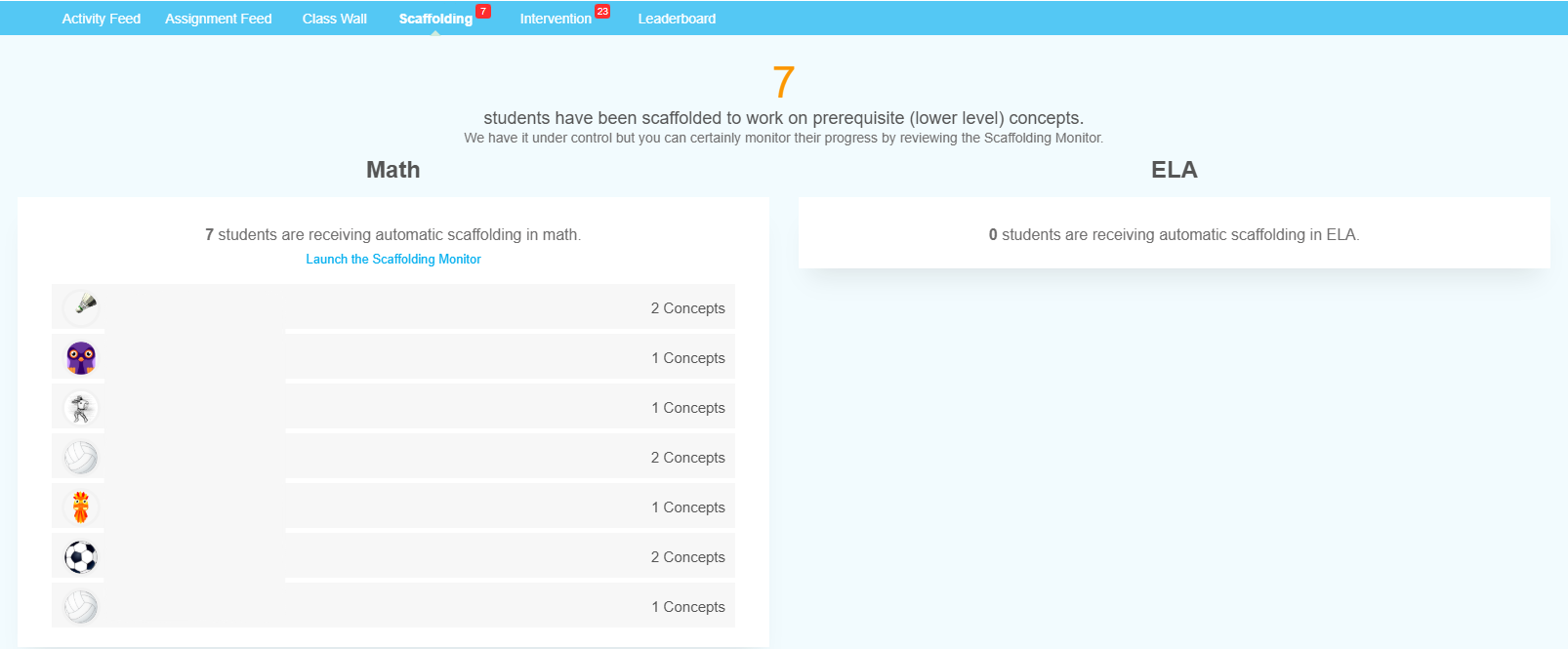
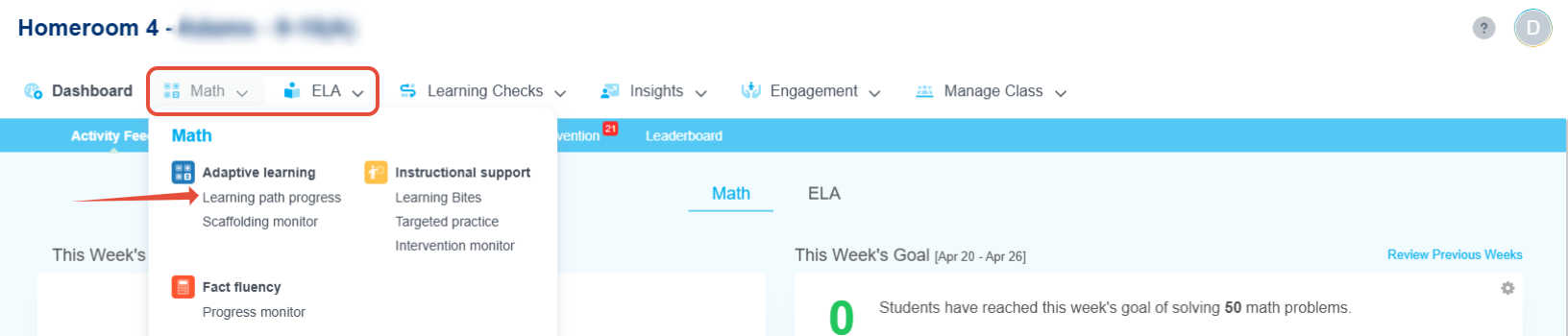
- The Scaffolding Page will show you how many unique students have been scaffolded to work on prerequisite (lower level) concepts. From here launch the Scaffolding Monitor for Math or ELA. You can also launch the Scaffolding Monitor for Math or ELA from the top navigation bar by hovering over Math or ELA and clicking Scaffolding Monitor.
- On the Scaffolding Monitor Page there is a legend on the right-hand side explaining the Tiers. This provides insights about the automatic support happening behind the scenes.
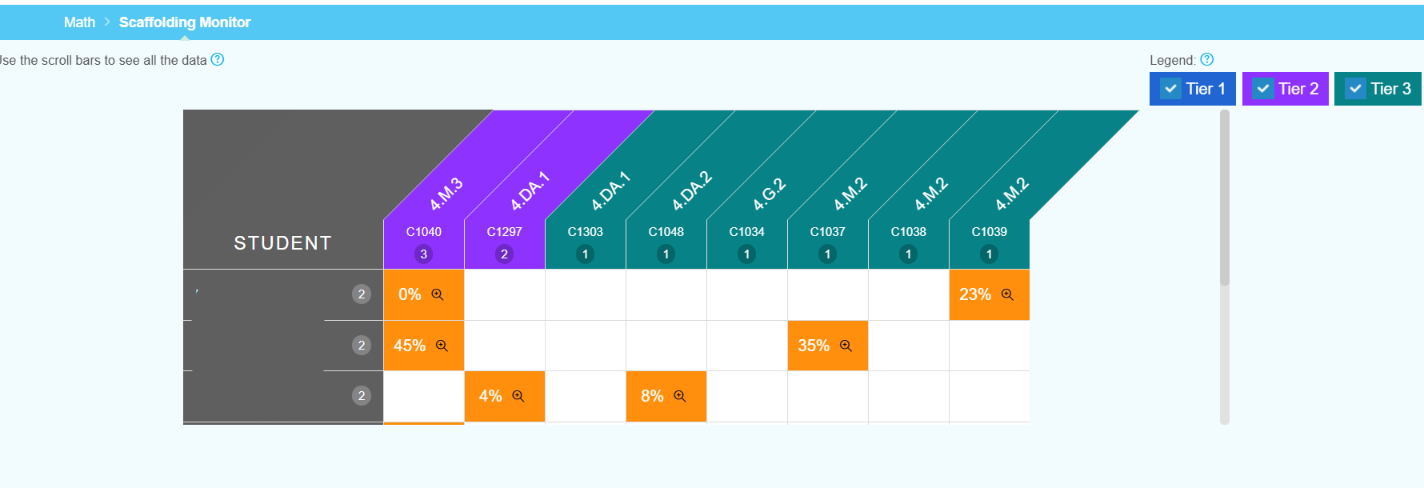
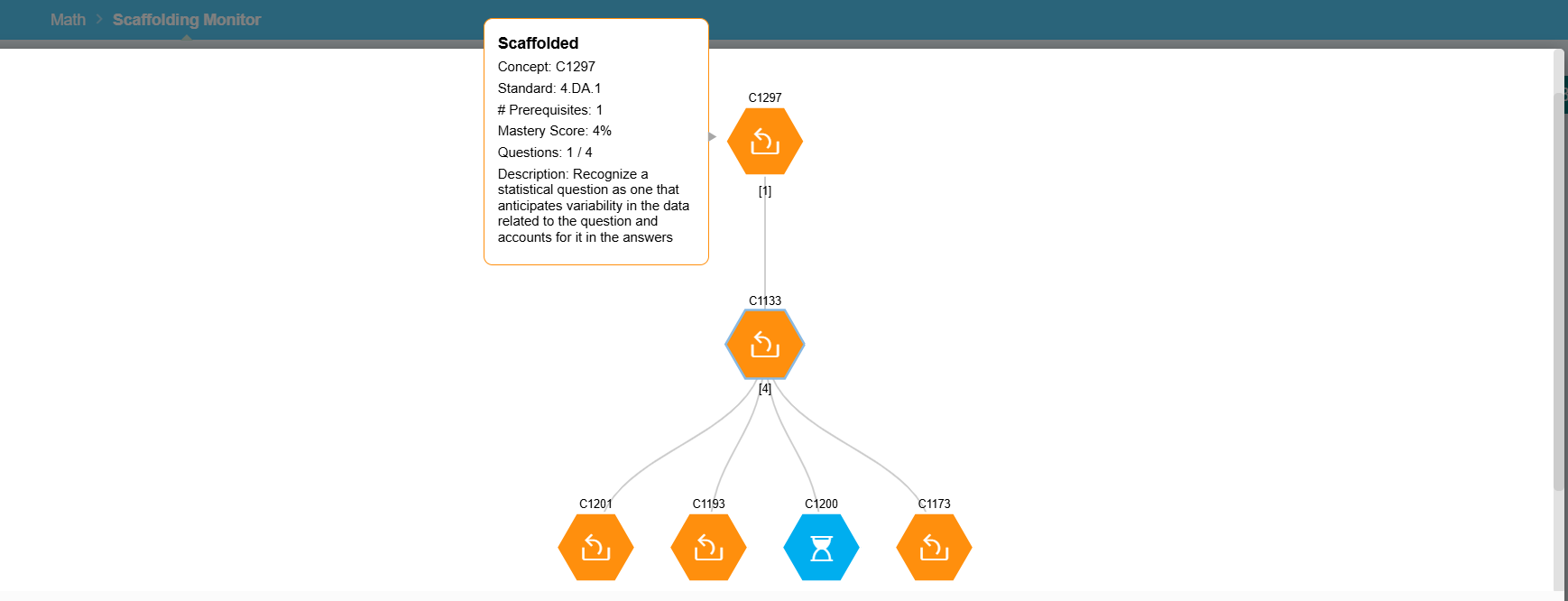
- Clicking the magnifying glass in the cell for a specific student will allow you to view the scaffolding tree, which displays all the scaffolded concepts currently available for the student. The concept at the top represents the original concept in the Learning Path where the student struggled; this is usually a grade-level concept. Prerequisite concepts are shown leading away from this concept. Hover over each concept to view details, including when the student last practiced it, the number of questions, and the current mastery score. We will display concepts as far down the hierarchy as they are first introduced, if necessary. Hover over each concept to see its status.
Reviewing Scaffolding from the Learning Path Progress Page
- Launch your classroom.
- Hover over Math or ELA from the top navigation menu and click Learning Path Progress.
- Students who have scaffolding ready to launch in their paths will appear here with at least 1 "orange" concept. Locate the student. Select "details" to view the student's Learning Path.
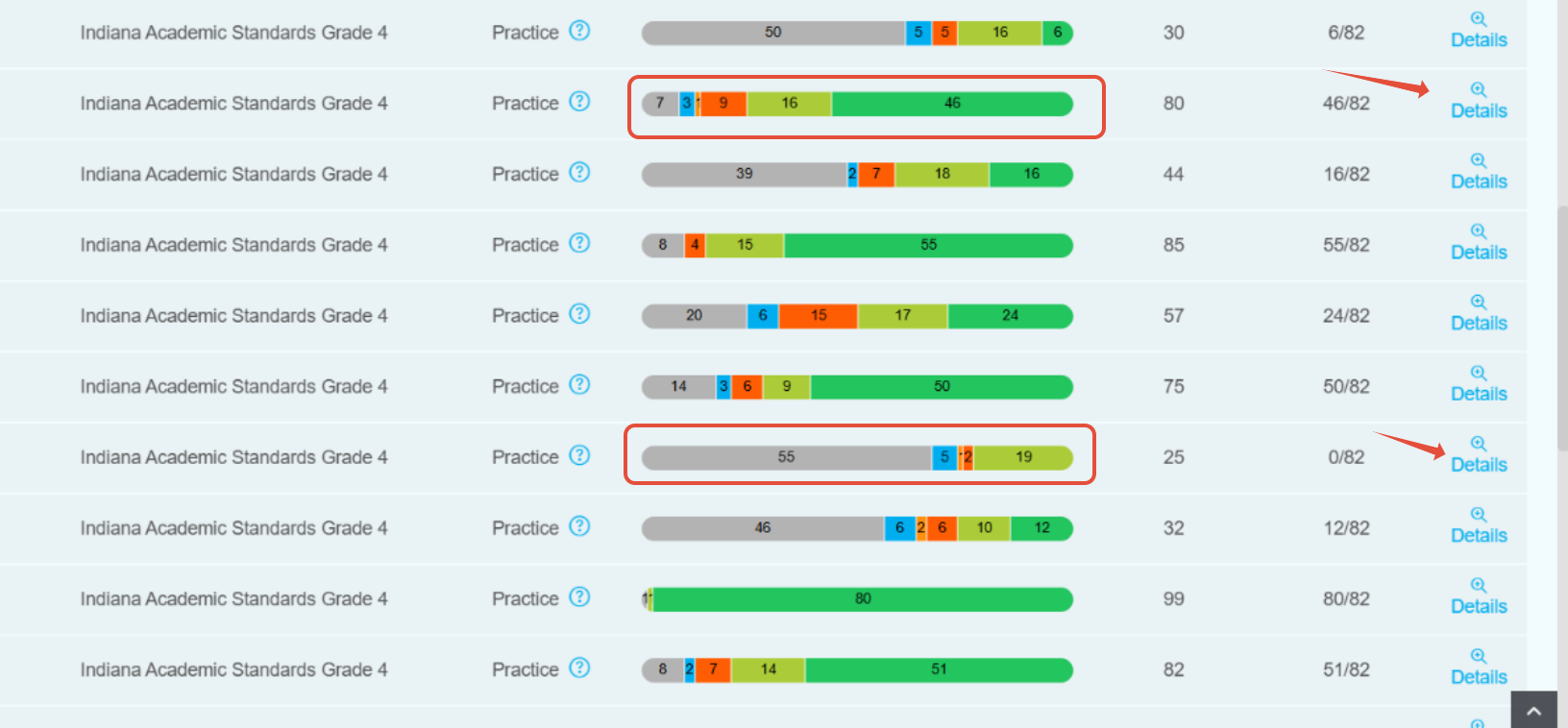
- Review the scaffolded (orange) and prerequisite concepts.

- Click on Mastery Score tab to view the Mastery Score in each concept. In this view, you can also see the concept hierarchy.
Related Resources
- Learning Adaptive Series Part 3: Automatic Scaffolding
- Pathways Learning: Navigating Learning Paths
- Learning Adaptive Series Part 4: Teacher-Driven Intervention
Was this article helpful?
That’s Great!
Thank you for your feedback
Sorry! We couldn't be helpful
Thank you for your feedback
Feedback sent
We appreciate your effort and will try to fix the article