Overview
This article walks through how to drive intervention as students practice in their Learning Paths, work on Targeted Practice, and engage in Learning Checks. Please use the table of contents below to navigate to specific sections for more detailed information.
Table of Contents
- Intervention Assignments (Grade-level Concepts)
- Intervention Assignments (Below-level Concepts)
- Intervention Assignments from the Mastery Grid
- Intervention Assignments from Targeted Practice
- Individualized Intervention Assignments from Learning Checks
- Related Resources
Intervention Assignments (Grade-level Concepts)
As students work through their Learning Paths, grade-level concepts will be flagged for intervention if students are unable to maintain proficiency in those concepts. Follow the steps below to identify and assign intervention assignments.
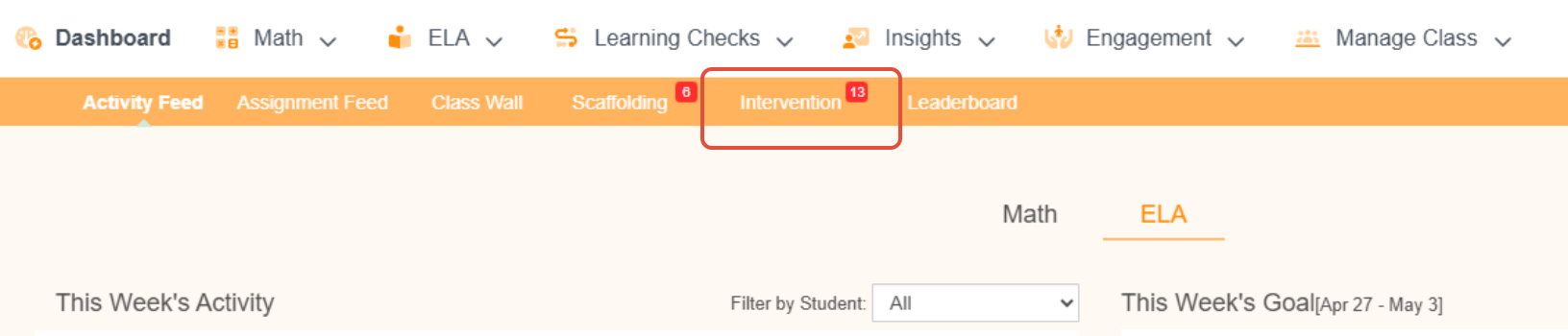
- Launch your classroom and click Intervention in the menu. If there isn't a red notification, then there aren't any students who require intervention in their Learning Paths.
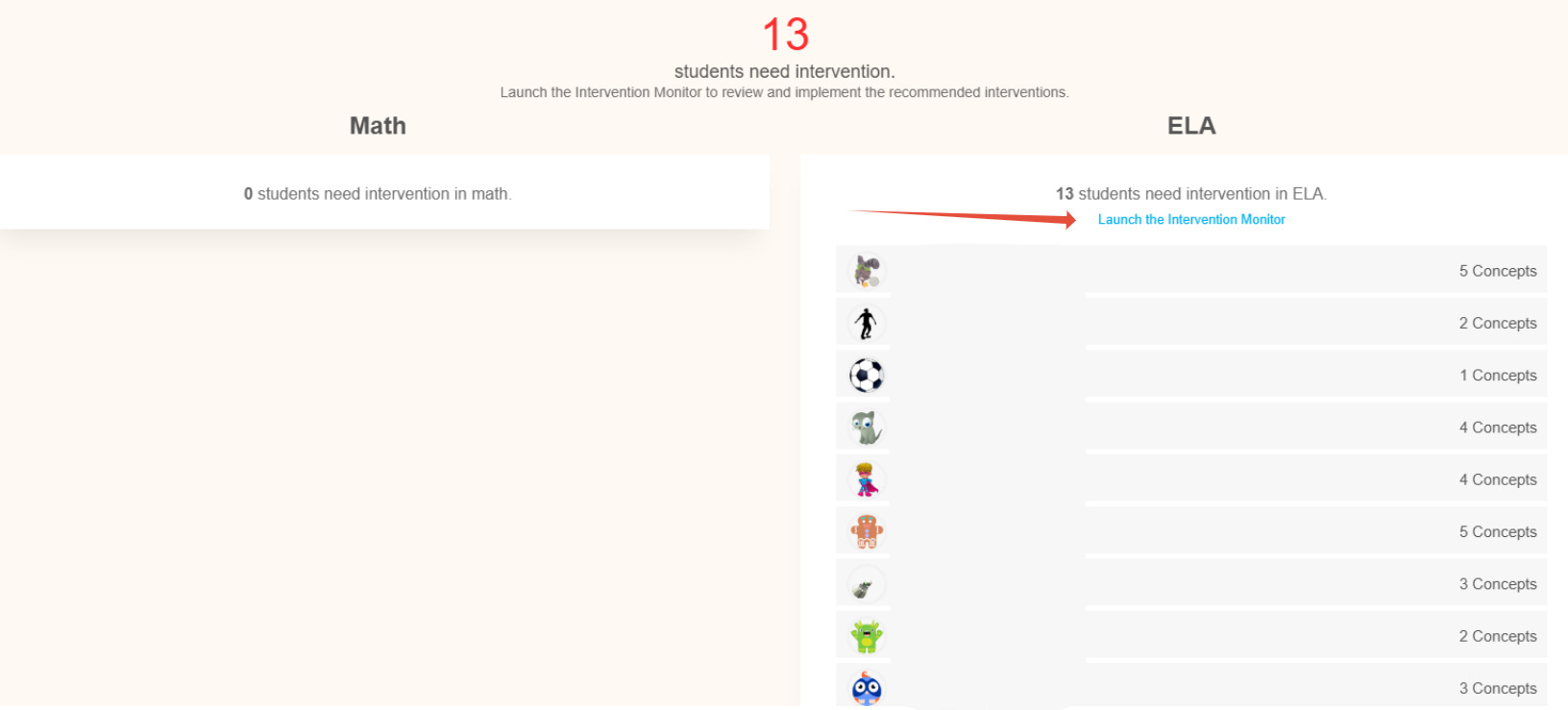
- The Intervention overview page will show you how many unique students need intervention for Math and ELA. From here launch the Intervention Monitor for Math or ELA.
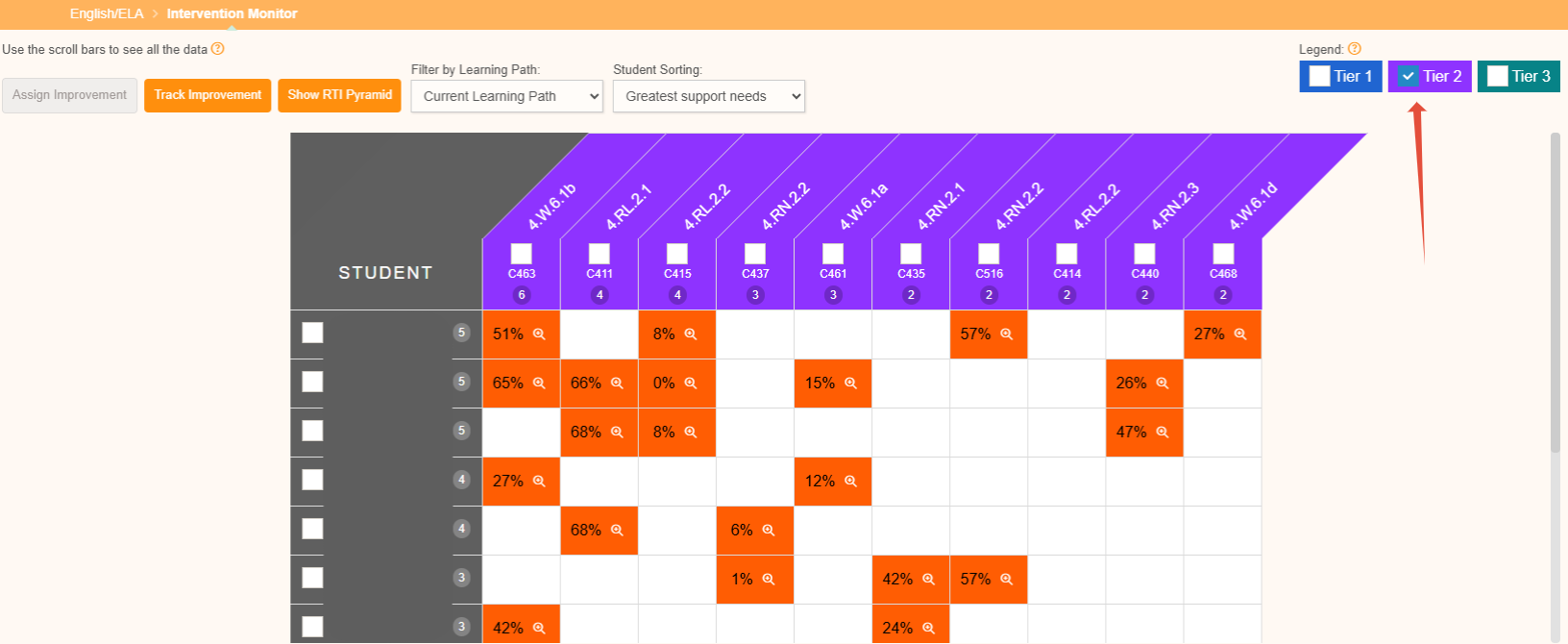
- On the Intervention Monitor there is a legend on the right hand side explaining the tiers. Hover over each tier to read about it. In addition, you can filter by Learning Path and sort the students on the monitor based on greatest support needs.

- The students which appear on the left side of the chart require re-teaching in the concepts which appear on the top of the chart. The concepts are grouped into tiers giving you insight into which concepts require whole class, small group or individual re-teaching. Unchecking a tier removes that tier from view allowing you to focus on a specific group.
- After providing the students with a mini lesson, you can assign a concept improvement by checking one or more students and a standard from the chart.
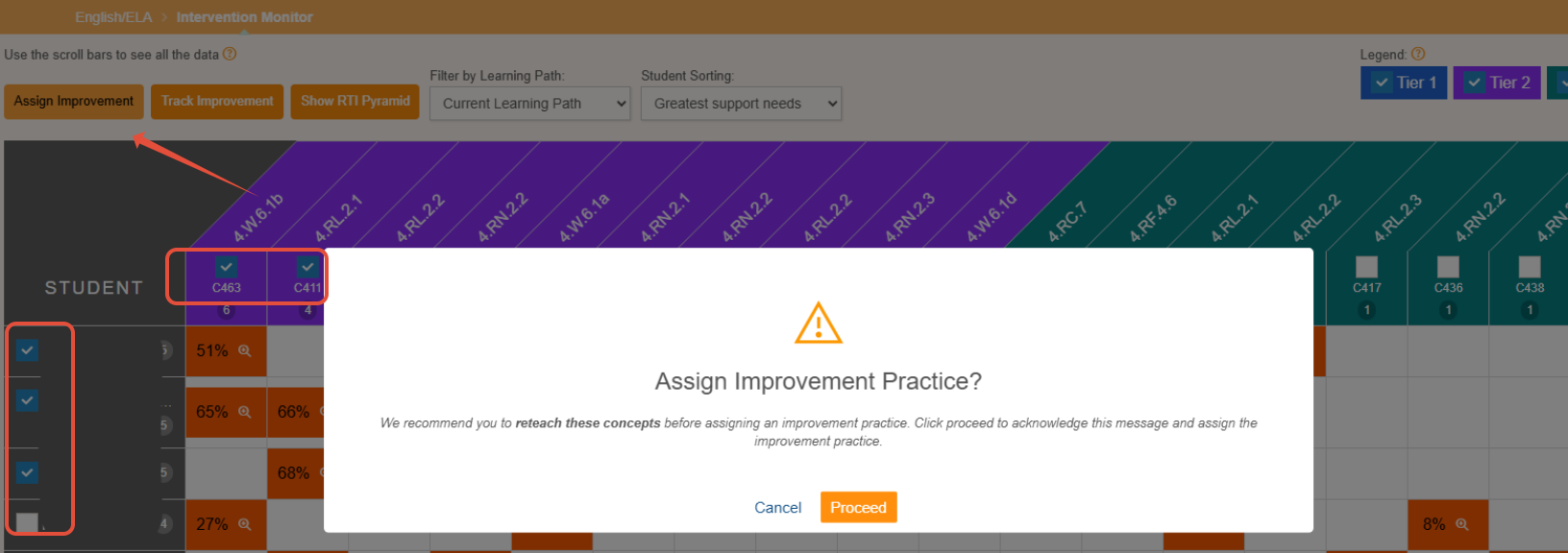
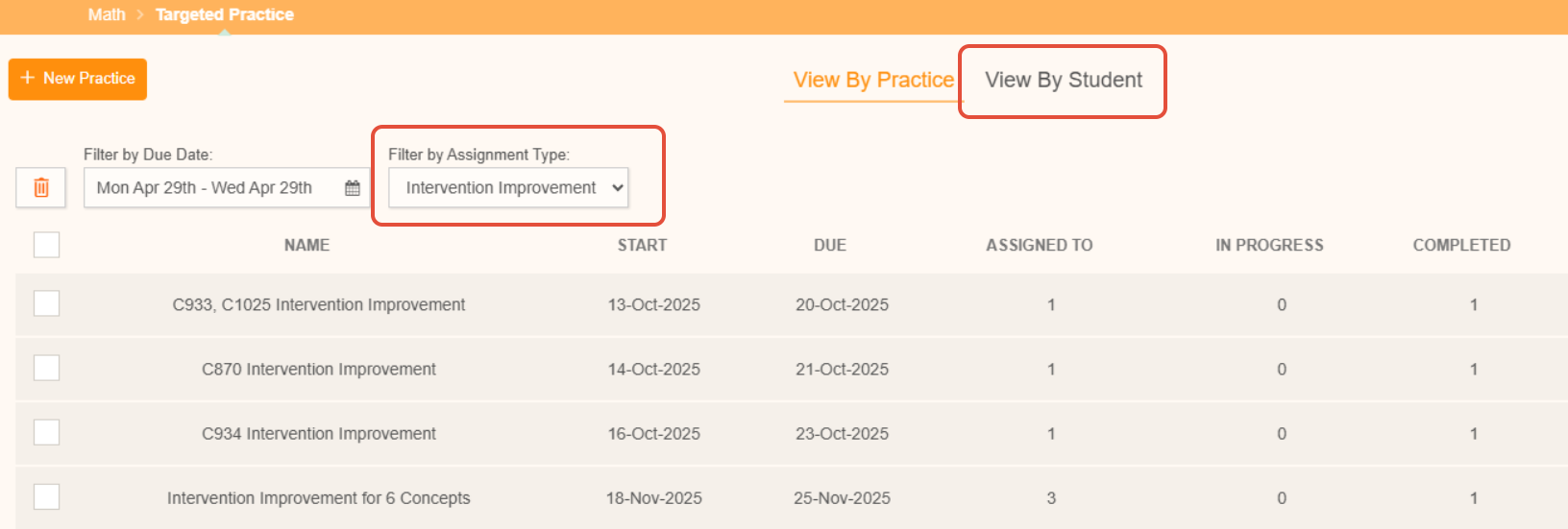
- This will assign a concept improvement assignment for the student that can be tracked from the Targeted Practice page.
Intervention Assignments (Below-level Concepts)
Prerequisite concepts are pulled into the Learning Path to provide support for students as they practice. Pathways Learning surfaces these concepts for teachers to monitor but not for teachers to take any action as long as students are still receiving the support. However, if there aren't additional prerequisite concepts, teachers will want to intervene when these concepts have been flagged for intervention.
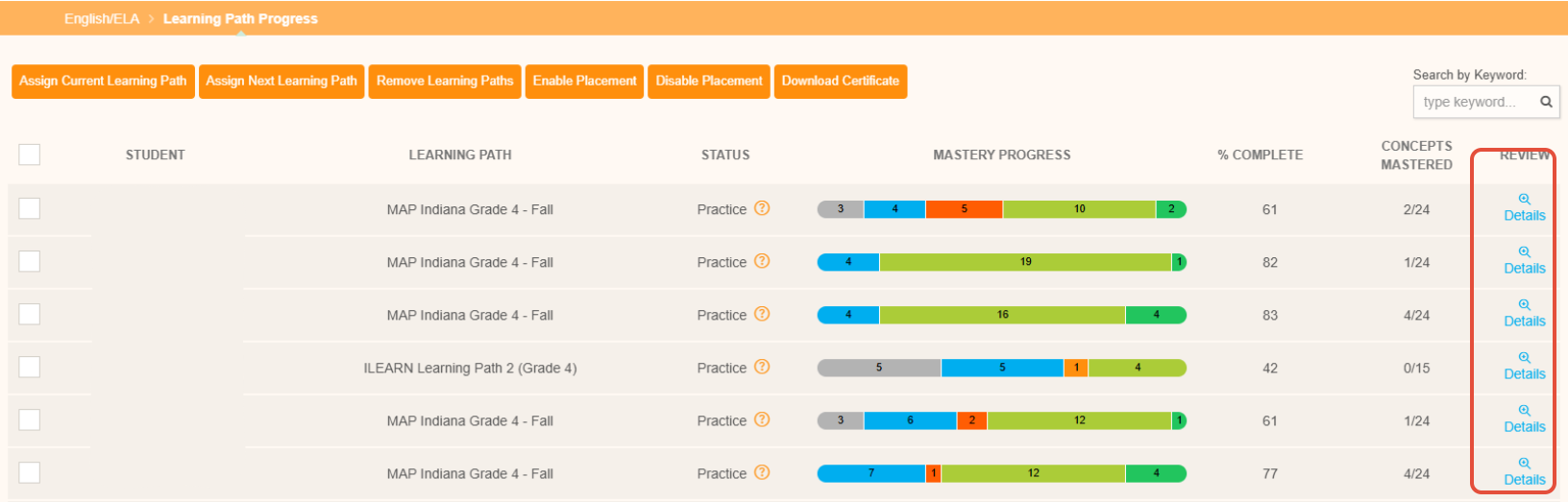
- Navigate to the Learning Path progress page, locate a student and click details.
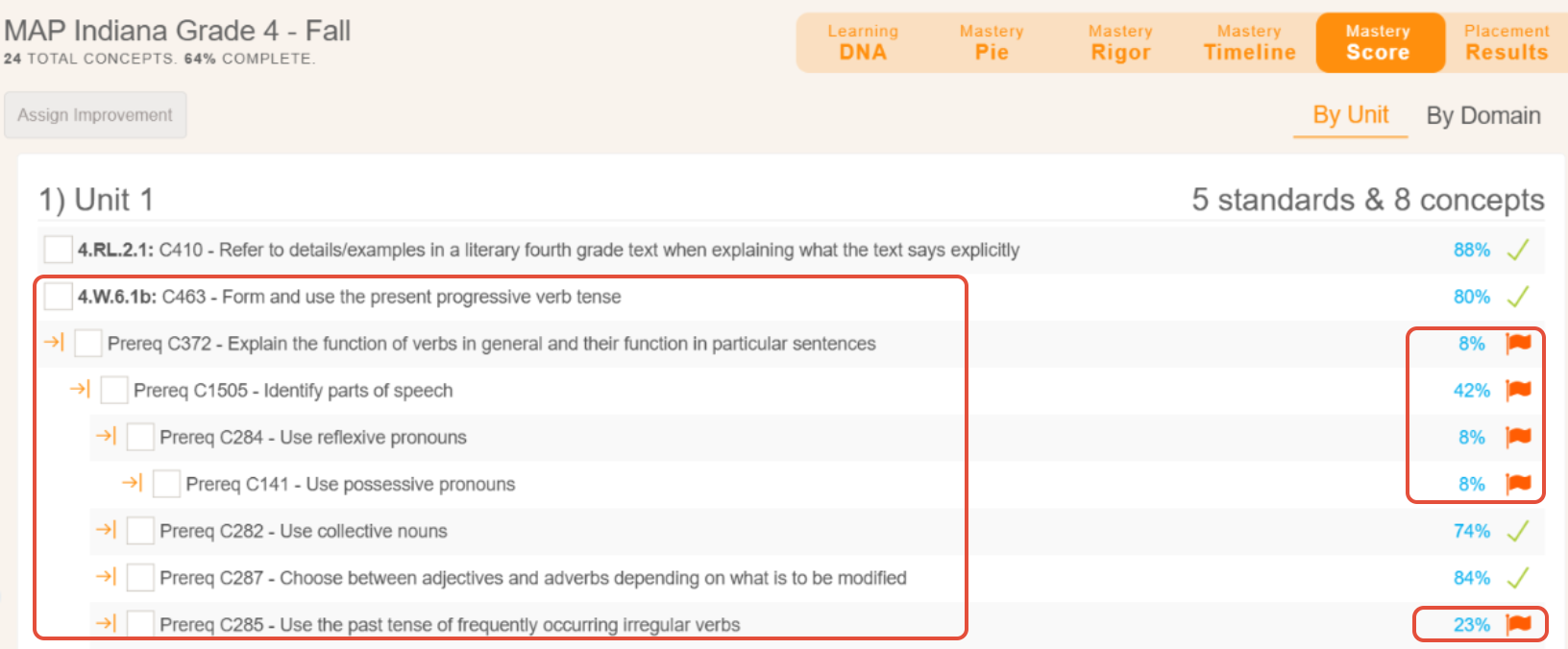
- Click on the Mastery Score view of the Learning Path. Prerequisite concepts are seen indented in this view. Even though the student is proficient in the grade-level concept C463, the teacher can provide additional practice in the supportive concepts so that the student's red flags can be cleared. Everyone loves the green check mark!
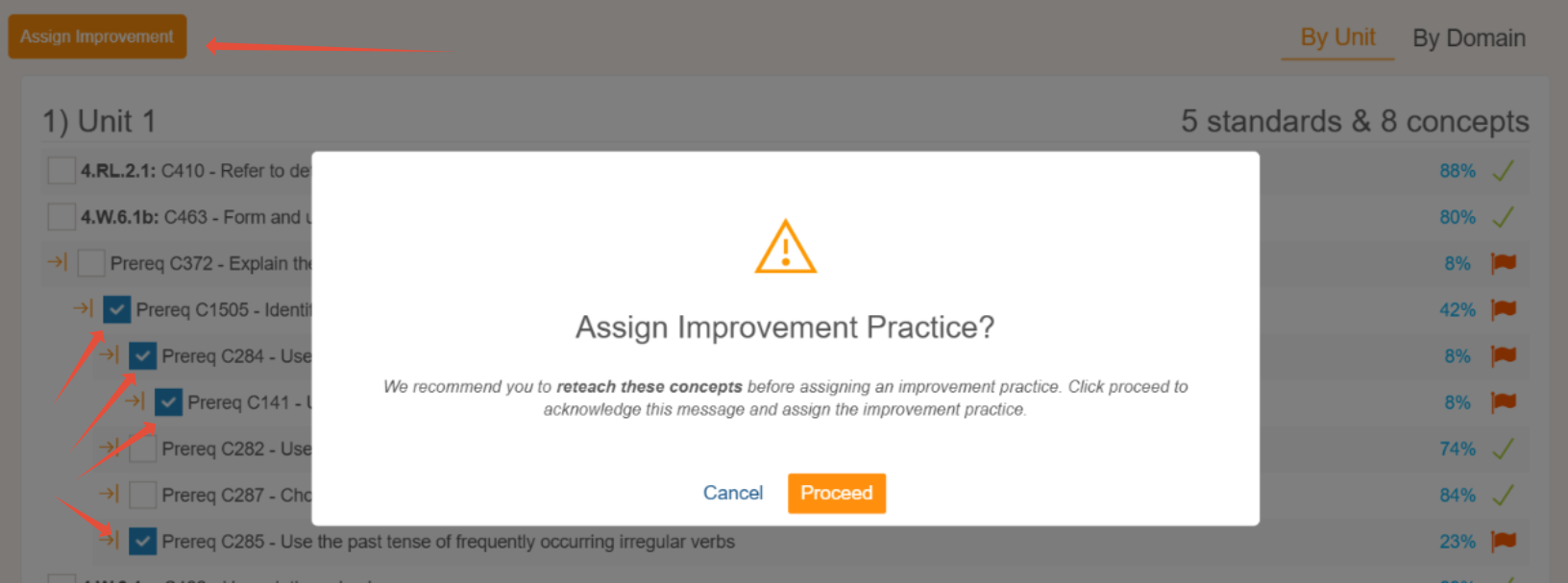
- Quickly assign improvement to the flagged concepts.
Intervention Assignments from the Mastery Grid
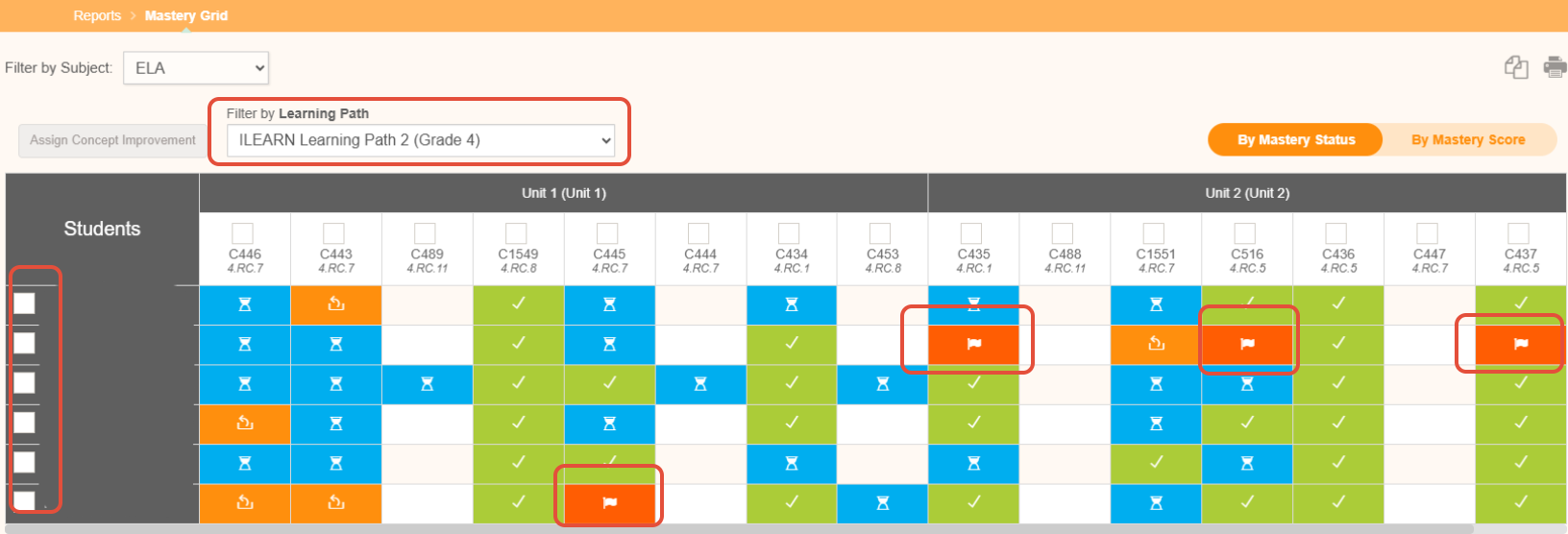
The Mastery Grid (Report Library under Insights menu) provides an overview of student performance on concepts in the Learning Path. Assign concept improvement from this view with the full context of where students are in each of those concepts.
How is this view different than the Intervention Monitor?
This view allows the teacher to see all students' progress in all concepts within the path. Teachers can also visualize proficiency trends. The Intervention Monitor, however, zooms in to display only students with flagged concepts and divides those concepts into groups or tiers.
What actions can the teacher take in this view?
- Select the student and concepts flagged for intervention and assign a concept improvement task.
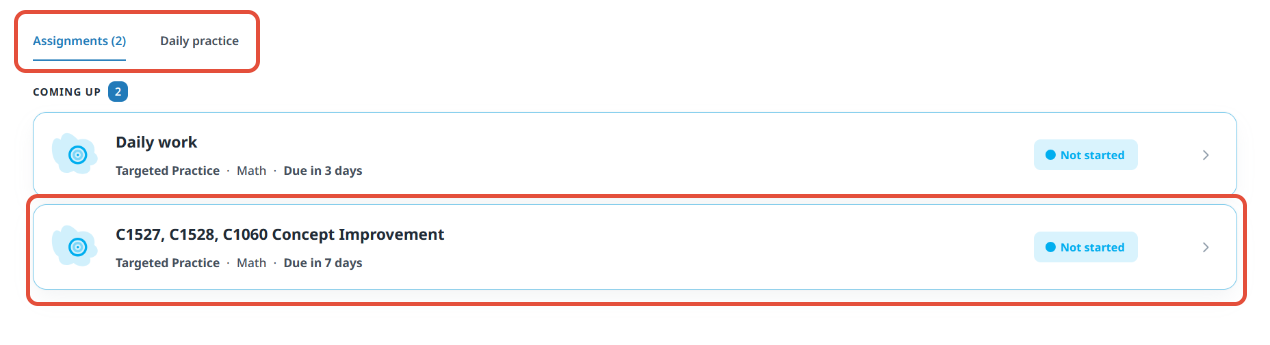
- Advise the student to first complete the concept improvement task on the assignments tab and then resume launching their path on the daily practice tab as normal.
- Repeat for additional students or groups of students as necessary
Intervention Assignments from Targeted Practice
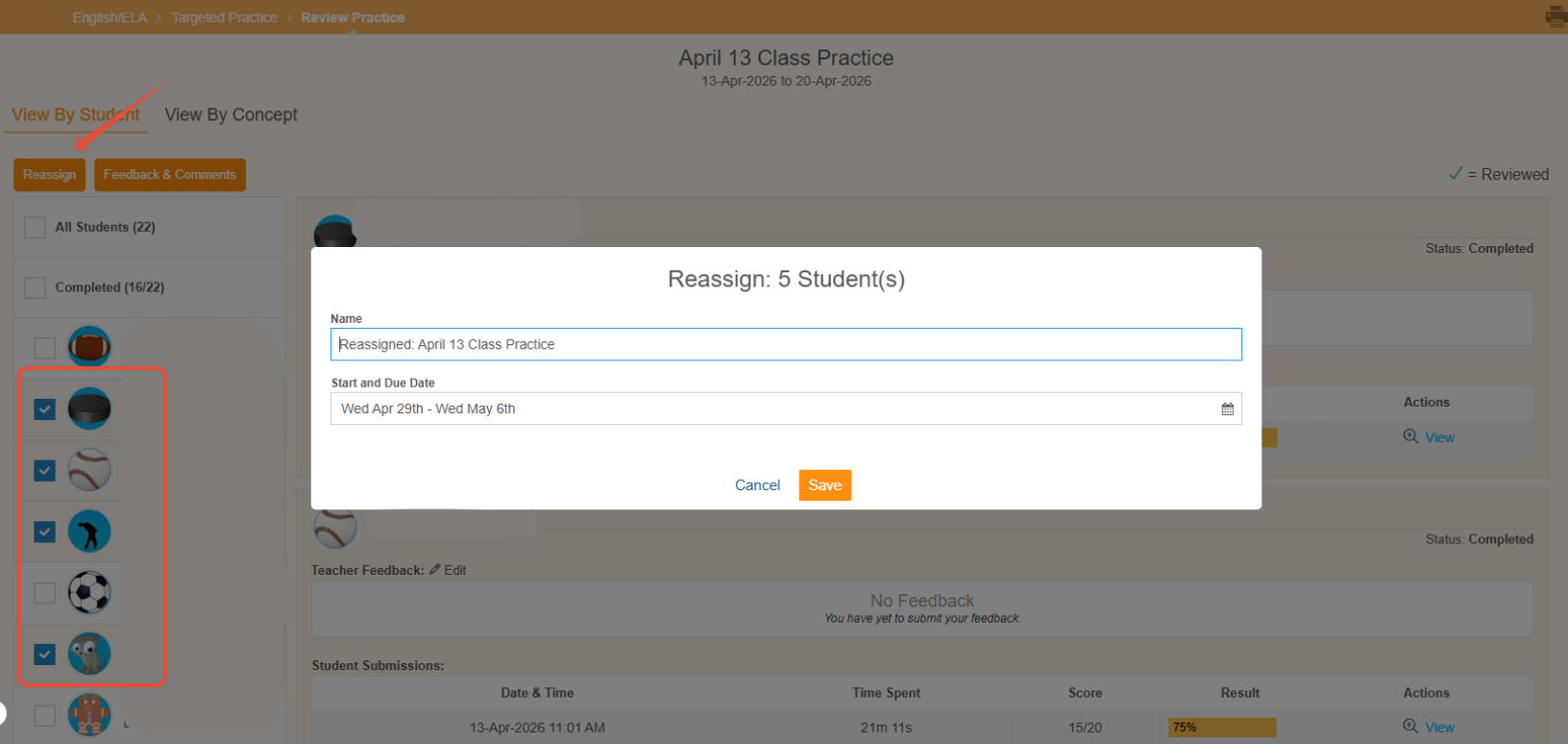
When assigning a Targeted Practice, students results are visible within each assignment. The teacher can see results by concept and student. In the example shown, the teacher can see that some students have completed the assignment. Follow the steps below to reassign the assignment or a portion of it to students when they need to show improvement.
- When opening the assignment, by selecting one or more students and clicking the reassign button, the teacher can reassign the entire assignment to those students.
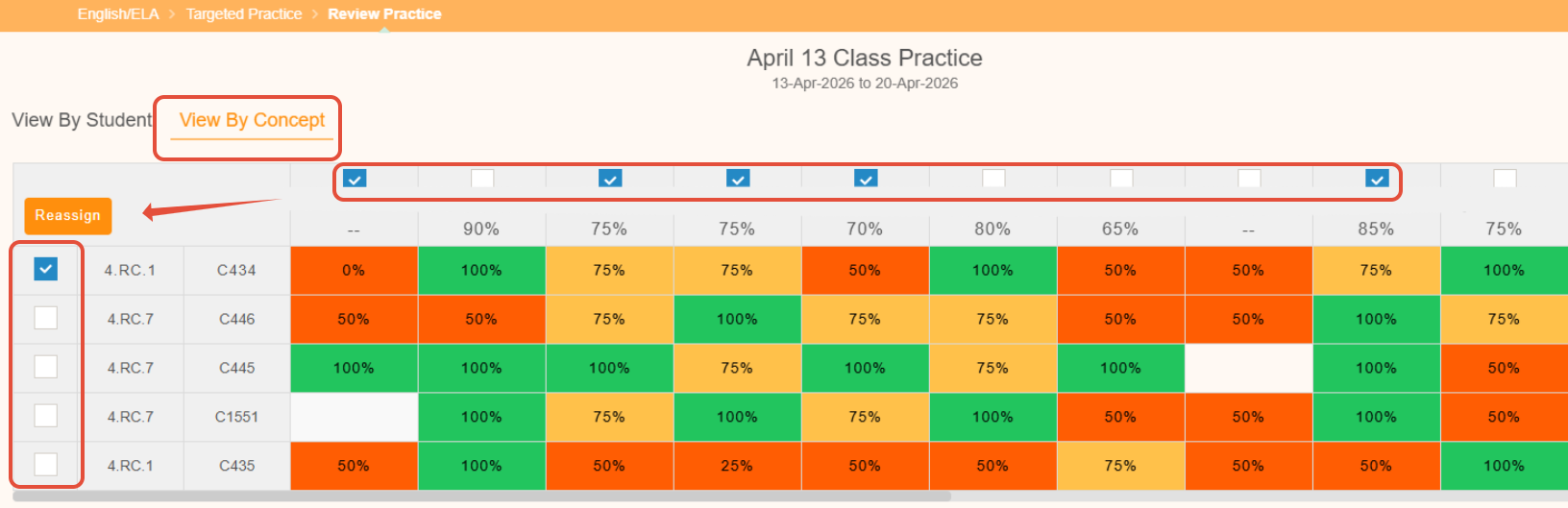
- By clicking on the View By Concept tab, student results are visible by concept. The teacher can select a specific student or groups of students and concepts to reassign. This doesn't reassign the entire assignment, but individualizes it based on student needs.
Individualized Intervention Assignments from Learning Checks
When providing students with unit quizzes and checks for understanding, also known as Learning Checks within Pathways Learning, it is essential to implement interventions when students exhibit signs of difficulty. Please follow the steps below to create intervention assignments based on student results.
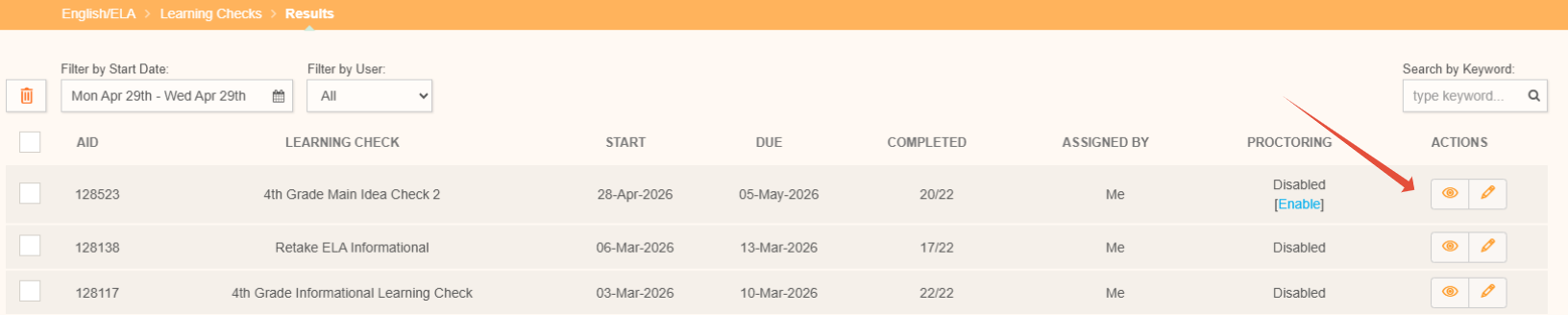
- Locate the results of a Learning Check and click the eye to dig deeper.
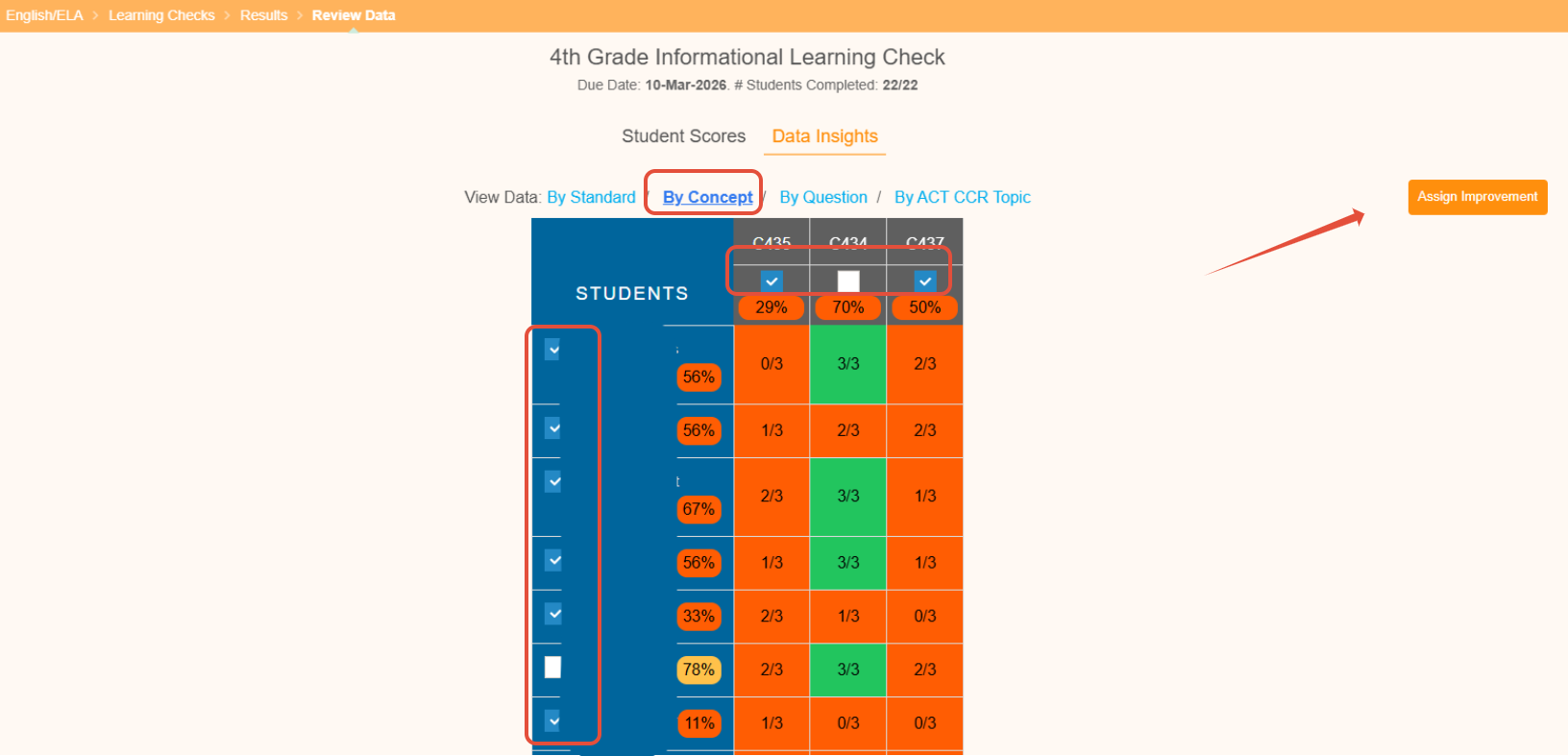
- Select the Data Insights and then View by Concept.
Related Resources
- Learning Adaptive Series Part 4: Teacher-Driven Intervention
- Learning Adaptive Series Part 6: Visualizing Student Success
- Learning Video: Using Targeted Practice
- Learning Video: Using Learning Checks
Was this article helpful?
That’s Great!
Thank you for your feedback
Sorry! We couldn't be helpful
Thank you for your feedback
Feedback sent
We appreciate your effort and will try to fix the article