Overview
Learning Bites are the short instructional videos that students are prompted to watch while practicing. When assigned as a standalone assignment, students can focus on the Learning Bite's content itself. Please use the table of contents below to navigate to specific sections for more detailed information.
Table of Contents
- Assigning Learning Bites
- Reviewing Learning Bite Assignments
- Uploading Learning Bites
- Related Resources
Assigning Learning Bites
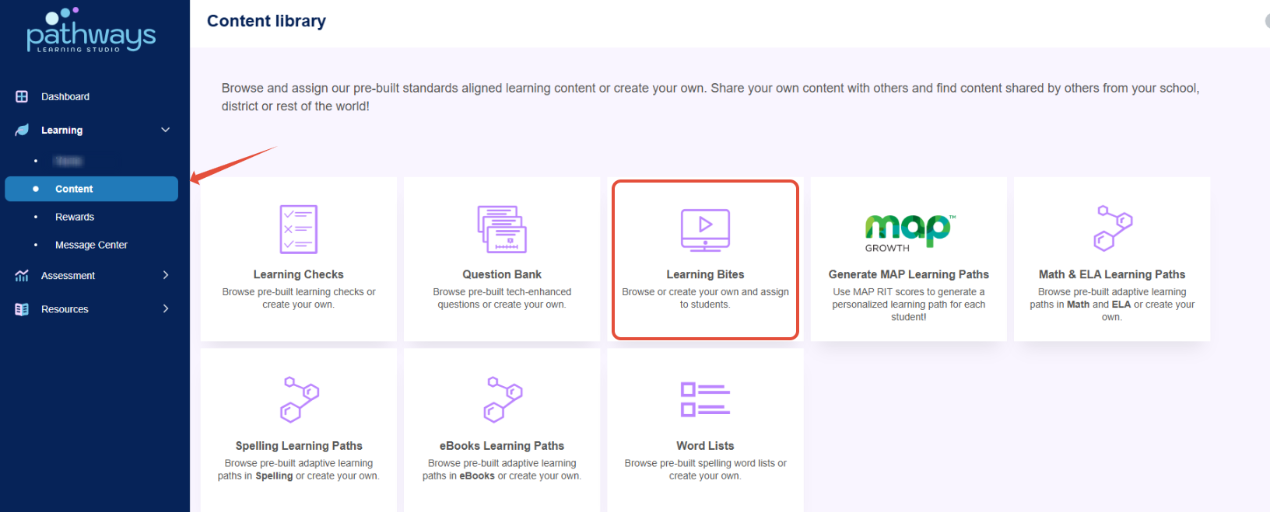
- Select Content under Learning in the left-hand navigation panel. Click on the Learning Bites tile.
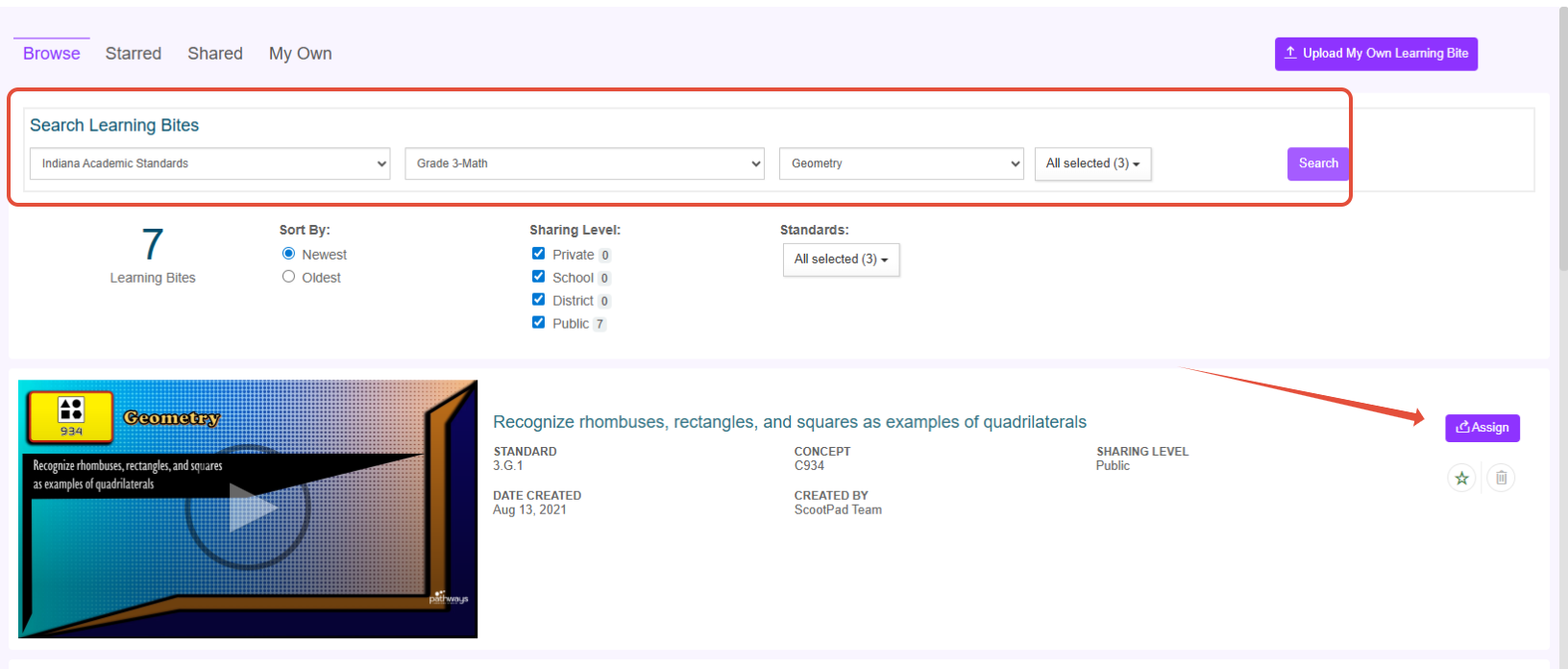
- Choose the standard and grade level of the Learning Bites. In the example, the user is searching across the Indiana Academic Standards for grade 3 Math in the Geometry domain.
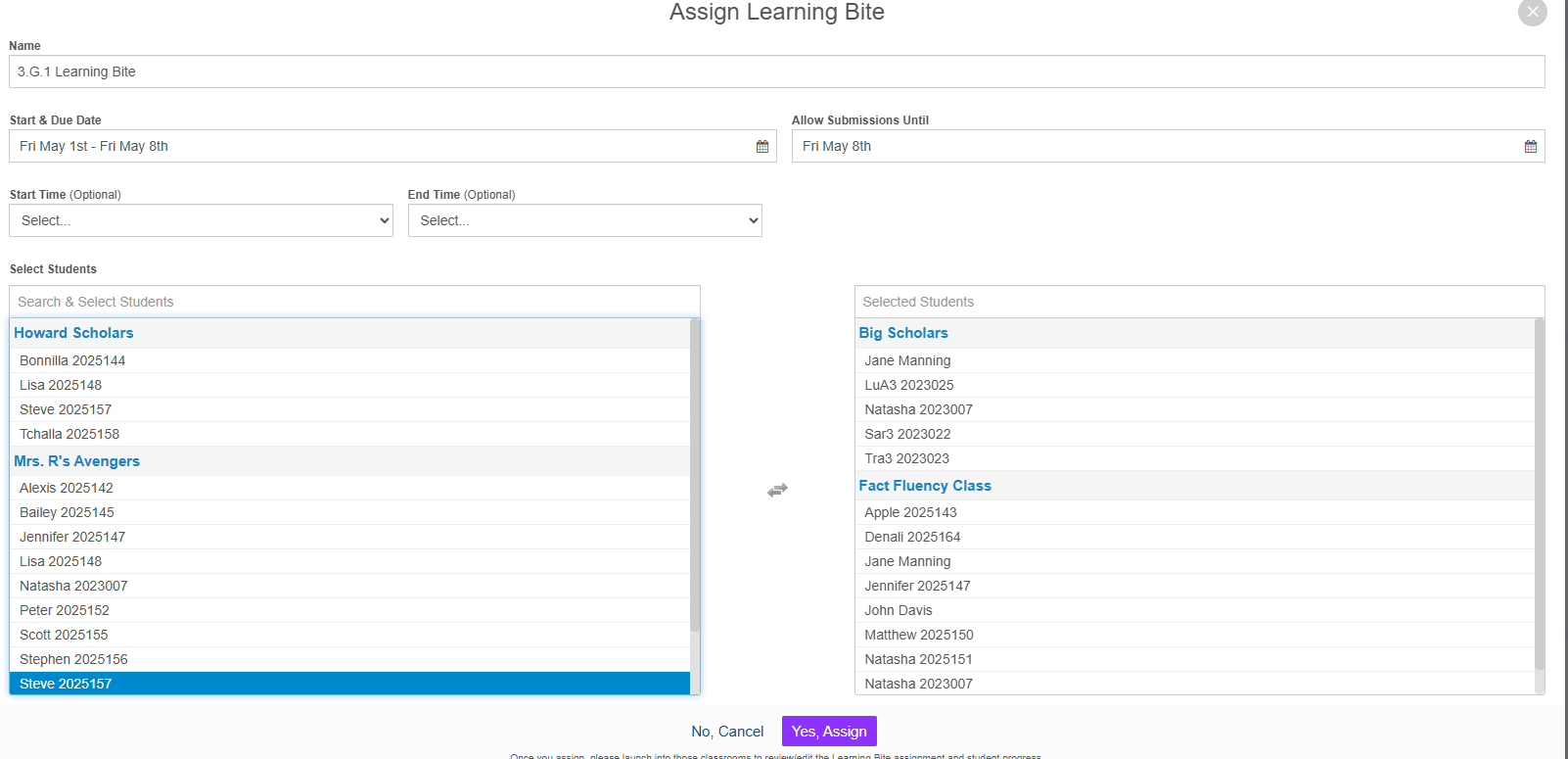
- Assign to one or more students or classrooms.
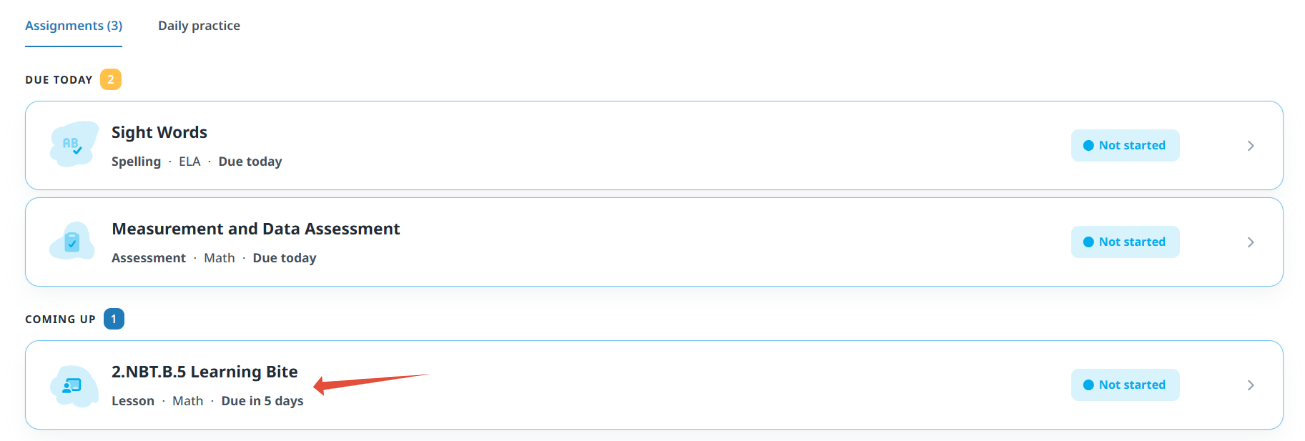
- After clicking assign the students will see the assignment on their Assignments page.
Reviewing Learning Bite Assignments
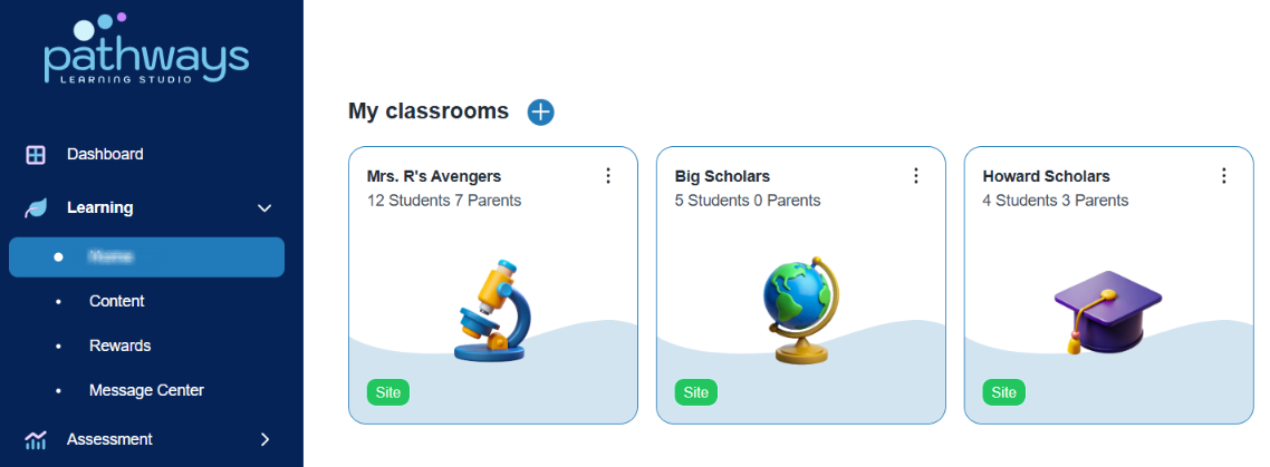
- Launch your classroom from the teacher home page.
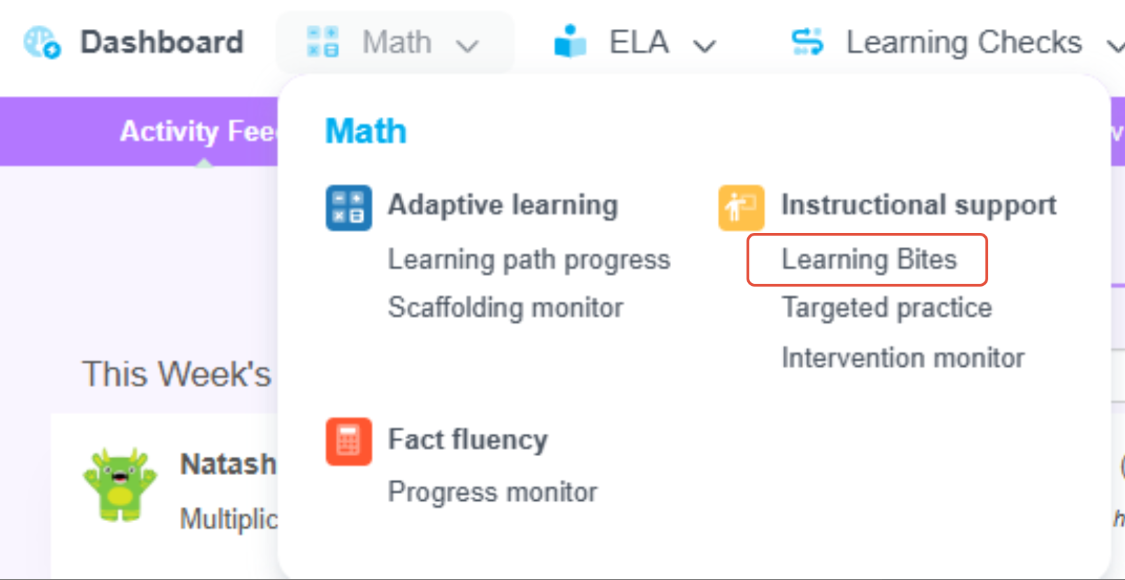
- From the classroom Navigation Bar click Math or ELA and then under Instructional support click on Learning Bites.
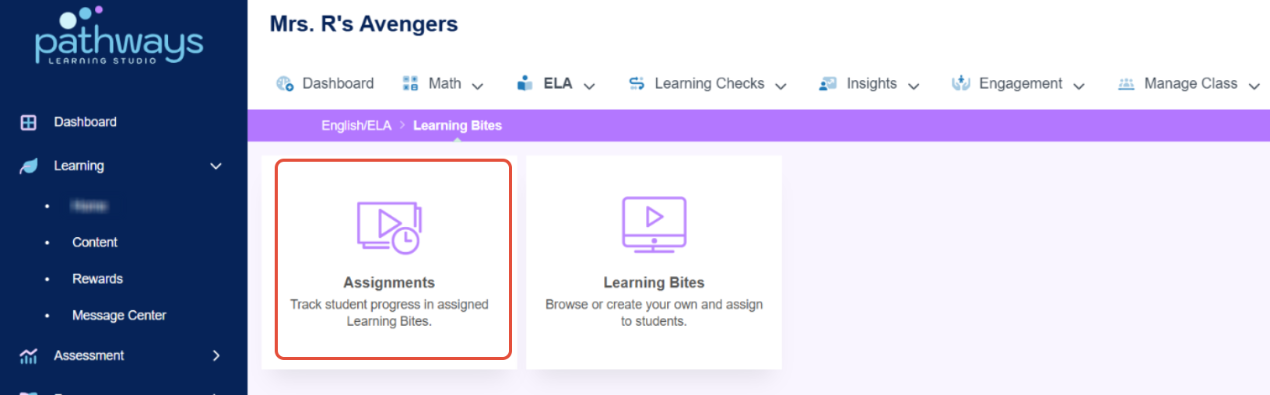
- From the Learning Bites page click on the Assignments tile.
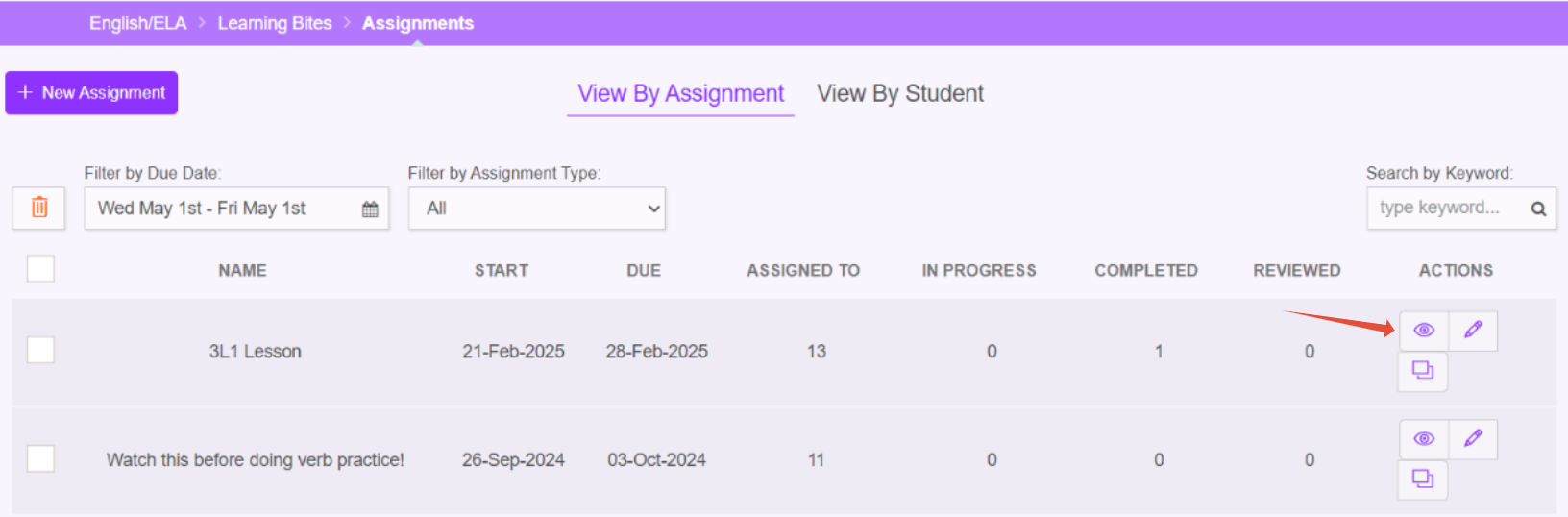
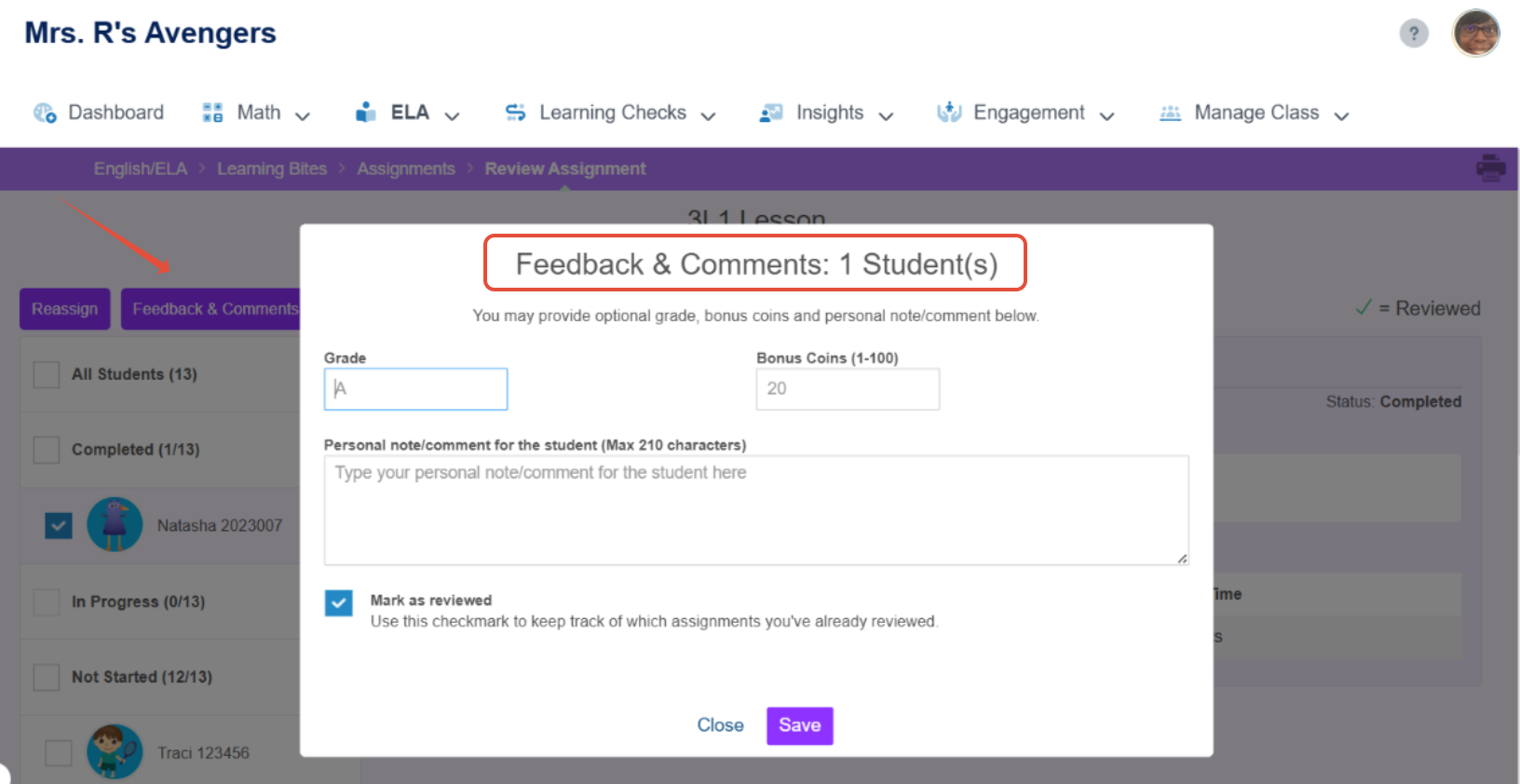
- Locate the specific assignment and click the eye to review, reassign and provide feedback.
Uploading Learning Bites
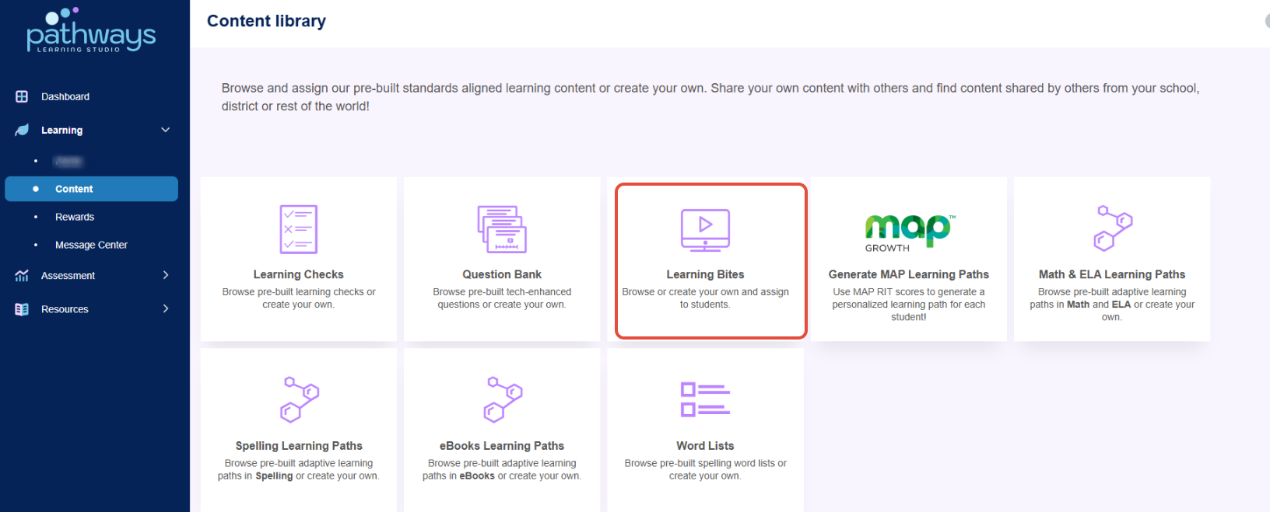
- From the homepage, select Content on the left-hand navigation panel. Then click on Learning Bites.
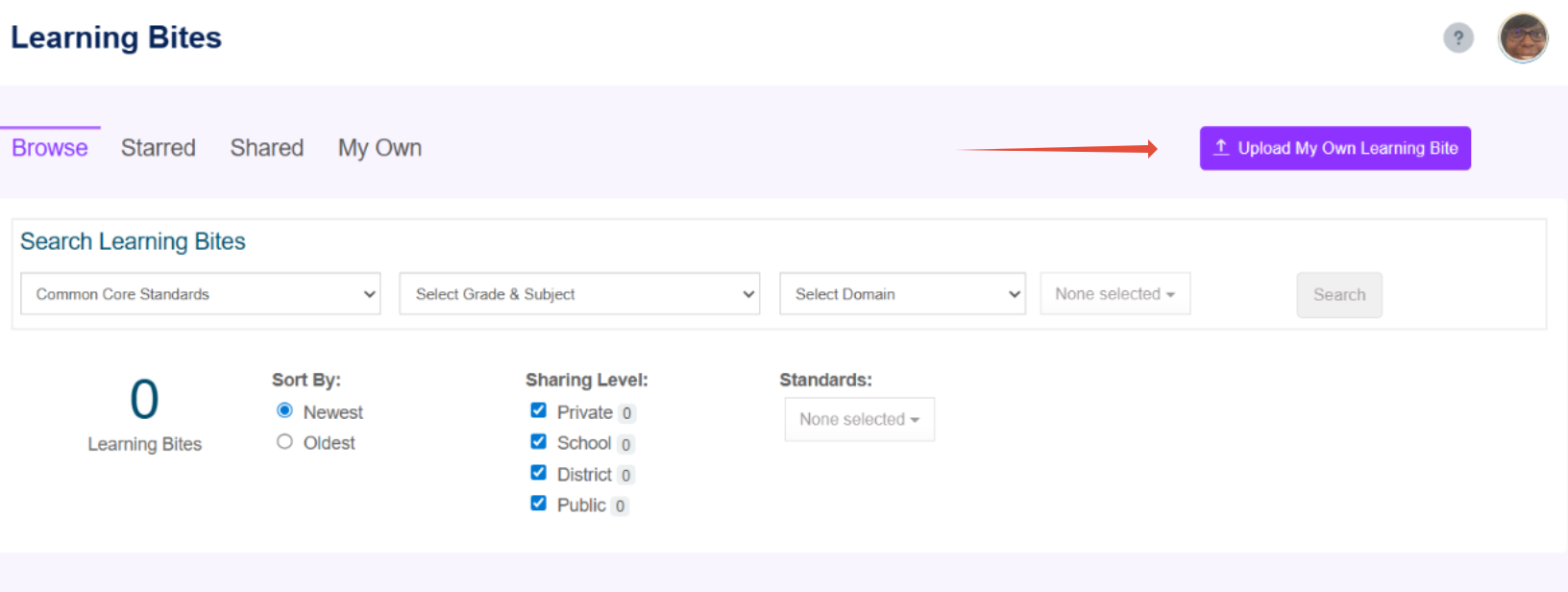
- Select Upload My Own Learning Bite.
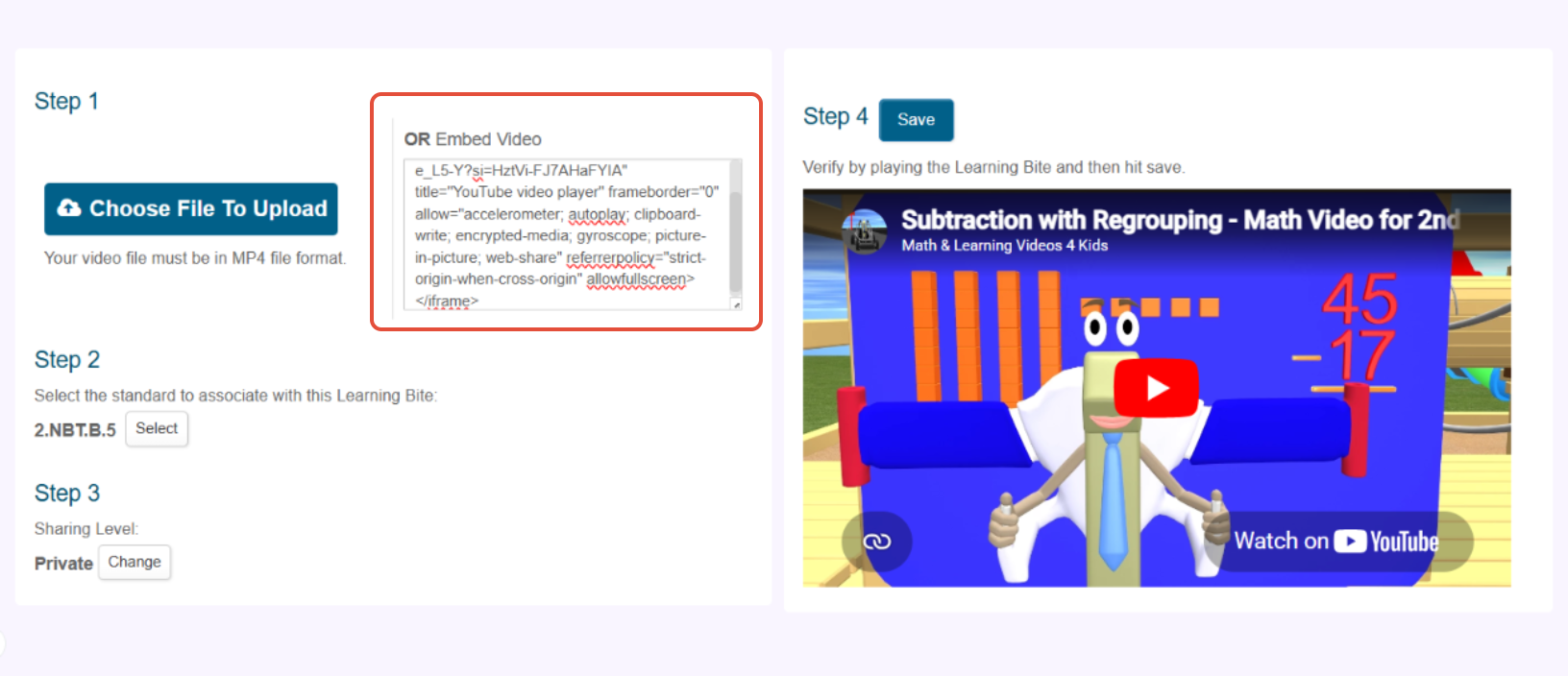
- Upload method: Choose the file, select the standard, and choose the Sharing Level and Save. The file has to be no more than 10MB and must contain no spaces in the name.
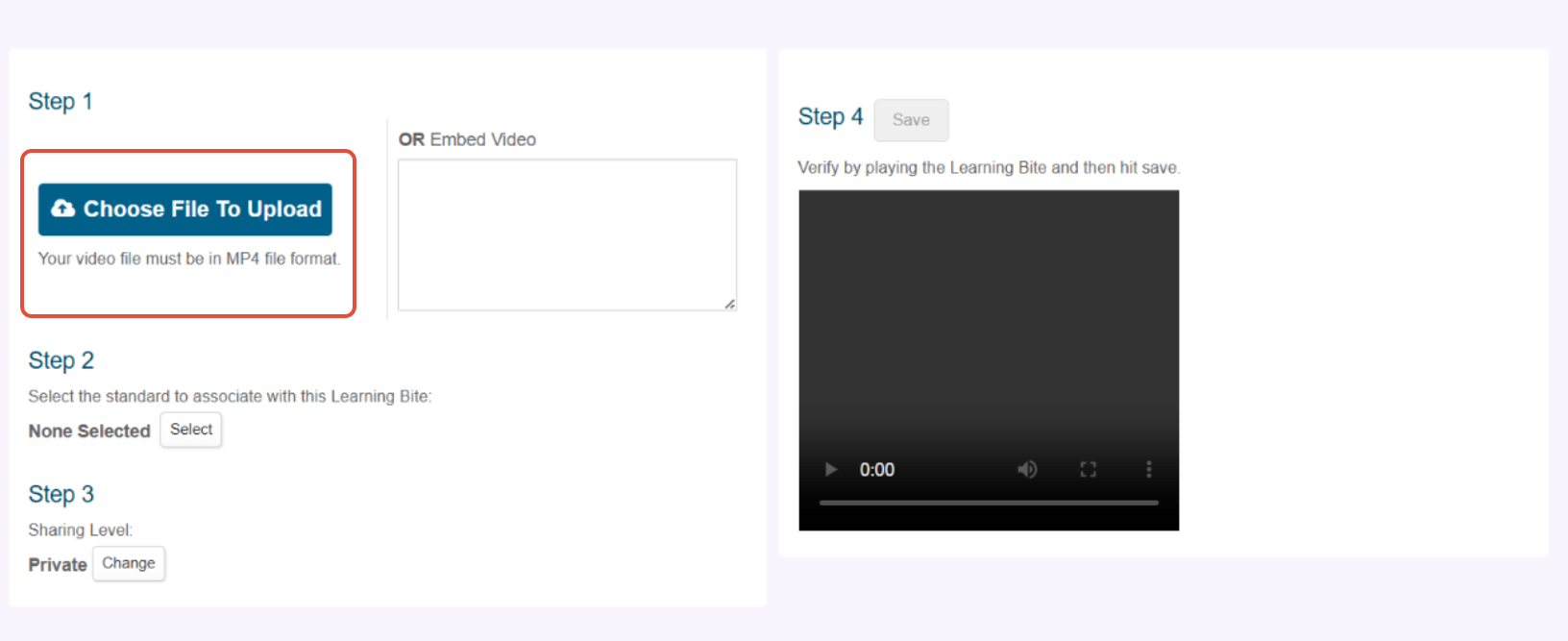
- Embed method. Copy the embed code into the box. NOTE: You cannot paste a link from a video into the box. As an example, if copying from YouTube, this code is found in the "share" menu.
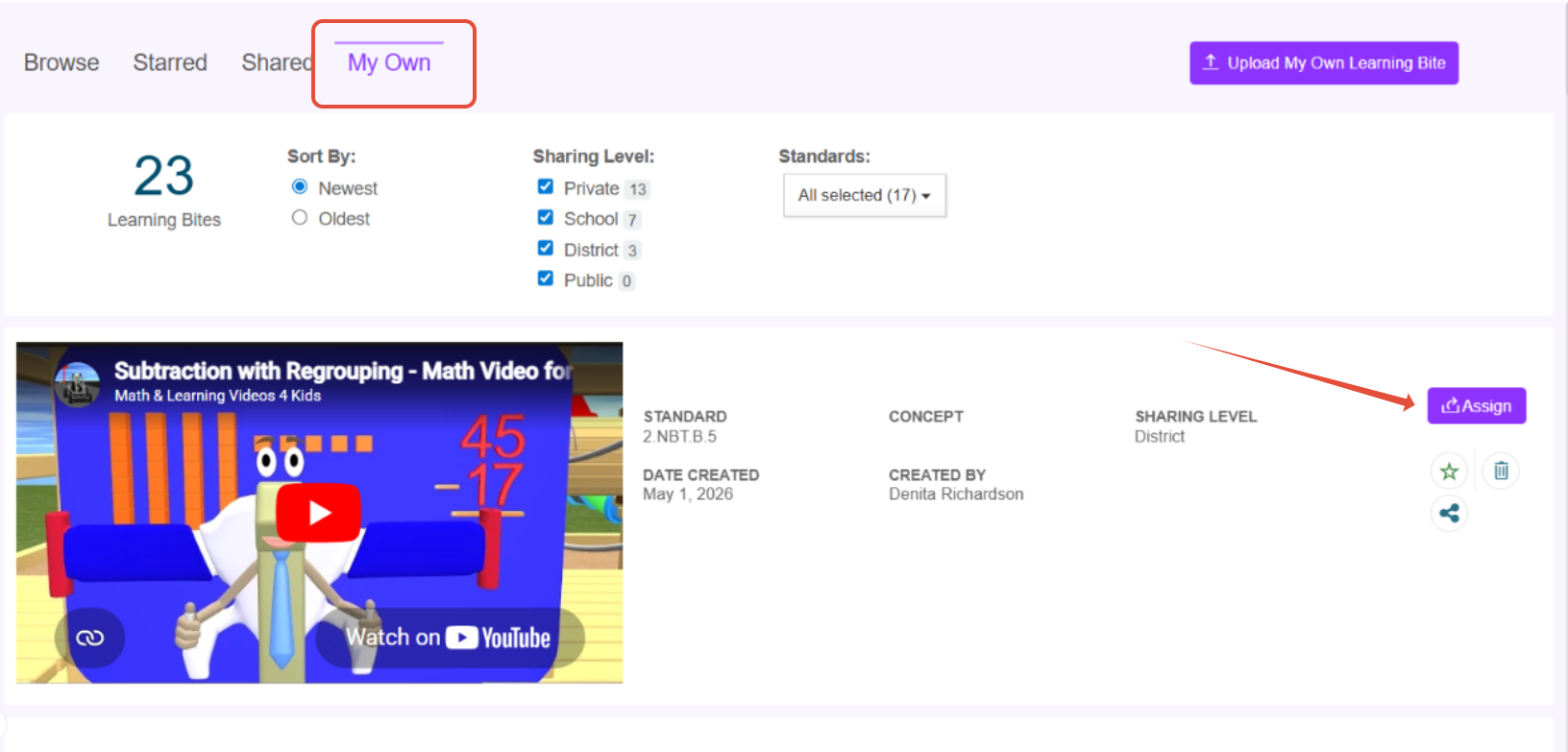
- The Learning Bite will then appear under the "My Own" Tab on the Learning Bites page. After uploading, the Learning Bite can then be assigned to the students.
Related Resources
- Learning Video: Content Library
- Learning Video: Learning Bites
- Pathways Learning: The Student Experience
Was this article helpful?
That’s Great!
Thank you for your feedback
Sorry! We couldn't be helpful
Thank you for your feedback
Feedback sent
We appreciate your effort and will try to fix the article