Overview
This article walks you through how to use the various Spelling features in Pathways Learning. Please use the table of contents below to navigate to specific sections for more detailed information.
Table of Contents
- Browsing and Creating Word Lists
- Browsing and Creating Spelling Learning Paths
- Using Adaptive Spelling Learning Paths
- Creating Targeted Spelling Assignments
- Related Resources
Browsing and Creating Word Lists
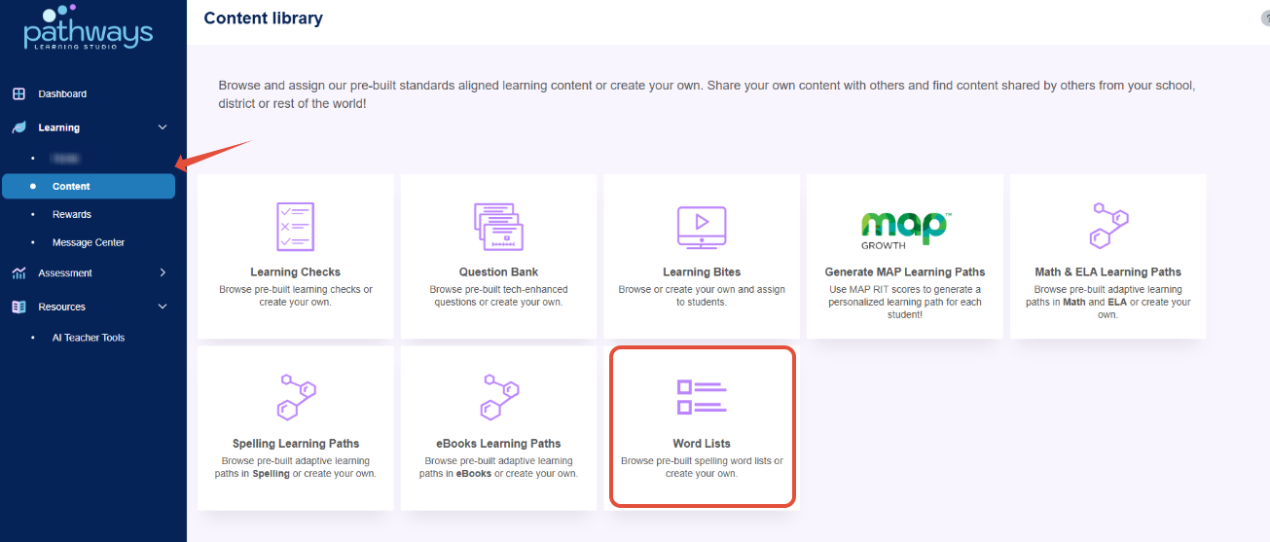
- Select Content from the left navigation and then click on Word Lists.
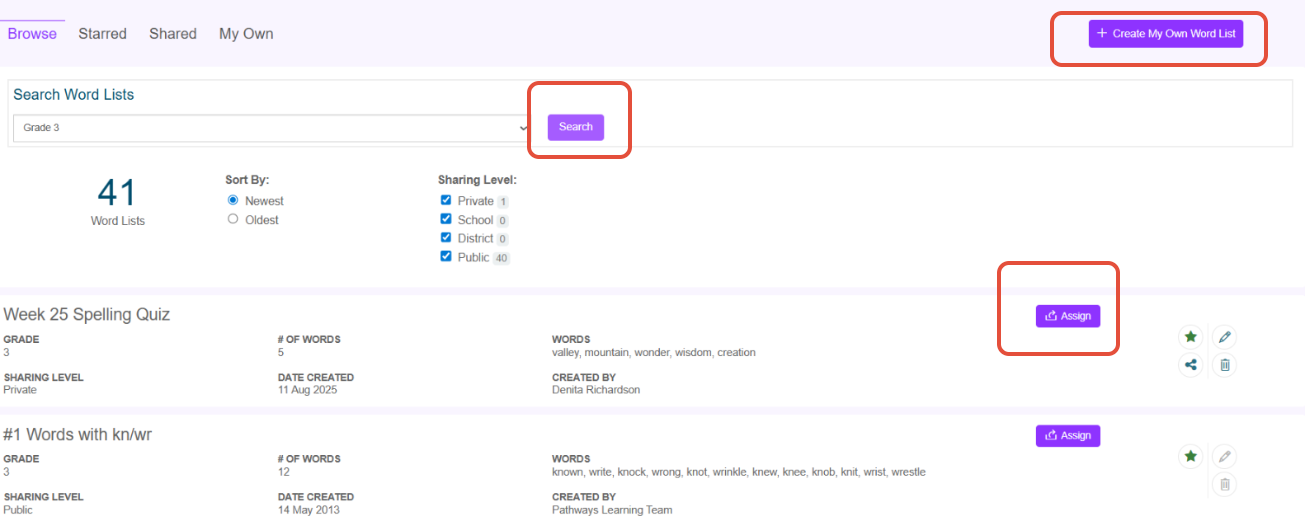
- To browse lists, select the appropriate grade level and click search. You can also create a word list by clicking the button in the upper right hand corner.
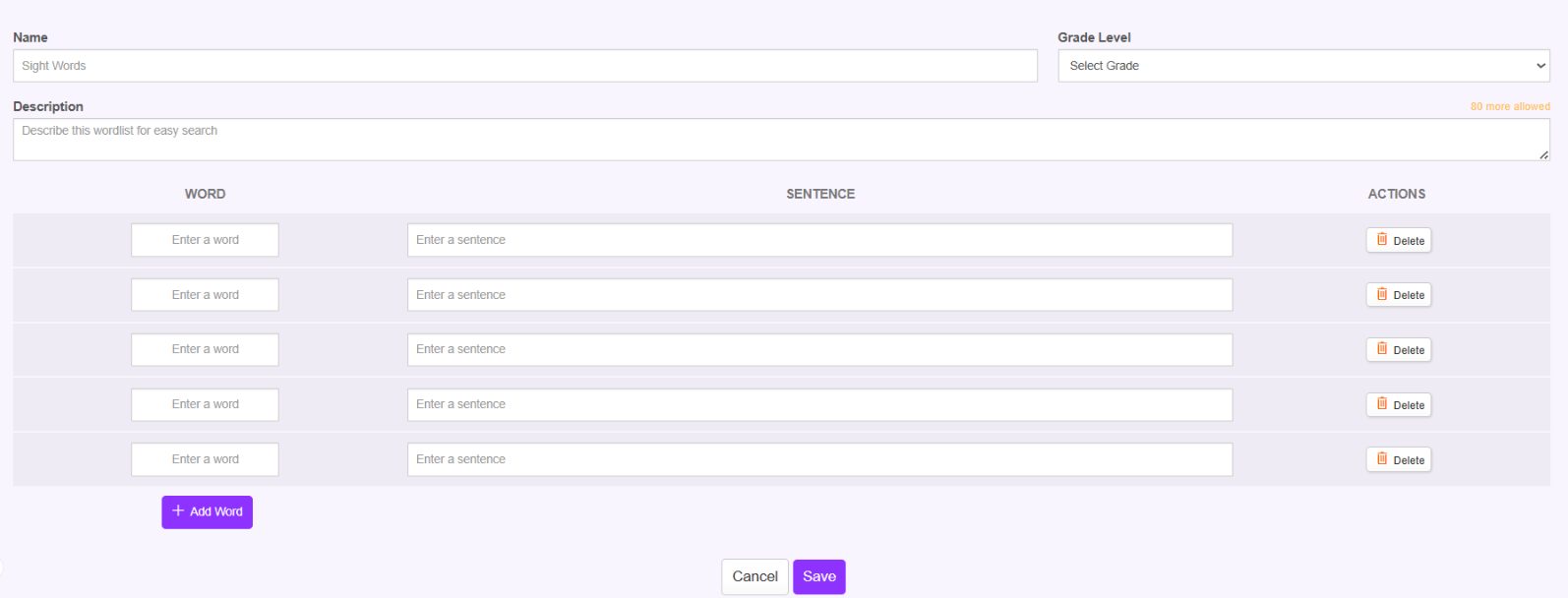
- Name the list, choose a grade level, enter the words and sentences and click save.
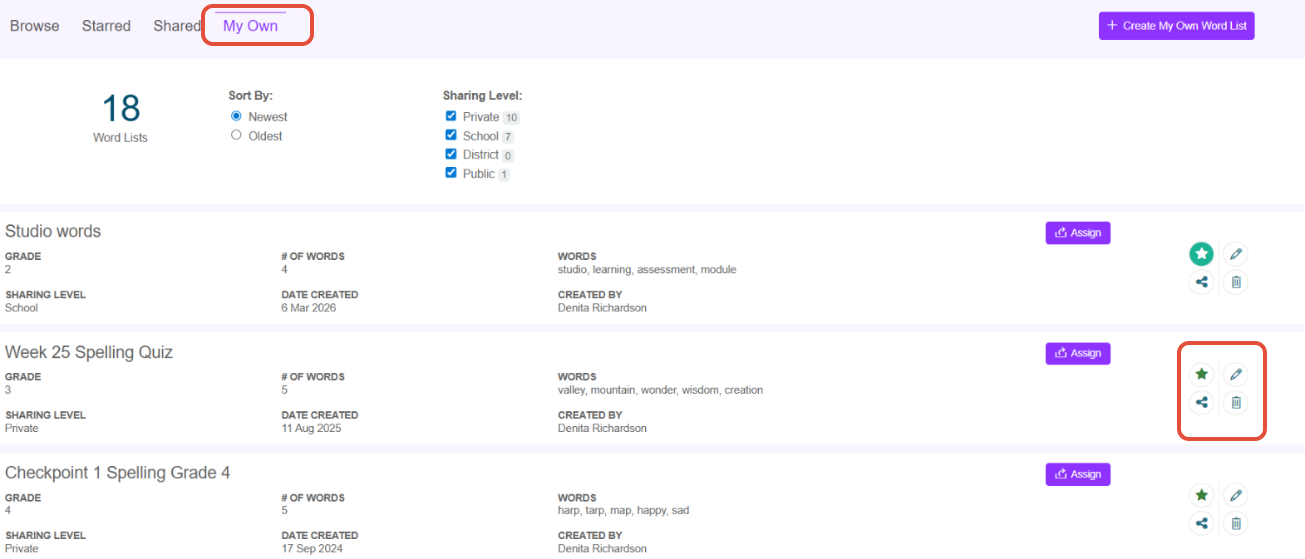
- To edit one of your lists, click on the My Own tab, then select edit (pencil) under actions for the list.
Browsing and Creating Spelling Learning Paths
- On the left navigation, select Content and click on Spelling Learning Paths.
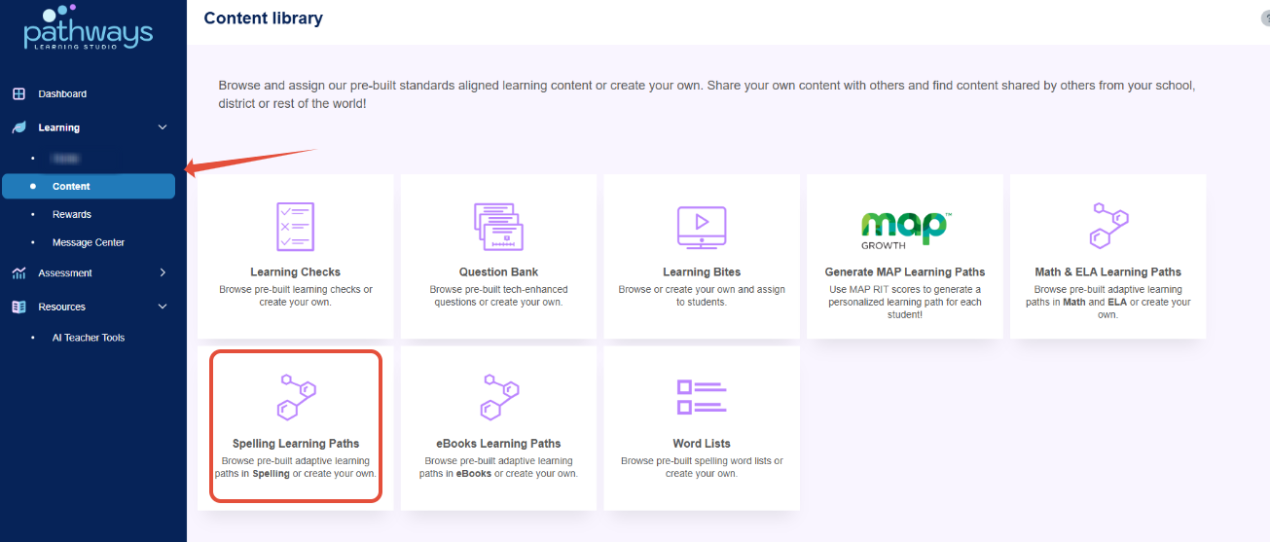
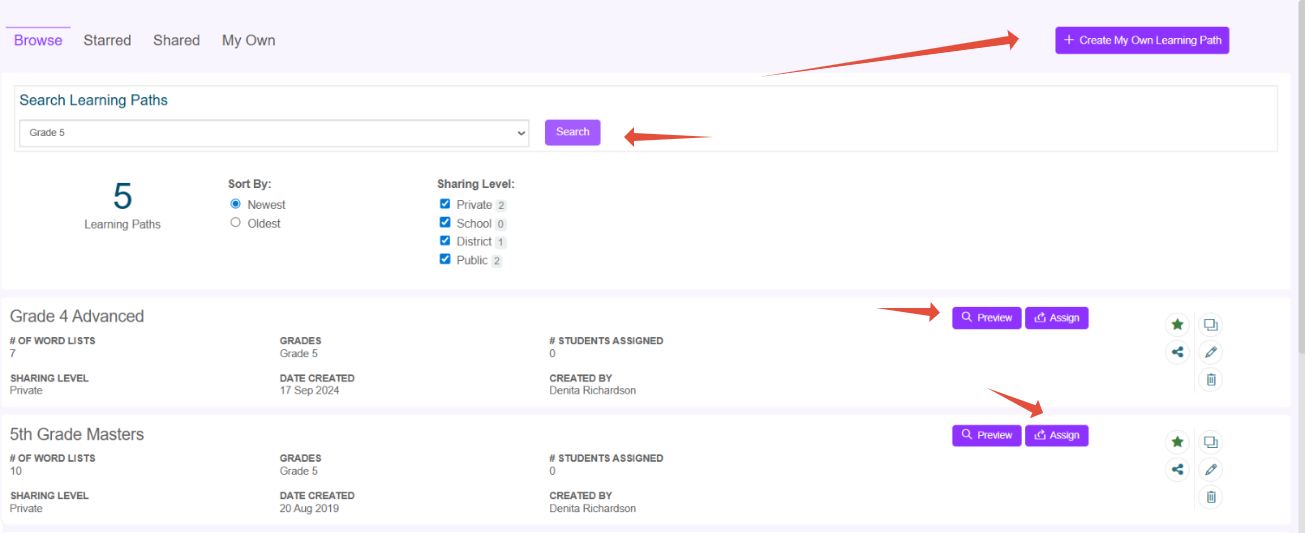
- To browse paths, select the appropriate grade level and click search. You can also create a path by clicking the button in the upper right hand corner.
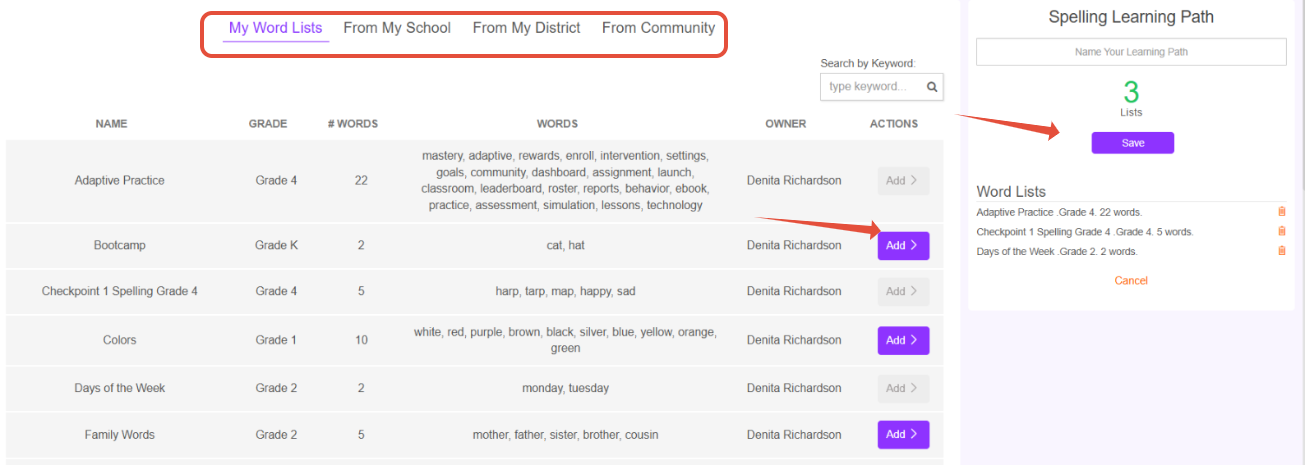
- Add word lists to your cart from your own word lists, those from your school, district, or even the Pathways Learning community.
Using Adaptive Spelling Learning Paths
- On the classroom navigation bar click on ELA, under Adaptive learning go to Adaptive spelling.
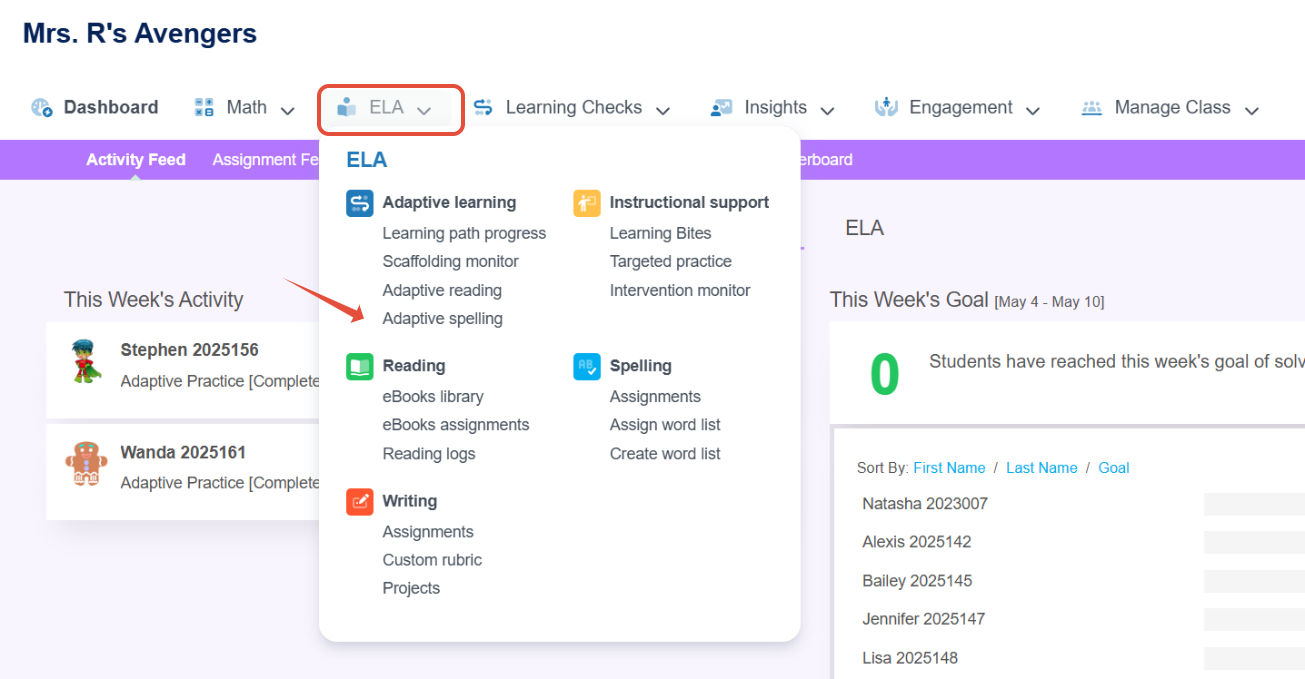
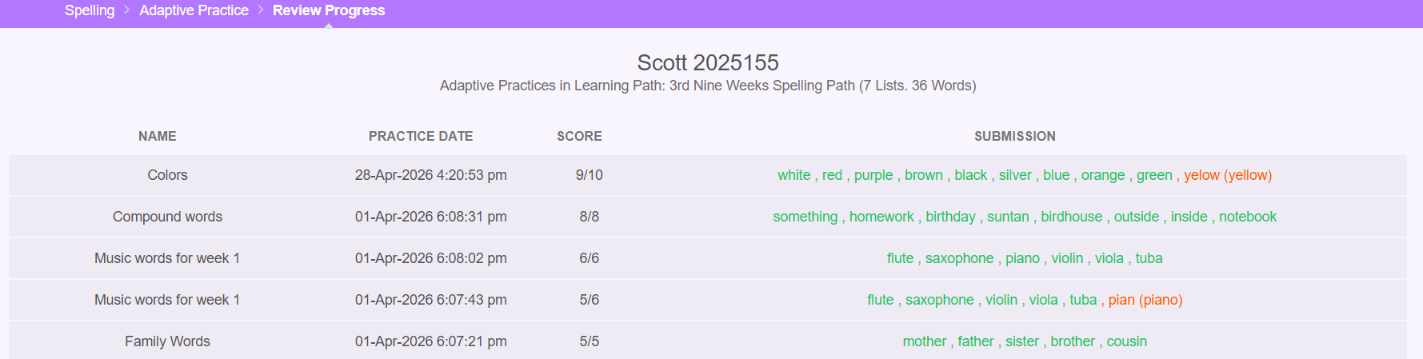
- On this page, you can assign, change, or remove a path. You can also review details of student performance.
Creating Targeted Spelling Assignments
Assignments are great as a quiz or extra practice!
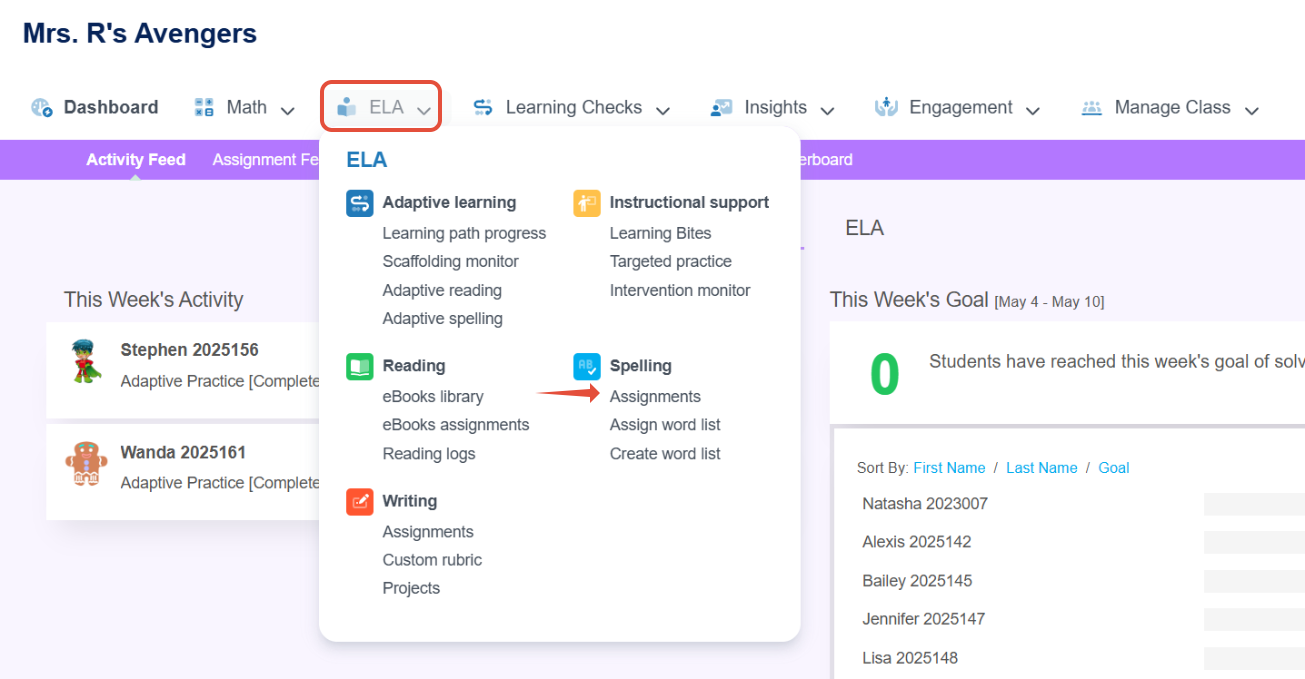
- On the classroom navigation bar select ELA and then select Assignments under Spelling. Click +New assignment.
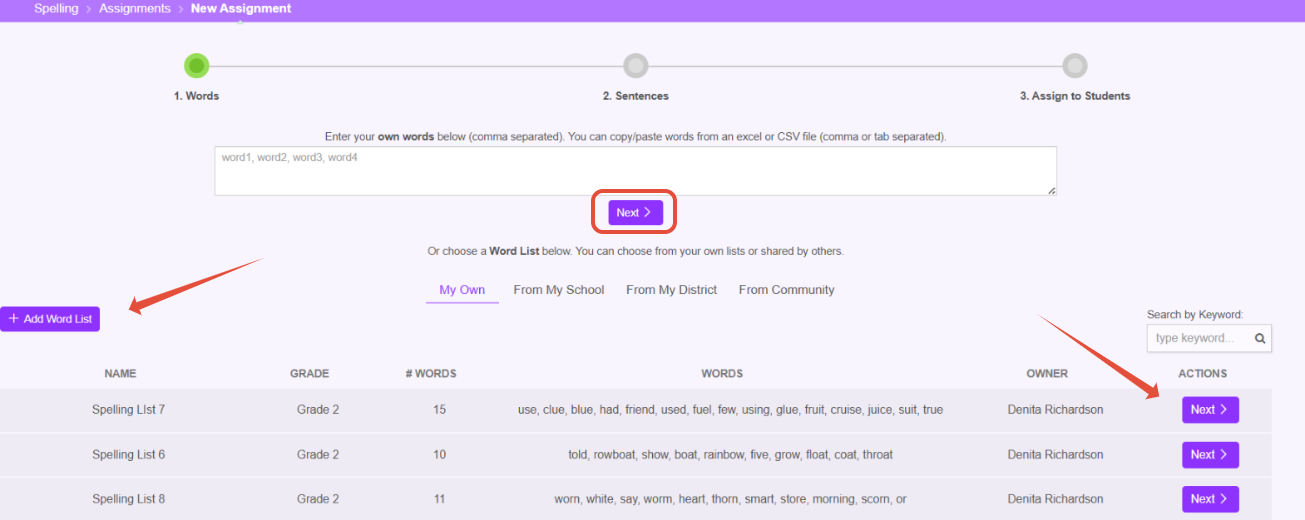
- You have several options. 1) Copy and paste your words 2) choose a list from your own lists or those shared by others 3) click add word list and type them in.
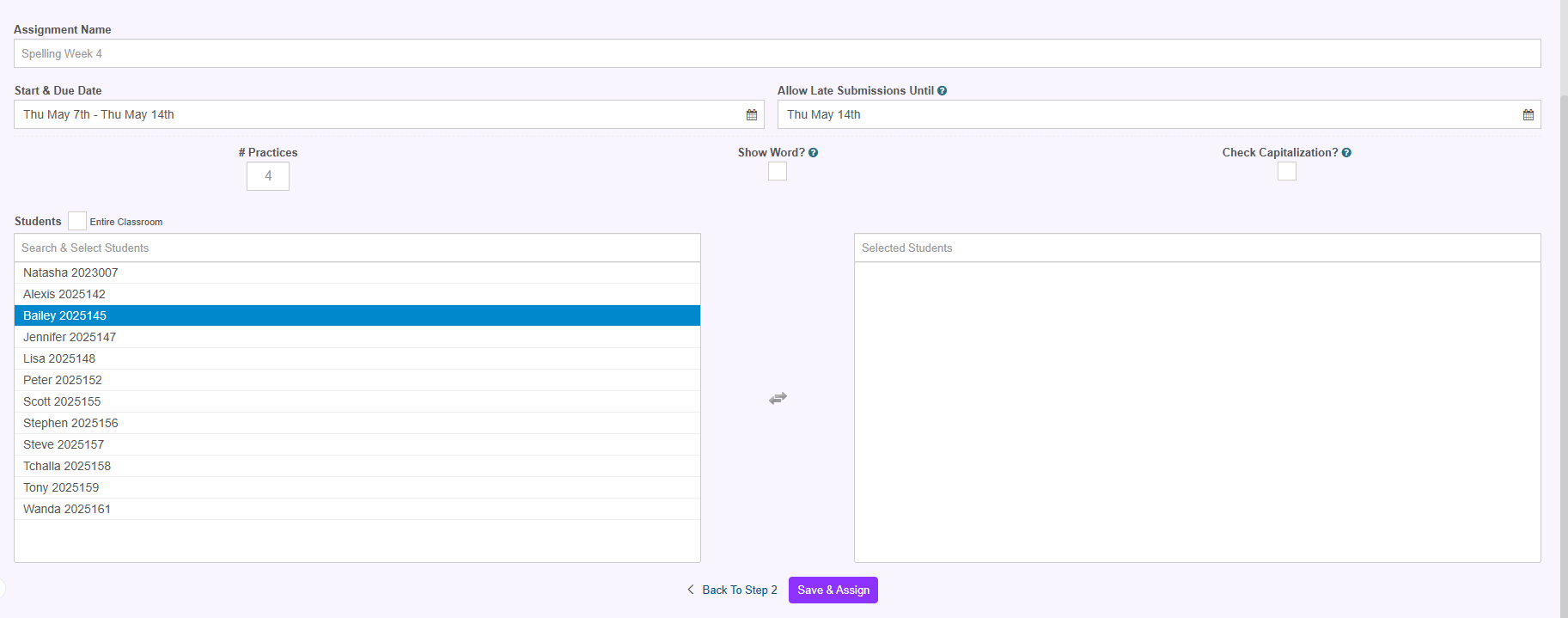
- Name the assignment, choose the date, select the students or check the entire classroom box and then click on the Save & Assign button at the bottom. You can also choose how many times students should practice and other options.
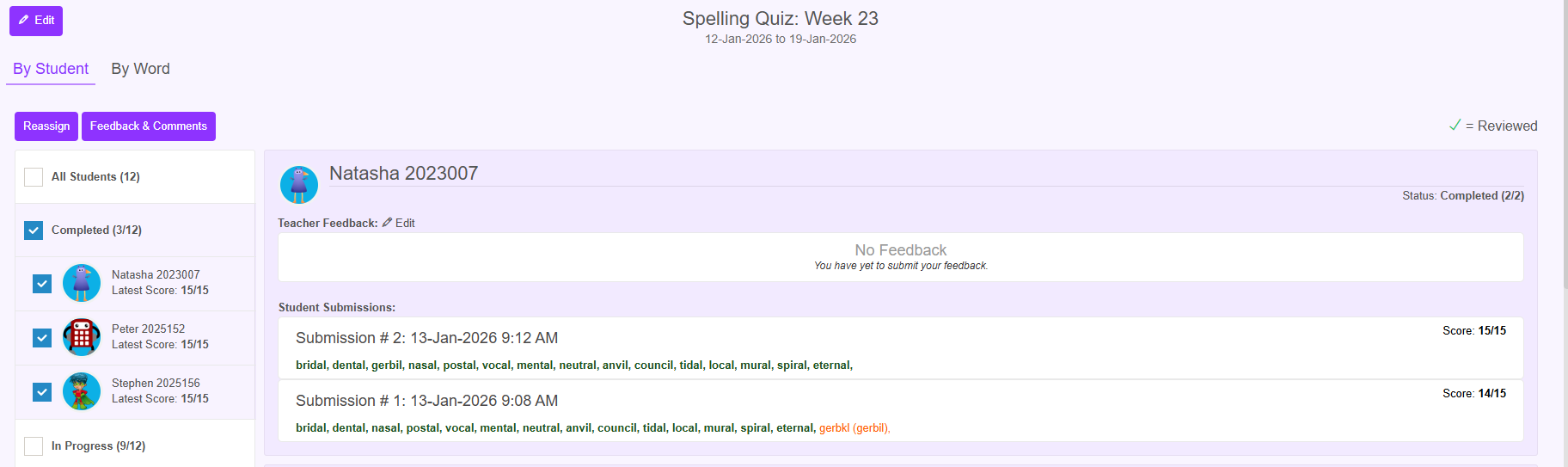
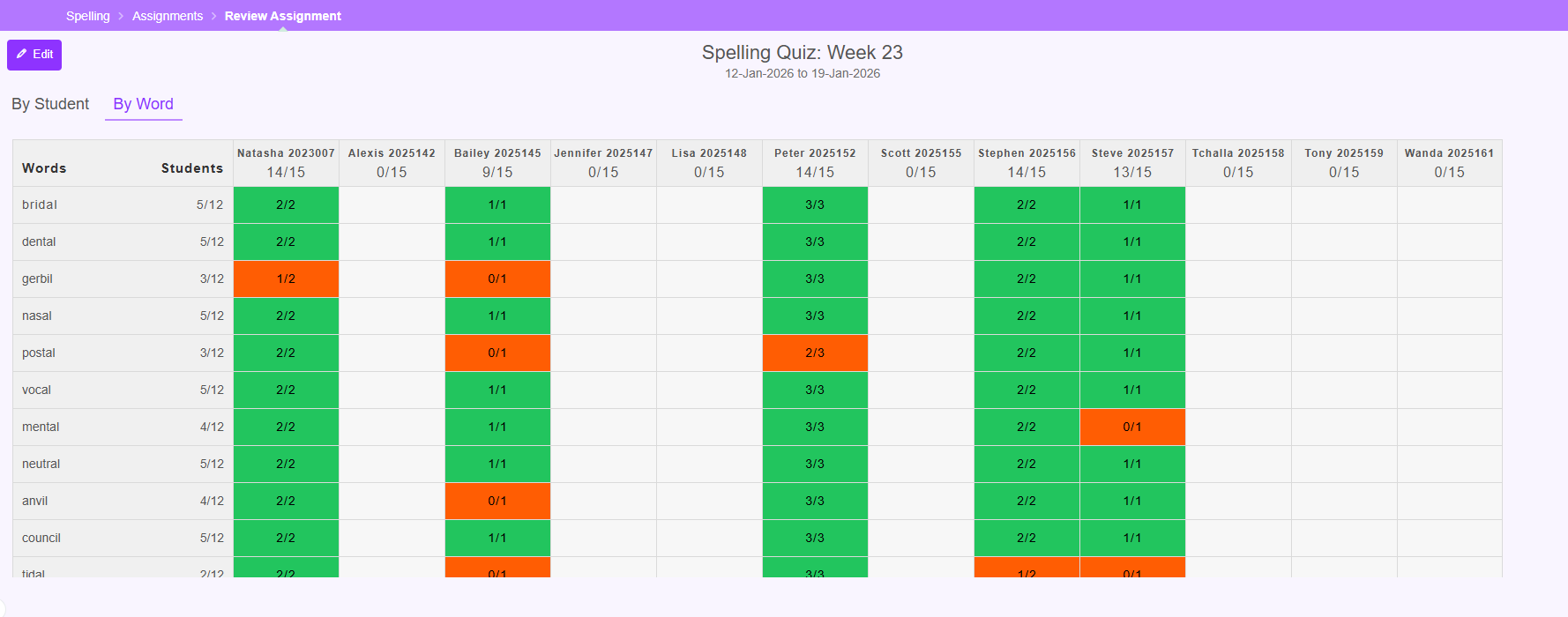
- Review the data after students have completed the task and reassign to students as necessary. In the example below, the teacher can review student submissions, reassign the entire assignment, provide feedback and award bonus coins. Clicking on By Word provides additional insights.
Related Resources
Was this article helpful?
That’s Great!
Thank you for your feedback
Sorry! We couldn't be helpful
Thank you for your feedback
Feedback sent
We appreciate your effort and will try to fix the article