Overview
This article focuses on the features available under the content (Math, ELA, Spelling and eBooks) tabs within Classroom settings. For information on other settings, please refer to the related resources. Please use the table of contents below to navigate to specific sections for more detailed information.
Table of Contents
Accessing Settings
Each classroom can have different settings enabled. To get started, click the three dots for the specific classroom you want to manage.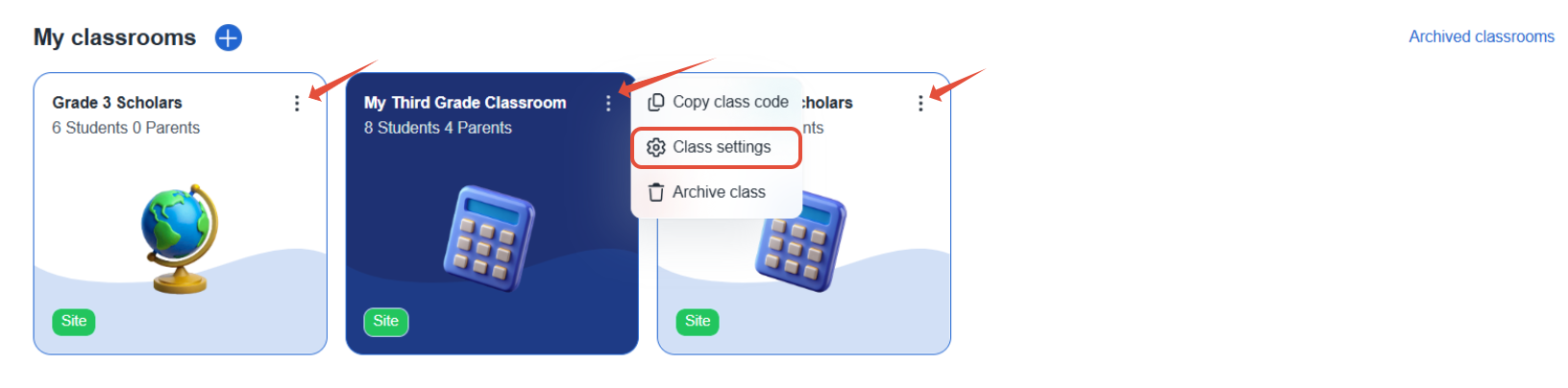
Under Class settings, you can adjust various content settings for the classroom. If the students will need access to adaptive paths in each of the content areas, these areas will be important to enable. 
Math and ELA Settings
Math and ELA settings operate identically, with the exception of the additional Fact Fluency settings available in Math. These settings are specific to Adaptive Practice. Some key pointers:
- Weekly Goal - This goes from Mon-Sun. Fact Fluency is NOT part of the Math goal.
- Curriculum Settings- If Adaptive Practice is turned off, students will not have automatic, personalized practice and this subject's goal will not appear on the student dashboard.
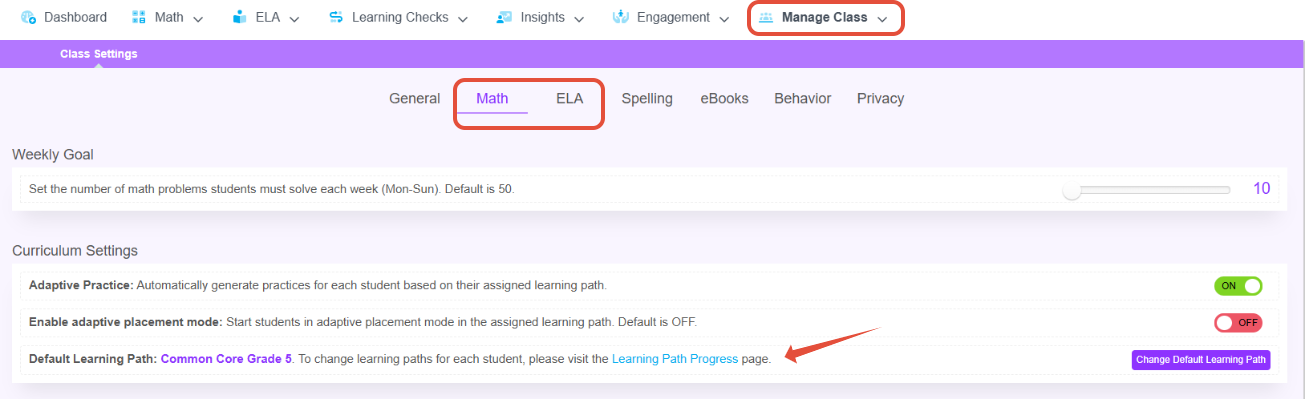
- Mastery Settings -Depending on the type of Learning Paths implemented, we suggest different Mastery settings. Learn more about types of Learning Paths.

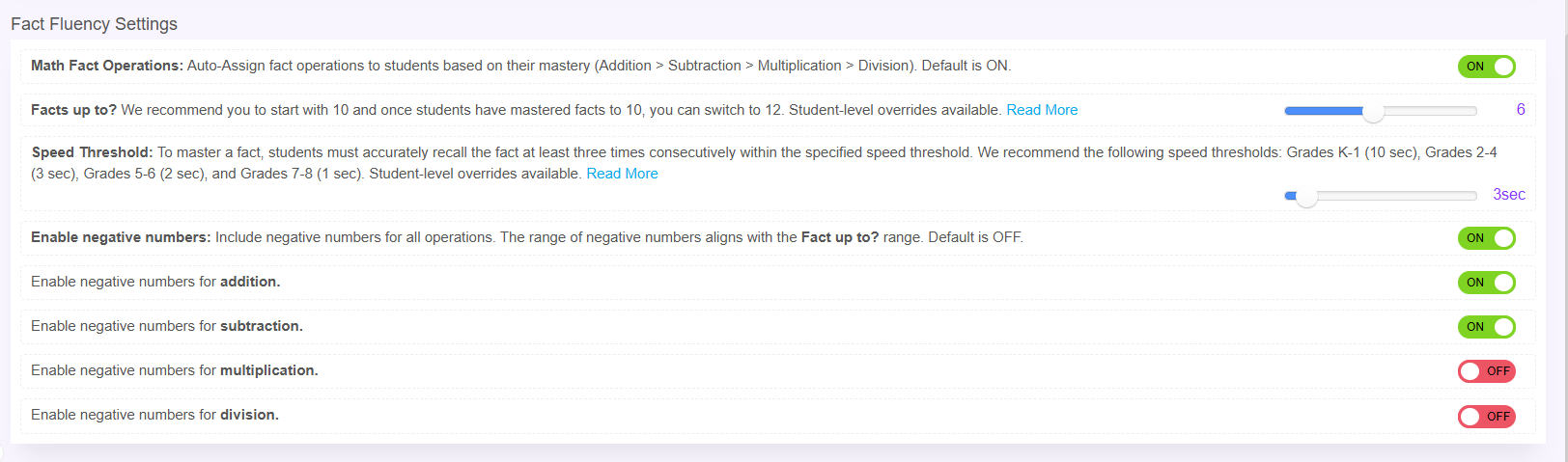
- Fact Fluency Settings - These settings control how Fact Fluency works, but this does not control if students are assigned an operation. By turning Math Fact Operations off, this only controls whether students automatically move to the next operation.
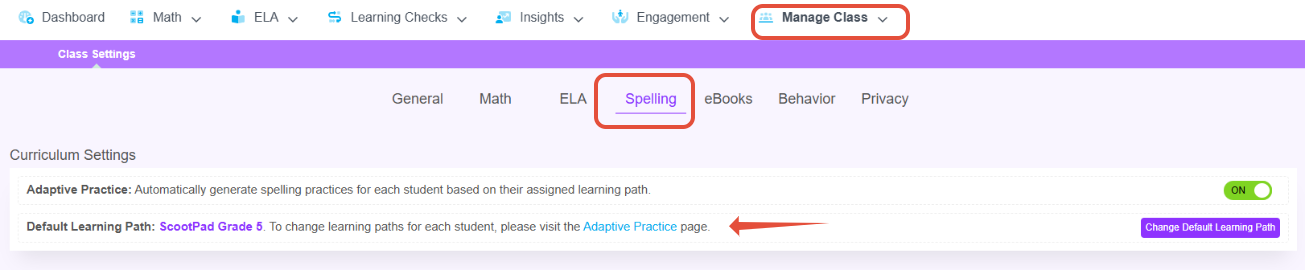
Spelling Settings
Enabling Adaptive Spelling paths ensures that students can progress through 40 grade-aligned word lists.
eBook Settings
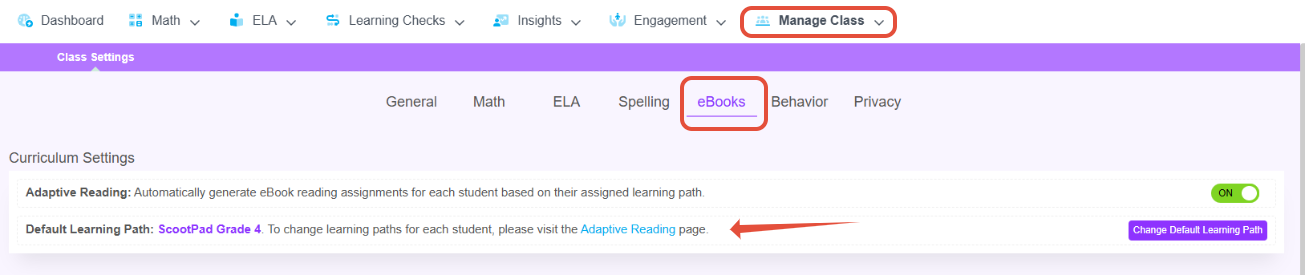
Enabling Adaptive Reading paths ensures that students can read grade-aligned eBooks.
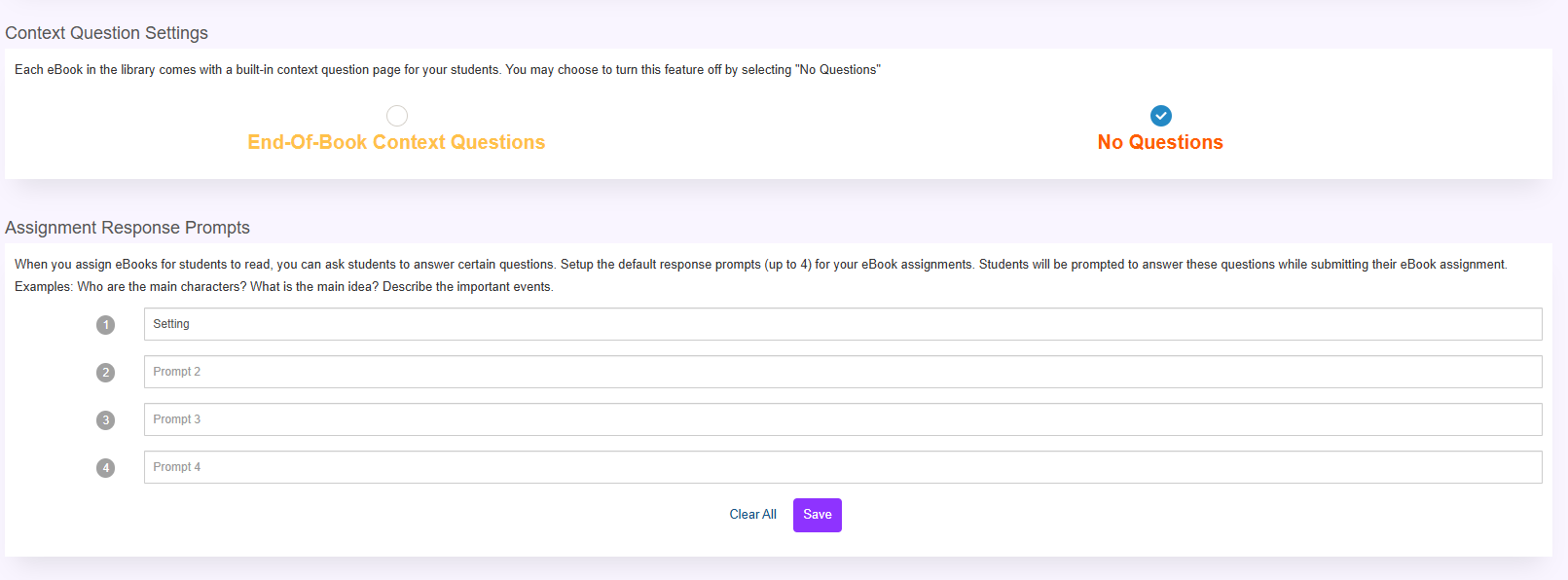
- Under Context Question and Assignment Response Prompts, teachers can select for Context Questions to appear at the end of the book or to disable the questions entirely. Teachers can also set default questions/response prompts students will have while submitting their eBook assignments.
- Student GRL Restrictions allow teachers to restrict students to a specific GRL Level when viewing the eBooks Library.

Related Resources
Was this article helpful?
That’s Great!
Thank you for your feedback
Sorry! We couldn't be helpful
Thank you for your feedback
Feedback sent
We appreciate your effort and will try to fix the article