Overview
This article focuses on the features available under the General tab in Classroom settings, such as adding co-teachers, enabling voice read-aloud, and language translation. For information on other settings, please refer to the related resources.
Steps to Follow
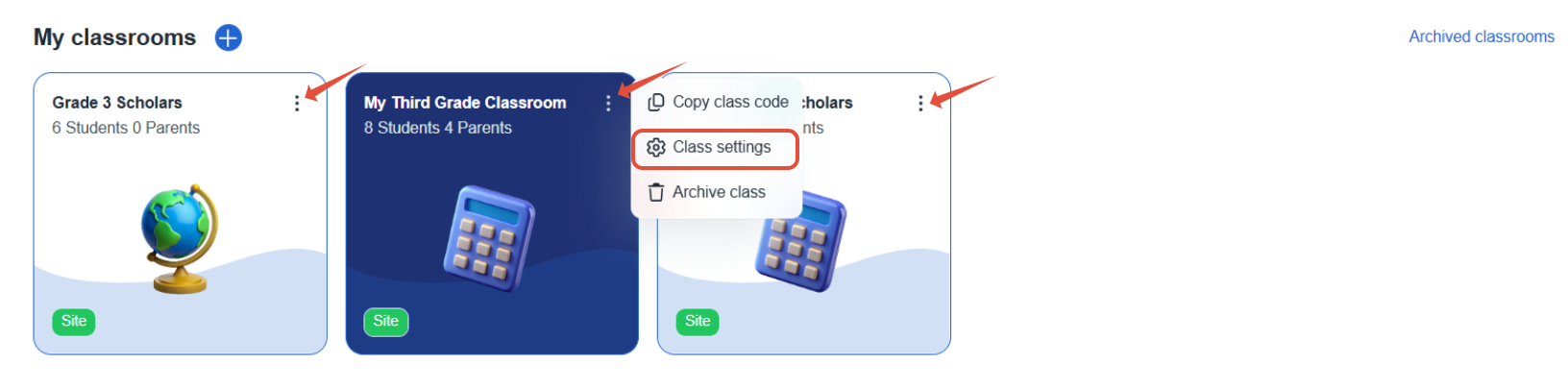
- Each classroom can have different settings enabled. To get started, click the three dots for the specific classroom you want to manage.
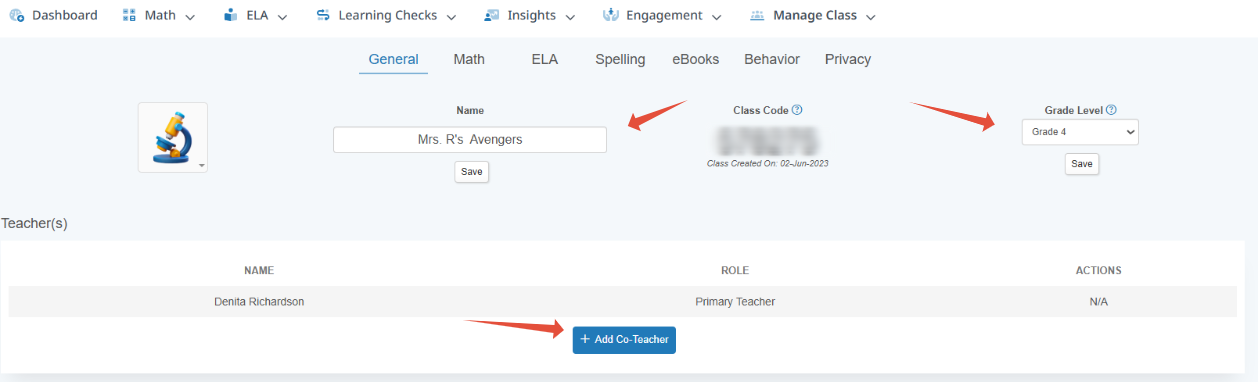
- Under Class settings, you can adjust various settings for the classroom. The arrows point to areas that can be adjusted. If your classroom was added via Clever or ClassLink, we suggest changing the name to reflect something student-friendly. (i.e DR-0000Fall, Smith 2, 3 gets changed to Big Scholars)
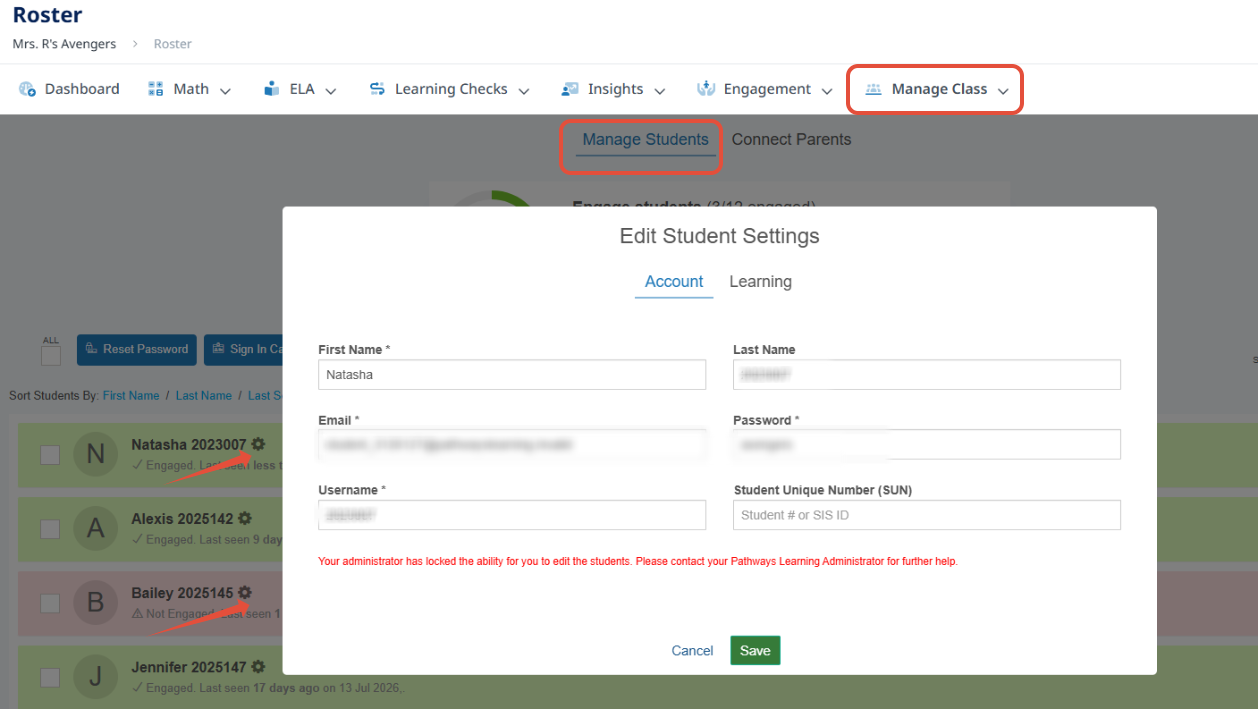
- Within Practice settings, it's possible to enable voice read-aloud and language translation features. Additionally, you can modify options related to student retries, coin incentives for retries, and the provision of feedback. Please note that these adjustments are specific to each individual classroom. If needed, access the class roster to customize settings for each student.

Related Resources
Was this article helpful?
That’s Great!
Thank you for your feedback
Sorry! We couldn't be helpful
Thank you for your feedback
Feedback sent
We appreciate your effort and will try to fix the article