Overview
This article walks teachers through how to create and assign Learning Paths to their students.
Steps to Follow
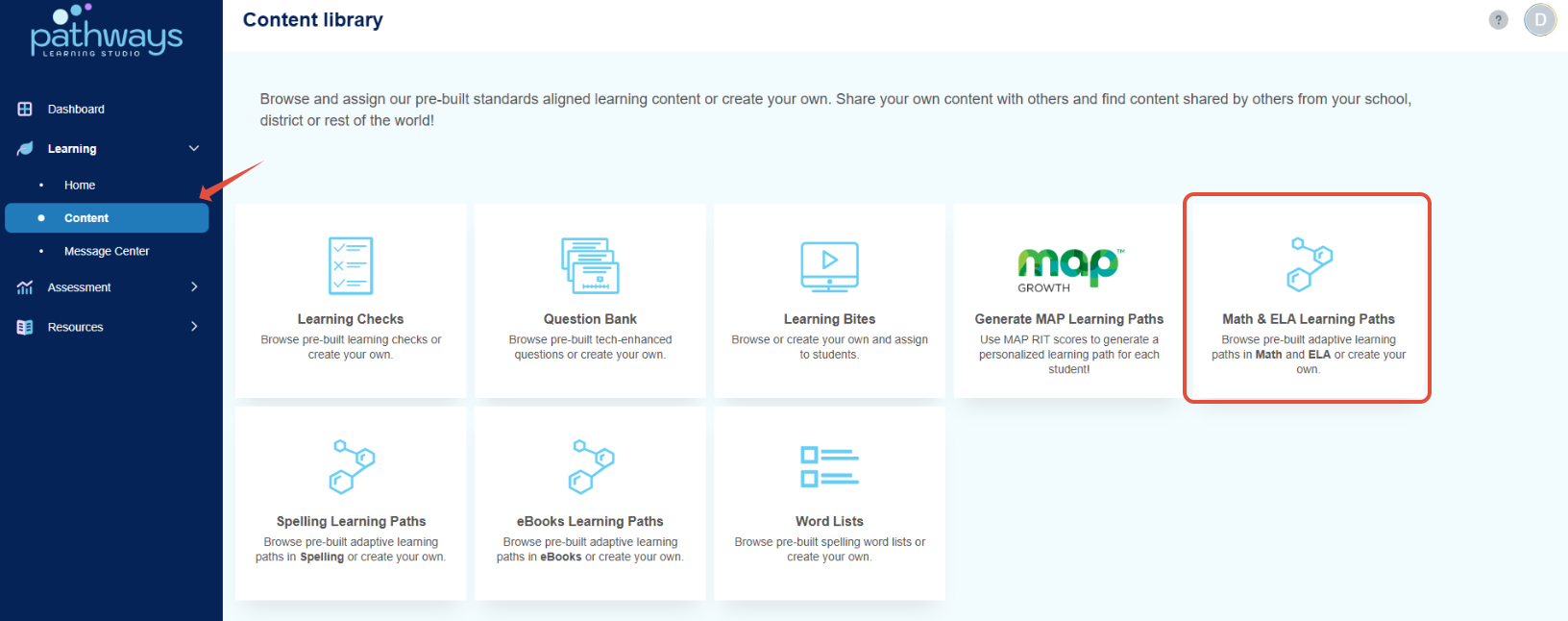
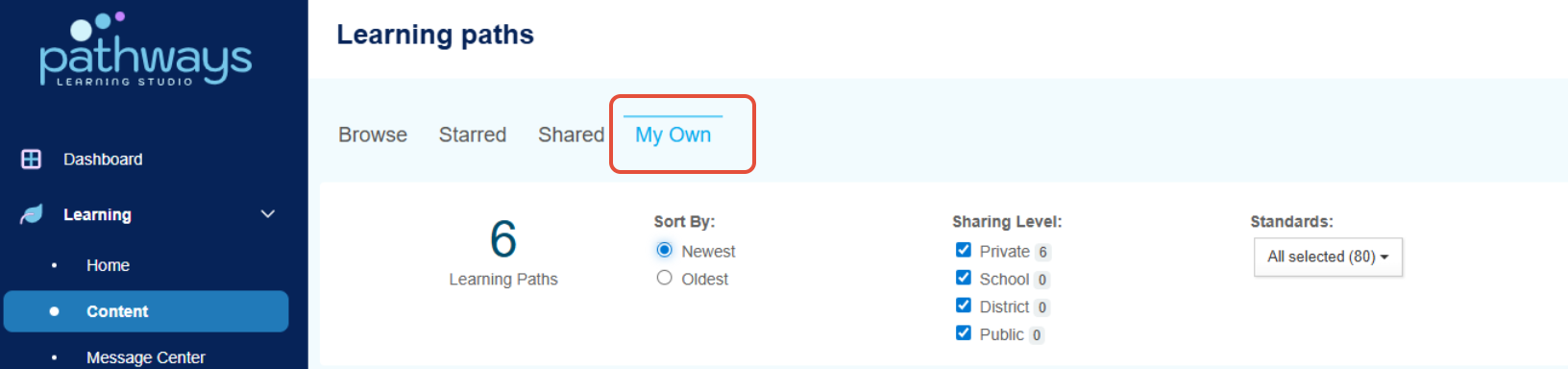
- Select Content under the Learning module from the dashboard and then the Math & ELA Learning Paths tile.
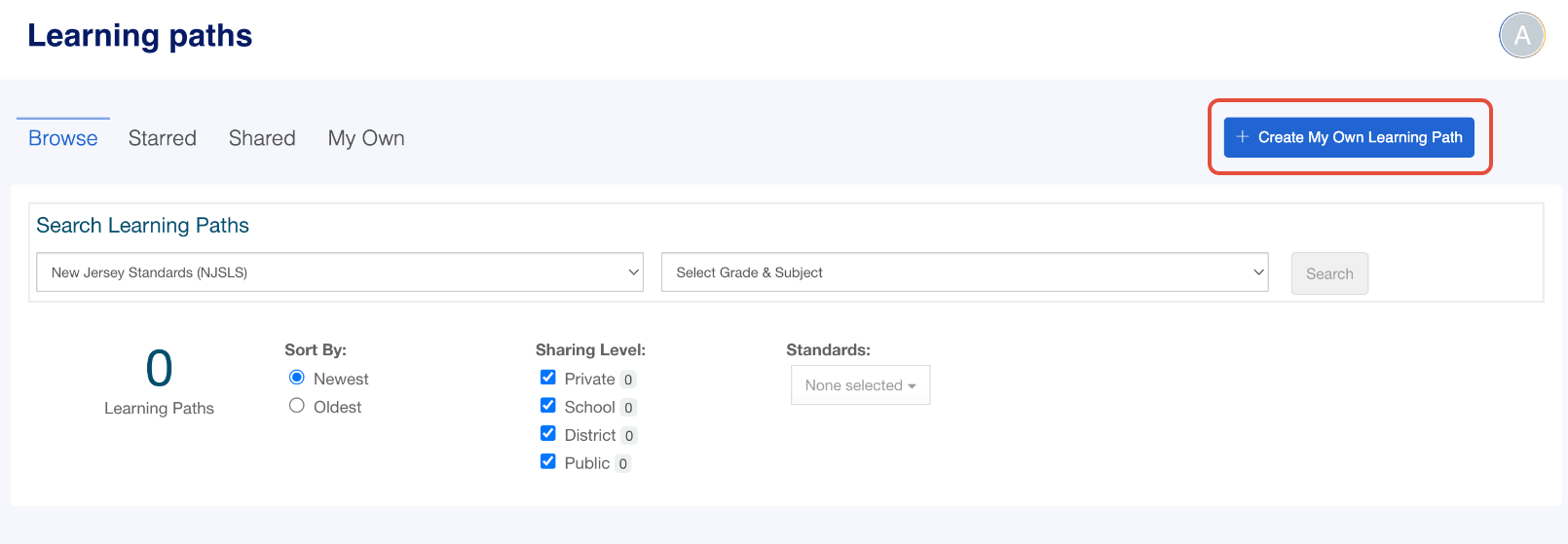
- Click the button to create a path and then select the subject.

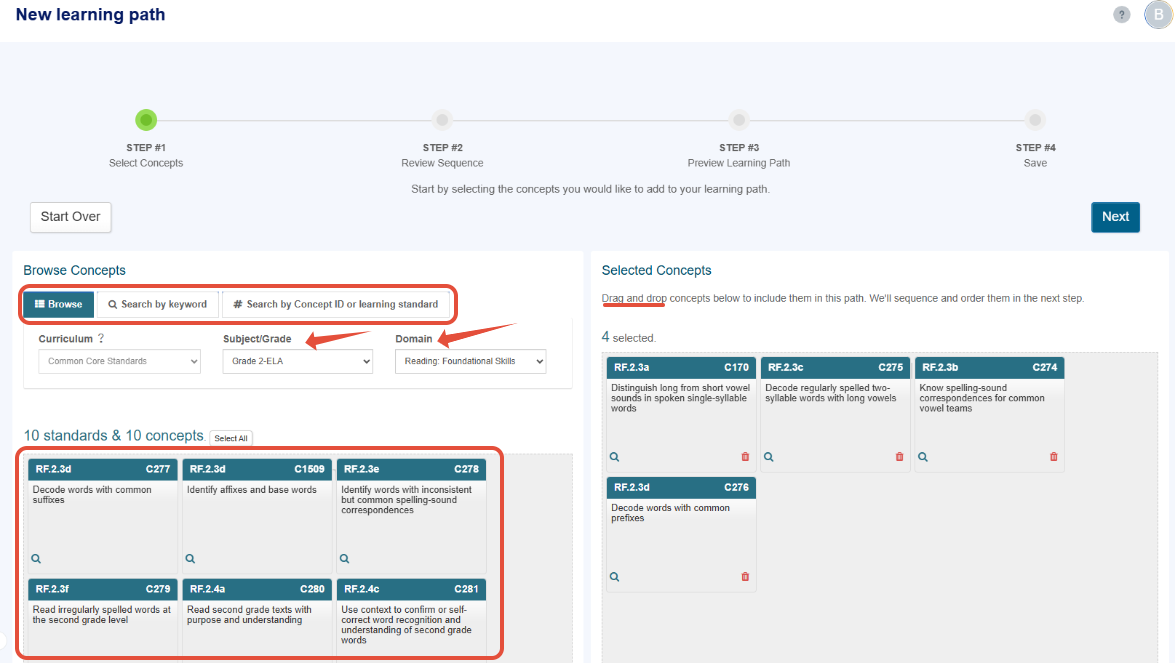
- Follow the steps to create a custom Learning Path that is aligned to a scope and sequence, pacing guides or a specific set of concepts the students need to work on repeatedly. Teachers can share this path with their school or everyone in the district.
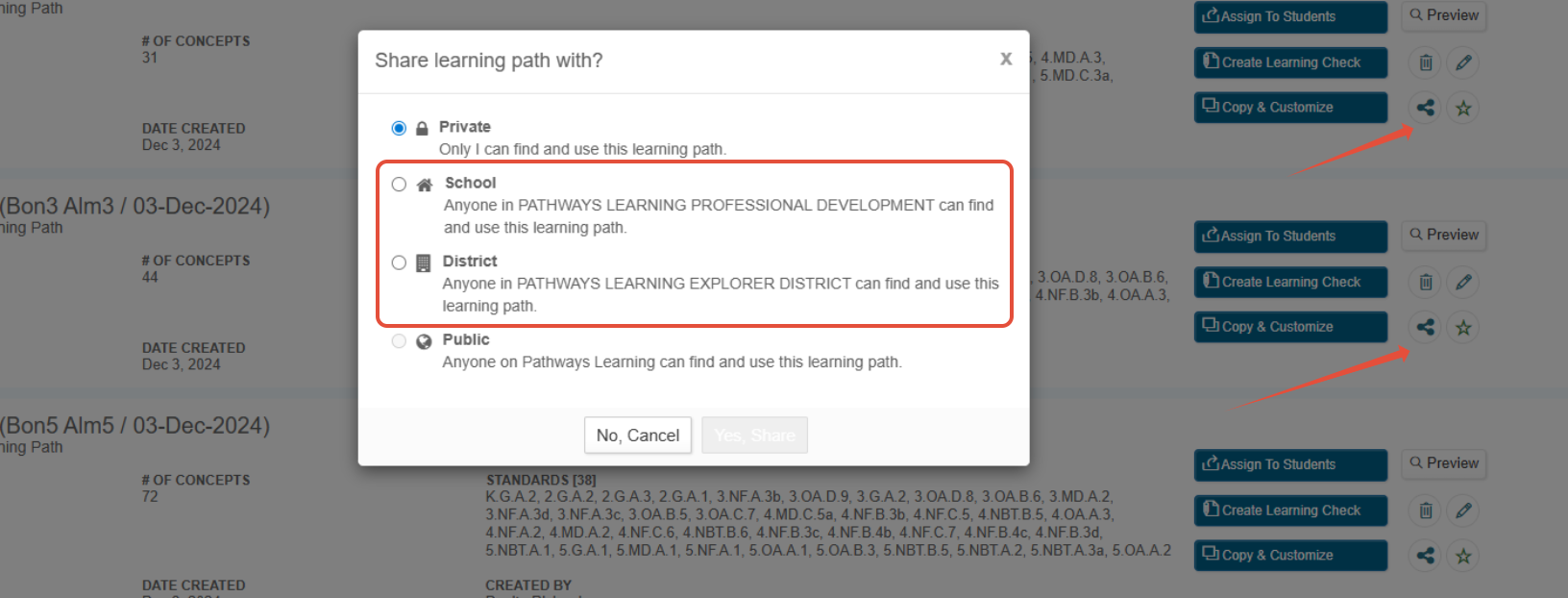
- The teacher can always return to the Content Library, locate the path and perform specific actions. When the path is shared, others can perform the same actions except edit it.
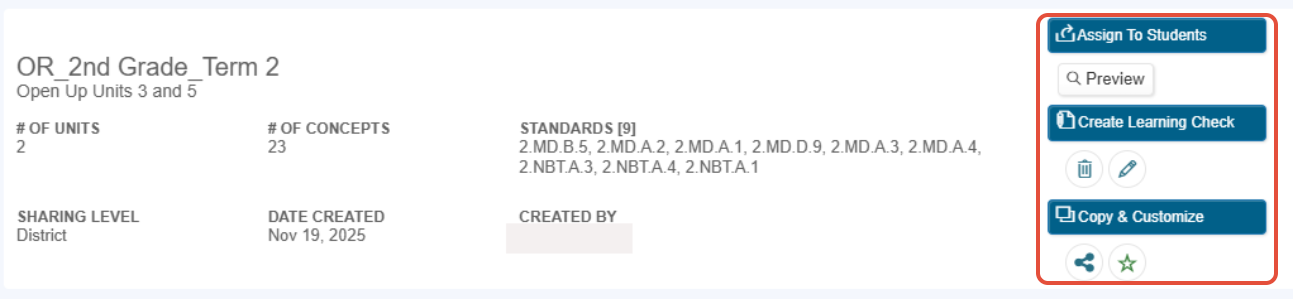
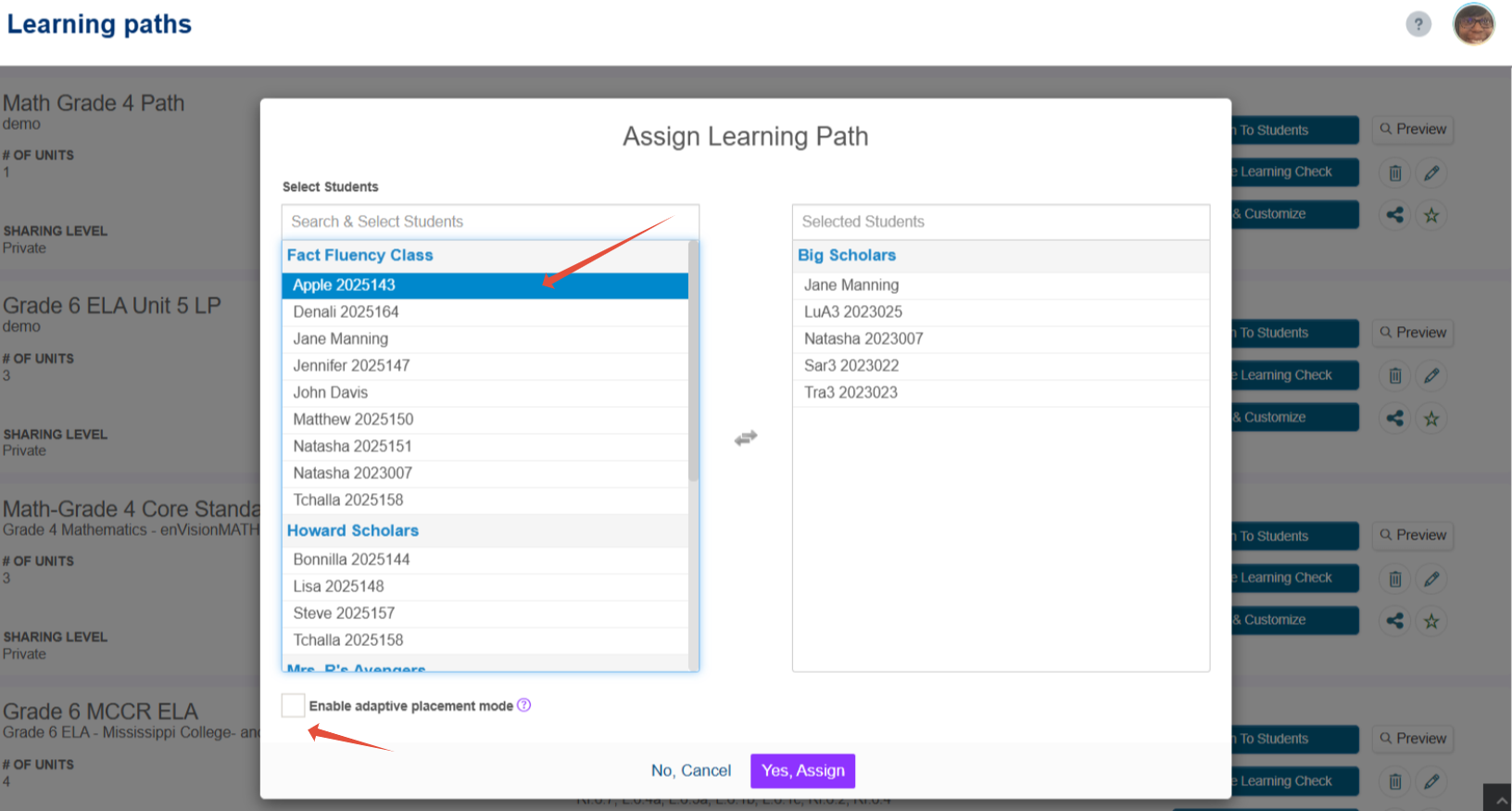
- To assign the path to several classrooms at once, the teacher can select the assign to students button in the previous image. In the window, a list of all classrooms will be listed on the left-hand side. Select the classroom's name to assign the Learning Path to the entire classroom or specific students. If classrooms have already been assigned the Learning Path, they will appear on the right-hand side of the window. In this window, the teacher can also choose for the journey in this path to automatically start in placement mode.
Note: Learning Paths are always available year over year allowing teachers to get started very quickly as the school year begins.
Related Resources
Was this article helpful?
That’s Great!
Thank you for your feedback
Sorry! We couldn't be helpful
Thank you for your feedback
Feedback sent
We appreciate your effort and will try to fix the article