Overview
This article walks you through how to use Reading and Writing content in Pathways Learning. Please use the table of contents below to navigate to specific sections for more detailed information.
Table of Contents
- Creating and Reviewing eBook Assignments
- Creating and Reviewing Reading Log Assignments
- Working with Writing Assignments
- Working with Projects
- Related Resources
Creating and Reviewing eBook Assignments
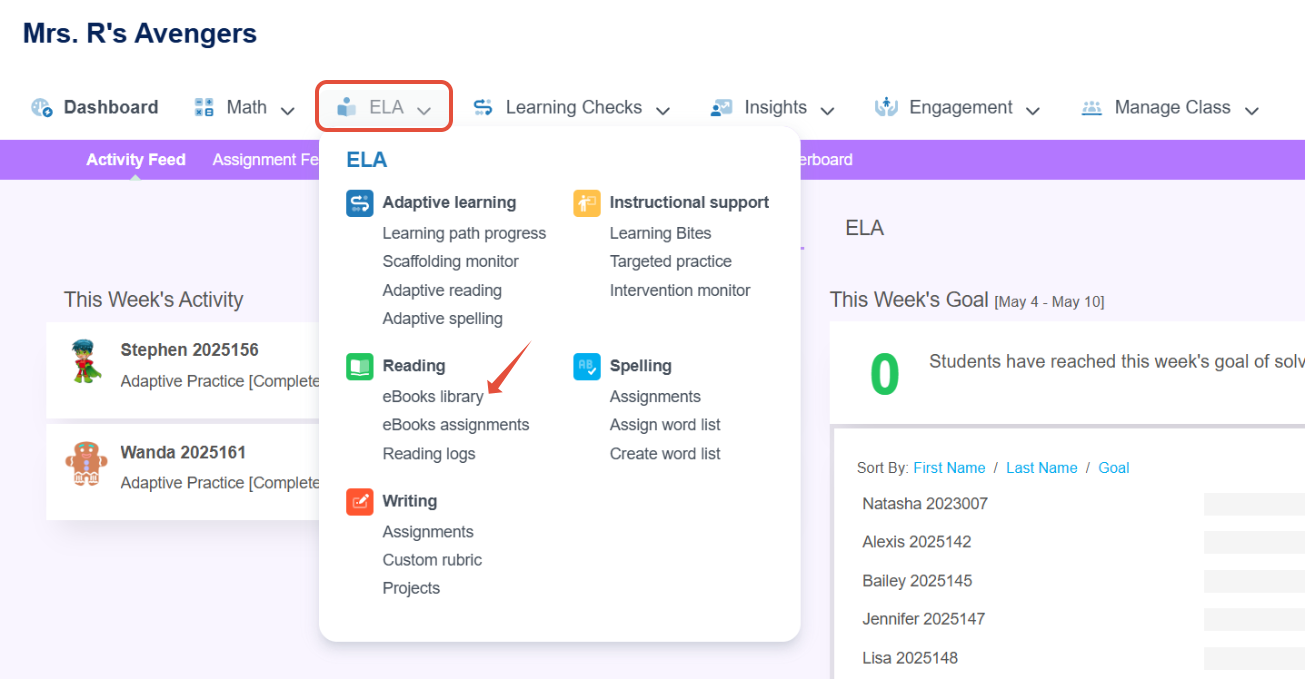
- From the top navigation bar, select ELA and then under Reading click on eBooks library.
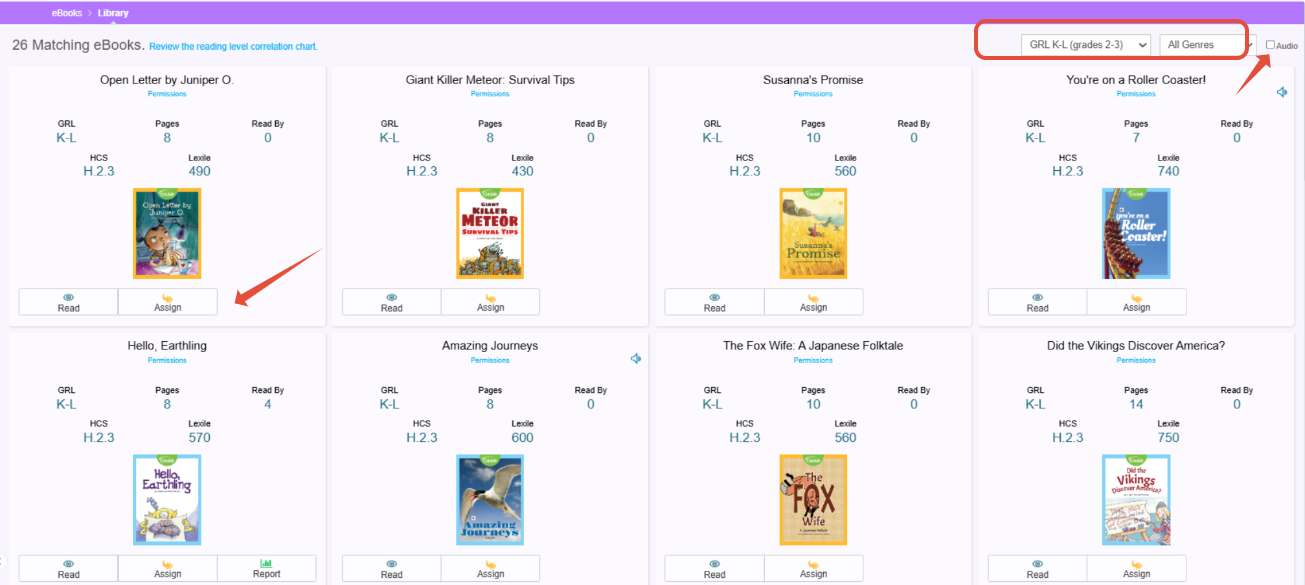
- In the eBooks library you can filter by GRL level and by Genre. You can also check the box to show books with audio. To preview an eBook select Read, and to assign click on Assign.
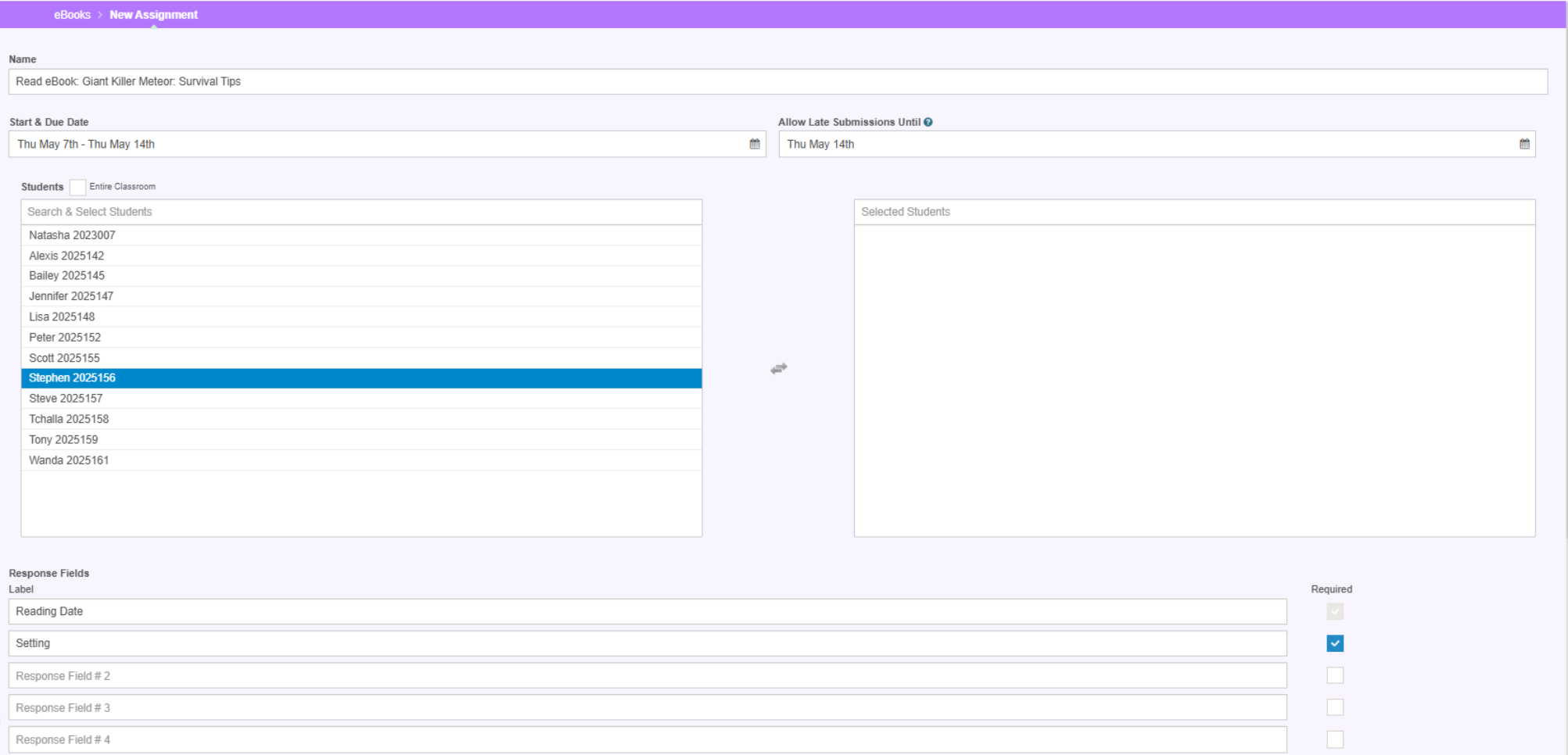
- Set the start date and due date, then choose the students you would like to assign the eBook to.
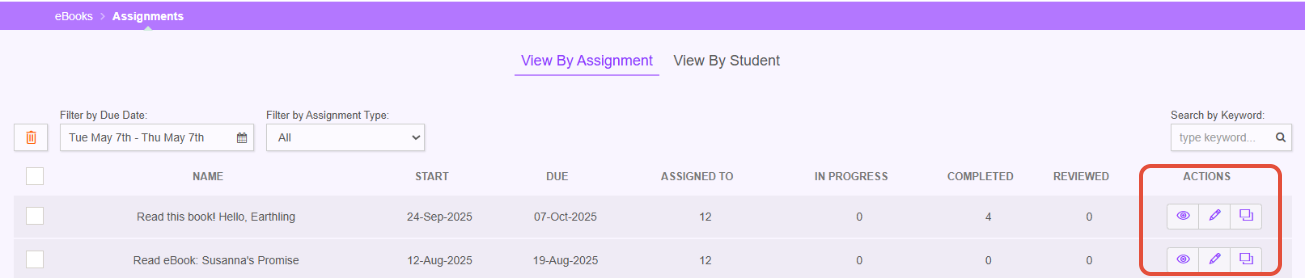
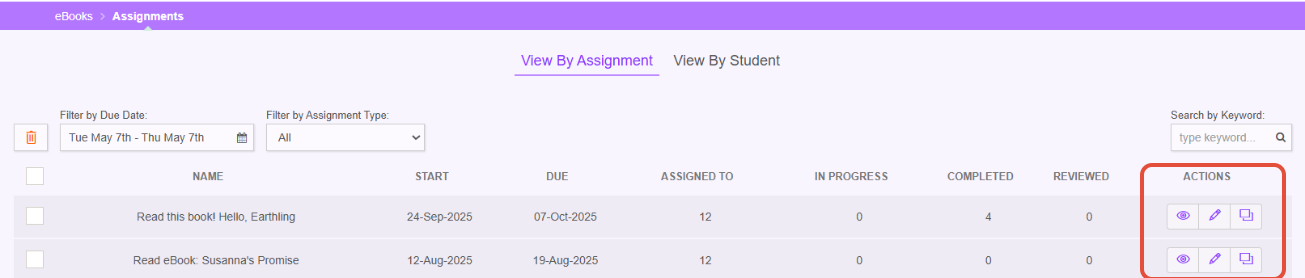
- To review student submissions, locate the list of eBook Assignments. On the right under Actions, click Review (the eyeball).
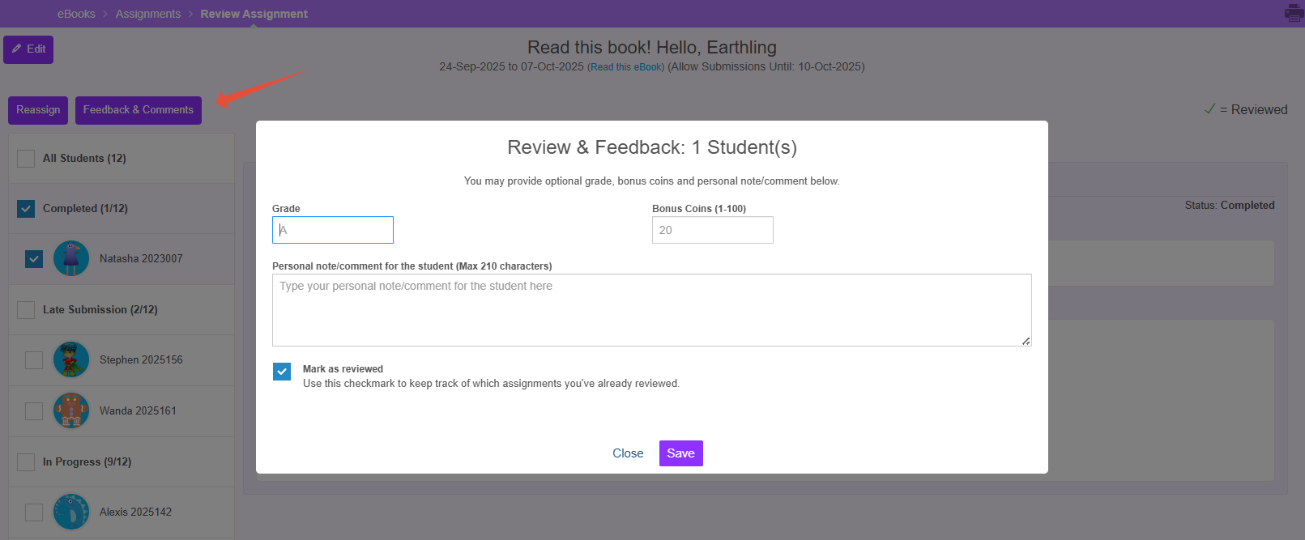
- Select a student and you can review the submission, There is also the option to leave feedback.
Creating and Reviewing Reading Log Assignments
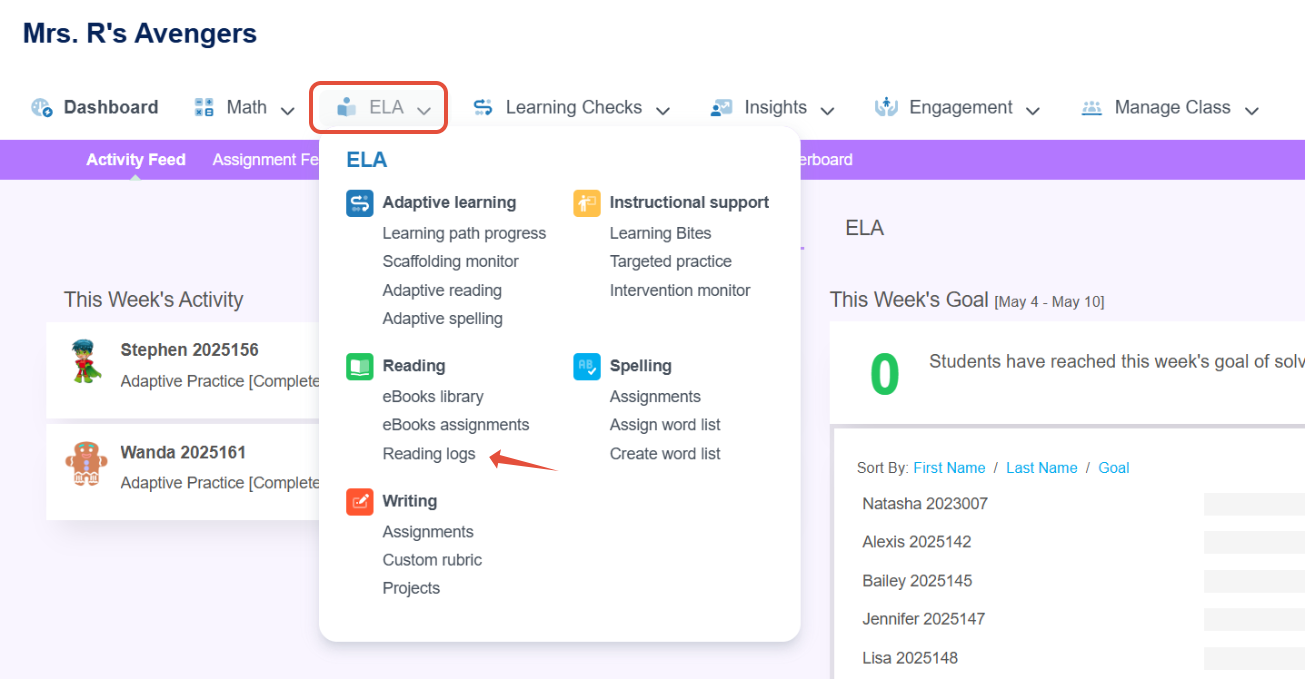
- On the classroom navigation bar select ELA and then under Reading, click Reading Logs.
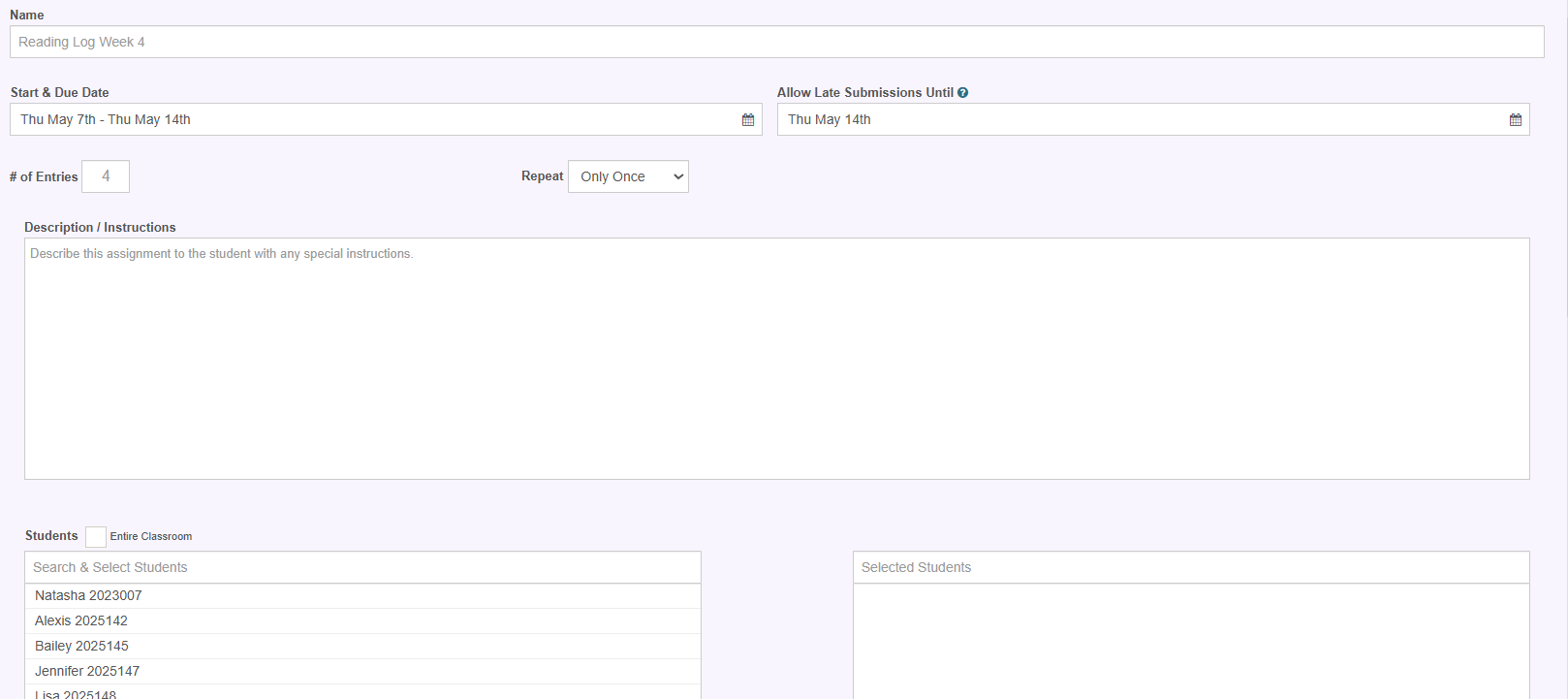
- Select New Assignment. Then, name the Reading Log, assign a start & due date, and give instructions. Choose a specific student or the entire class.
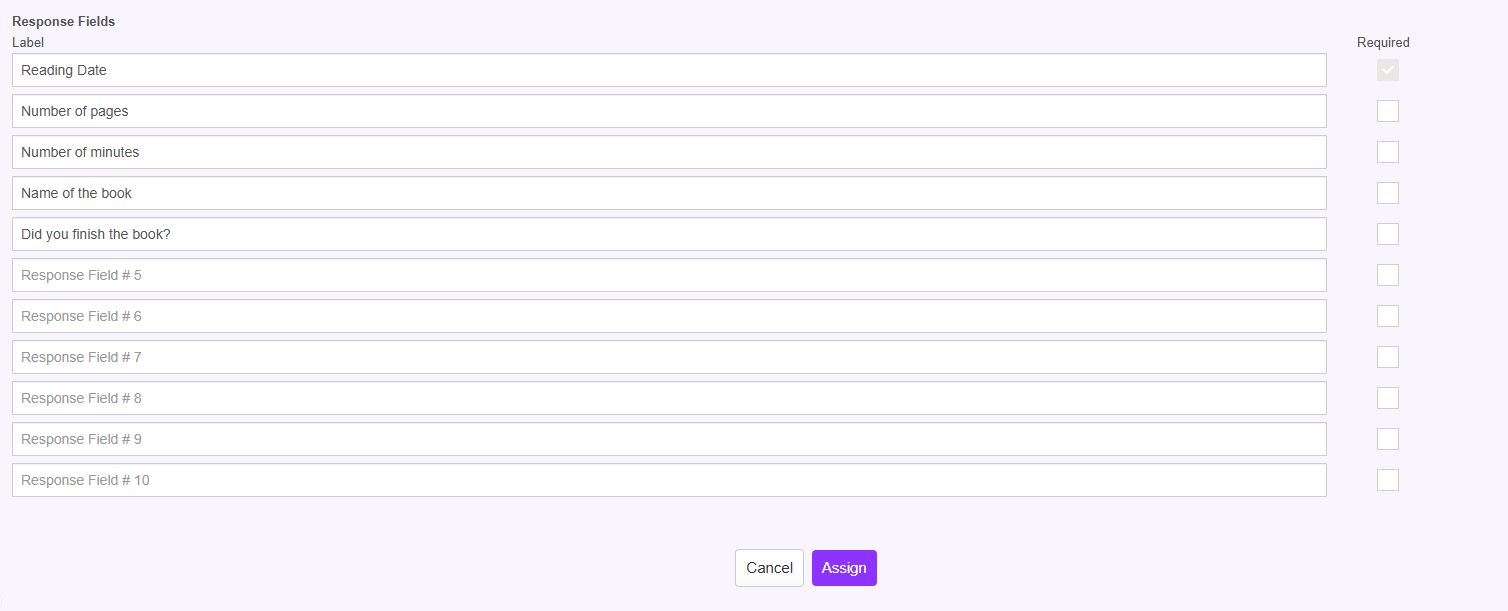
- Label the response fields and click assign.
- To review student submissions, locate the list of Reading Log Assignments. On the right under Actions, click Review(the eyeball).
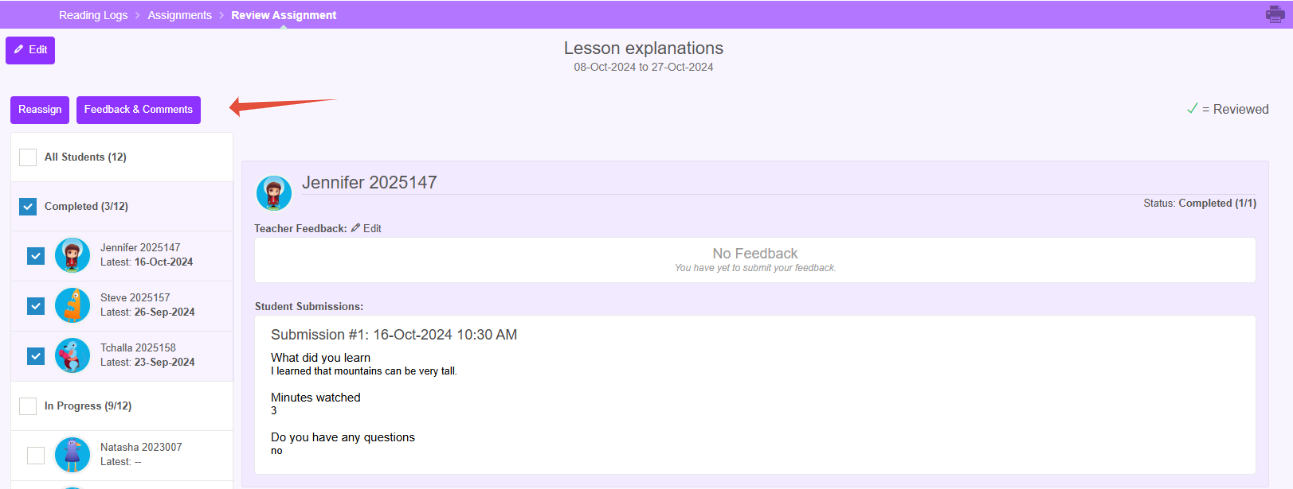
- Select a student and you can review the submission, There is also the option to leave feedback.
Working with Writing Assignments
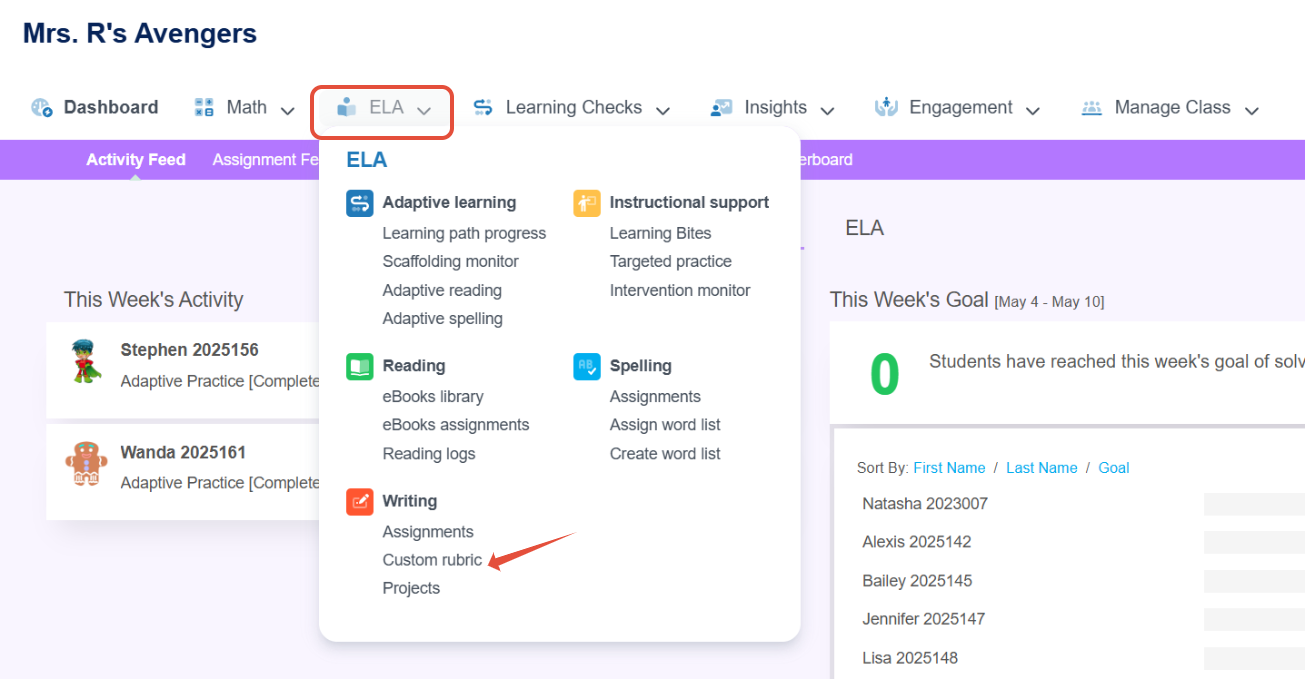
- On the classroom navigation bar select ELA and then under Writing click Custom rubric.
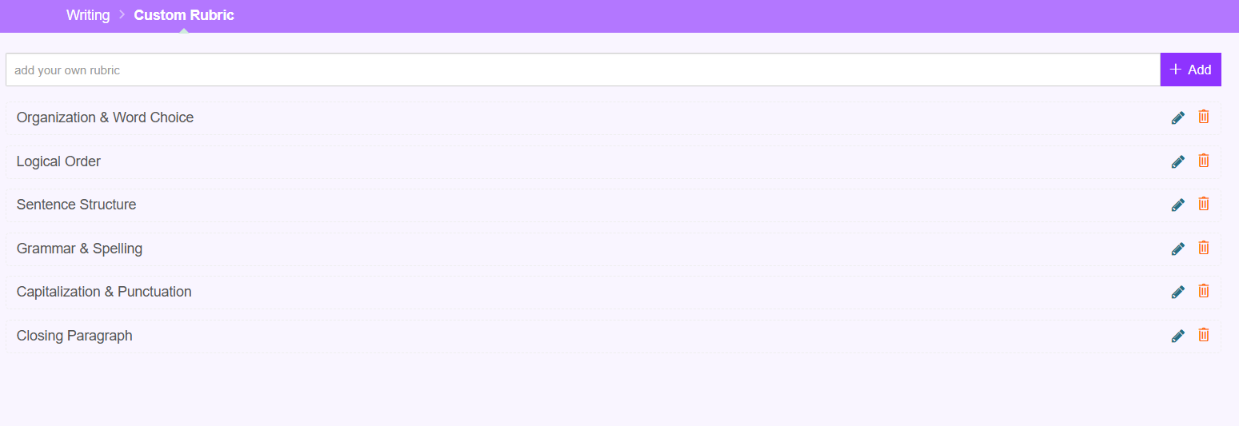
- To add your own rubric criteria, type in the space provided and click Add. To change criteria, click the edit (Pencil). Update the rubric criteria and click Update.
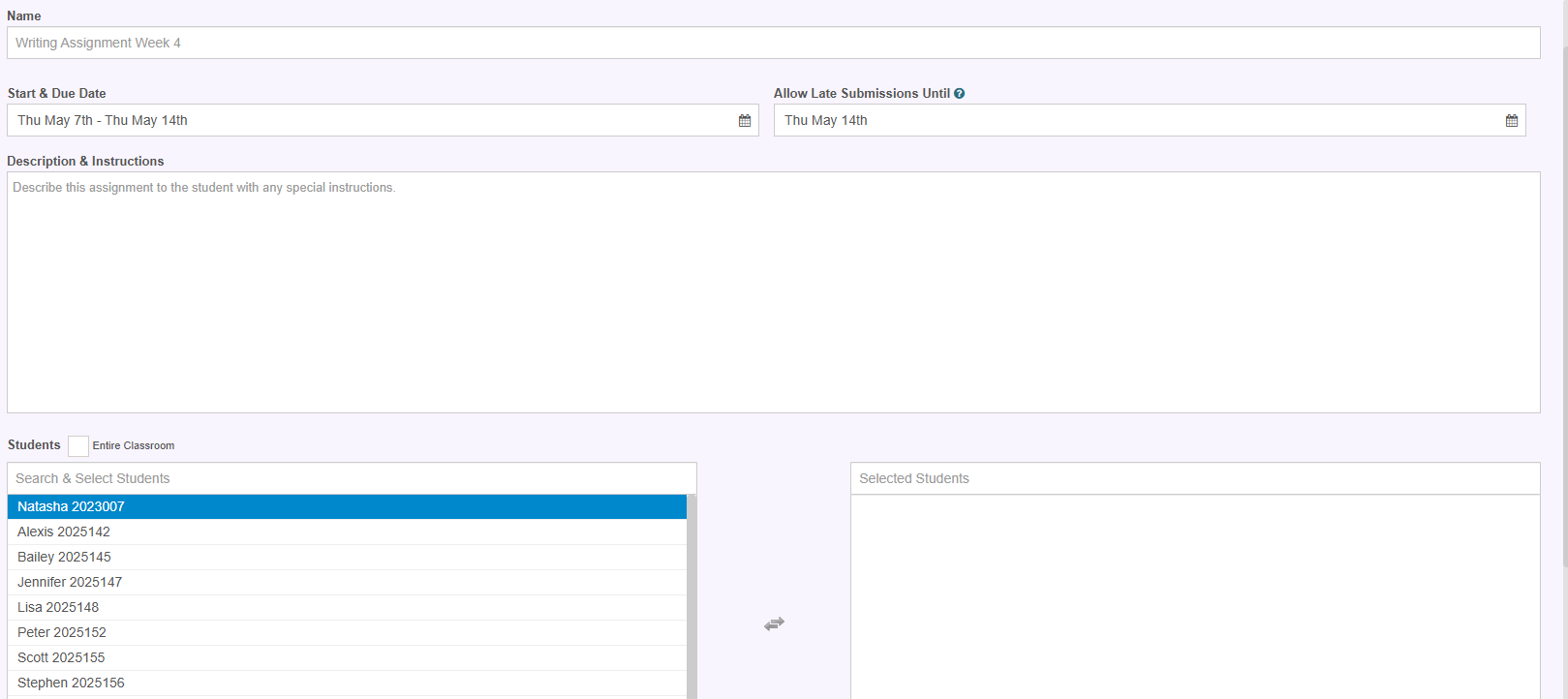
- To create an assignment, click assignments under Writing. Select the new assignment button. Name it, select a start and due date. Then give it a description and some instructions. Select the entire classroom or just specific students and click Assign.
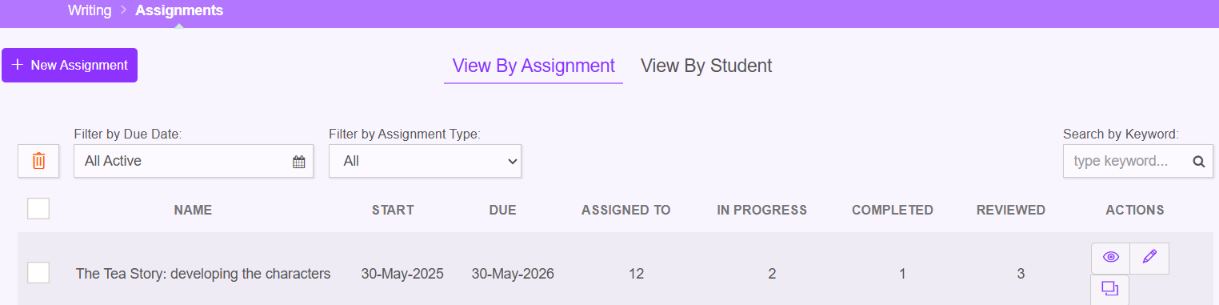
- To review student submissions, locate the list of Writing Assignments. On the right under Actions, click Review (the eyeball).
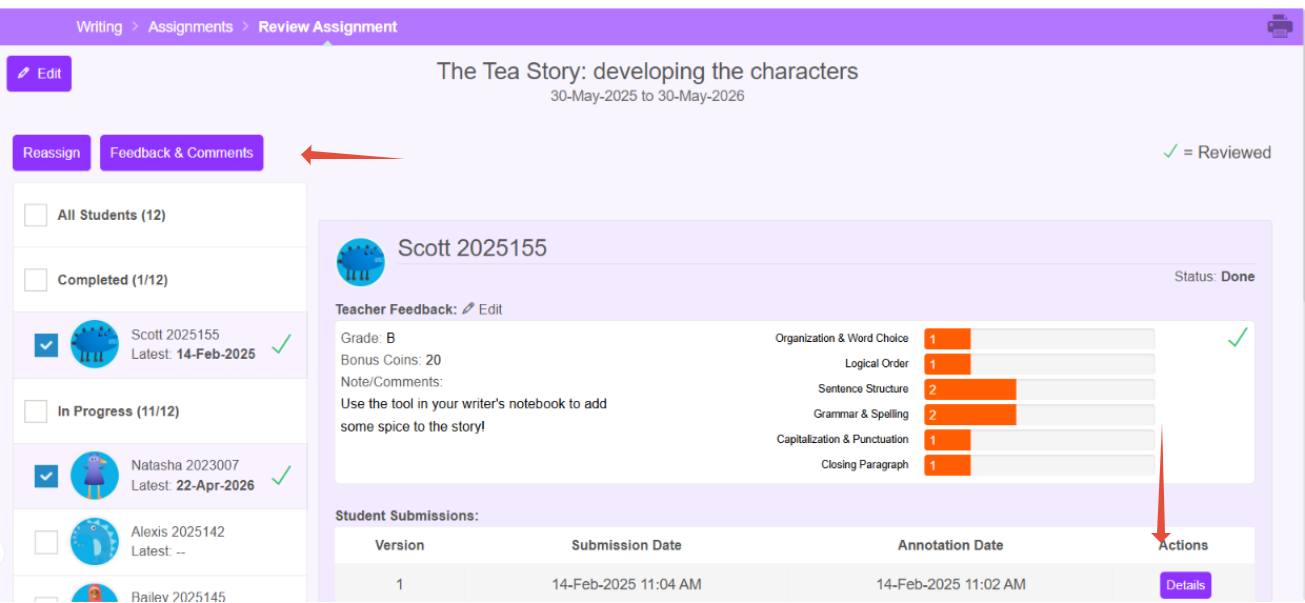
- Select a student and you can review the submission. You can click details to annotate the assignment and request a revision.
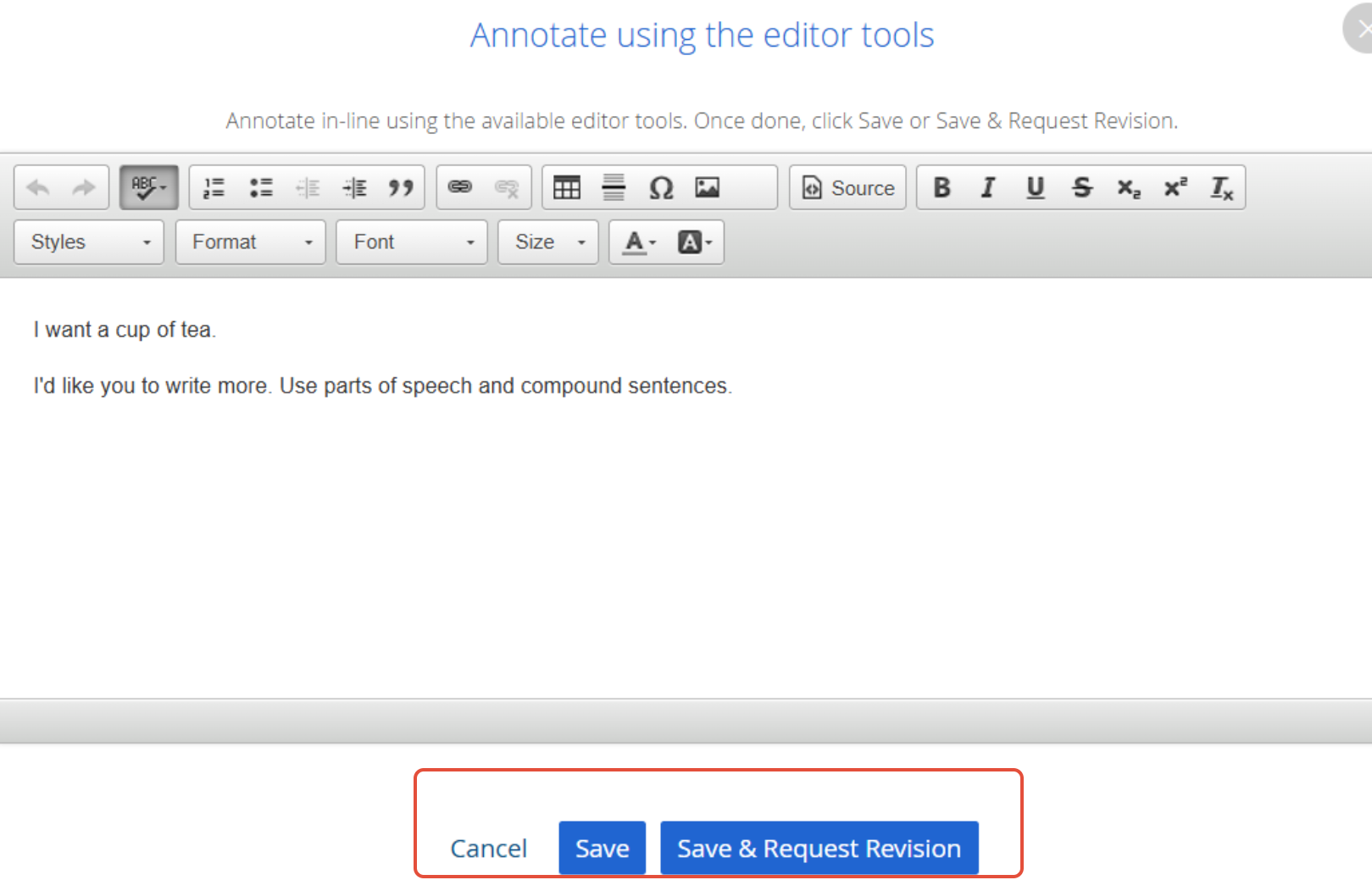
- Annotate using the editor Tools.
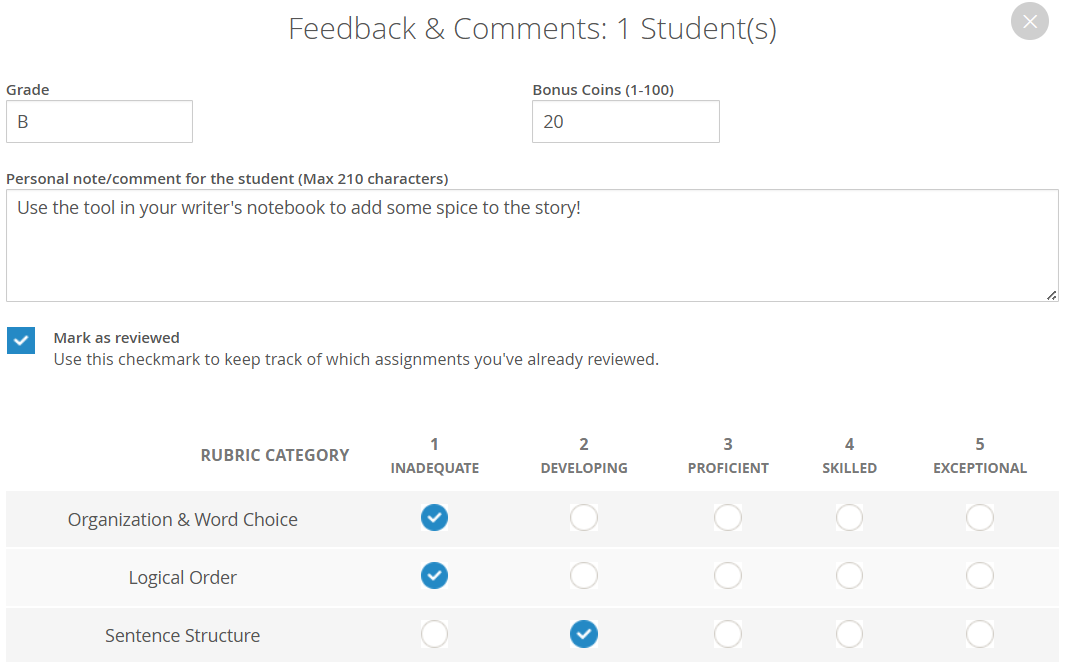
- There is also the option to Review & Feedback.
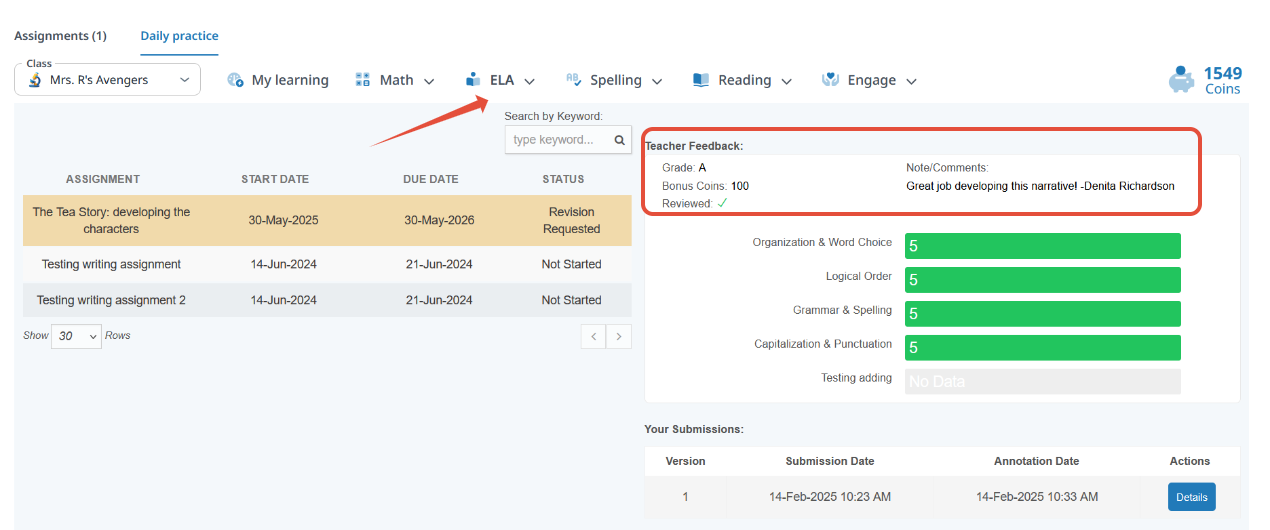
- The student can then look up your Annotations and the Feedback. In the below image, this is the view from the student's perspective.
Working with Projects
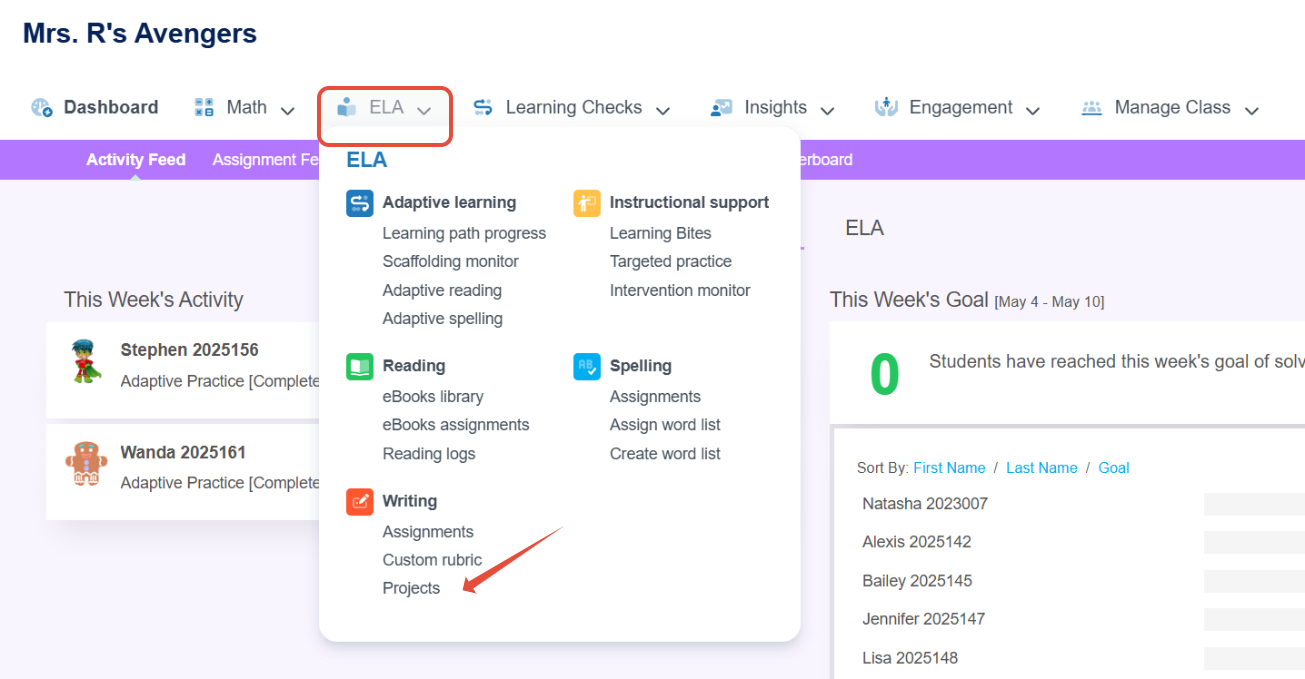
- On the classroom navigation bar, select ELA and then under Writing, click on Projects.
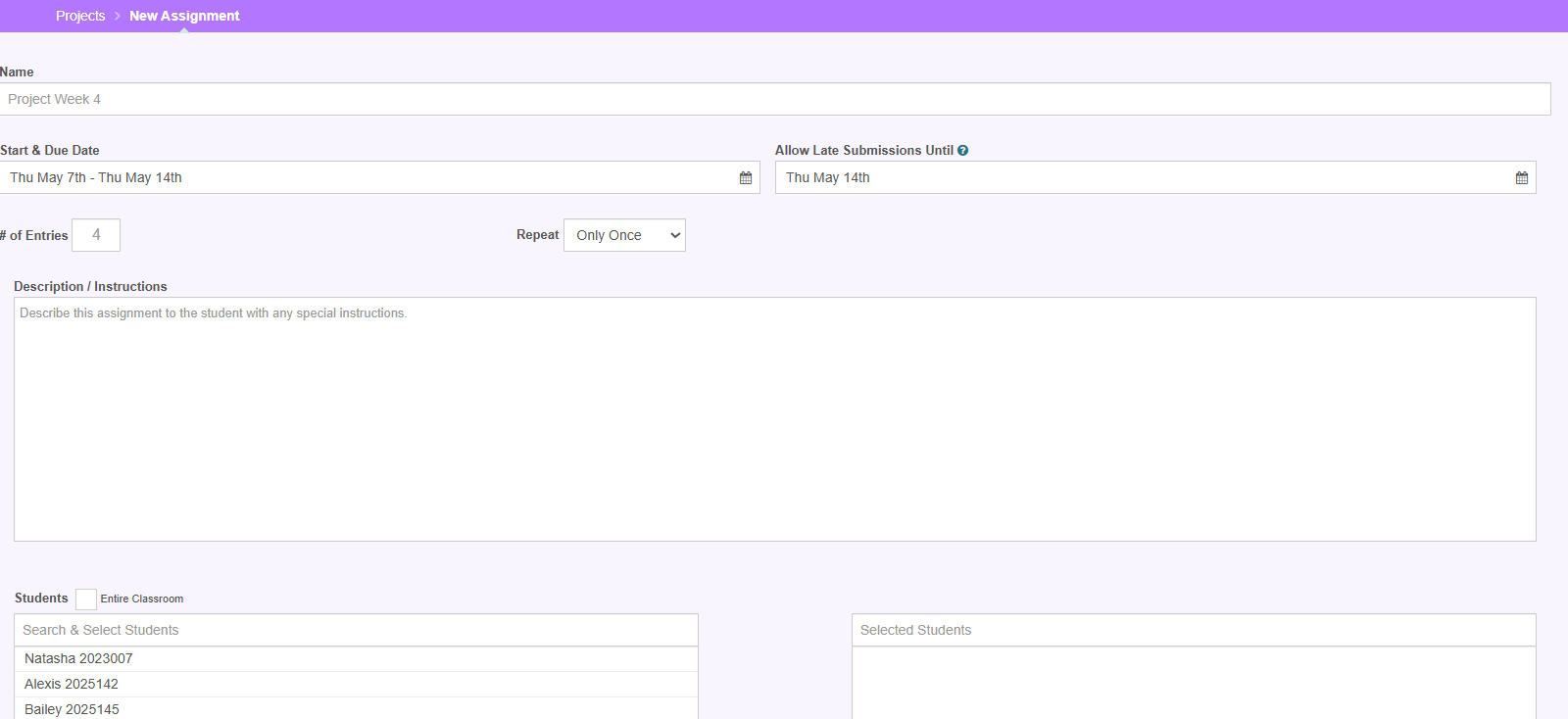
- Select New Assignment. Name it, select a start and due date. Then give it a description and some instructions. Select the entire classroom or just specific students and click Assign.
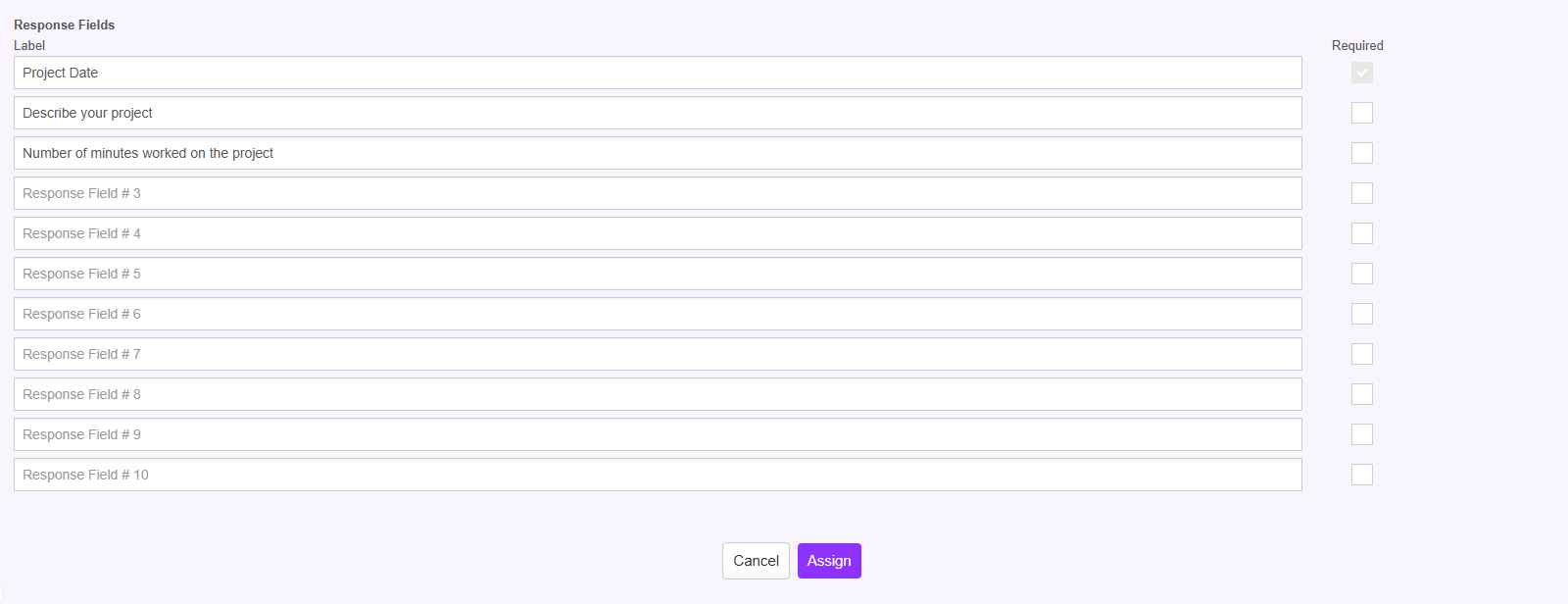
- Label the response fields and click assign.
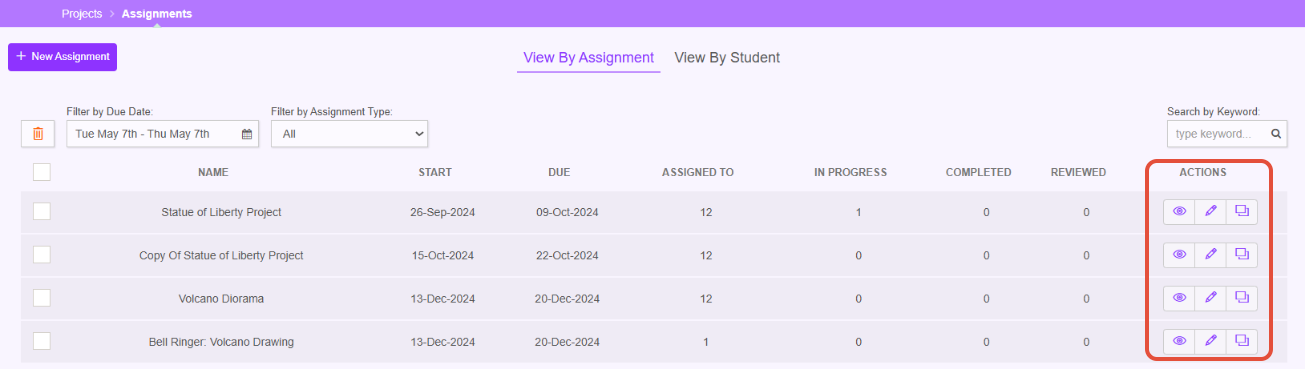
- To review student submissions, locate the list of Projects. On the right under Actions, click Review (the eyeball).
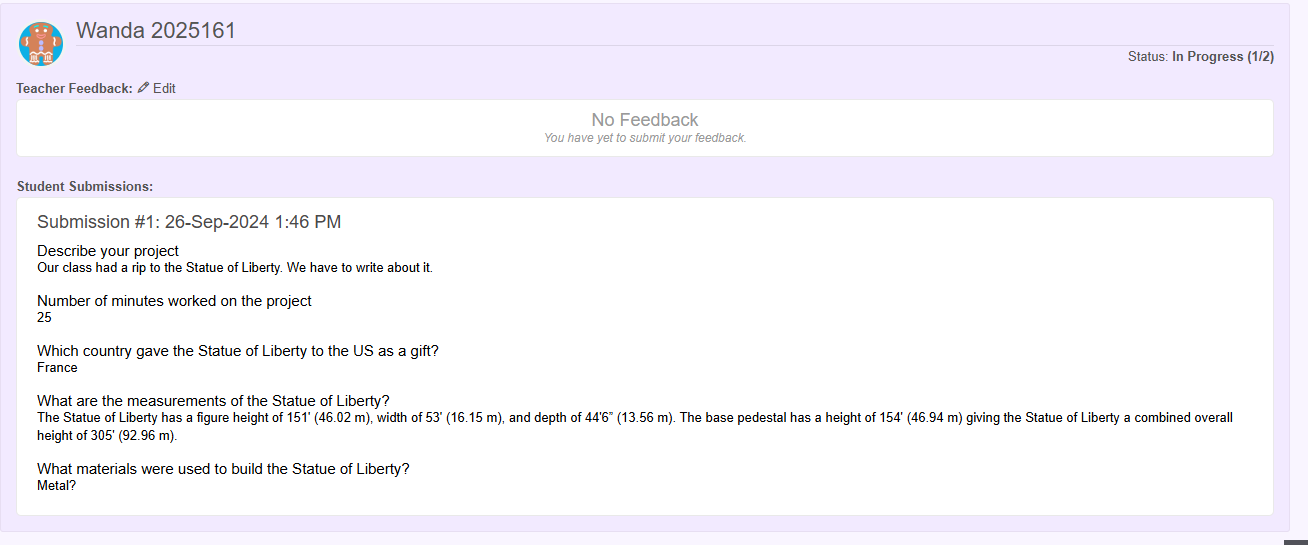
- Select the student submission to review and click Review & Feedback.
Related Resources
- Pathways Learning: Managing Content-Specific Settings
- Learning Video: Content Library
- Learning Video: Learning Bites
Was this article helpful?
That’s Great!
Thank you for your feedback
Sorry! We couldn't be helpful
Thank you for your feedback
Feedback sent
We appreciate your effort and will try to fix the article