Overview
This article walks a teacher through how to manage and use the Fact Fluency module in Pathways Learning. Please use the table of contents below to navigate to specific sections for more detailed information.
Table of Contents
- Fact Fluency Settings (Classroom-level)
- Fact Fluency Enablement
- Individualizing Fact Fluency
- Reviewing Fact Fluency Data
- Common Questions
- Related Resources
Fact Fluency Settings (Classroom-level)
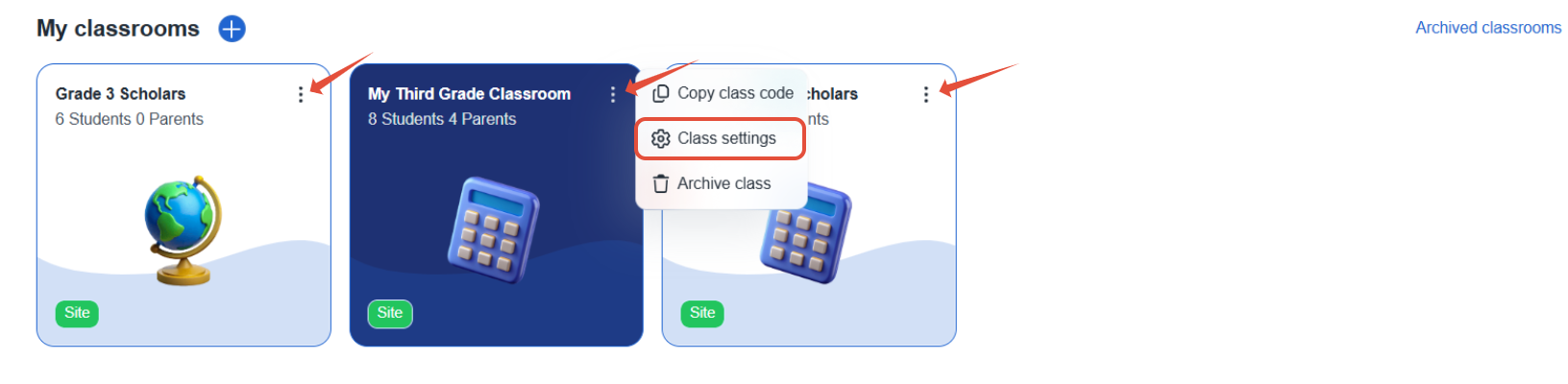
- Click on the three dots for your classroom. Then click on Class settings.
- Once in Class settings, click on Math and then scroll down to the Fact Fluency settings.
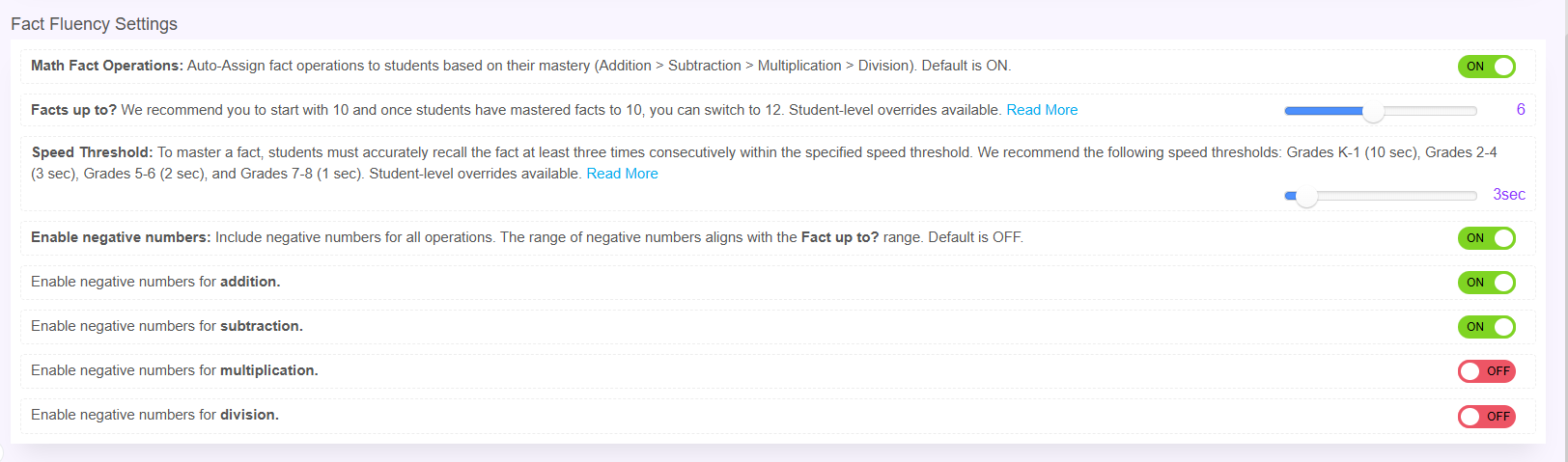
- There are four settings governing the Fact Fluency Module (math fact operations, facts up to, speed threshold, enable negative numbers) to determine the best fit for your classroom.
- Math Fact Operations: This only controls if students move automatically to the next operation. If ON, students will automatically move from one operation to the next. Students are initially placed in ADDITION. If OFF, students are still assigned an operation but they will not move automatically to the next one. You must assign the next fact operation to your students after they have completed the one assigned.
- Facts up to: refers to how many operands the operations will include.
- Speed Threshold: Students must recall a fact 3 times within the specified threshold.
- Enable Negative Numbers: If ON, this setting includes negative numbers for your specified operations.
To completely disable Fact Fluency or assign an operation, visit the Progress Monitor page under Fact Fluency.
Fact Fluency Enablement
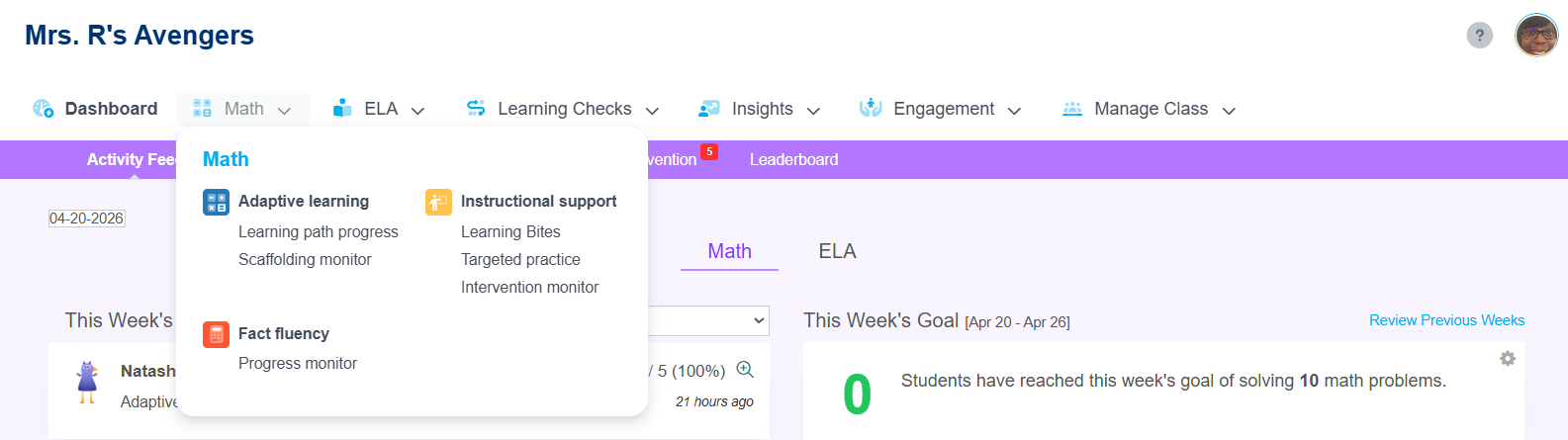
- Hover over Math. Then select Progress monitor under Fact Fluency.
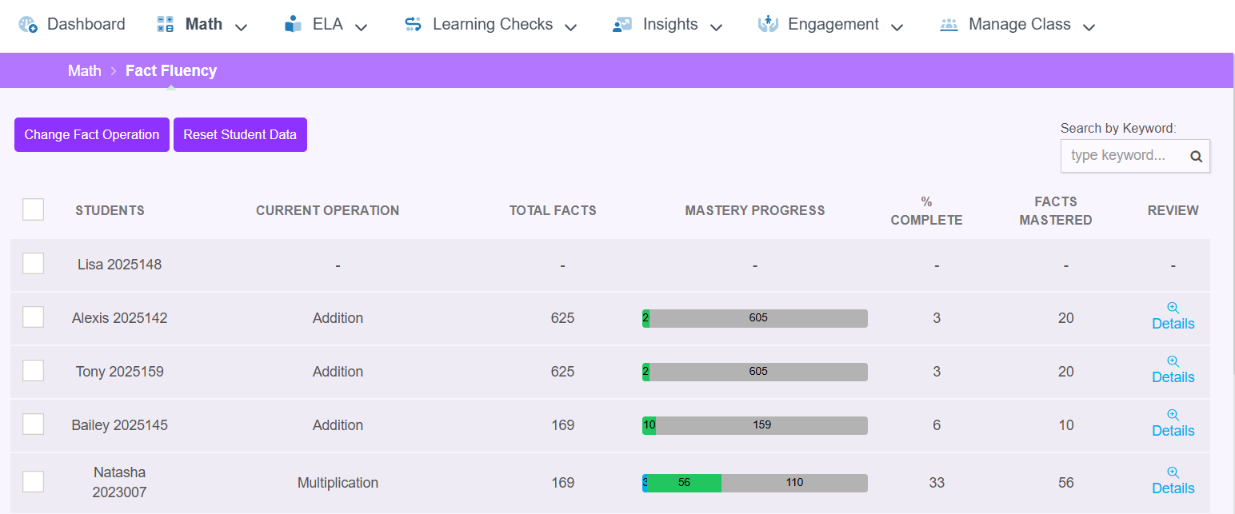
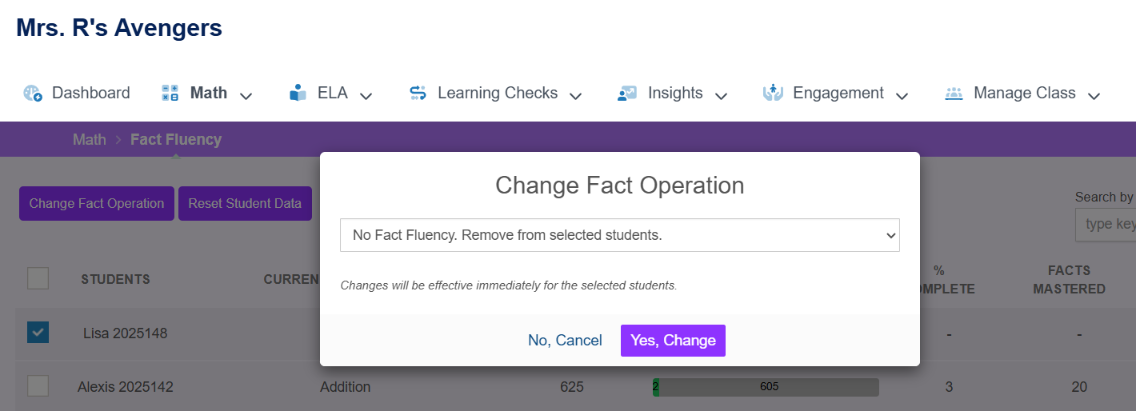
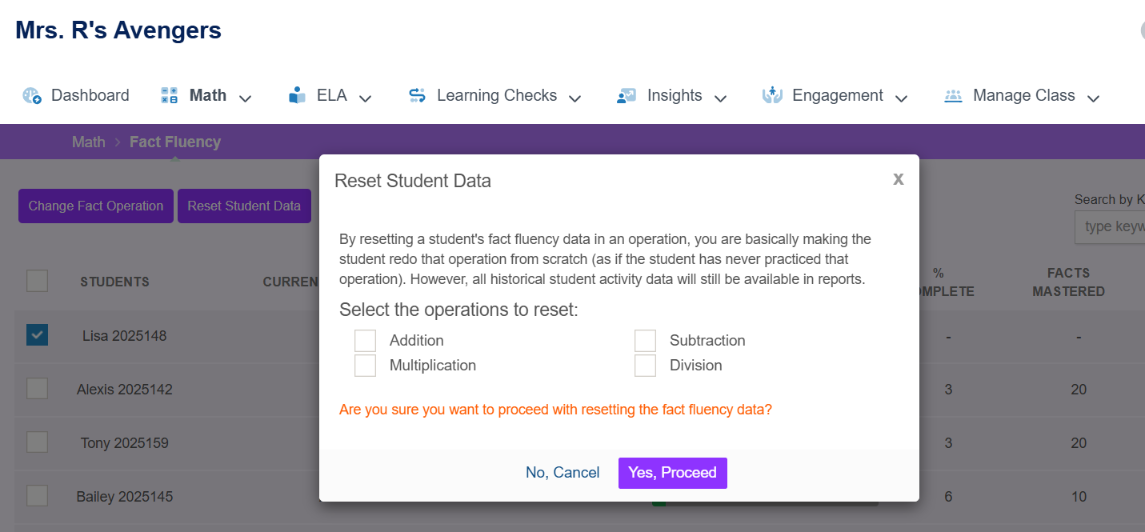
- If students do not have an operation listed, they are not assigned Fact Fluency. Use this page to enable, disable, reset, manually change operations, and dig deeper.
Individualizing Fact Fluency
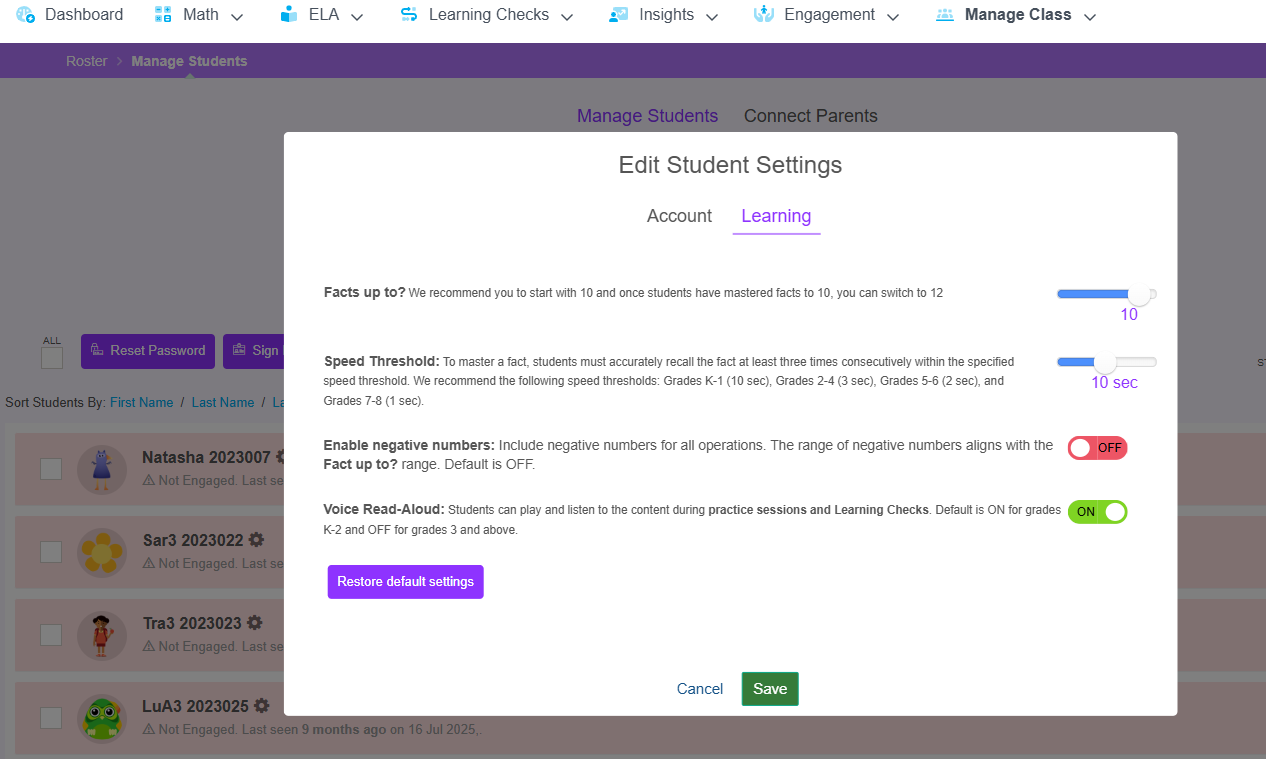
- Hover over Manage Class. Then select Students. Click the gear icon for a specific student.
- Select the Learning tab. Here you can manage how individual students interact with the Fact Fluency module. You can change the setting for each student as needed. If you wish to restore the student settings back to the class default, you can select to restore default settings.
Reviewing Fact Fluency Data
Launch the classroom. Hover over Math and click Progress monitor under Fact fluency to see details of the current operation for each student in the classroom. 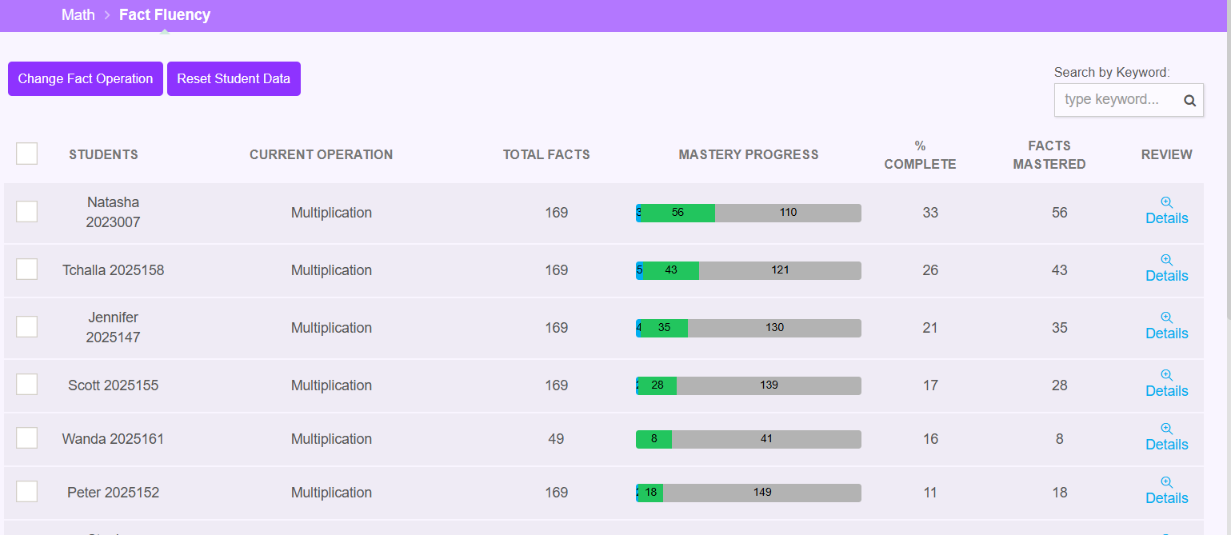
Hover over Insights. Select Report library and then the Fact Fluency report to review mastery for the class across operations. Select details per student to drill deeper and see total problems, facts mastered, facts proficient, % complete and time spent. 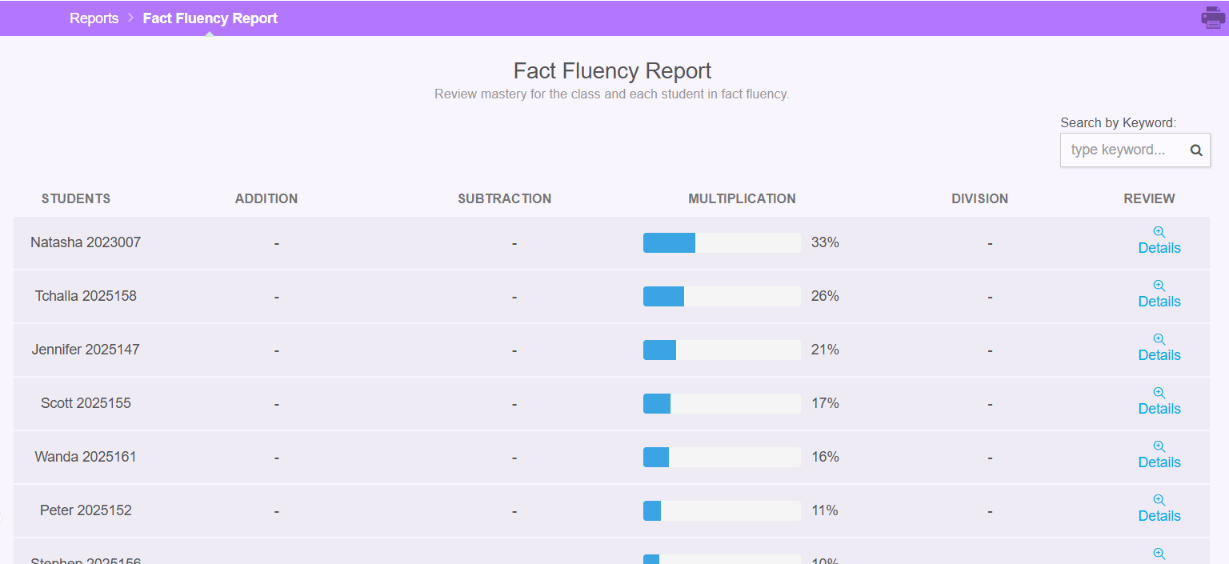
Common Questions
- Q: Can I give students a range of facts to practice?
A: In Fact Fluency settings, you can adjust the Facts up to to have an upper range. If you adjusted this upper range to to be 5, students would only receive facts up to 5. - Q: Can students repeat an operation?
A: Yes, by resetting student data on the Progress monitor page, the student can repeat the operation. - Q: Does Fact Fluency count towards the weekly goal?
A: No. Students can practice and earn coins, but this does not count towards the weekly Math goal.
Related Resources
Was this article helpful?
That’s Great!
Thank you for your feedback
Sorry! We couldn't be helpful
Thank you for your feedback
Feedback sent
We appreciate your effort and will try to fix the article