Overview
In this article we will address various components that will help teachers understand what students see and how to best utilize Pathways Learning. Please use the table of contents below to navigate to specific sections for more detailed information.
Table of Contents
- Individualizing Student Settings
- Reviewing the Student Account
- Keeping Students Engaged
- Related Resources
Individualizing Student Settings
Teachers can enable or disable various settings for the class while also modifying those same settings at an individual level.
1. Navigate to your classroom roster under the Manage Class menu item. Once the roster loads, click the gear icon to the right of a student's name and toggle to the Learning tab. 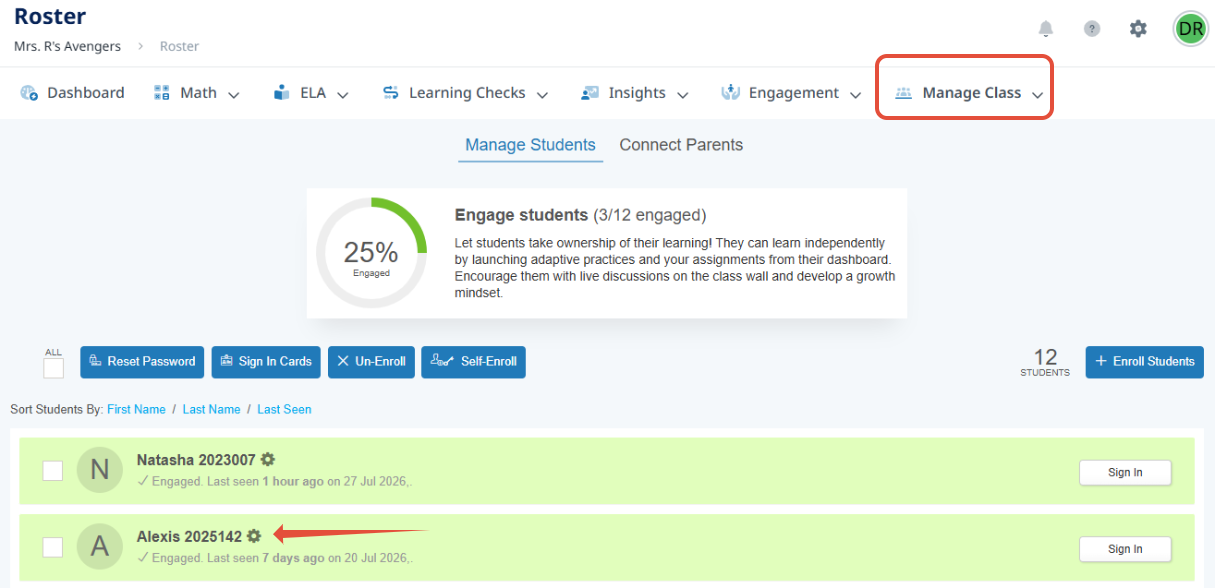
2. From here, teachers can individualize specific settings based on the needs of their students. These settings can be restored back to the class default easily. 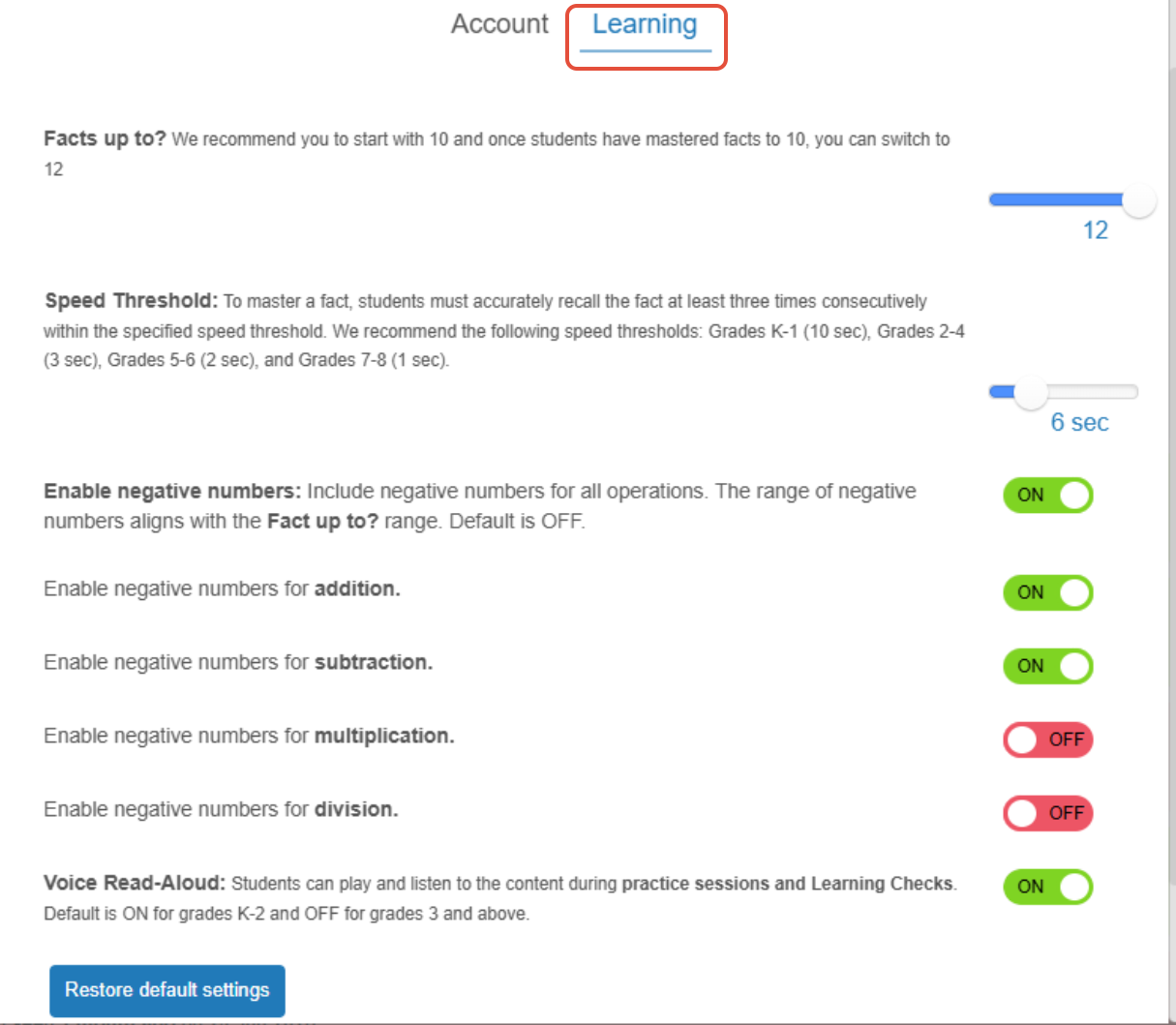
Reviewing the Student Account
1. Navigate to your classroom roster under the Manage Class menu item. Once the roster loads, click the gear icon to the right of a student's name. 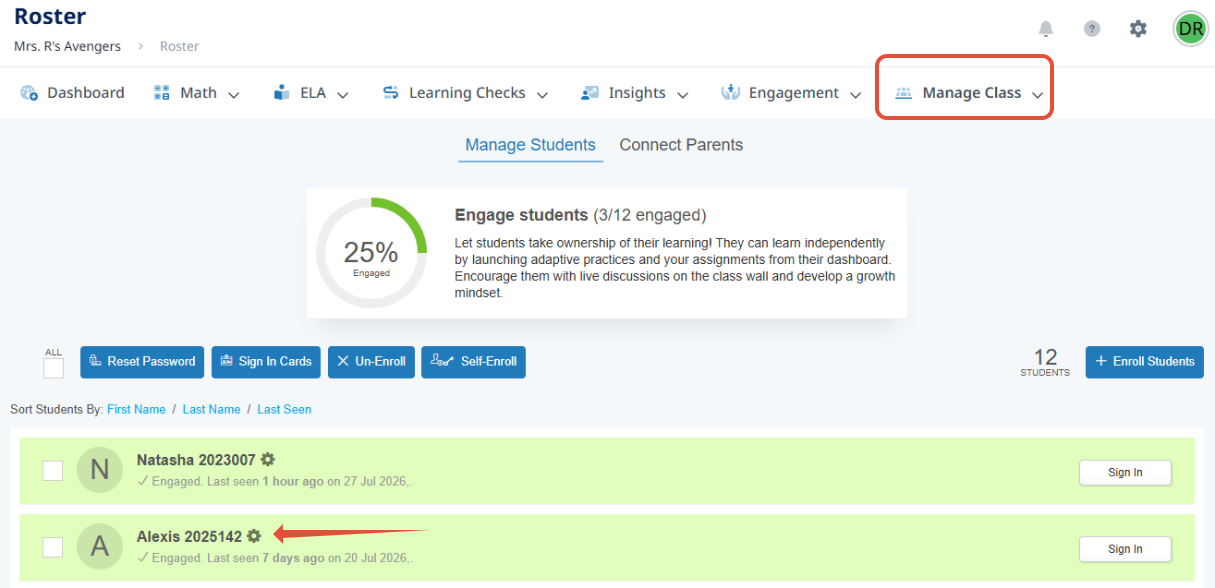
2. The student's login information will be listed. You will need the student's email and password to sign in as them. Note that signing in as the student will sign you out as a teacher unless you use an incognito or guest browser. 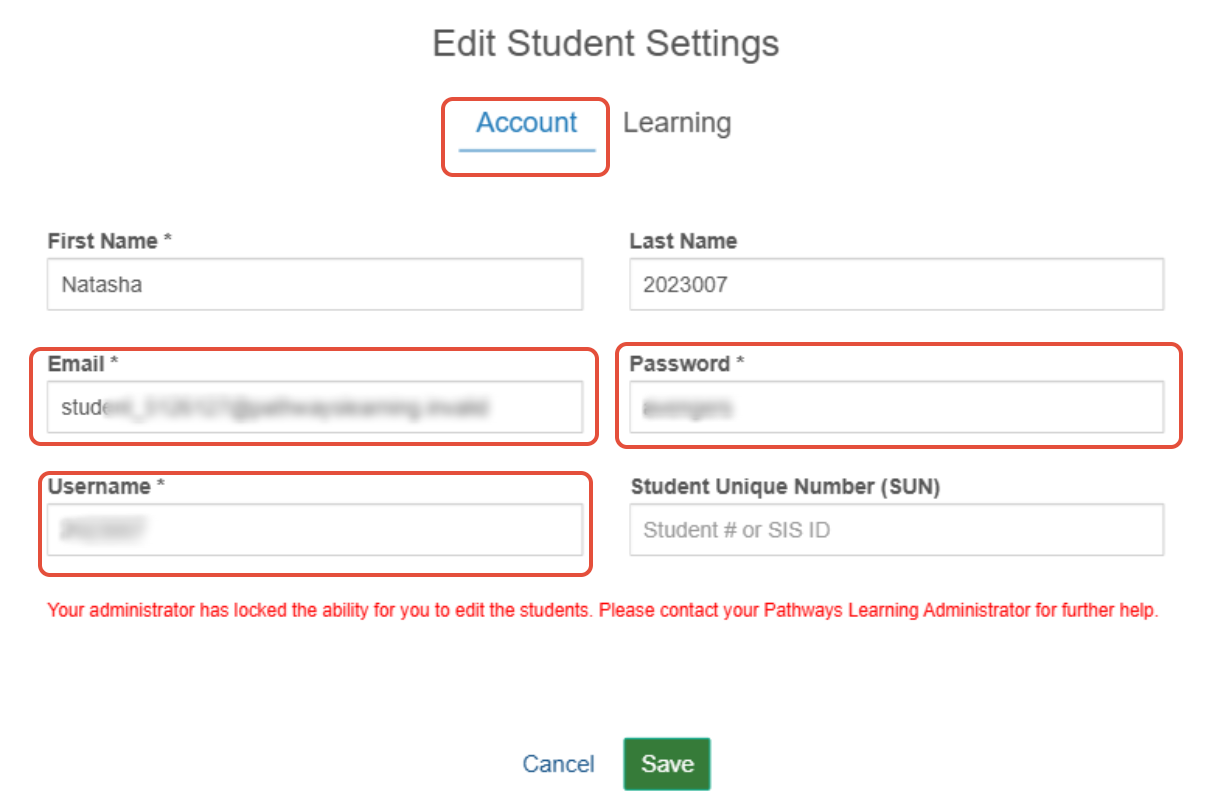
3. Once logged in, students will see a list of their teachers, including the count of outstanding tasks—such as assignments, Learning Checks, Learning Path practice, and Fact Fluency—associated with each teacher. To begin working, students should simply click on the name of the teacher whose tasks they wish to complete.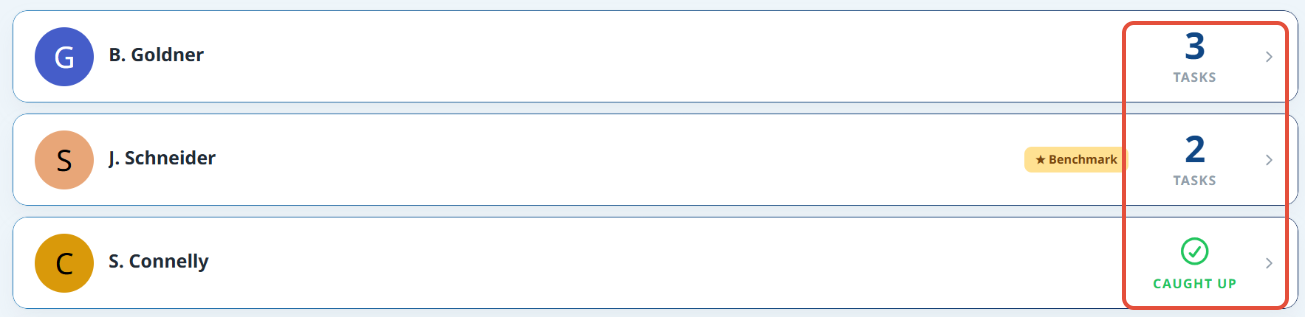
4. Once the student has selected their teacher, all active assignments from that teacher will be listed. If your school has both Pathways Learning and Pathways Assessment, your students will see all of what has been assigned to them from both modules.
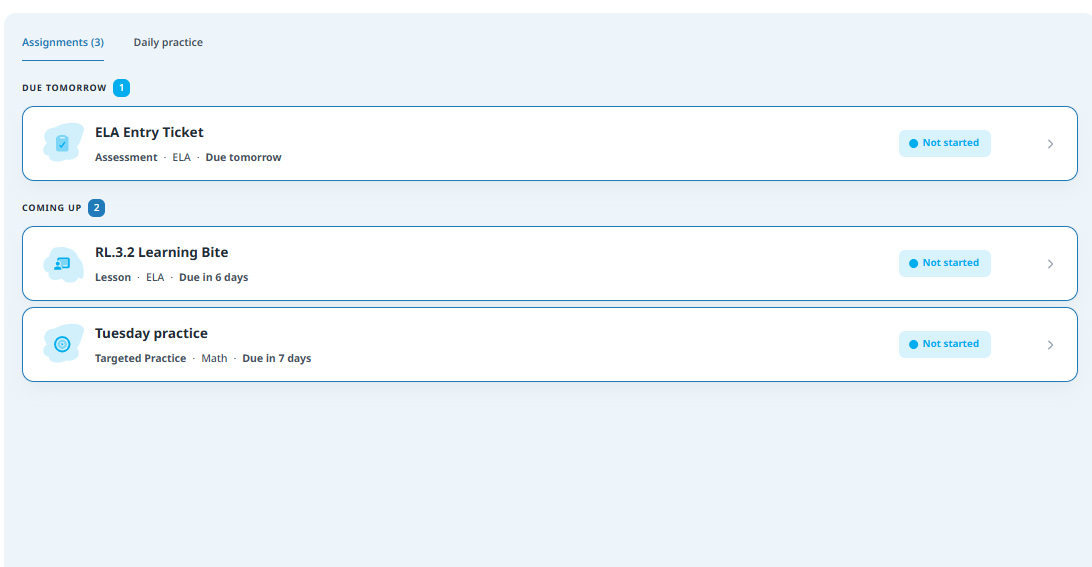
5. To start working, students will need to click on the assignment. 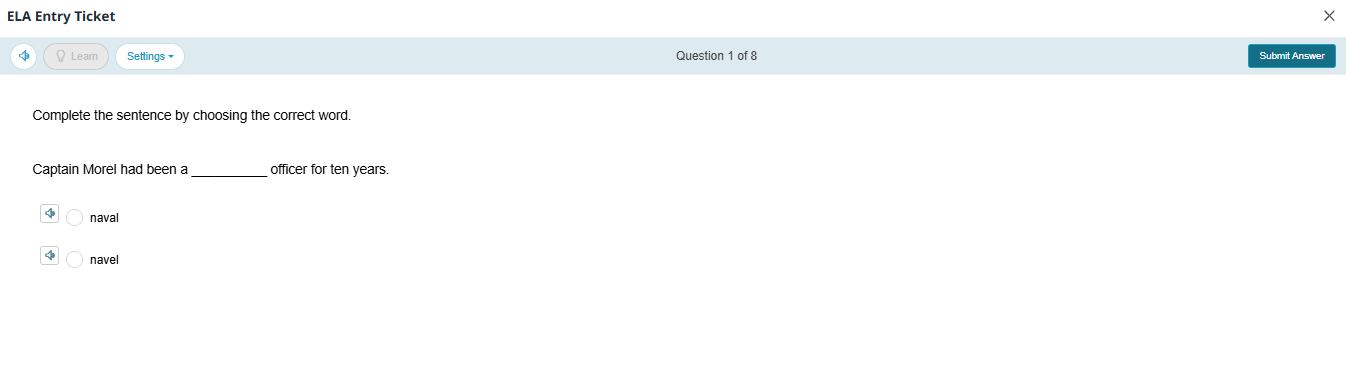
6. The student can also toggle to the Daily practice tab to work on their Learning path(s) or Daily habits, if they were not already redirected to that page after clicking on their teacher. 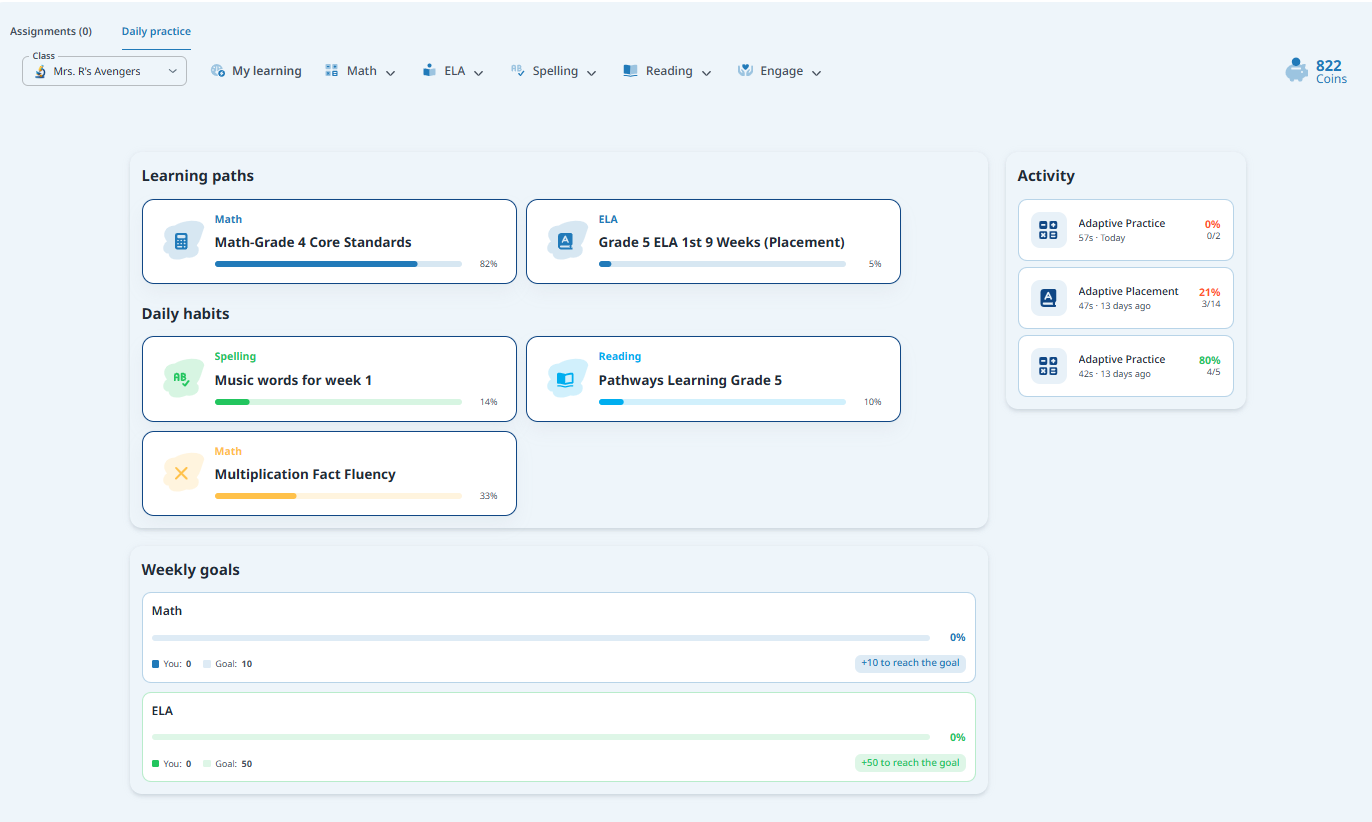
7. On the Daily practice dashboard, students will see the learning path(s) that have been assigned to them and they will be able to see their activity, the progress of their daily habits (Fact Fluency, Reading and Spelling) and weekly goal accomplishment (Math, ELA and Spelling). 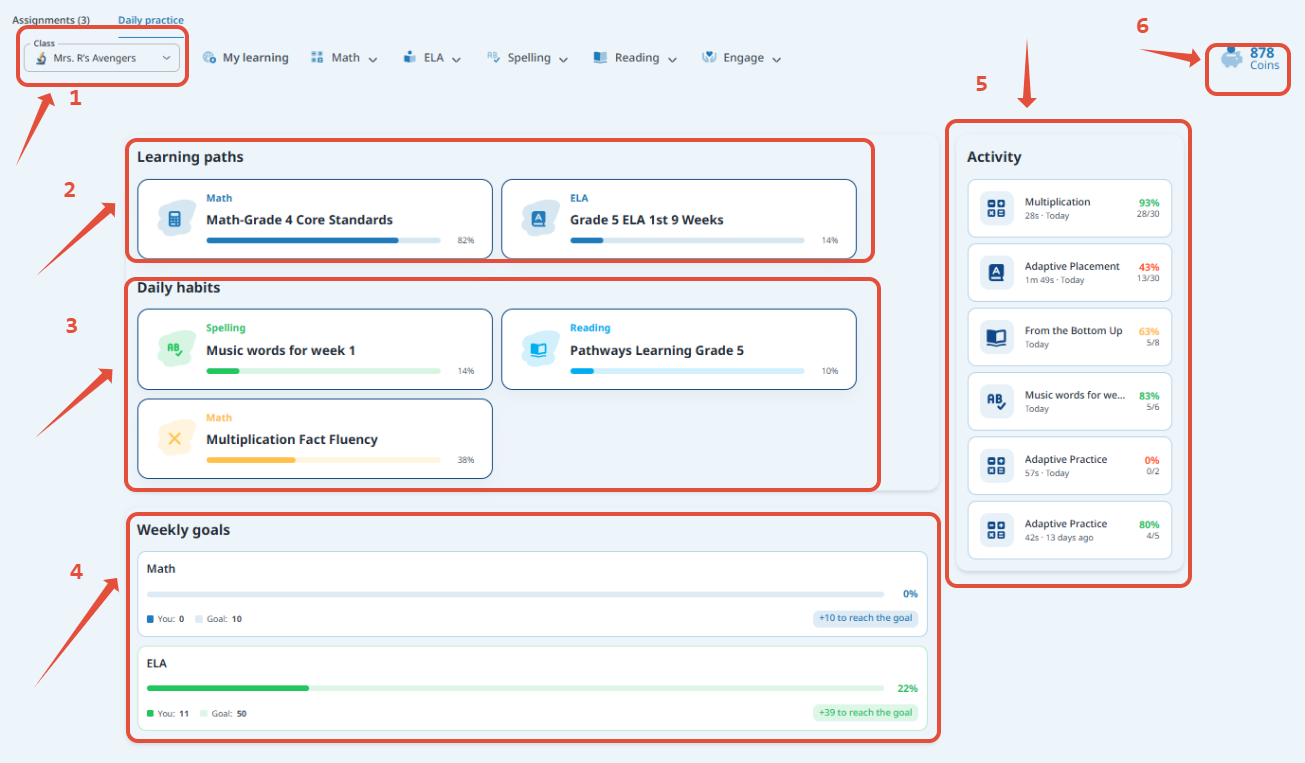
1. If a student is enrolled in multiple classrooms under the same teacher, they can easily switch between them using the dropdown menu located on the dashboard.
2. Students can launch Math and ELA learning paths from this section. Cards change color as students interact with them.
3. Student can launch adaptive spelling, eBook assignments, and Fact Fluency from this section. Cards change color as students interact with them. Fact Fluency's icon adjusts based on the operator!
4. Students can visualize their progress towards the weekly goal in this section.
5. The activity feed displays all tasks. Students can click on most tasks to see their progress. Stoplight colors show proficiency at a glance.
6. Student coins calculate as tasks are completed. Refresh the page to see updated totals!
Keeping Students Engaged
The Engage menu item is where students can find games, the class wall, rewards, projects, the leaderboard, and their behavior wheel.
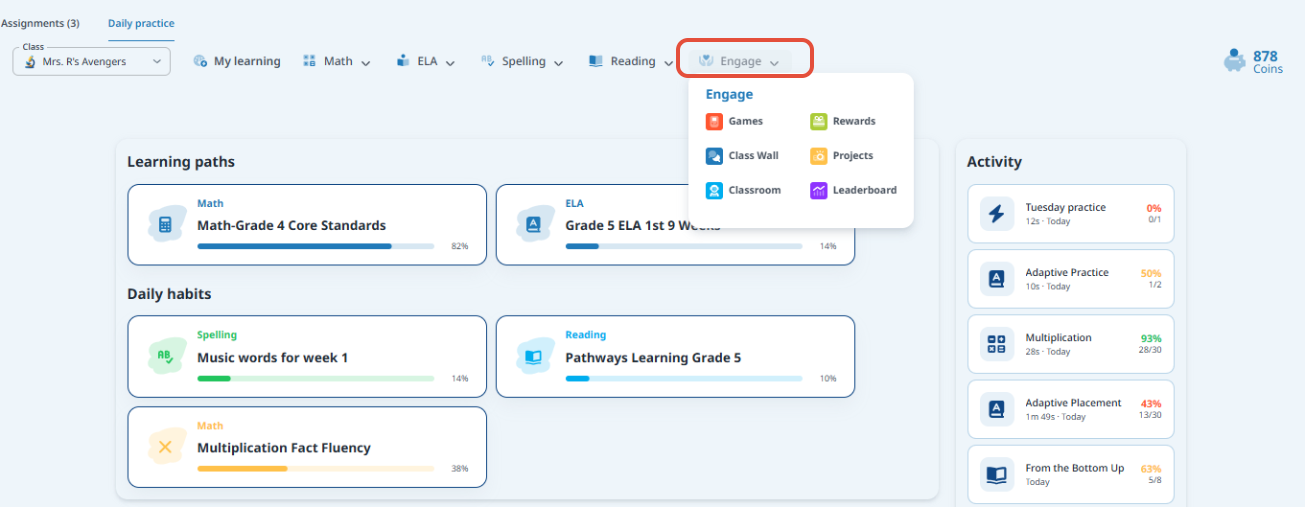
How can students stay engaged in Pathways Learning?
- Play games. The first time any game is played it is free. Subsequent plays cost 10 coins each time. Games time out after 5 minutes.
- Redeem rewards. When rewards are set up, students can use their hard-earned coins to redeem them!
- Accumulate behavior points. Elevate your classroom management by creating the positive culture you envision and rewarding your students accordingly.
- Work on projects. Assign cool real-world projects for students to apply critical thinking skills.
- Engage with the teacher on the class wall. Post a message on the class wall and watch students respond and engage.
- Reach for the stars on the leaderboards. Every question counts. Six leaderboards ensures that all students can soar to the top!
Related Resources
- Pathways Learning: All About Coins
- Pathways Learning: Connecting and Engaging Parents
- Pathways Learning: Recommended Practice, Leaderboards, and Certificates
Was this article helpful?
That’s Great!
Thank you for your feedback
Sorry! We couldn't be helpful
Thank you for your feedback
Feedback sent
We appreciate your effort and will try to fix the article