Overview
In this article we will address how to add or setup a manual or auto-rostered (Clever or ClassLink) classroom and enroll new students. Please use the table of contents below to navigate to specific sections for more detailed information.
Table of Contents
- Creating a Manual Classroom (in a Site License)
- Setting Up an Auto-Rostered Classroom (in a Site License)
- Adding New Students
- Related Resources
Creating a Manual Classroom (in a Site License)
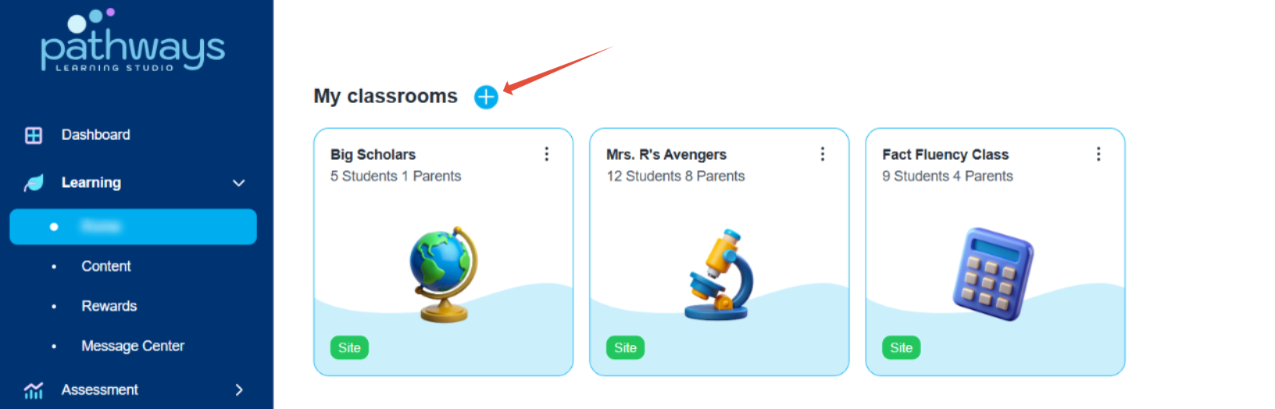
- To create a new classroom, click the + sign next to My classrooms and then Create manually.
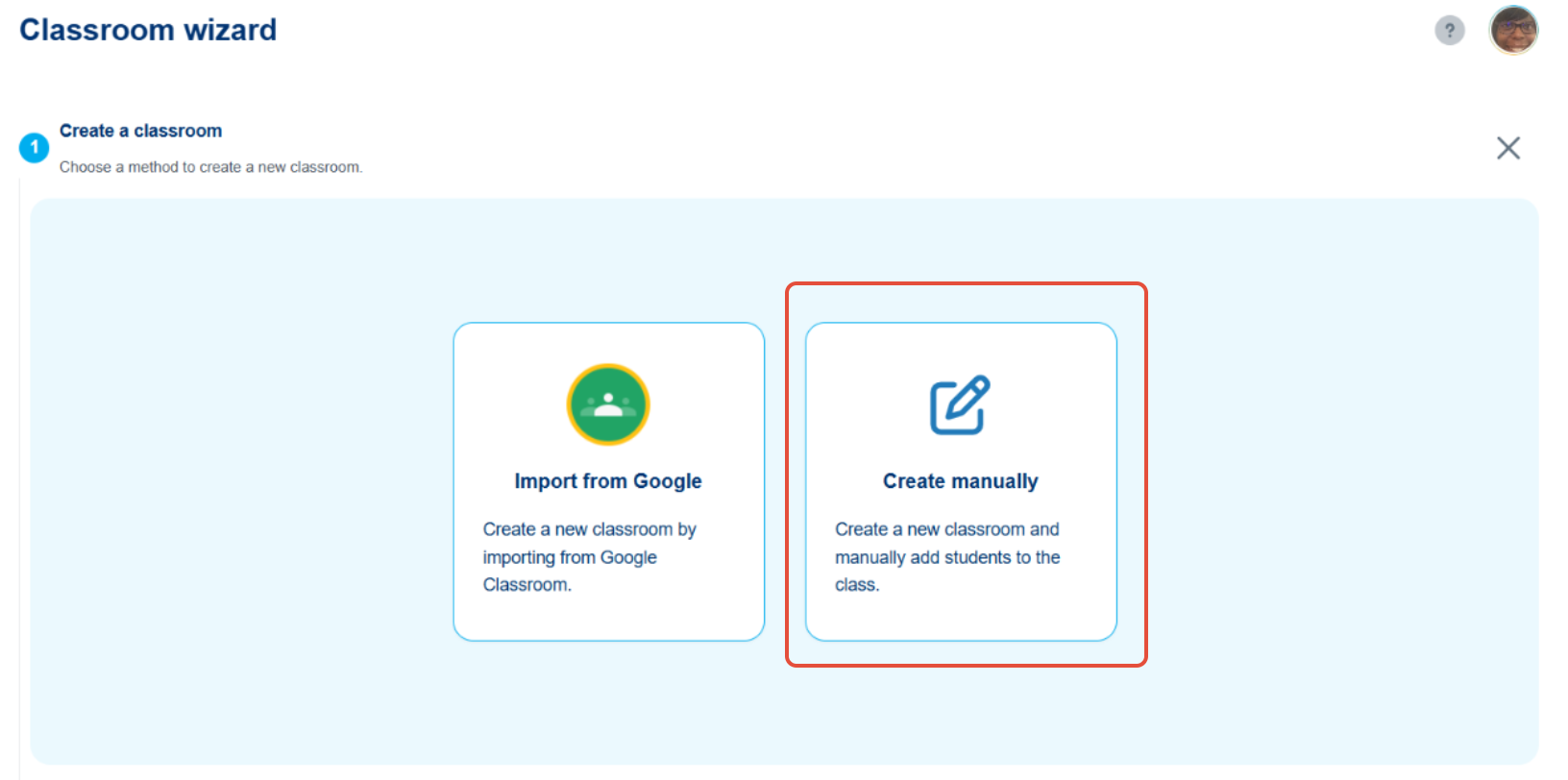
- Name your classroom and select the grade level. If you have a multi-grade level classroom, select one of the levels.

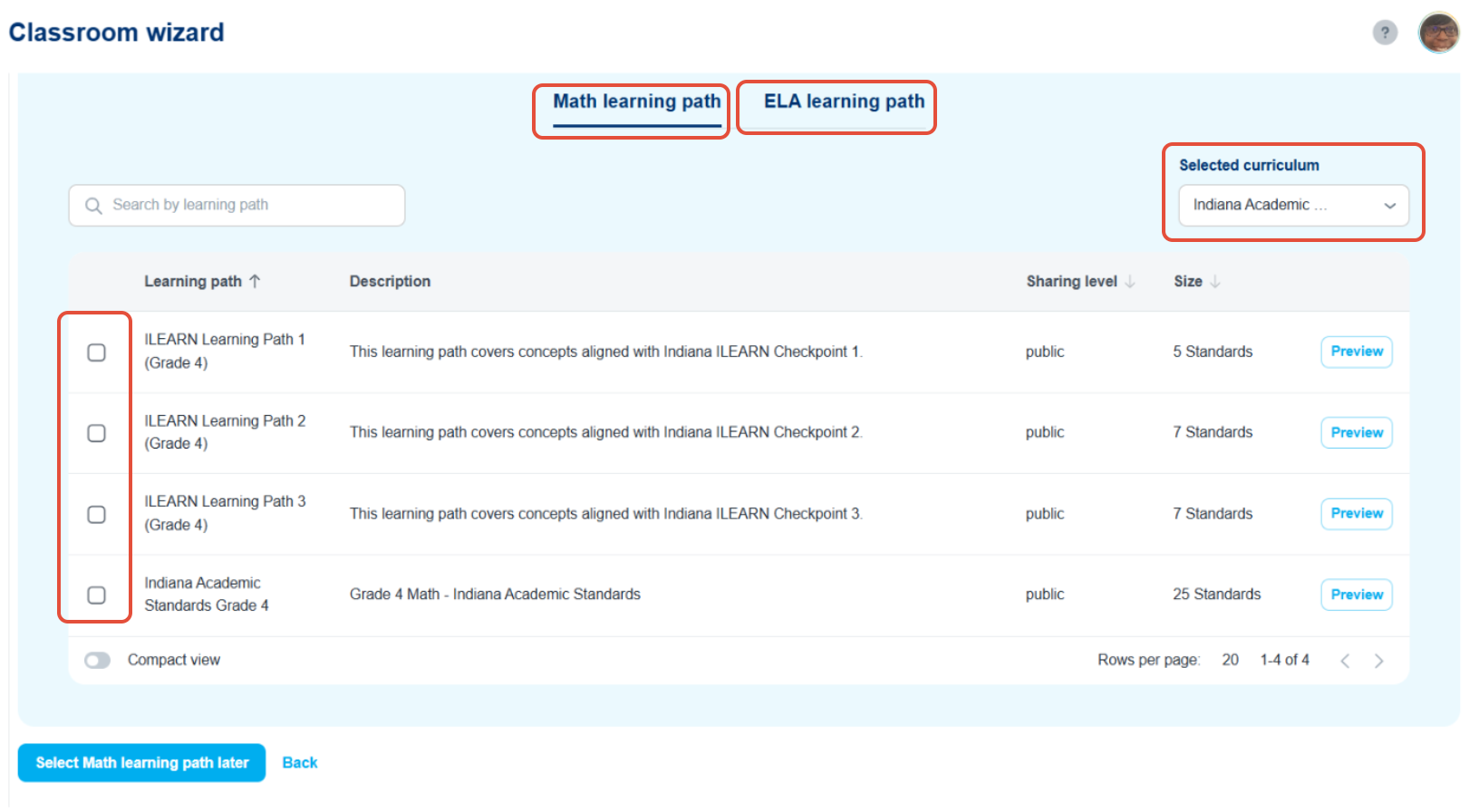
- Select the appropriate Learning Path(s) for the classroom in either Math, ELA or both. You can also select the paths later.
- In this section, you will add your students to your Pathways Learning classroom by typing their names.
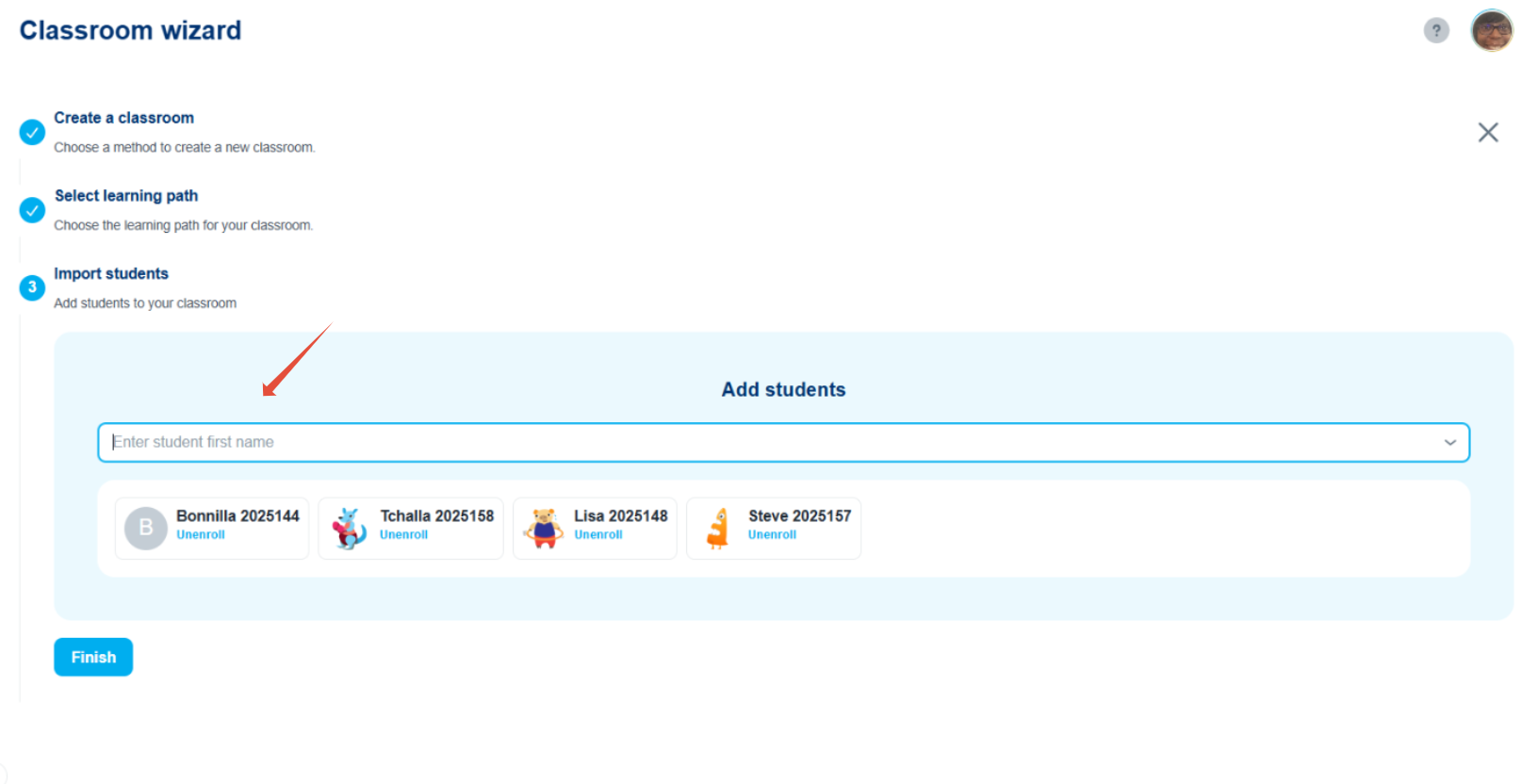
Students are all set to start practicing within their Learning Paths once you click the Finish button. They can launch the app directly from the Clever or ClassLink portal or on the Pathways Learning sign-in page.
What's next?
Setting Up an Auto-Rostered Classroom (in a Site License)
Note: In Pathways Learning, teachers can manage all subjects in one classroom. Sections may be separated by subject when synced through Clever or ClassLink. We recommend only setting up the classrooms needed to manage each unique group of students.
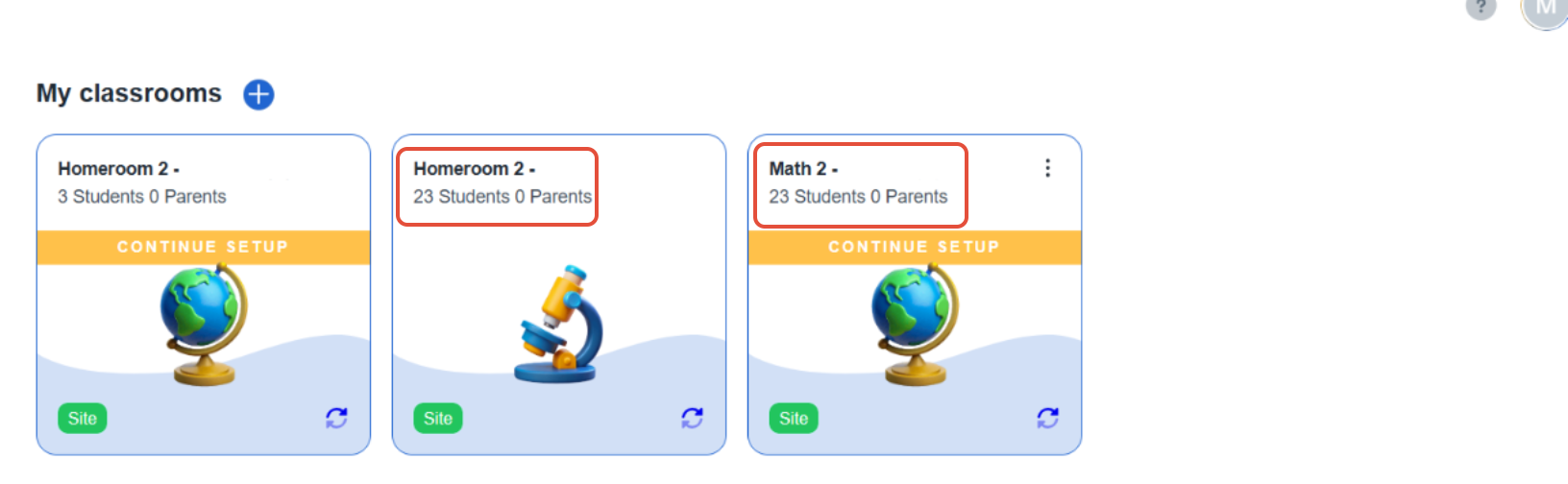
- Once signed in to your account, you may see one or more classrooms (sections) with the banner "Continue Setup." Only setup the classrooms you need to manage a unique group of students. (Example: The 2nd grade teacher sees a Homeroom and Math classroom with the same 23 students enrolled in each. The teacher will setup one of those classrooms with both Math and ELA and ignore the other. On the other hand, a teacher may have several different classrooms and will need to setup each of them because they have different students enrolled.)
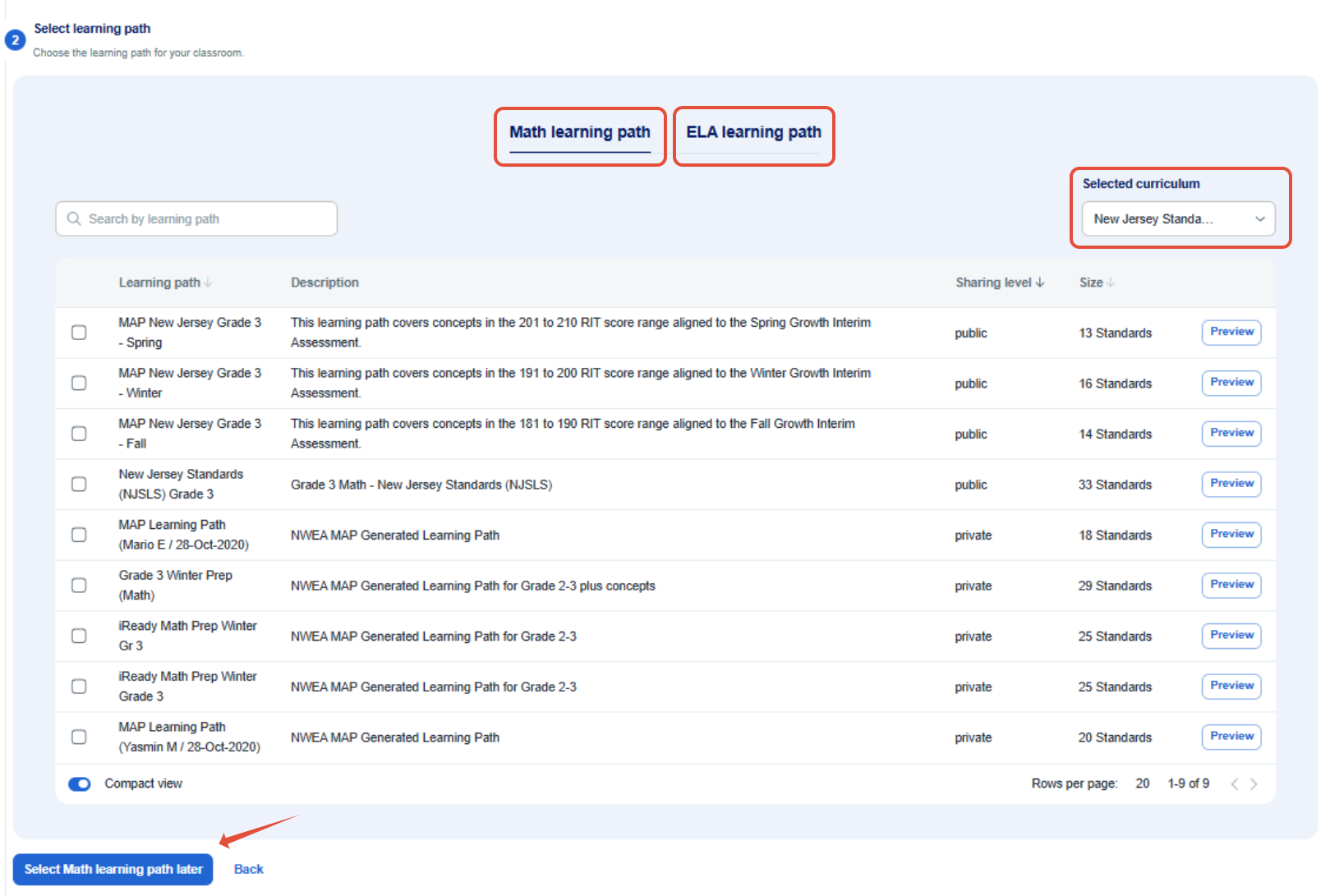
- Select the appropriate Learning Path(s) for the classroom in either Math, ELA or both. You can also select the paths later.
- In this section, you will see your students enrolled in your Pathways Learning classroom.
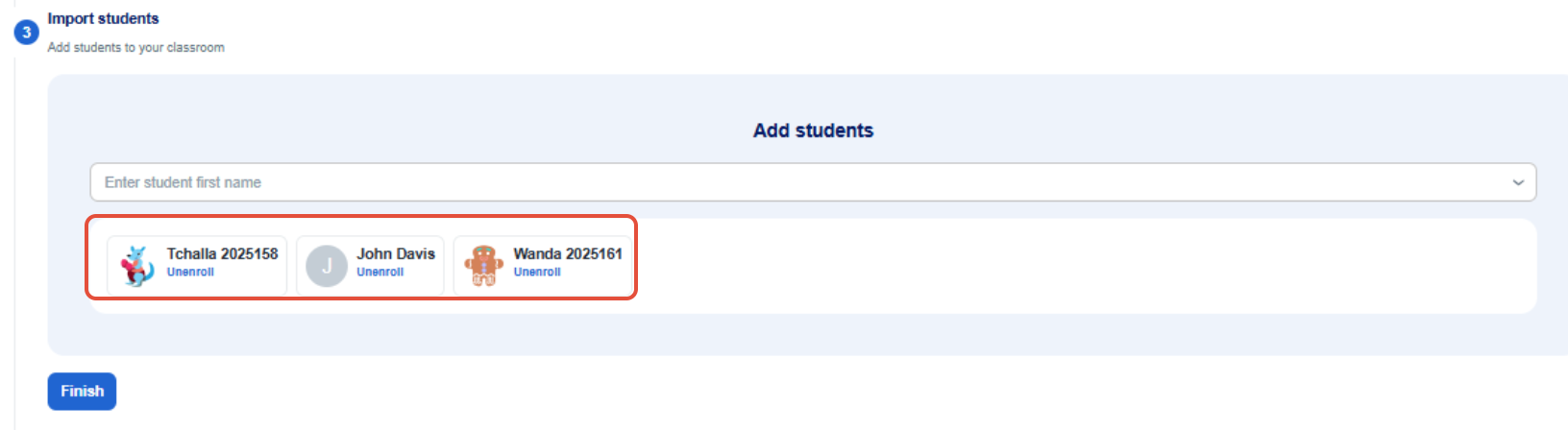
Students are all set to start practicing within their Learning Paths once you click the Finish button. They can launch the app directly from the Clever or ClassLink portal or on the Pathways Learning sign-in page.
What's next?
Adding New Students
- For manually added classrooms, new student data syncs from your Student Information System (SIS) into Pathways Learning within 24 hours. Once the sync is complete, teachers can navigate to their class roster to manually enroll these students.
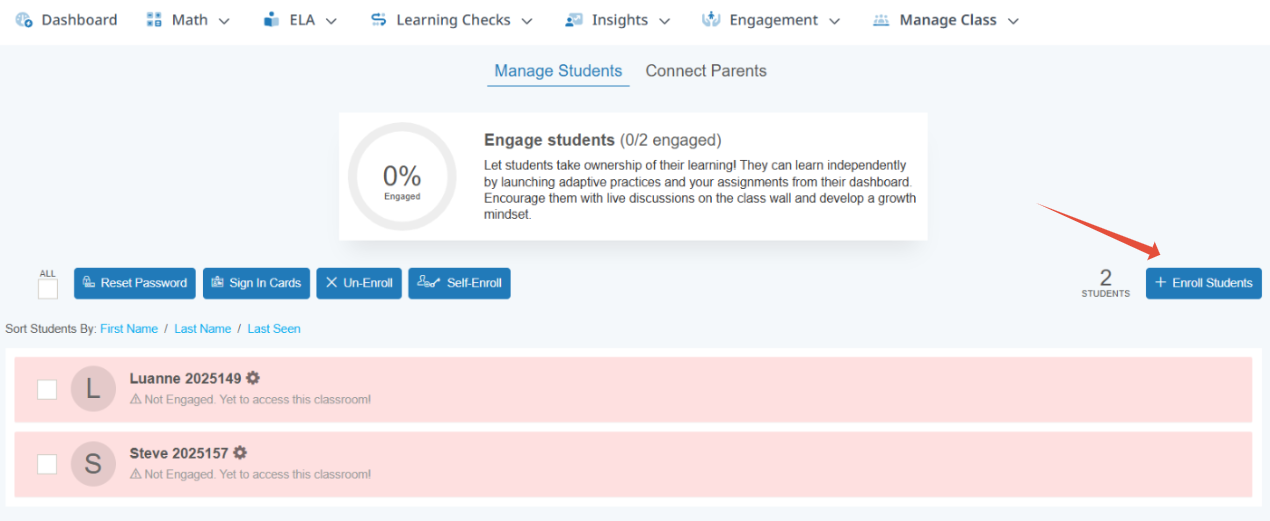
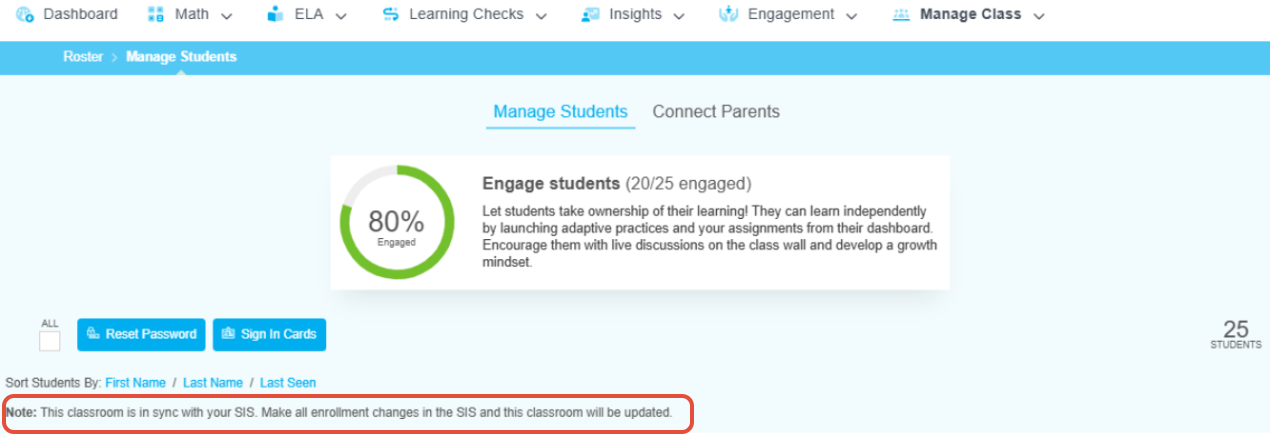
- New students are added directly to Clever and ClassLink synced classrooms within your Student Information System, (SIS). If students have not been synced to Pathways Learning, please check with your administrator.
Related Resources
- Learning Video: Teacher Settings
- Learning Video: Using Targeted Practice
- Pathways Learning: Recommended Practice, Leaderboards, and Certificates
Was this article helpful?
That’s Great!
Thank you for your feedback
Sorry! We couldn't be helpful
Thank you for your feedback
Feedback sent
We appreciate your effort and will try to fix the article