Overview
In this article we will address how to add or setup a Google classroom and enroll new students. Please use the table of contents below to navigate to specific sections for more detailed information.
Table of Contents
- Importing a Google Classroom (with a Classroom License)
- Importing a Google Classroom (in a Site License)
- Adding New Students
- Related Resources
Importing a Google Classroom (with a Classroom License)
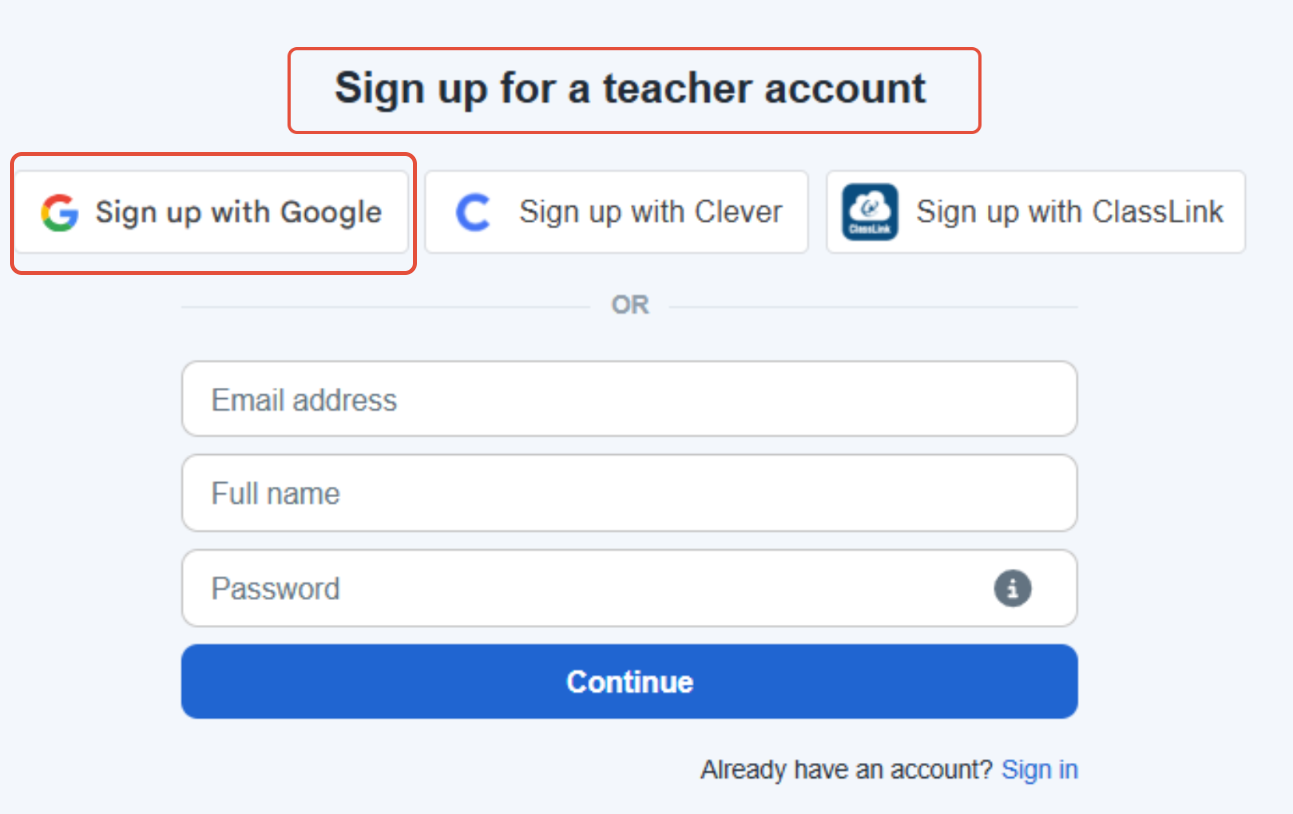
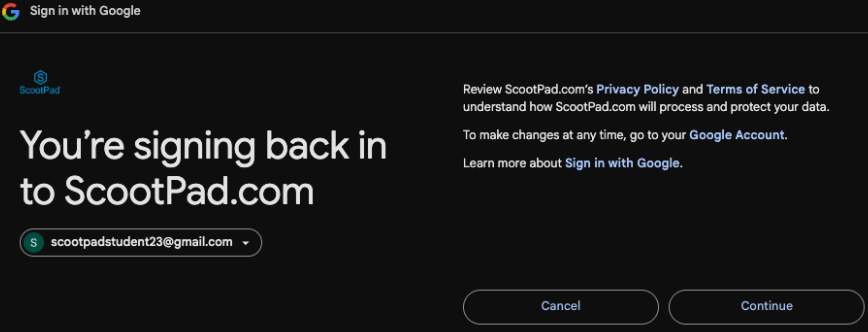
- To import a new Google Classroom, first add students to your Google Classroom and then follow the directions below. Teachers must sign in to Pathways Learning by clicking "Sign in with Google" - DO NOT enter an email address or password to sign in! In addition, students should not try to sign up in this page. This is only for teachers.
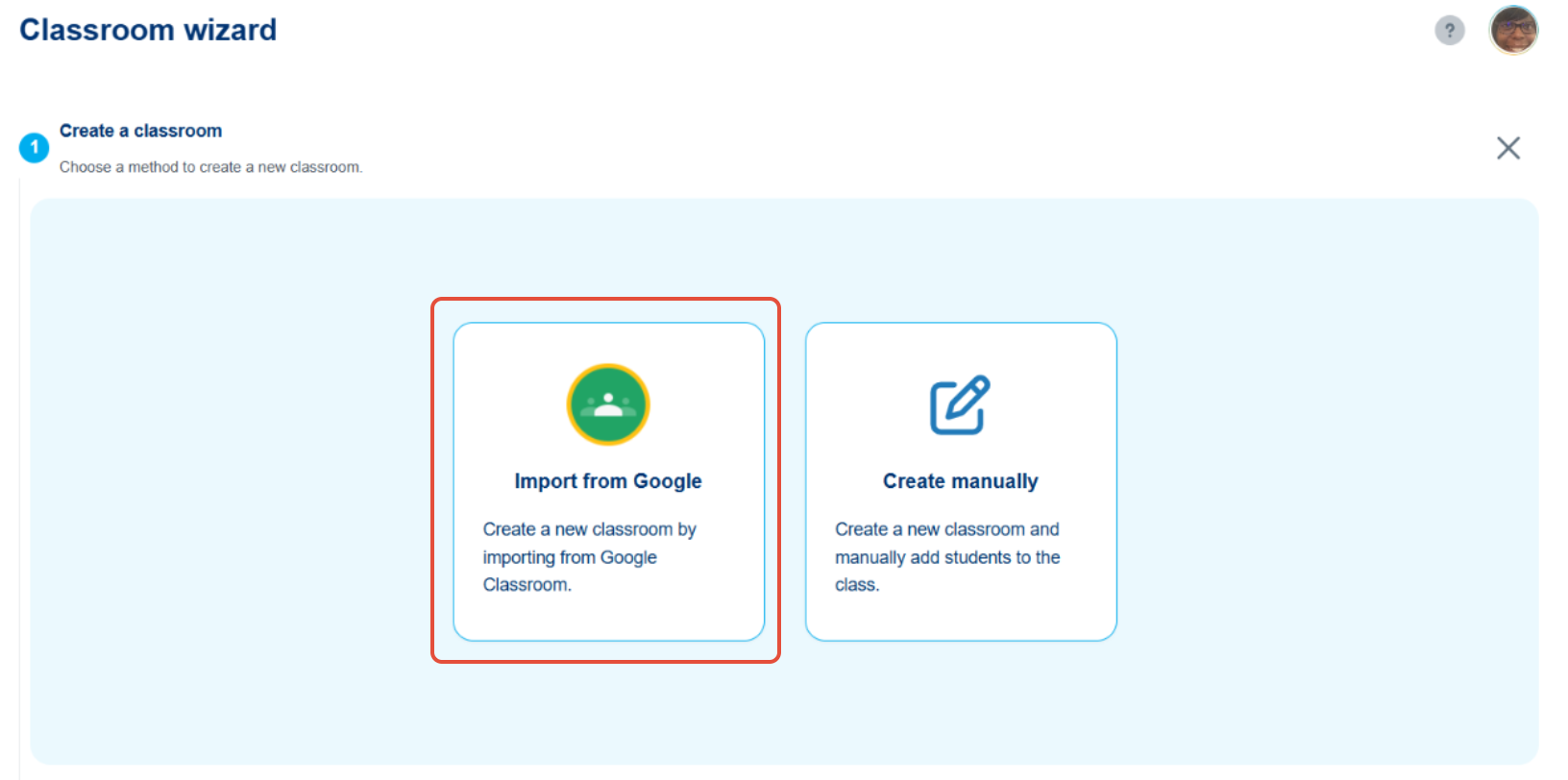
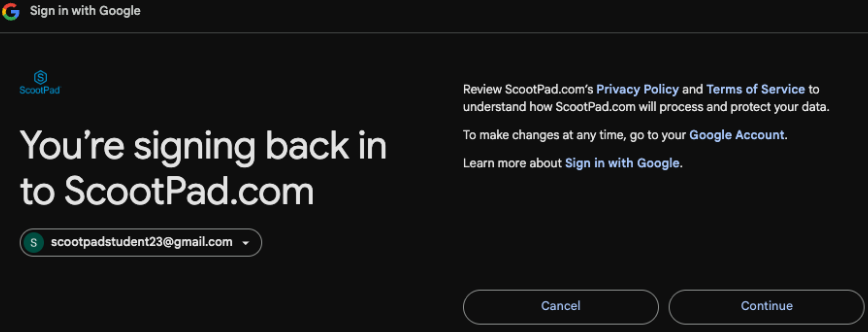
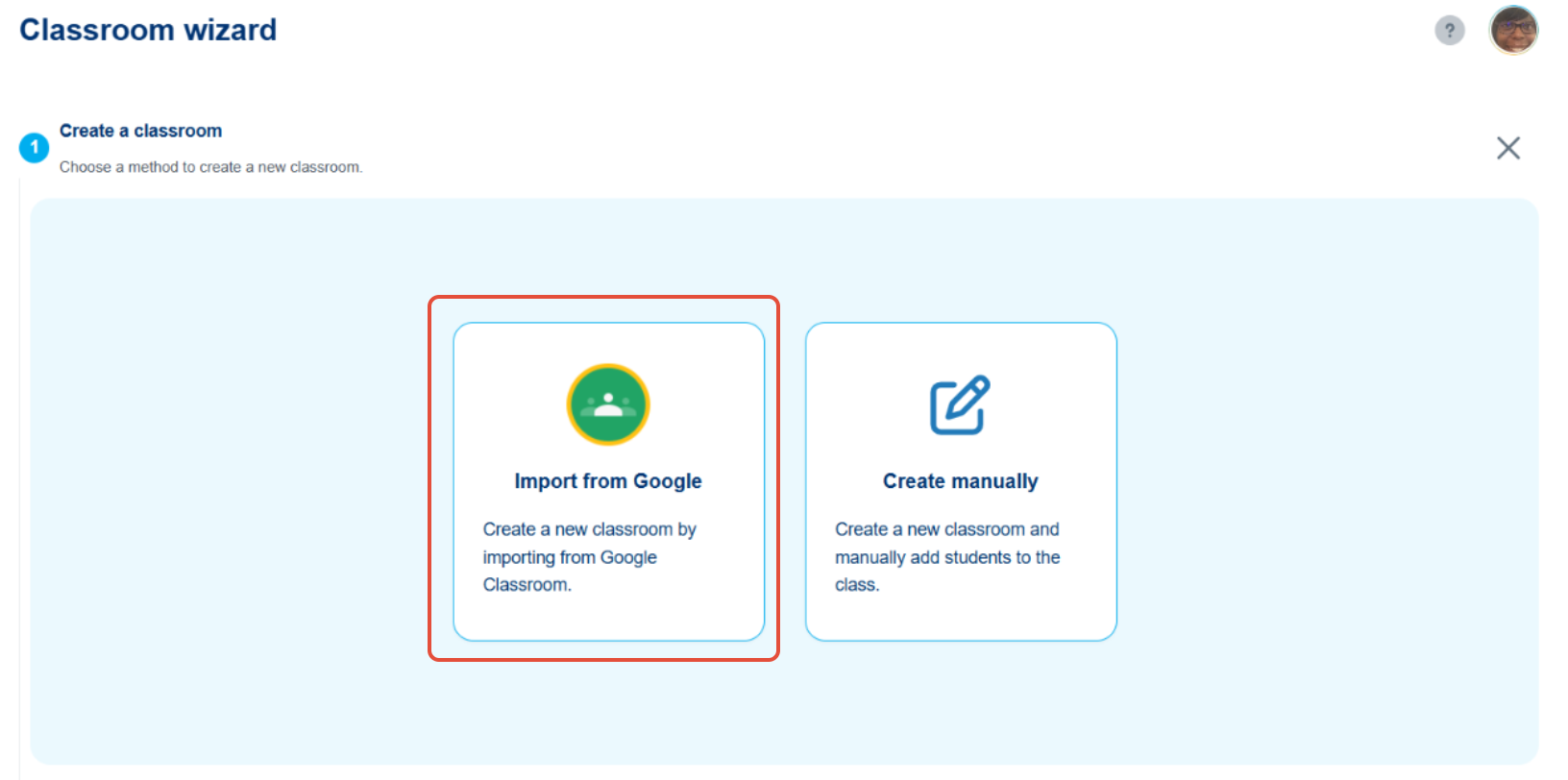
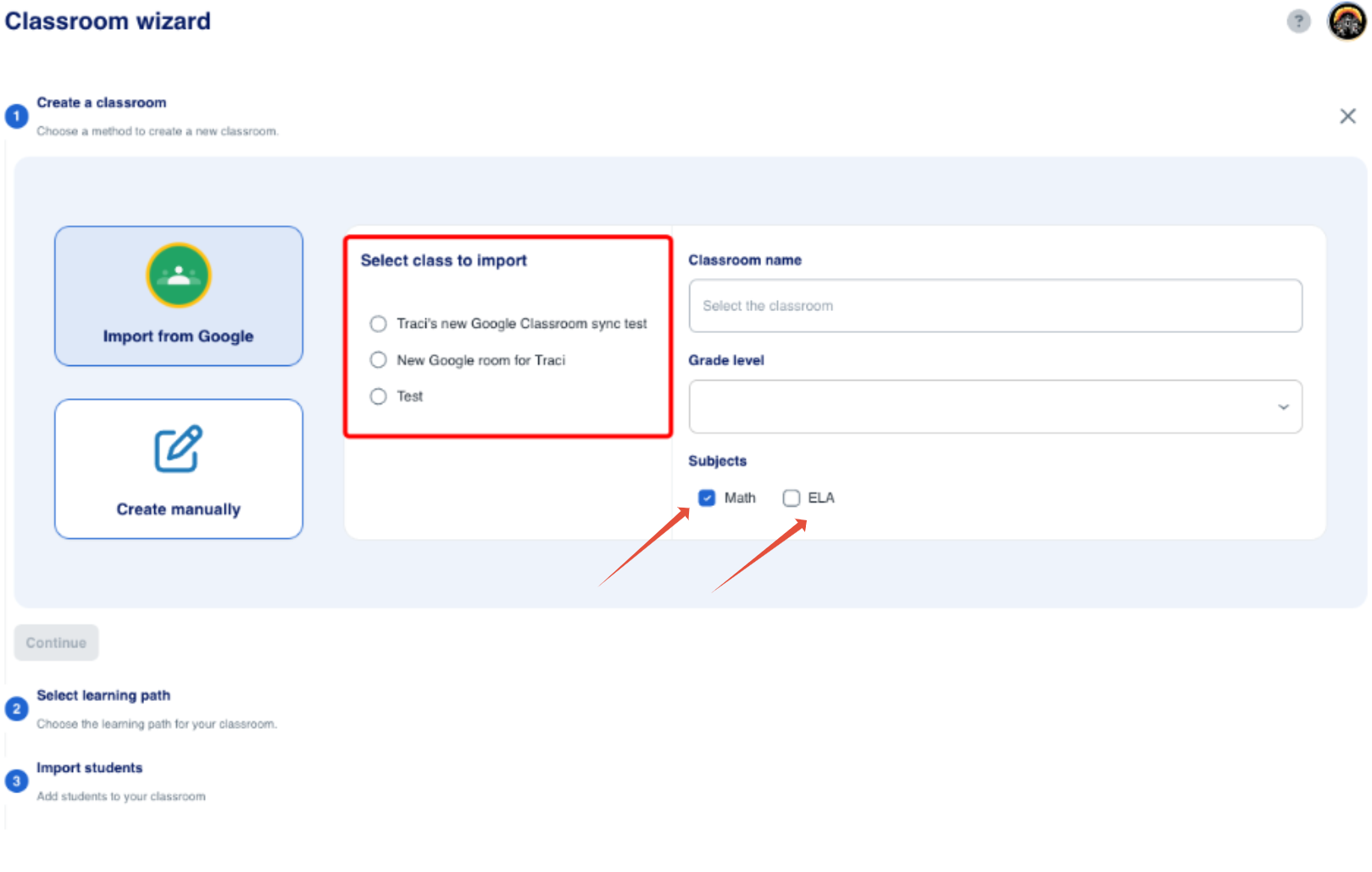
- Avoid selecting the radio button to set up a new classroom. Instead, select the radio button to "Import from Google. After selecting this option, you will be presented with a login screen that defaults to your Google email account.
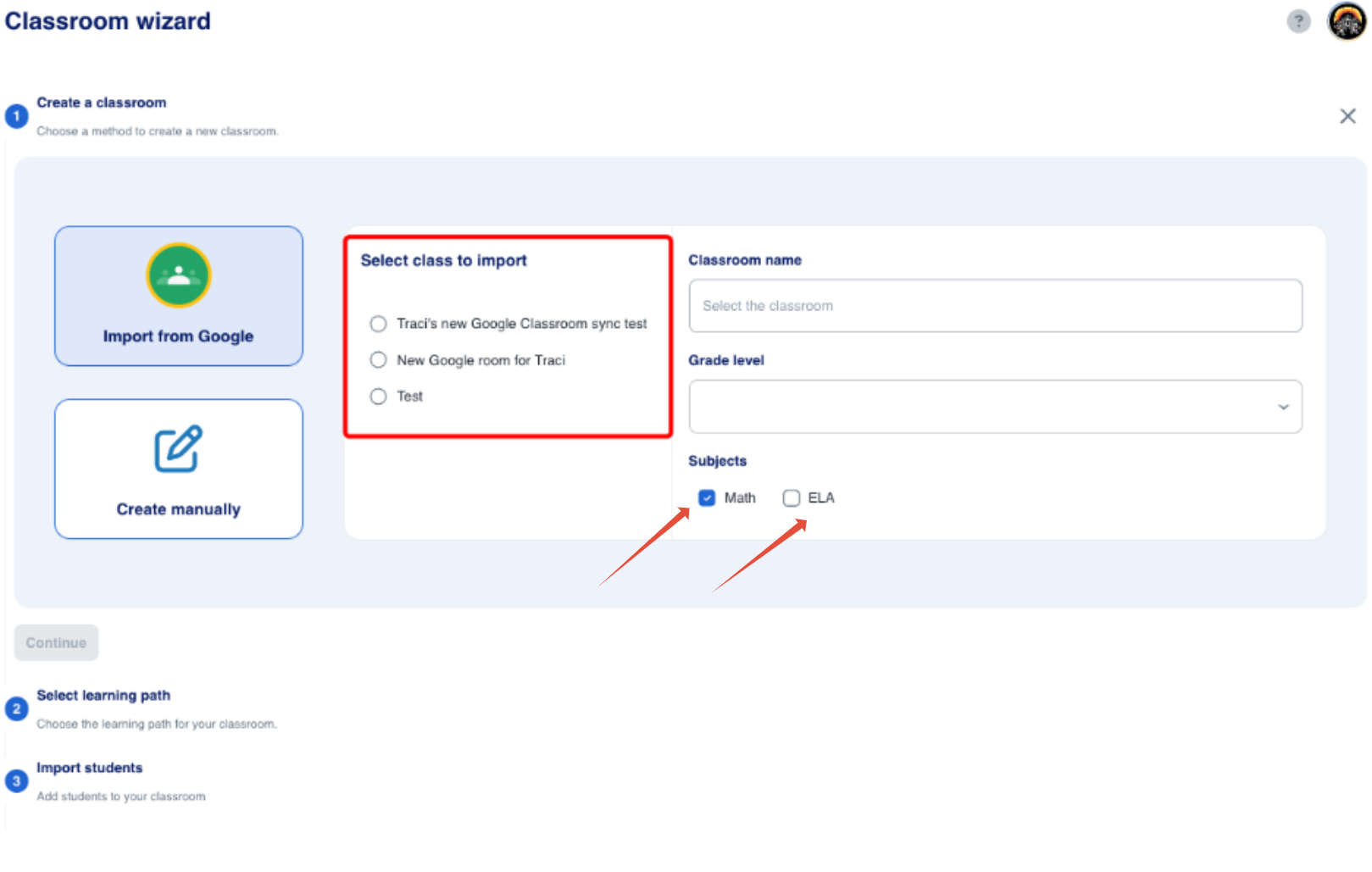
- Select the subjects necessary for the new classroom.
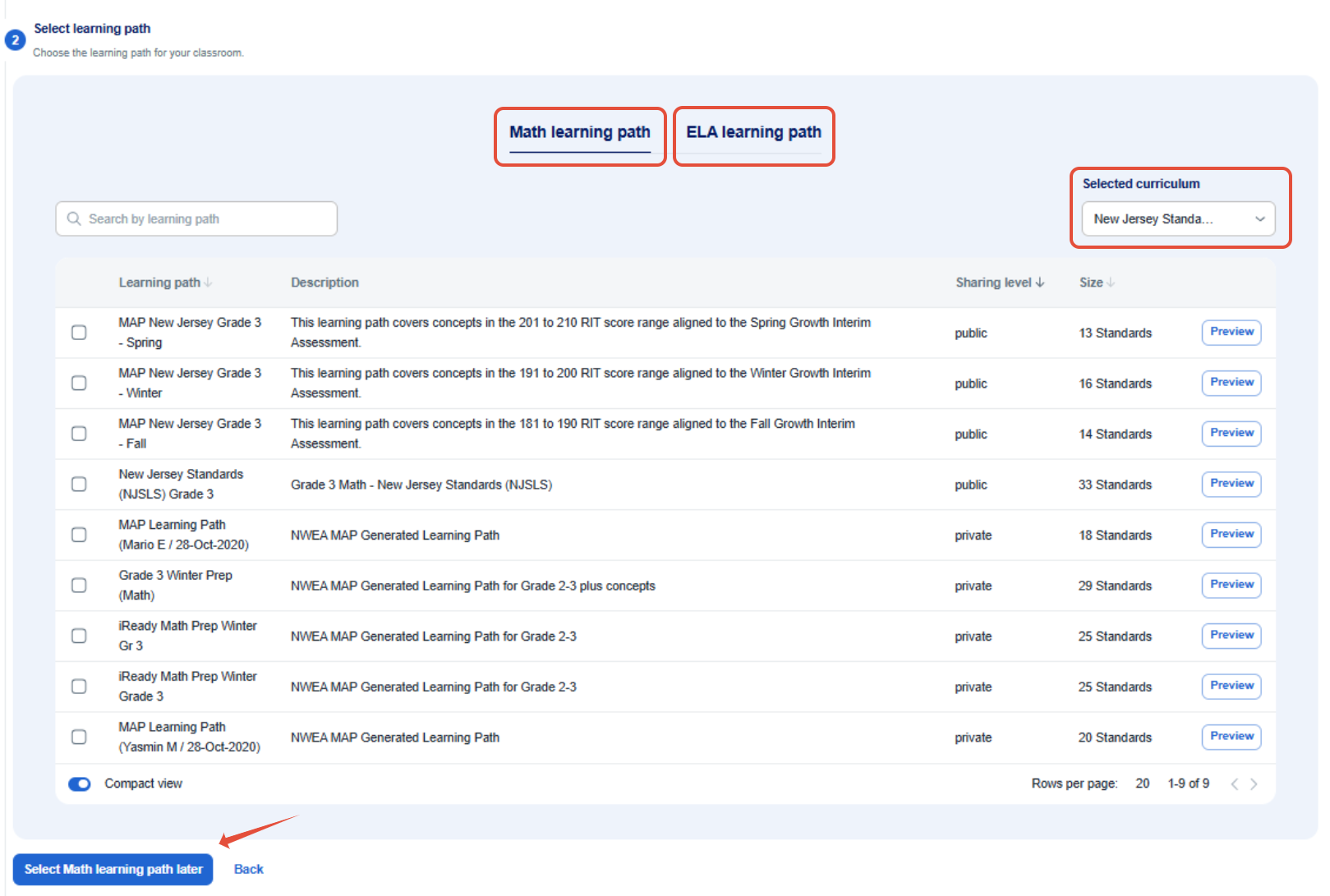
- Select the appropriate Learning Path(s) for the classroom in either Math, ELA or both. You can also select the paths later.
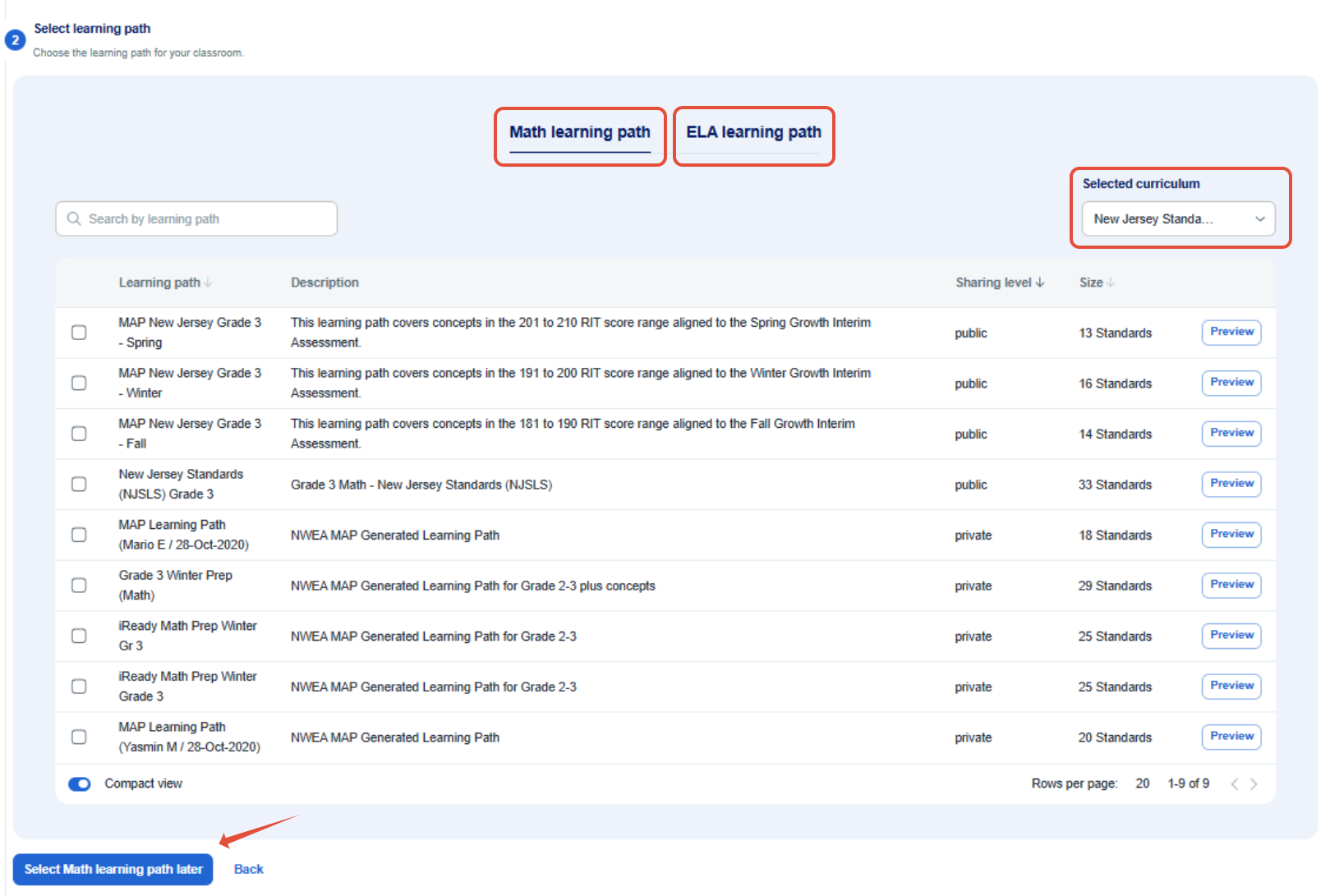
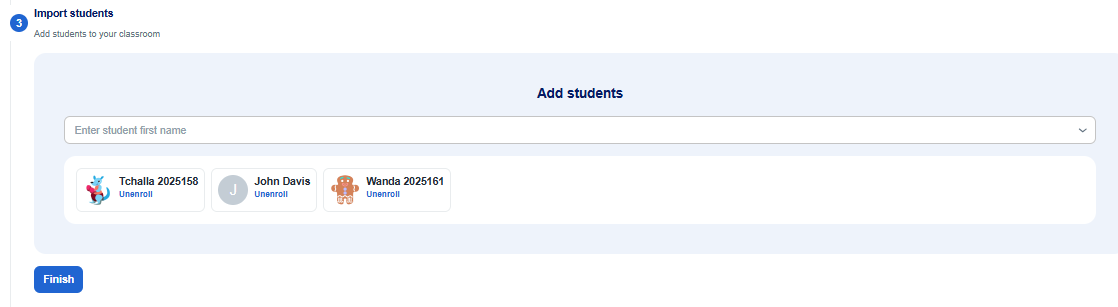
- In this section, you will see your students enrolled in your Pathways Learning classroom. This should match the students who have accepted the invitation to join your Google classroom.
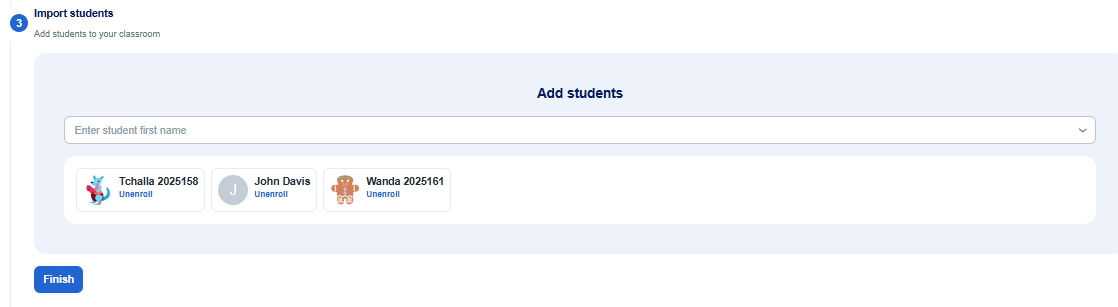
Students are all set to start practicing within their Learning Paths once you click the Finish button.
What's next?
Importing a Google Classroom (in a Site License)
Applies to: Site-Licensed teachers
- To import a new Google Classroom, first add students to your Google Classroom and then follow the directions below. Teachers must sign in to Pathways Learning by clicking "Sign in with Google" - DO NOT enter an email address or password to sign in! In addition, students should not try to sign up in this page. This is only for teachers.
- Avoid selecting the radio button to set up a new classroom. Instead, select the radio button to "Import from Google. After selecting this option, you will be presented with a login screen that defaults to your Google email account.
- Select the subjects necessary for the new classroom.
- Select the appropriate Learning Path(s) for the classroom in either Math, ELA or both. You can also select the paths later.
- In this section, you will see your students enrolled in your Pathways Learning classroom. This should match the students who have accepted the invitation to join your Google classroom.
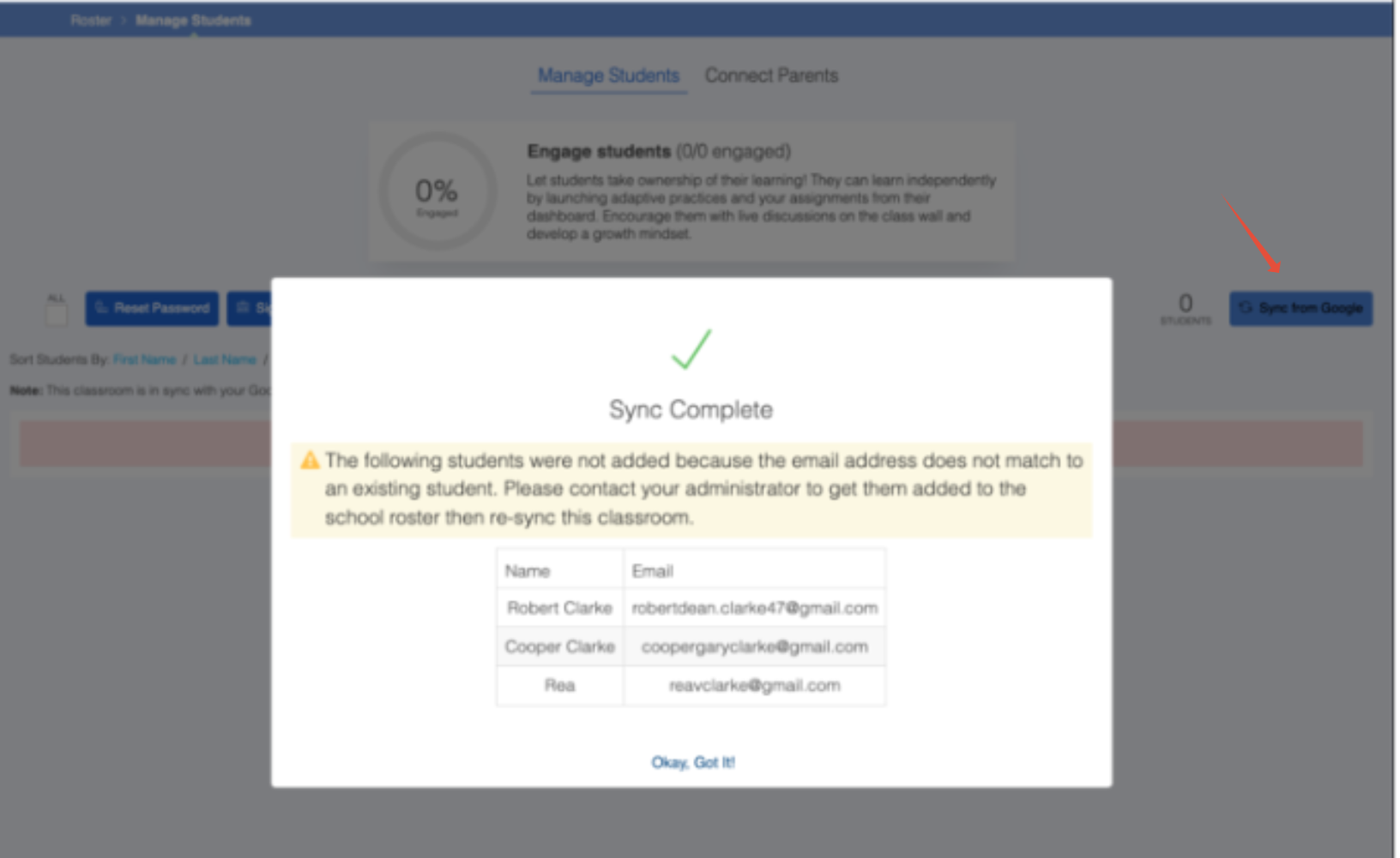
- If you receive the following error, this means that the students need to be added to the school's roster or there is a mismatch with the student's email address. Please provide your administrator with the details. Once fixed, you can return to Pathways Learning and resync the students from your class roster.
Students are all set to start practicing within their Learning Paths once you click the Finish button.
What's next?
Adding New Students
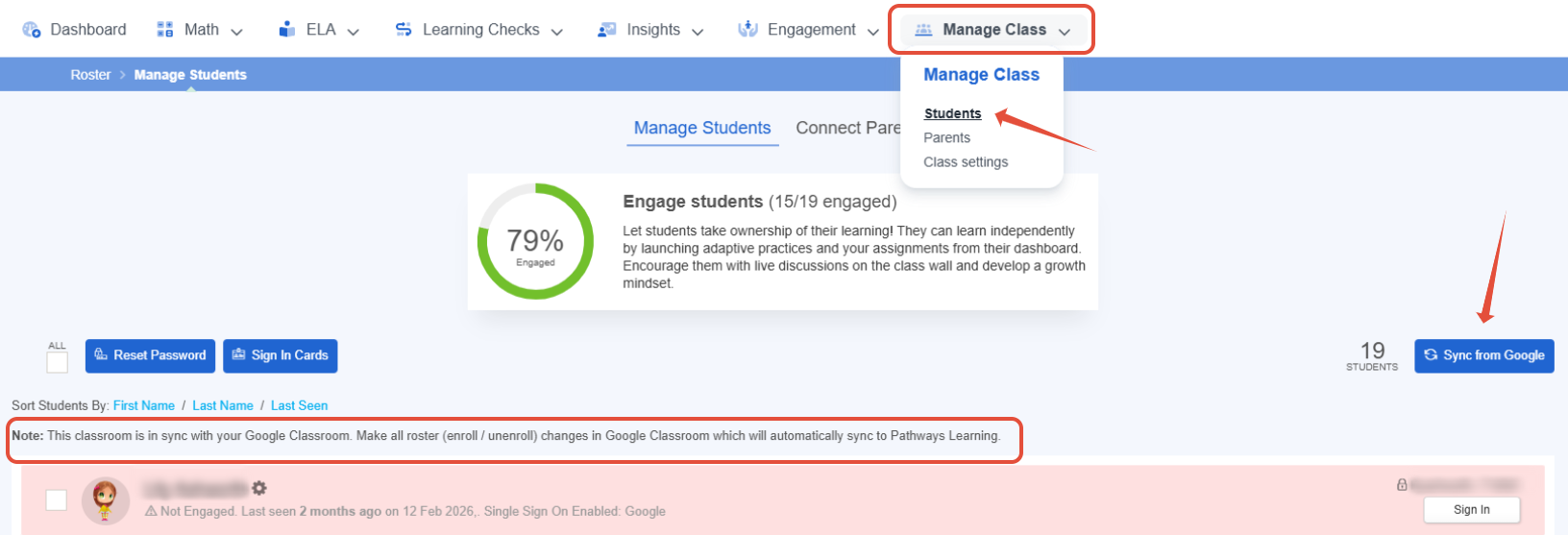
- New students should be added directly to your Google classrooms. Once you've added the students, you can return to your roster and sync them.
Related Resources
- Pathways Learning: The Student Experience
- Learning Video: Teacher Settings
- Pathways Learning: Recommended Practice, Leaderboards, and Certificates
Was this article helpful?
That’s Great!
Thank you for your feedback
Sorry! We couldn't be helpful
Thank you for your feedback
Feedback sent
We appreciate your effort and will try to fix the article