Overview
In this article we will provide an overview of the Mastery Check and help teachers understand how it works to impact student performance. Please use the table of contents below to navigate to specific sections for more detailed information.
Table of Contents
Students Waiting?
Students working through their Learning Path will be given automatically spaced quizzes called Mastery Checks to determine mastery of the concepts in the path. A Mastery Check will consist of 3 questions for every concept included on the task. There can be up to 4 concepts on the task for a total of 12 questions. Since Mastery Checks are automatically timed, they cannot be removed from the adaptive journey. However, you can manage this both proactively and reactively.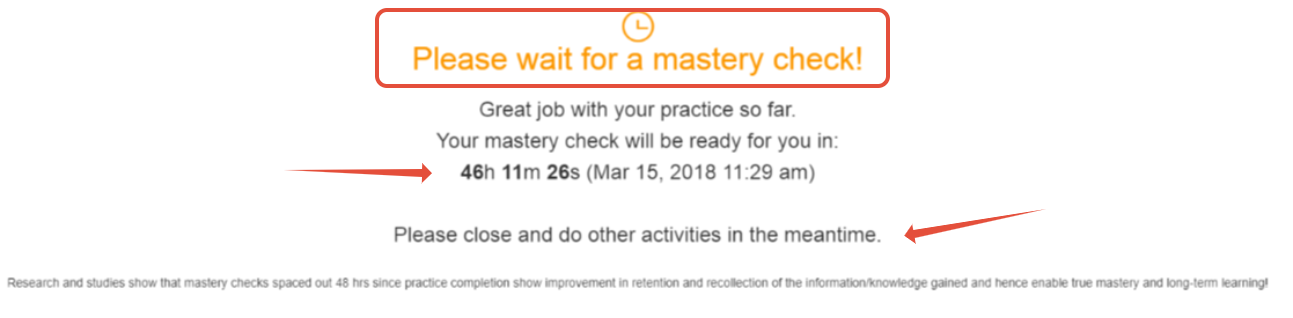
- PROACTIVE STRATEGY
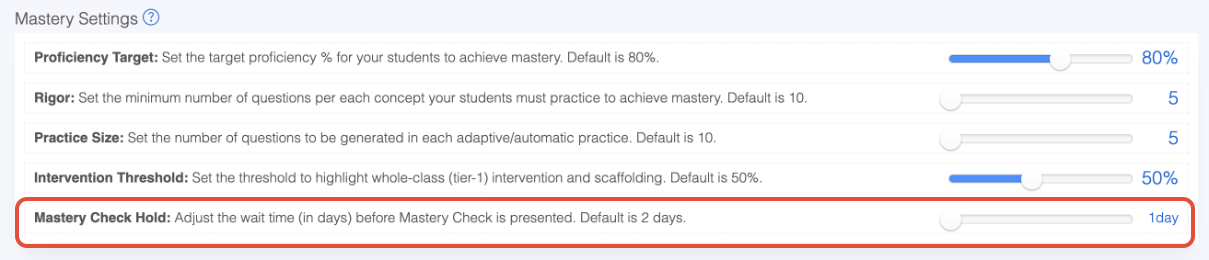
- Adjust the Mastery Check settings for Math or ELA when you set up your classroom. By default, the amount of time a student will wait for their Mastery Check session is 2 days. Adjust this to 1 day. What does this look like in the classroom? If John gets a message while in class, when you have your setting set to 1 day, this means he will receive the Mastery Check session the next day.
- PROACTIVE and REACTIVE STRATEGY
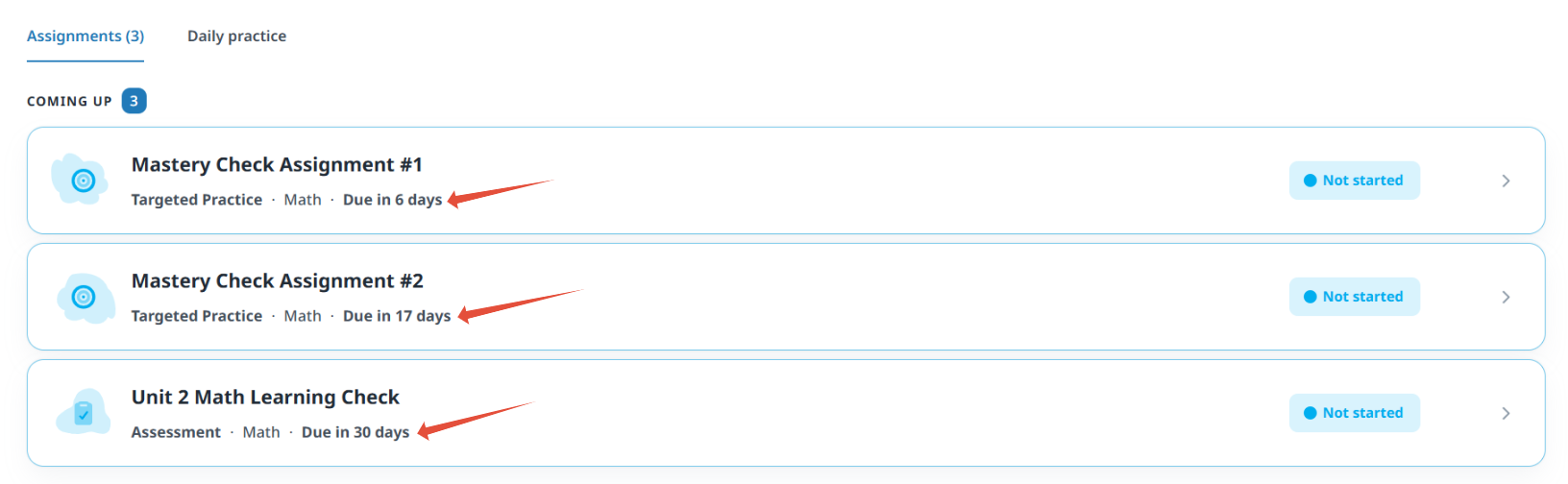
- While targeted assignments are best to assign proactively, you can assign them when students mention they are delayed.
Student Performance on Mastery Checks
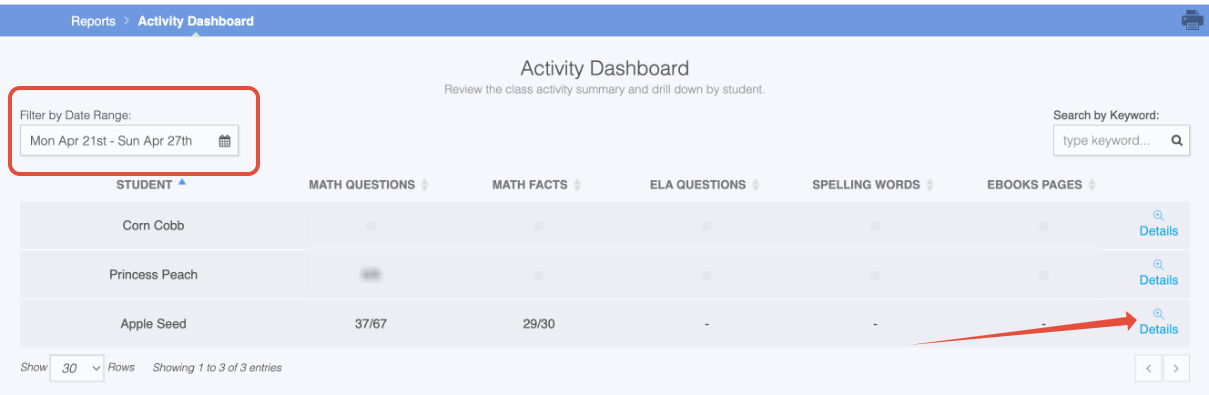
Students earn green crowns of mastery for each concept marked mastered during Mastery Check sessions. You can review these sessions in detail from the Activity Dashboard. In addition, you can see how many concepts have been marked dark green from the Learning Path Progress page.
- Change the date range to reflect the time period you would like to review and then click on Details for a specific student.
- On the activity detail page, you will see where the student spent their time and in which tasks. Tab over to Group Activities by Type.
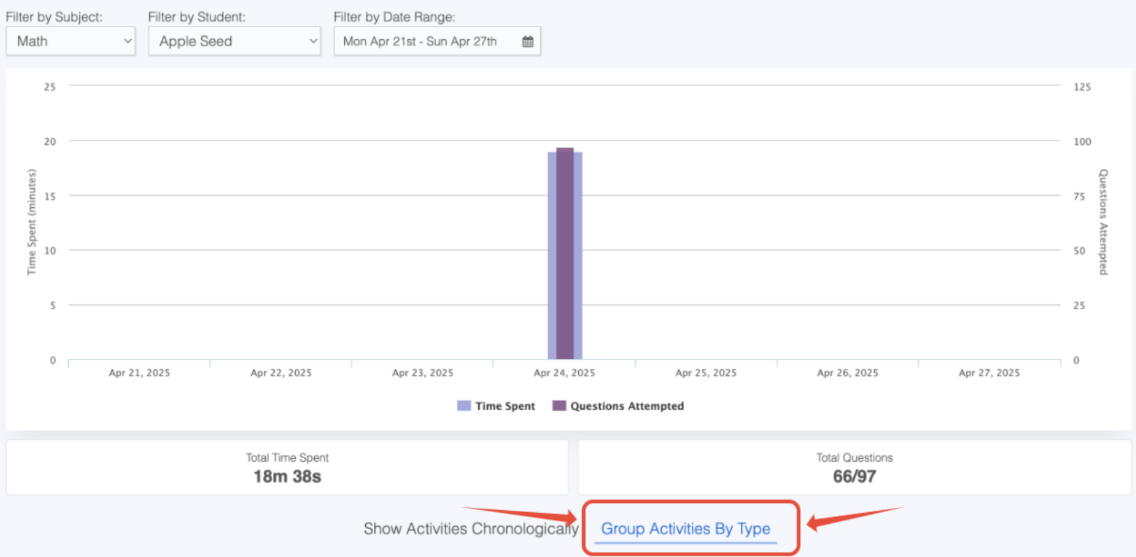
- Scroll down to the section "Mastery Checks." Listed will be all of the Mastery Check sessions the student has been given over the period of time you selected. To understand which concepts the student has successfully mastered during the Mastery Check, click on details.
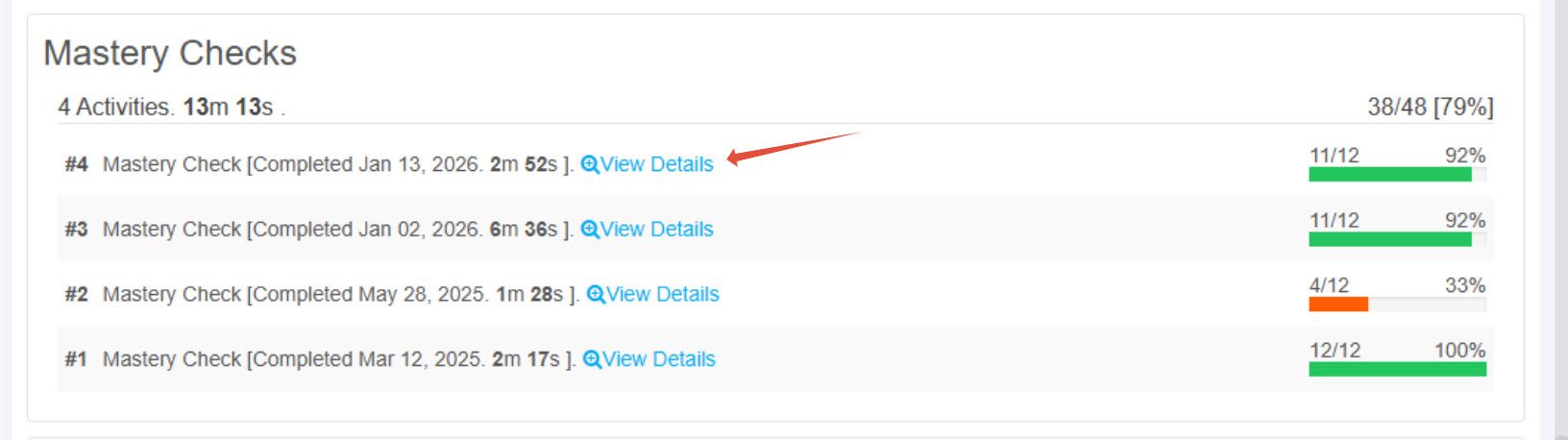
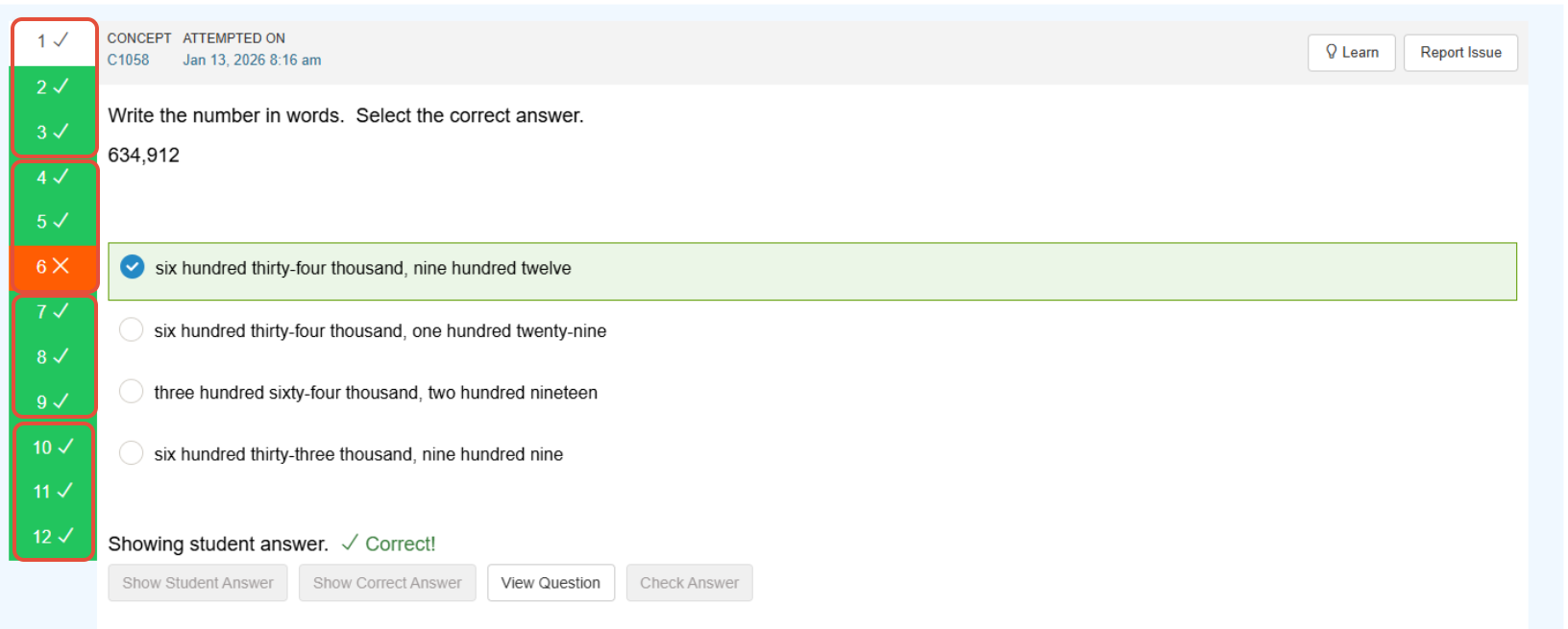
- The concepts are presented in groups of three questions. A concept is considered mastered when all three questions are answered correctly. Concepts not mastered return to the rotation for students to practice until they achieve 80% proficiency. In the example, the student was presented with four concepts. The student mastered concepts one, three, and four. Concept two required additional practice because the student answered the final question, in the group of three questions, incorrectly.
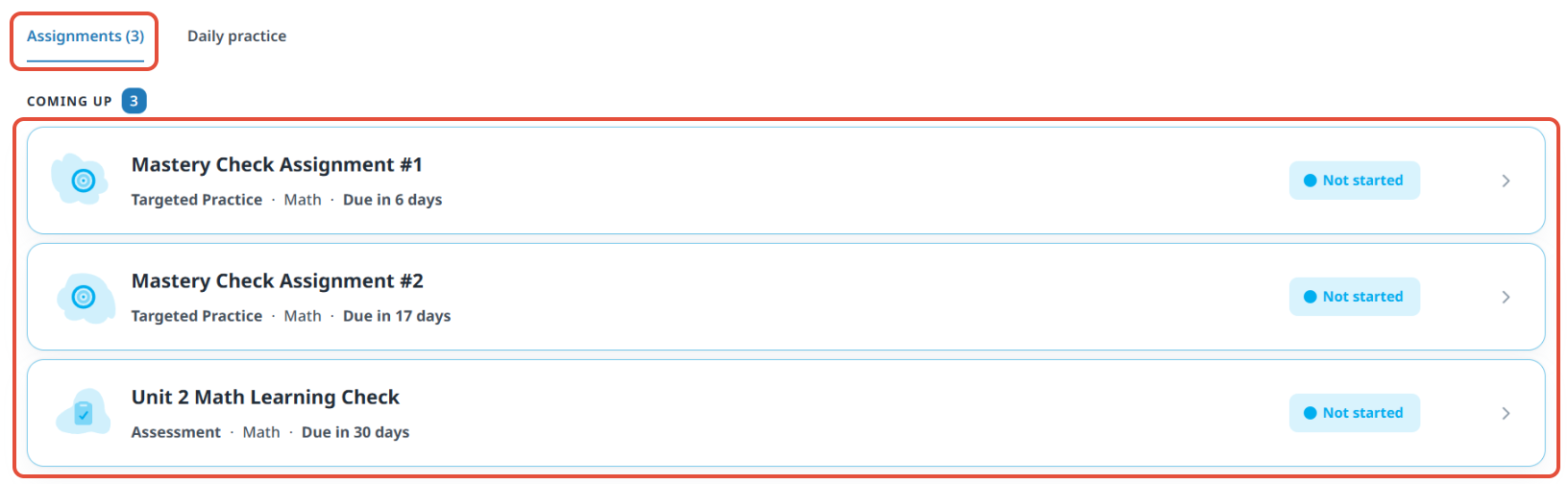
- When a concept goes back into the practice rotation, the student may receive one or many questions before receiving the opportunity to wait for another Mastery Check. This is part of the process and we encourage other tasks to be available on the dashboard while they are waiting to try again! In the example, the teacher has some tasks under Assignments that are available for the students to tackle if and when they are waiting for the next Mastery Check.
Related Resources
- Pathways Learning: The Student Experience
- Learning Adaptive Series Part 5: Mastery Checks
- Pathways Learning: Using Targeted Practice (Math & ELA) Assignments
Was this article helpful?
That’s Great!
Thank you for your feedback
Sorry! We couldn't be helpful
Thank you for your feedback
Feedback sent
We appreciate your effort and will try to fix the article