Overview
In this article we will provide a deeper understanding of how placement mode works as part of the Learning Path. Please use the table of contents below to navigate to specific sections for more detailed information.
Table of Contents
- Overview
- What is Placement Mode?
- When to Use Placement Mode
- Frequently Asked Questions
- Related Resources
What is Placement Mode?
Placement mode is how Pathways Learning scans a path to determine which concepts students already know. Since a Learning Path consists of the concepts you want students to master or focus on, we recommend using this feature, especially for longer paths. Once placement mode ends, students will continue on their path in practice mode. Remind students that each question answered still earns coins, contributes to their weekly goal, and keeps them on track within their Learning Path!
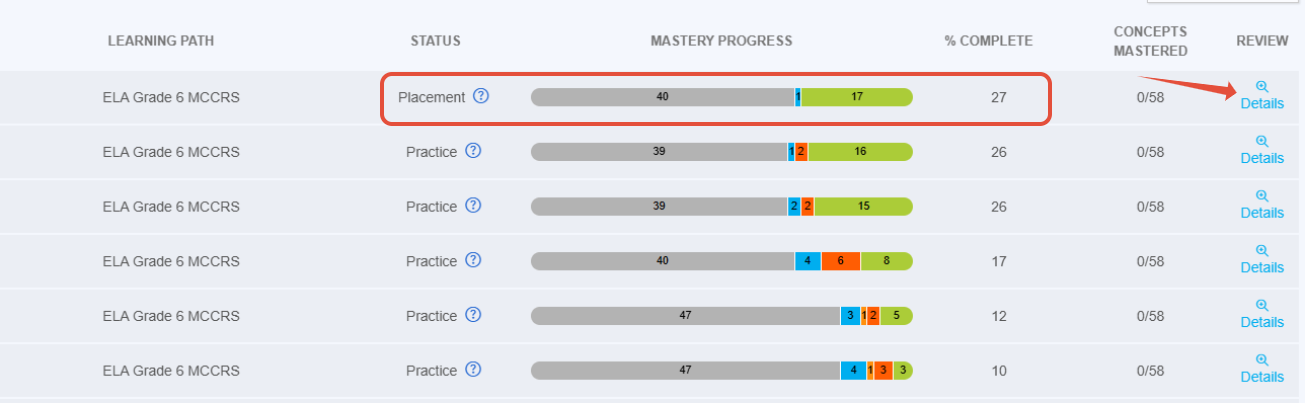
When the teacher navigates to the Learning Path Progress page, there are some students in placement mode. The teacher can click details to learn more.
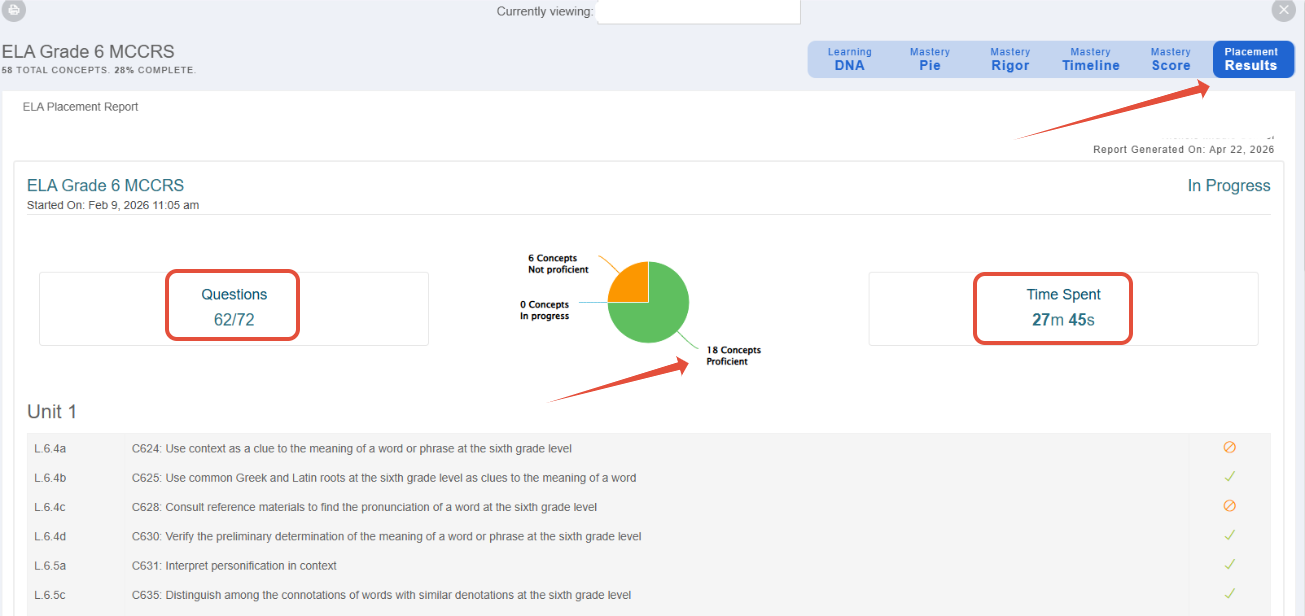
So far, this student has been found to be proficient in 18 out of 58 concepts in the path and is still proceeding in this mode! Way to go! This will save the student time. Pathways Learning knows when the student is ready to move into practice mode and will adjust the pace accordingly. The student will only need to start practicing on concepts where they are not proficient.
When to Use Placement Mode
- Learning Paths that have MORE than 24 concepts
Longer Learning Paths mean more dependencies between the concepts and a longer amount of time that students will be practicing (quarterly, trimester). Placement mode will help you know which concepts students are proficient in while still leaving many of the concepts available to practice (in most cases). Examples: Pathways Learning default paths, textbook year-long paths, MAP paths.
- Learning Paths that have LESS than or equal to 24 concepts
Allowing students to simply practice in shorter Learning Paths means they can work through each concept and see Mastery Checks later. These paths are typically assigned for students to work in for a marking period or a couple of weeks. Examples: User-created paths aligned to scope and sequence.
- Learning Paths that have fewer than 10 concepts
It is not advisable to design Learning Paths with fewer than 10 concepts. Students require a sufficient number of topics to engage with while awaiting Mastery Checks. When developing a very brief path, it is recommended to disable placement mode. Such paths can be finished within a week if students work through each concept. Examples: Custom-made paths corresponding to a brief unit or subject.
Frequently Asked Questions
- Q: Why is placement mode so long?
A: Placement mode is based on the Learning Path the student is in. Visit the Learning Path Progress page and instead of having the student in a year-long Learning Path, consider creating quarterly or topical paths. You can also follow the best practices above. - Q: Why can't I assign one?
A: On the Learning Path progress page, first, make sure the student is in a Learning Path. Next, select enable placement mode. The path must be assigned before placement can be enabled. In addition, Pathways Learning knows if the student CAN have placement enabled. This is based on the concepts the student has already worked on. - Q: How can I see the student's proficient concepts?
A: Navigate to the Learning Path Progress page and click on details and then Placement results. - Q: Can placement mode be reset?
A: No. Placement mode is not an assessment. This is a mode where the student has an opportunity to bypass concepts they already know. Therefore, it cannot be reset.
Related Resources
- Learning Adaptive Series Part 1: Overview
- Pathways Learning: Navigating Learning Paths
- Pathways Learning: Recommended Practice, Leaderboards, and Certificates
Was this article helpful?
That’s Great!
Thank you for your feedback
Sorry! We couldn't be helpful
Thank you for your feedback
Feedback sent
We appreciate your effort and will try to fix the article