Overview
In this article we will address how to assign targeted practice and review the results. Please use the table of contents below to navigate to specific sections for more detailed information.
Table of Contents
Getting Started with Targeted Practice
Targeted practice is an instructional support tool for Math and ELA within Pathways Learning. Unlike adaptive practice, which provides students with automatic, scaffolded, and repeated exercises in various concepts over an extended period, targeted practice concentrates on students practicing particular concepts without any scaffolding or repetition.
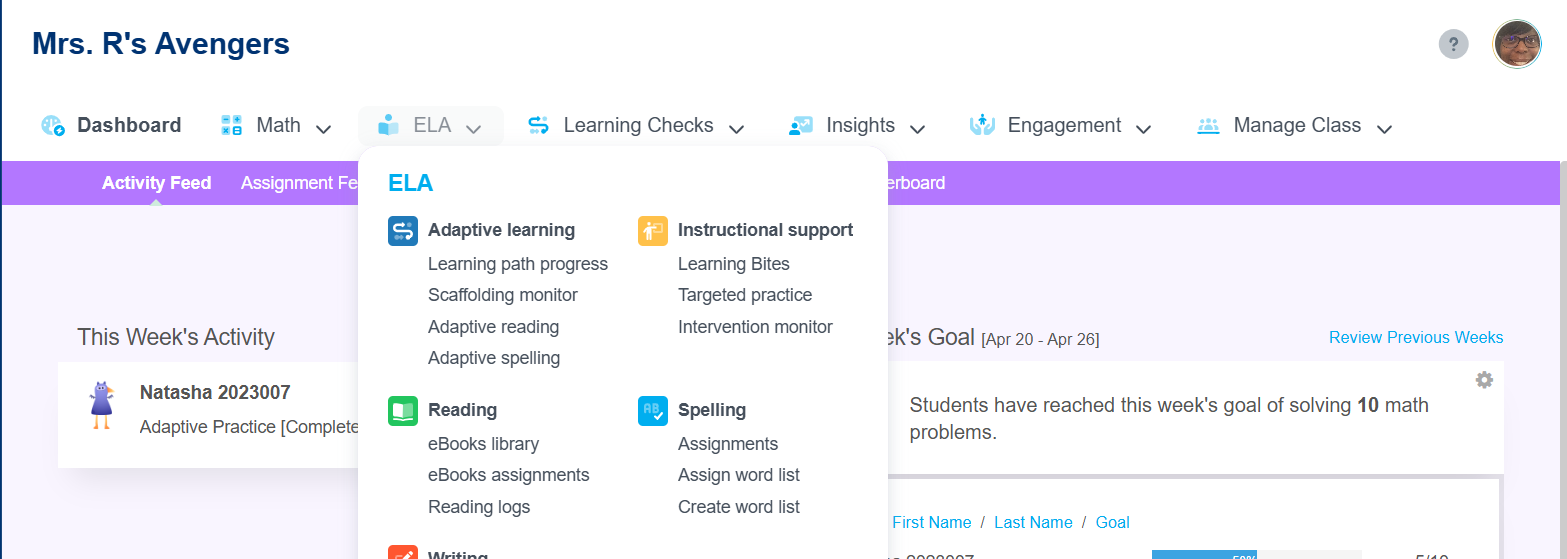
- To assign a targeted practice, click on Math or ELA, and select targeted practice under Instructional support.
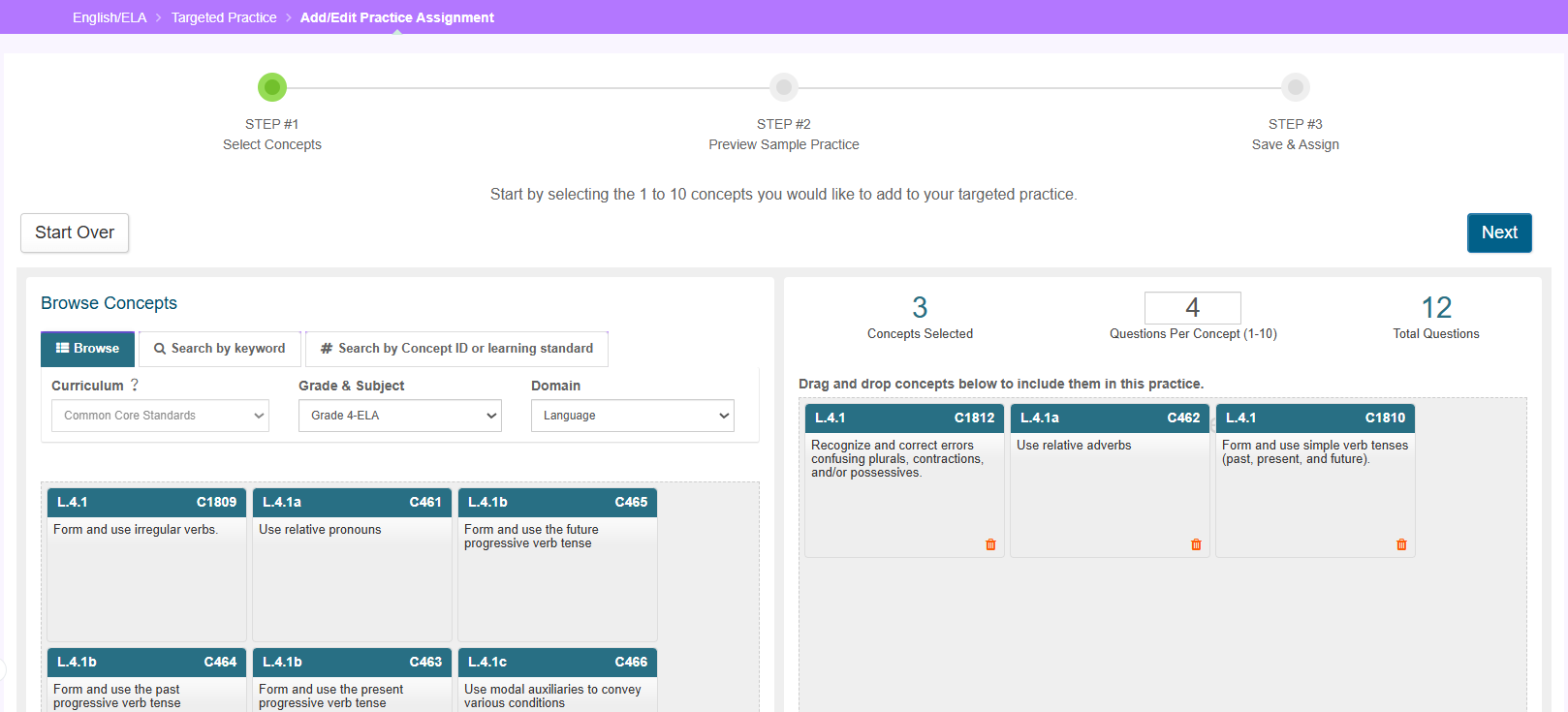
- Click on the +New Practice button to create a new practice. Create your first assignment by choosing which concepts you want to target.
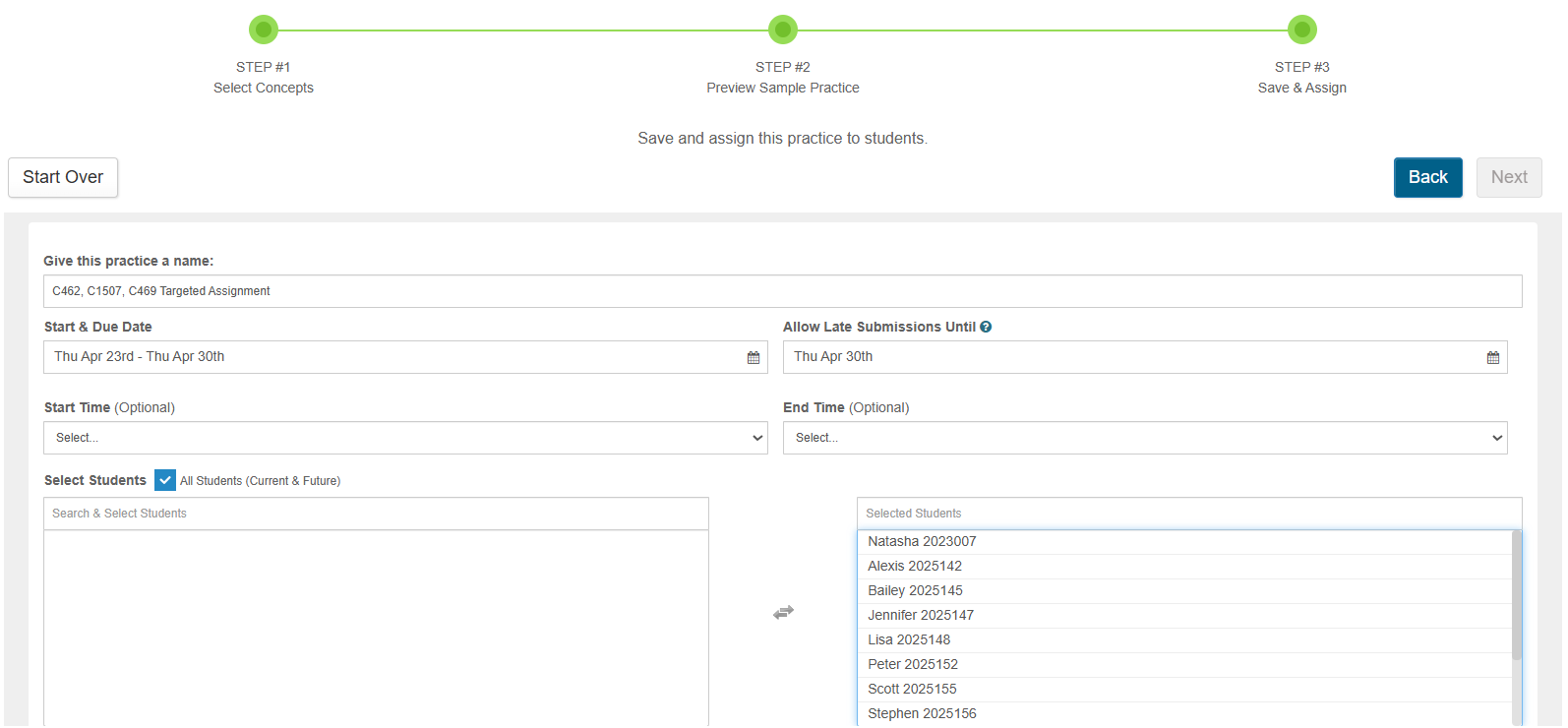
- By default, the name of the assignment will contain the concept IDs, making tracking progress easier! Feel free to rename it. Then, select to assign it to one or more students (current and future), allow late submissions and optionally select a start and end time.
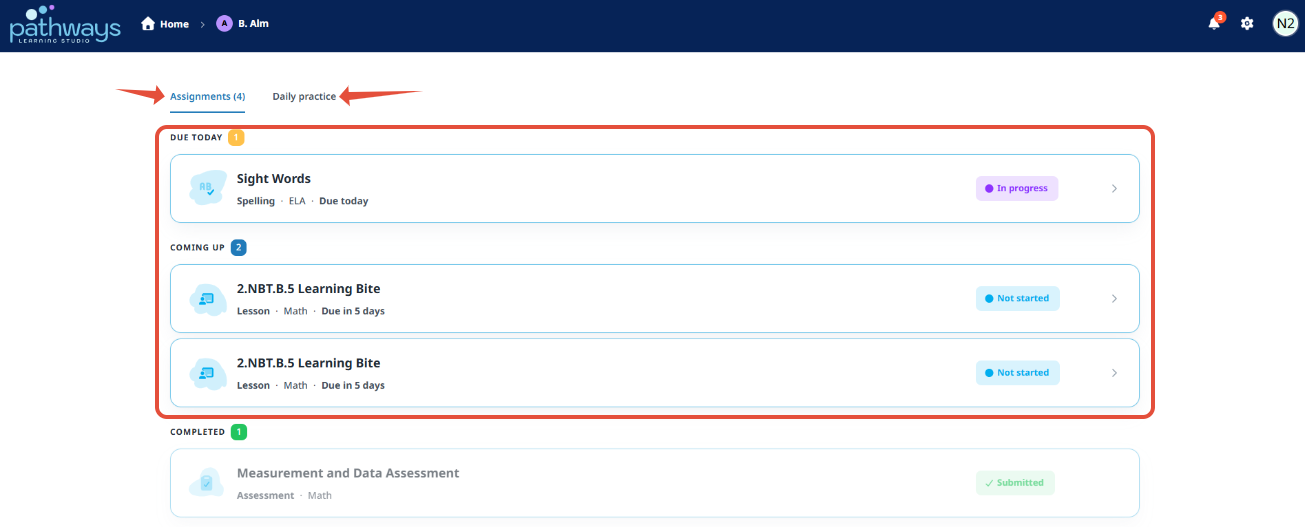
- Encourage students to complete the assignment within the designated timeframe. Tasks will appear on the student's Assignments page, listed according to their due dates.
Note: Remember that each assignment is a one-time task. To give students more practice, you have to reassign it. Check out adaptive practice to save time and automate tasks!
Reviewing Targeted Practice Results
- Navigate to the targeted practice page, apply the appropriate filters and locate the specific practice you would like to review. At a glance you can see overall student metrics (# assigned to, in progress, completed, reviewed).

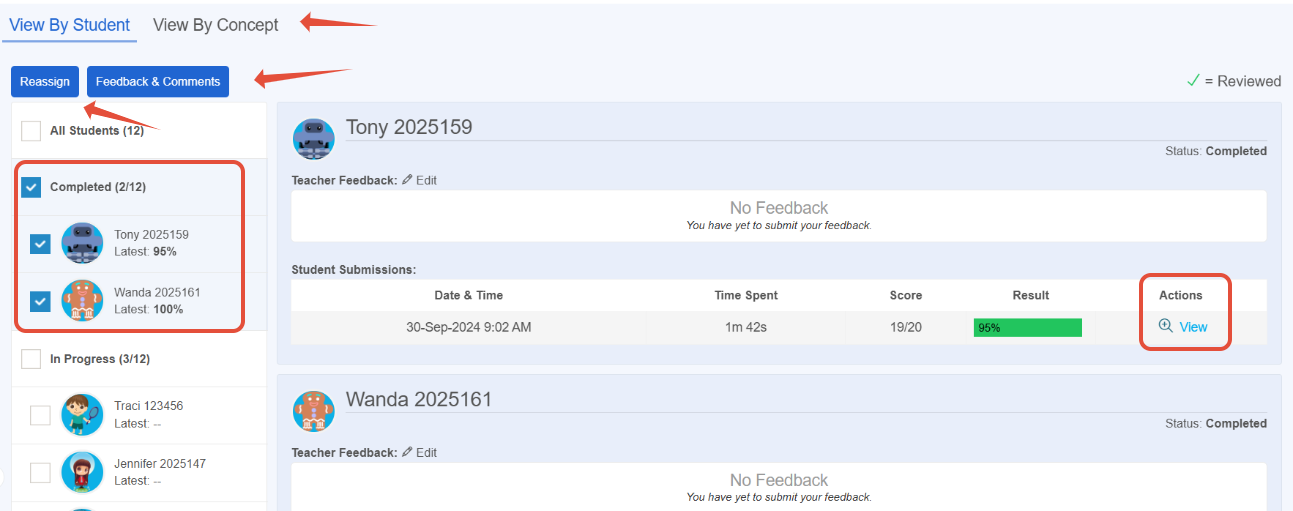
- Click the eye for deeper insights. You can see exact questions per student and overall score. You can also reassign the entire assignment, provide feedback and comments, and view results by individual concept.
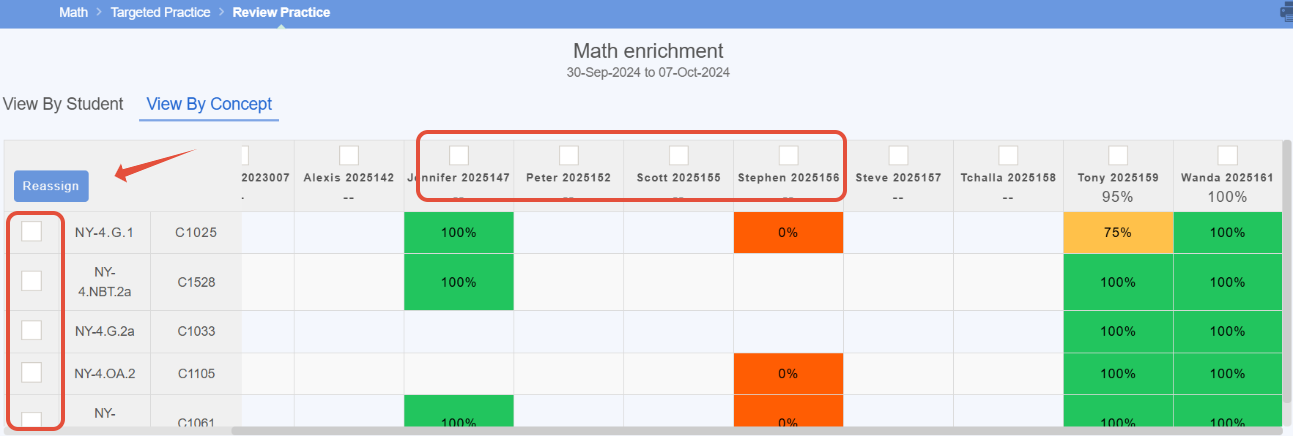
- In the view by concept tab, you can see student results per concept and choose to assign specific concepts to one or more students.
Note: The Assignment Feed is a quick way to see all active assignments from all assigned (targeted) content. This is accessible from the teacher's dashboard. Learn more.
Related Resources
- Learning Video: Using Targeted Practice
- Pathways Learning: Understanding Teacher-Driven Intervention
- Pathways Learning: Recommended Practice, Leaderboards, and Certificates
Was this article helpful?
That’s Great!
Thank you for your feedback
Sorry! We couldn't be helpful
Thank you for your feedback
Feedback sent
We appreciate your effort and will try to fix the article