Overview
This article walks teachers through how to review the data from Learning Checks. Administrators have access to two of these reports. Please use the table of contents below to navigate to specific sections for more detailed information.
Table of Contents
Data from an Individual Learning Check
Use the individual report to understand classroom performance by concept, standard, and question on assigned Learning Checks. Reviewing data in this format will uncover trends and allow for the assignment of improvement practices from the results.
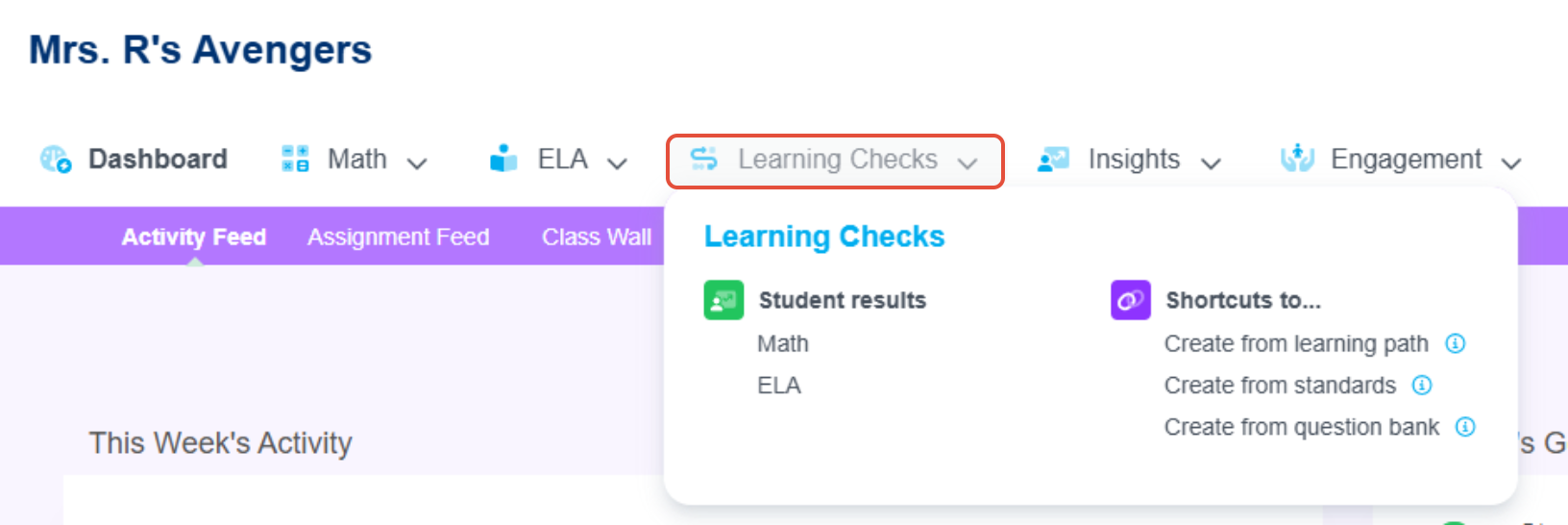
- After launching your class, click on Learning Checks and then Math or ELA under Student results.
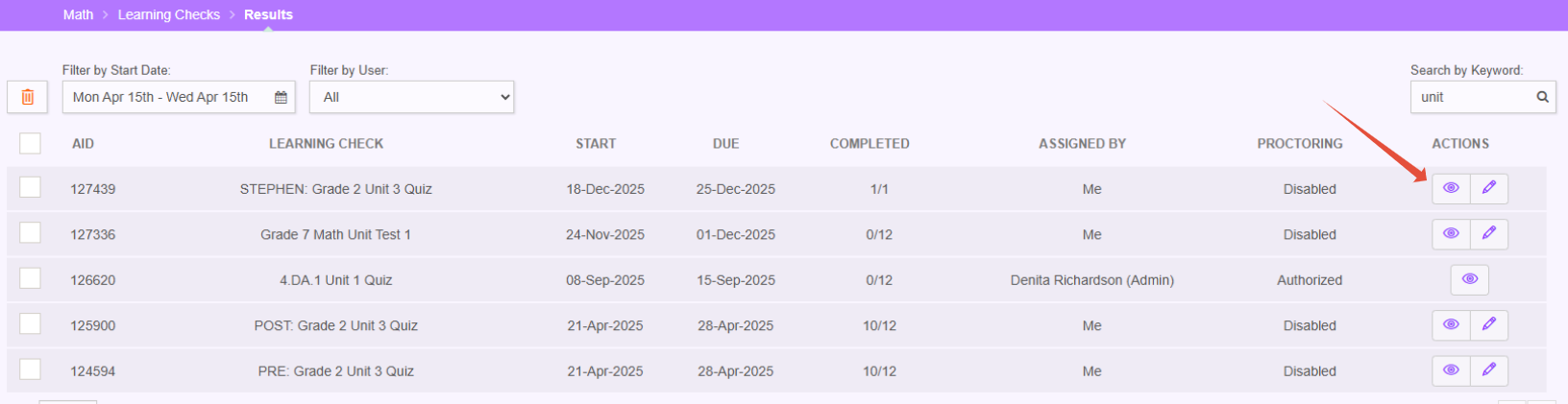
- Locate the specific Learning Check by filtering on date range and/or user. Then select the eye for review.
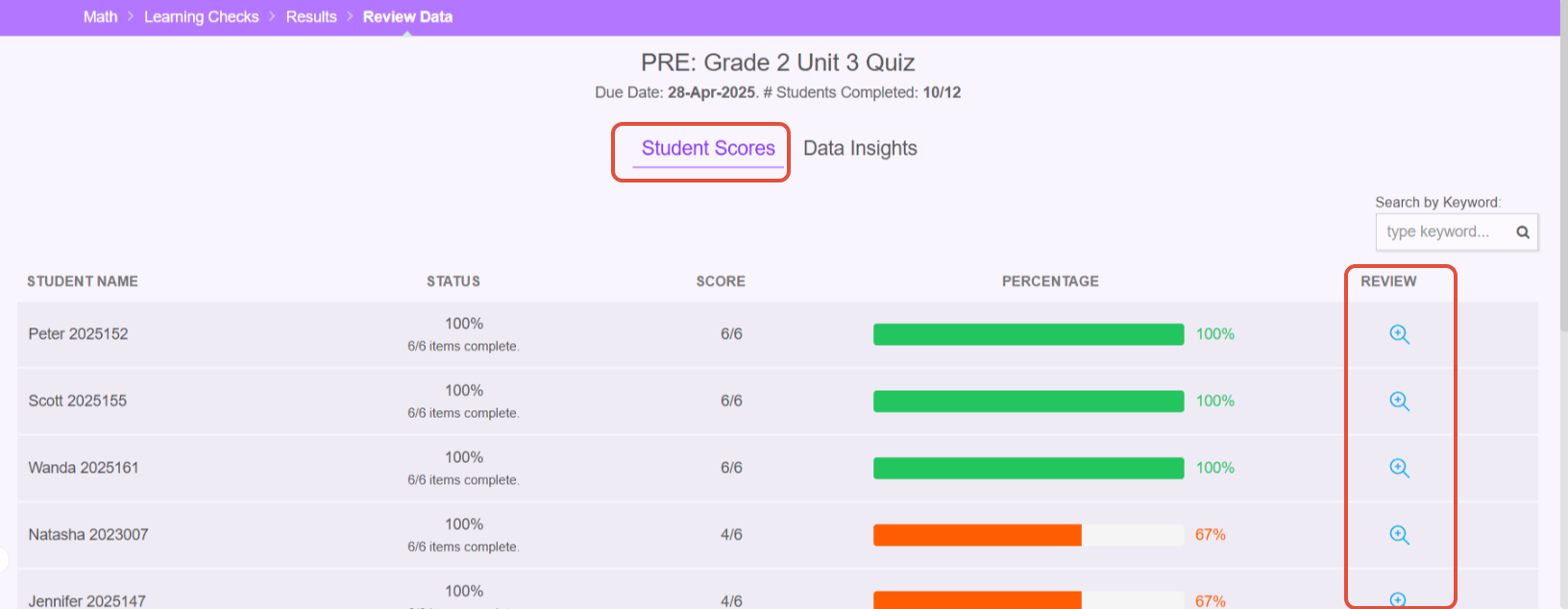
- On the Student Scores page, you can see the percentage for each student that had been included in the Learning Check. Next to each student, you can select the icon under "review" to see more details for each student in the class.
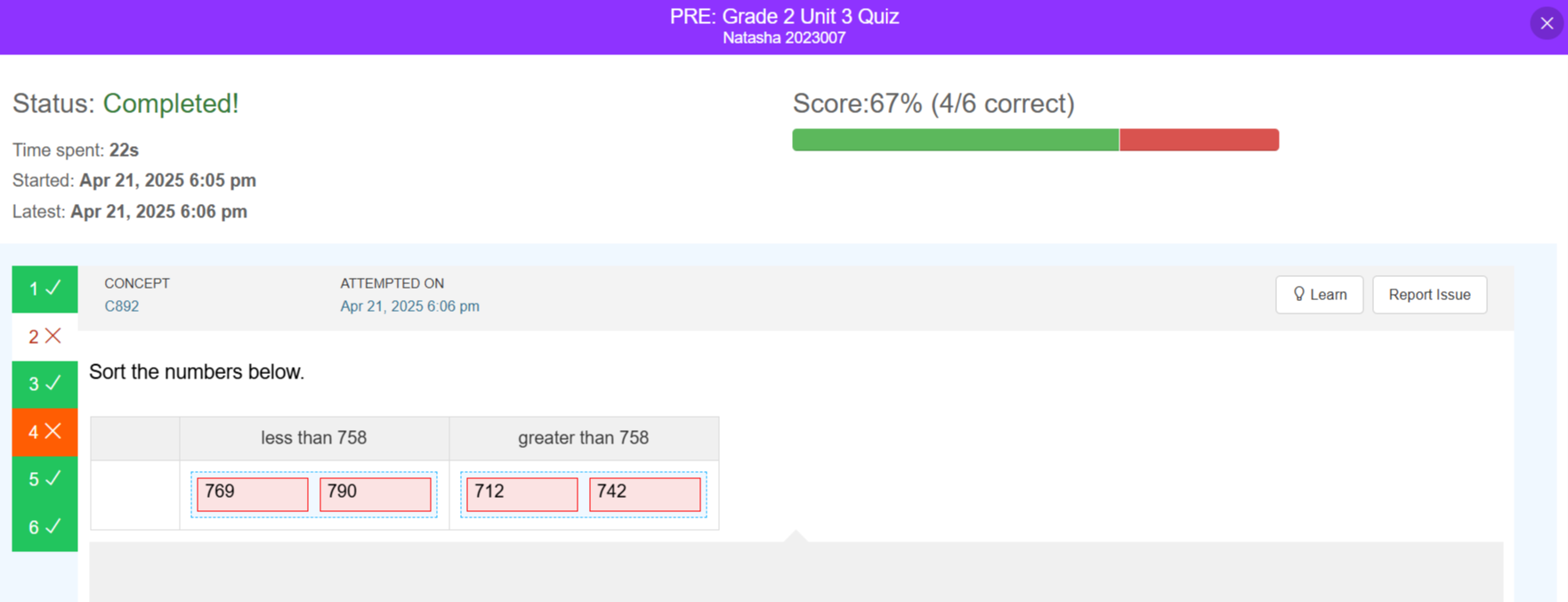
- The individual student details will be displayed question by question.
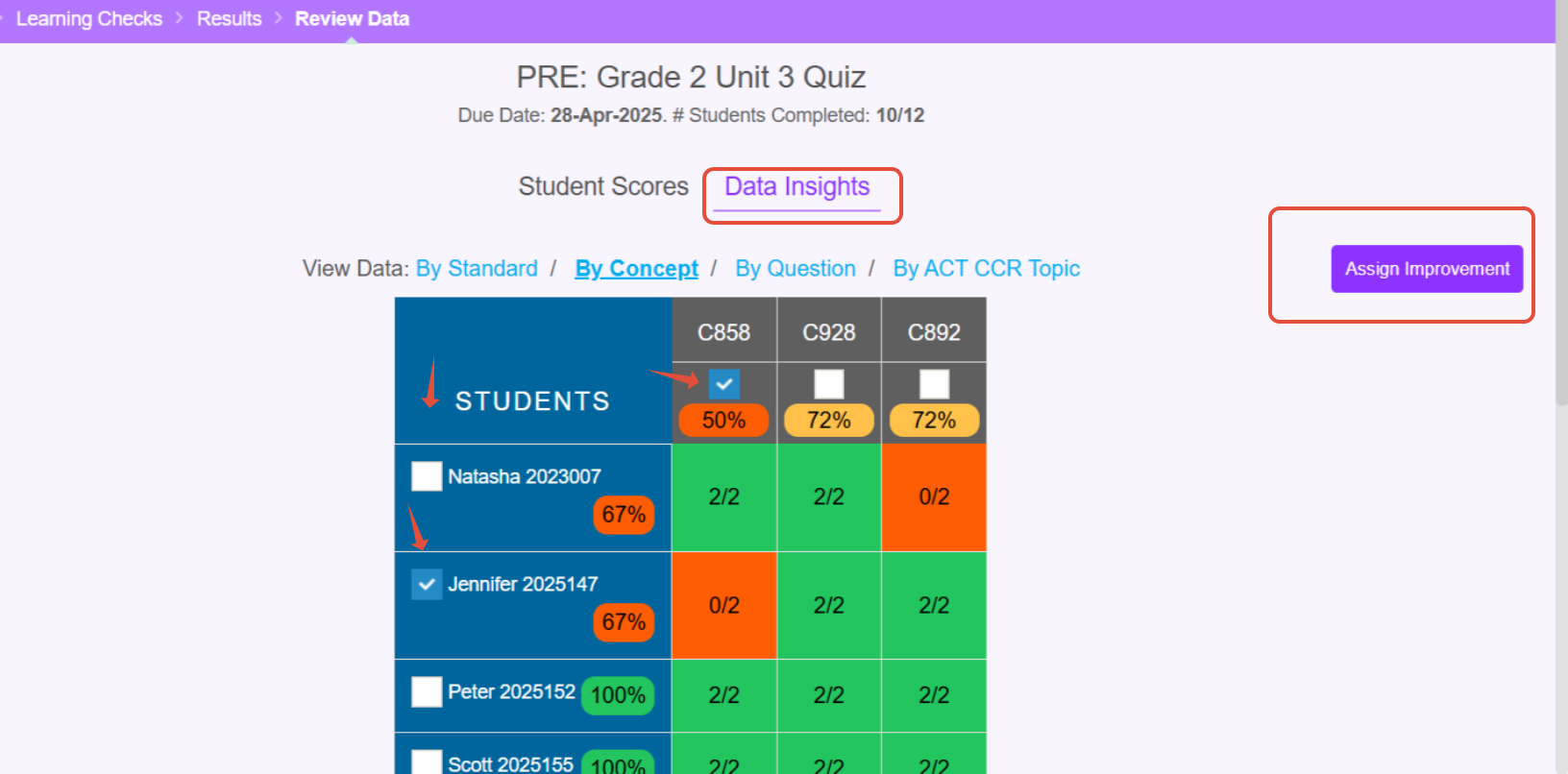
- Click on Data Insights to view results by standard, by concept, and by question. Encourage teachers to drill down to review these individual insights and assign concept improvement to help students practice.
Data from Multiple Learning Checks
Use the classroom reports to compare two or more Learning Checks and showcase progress over time. Reviewing data in this format allows teachers to visualize growth and make decisions about class-wide interventions.
- Under Insights, navigate to Classroom reports. District administrators can select the school, teacher, and classroom. School administrators can select the teacher and classroom.
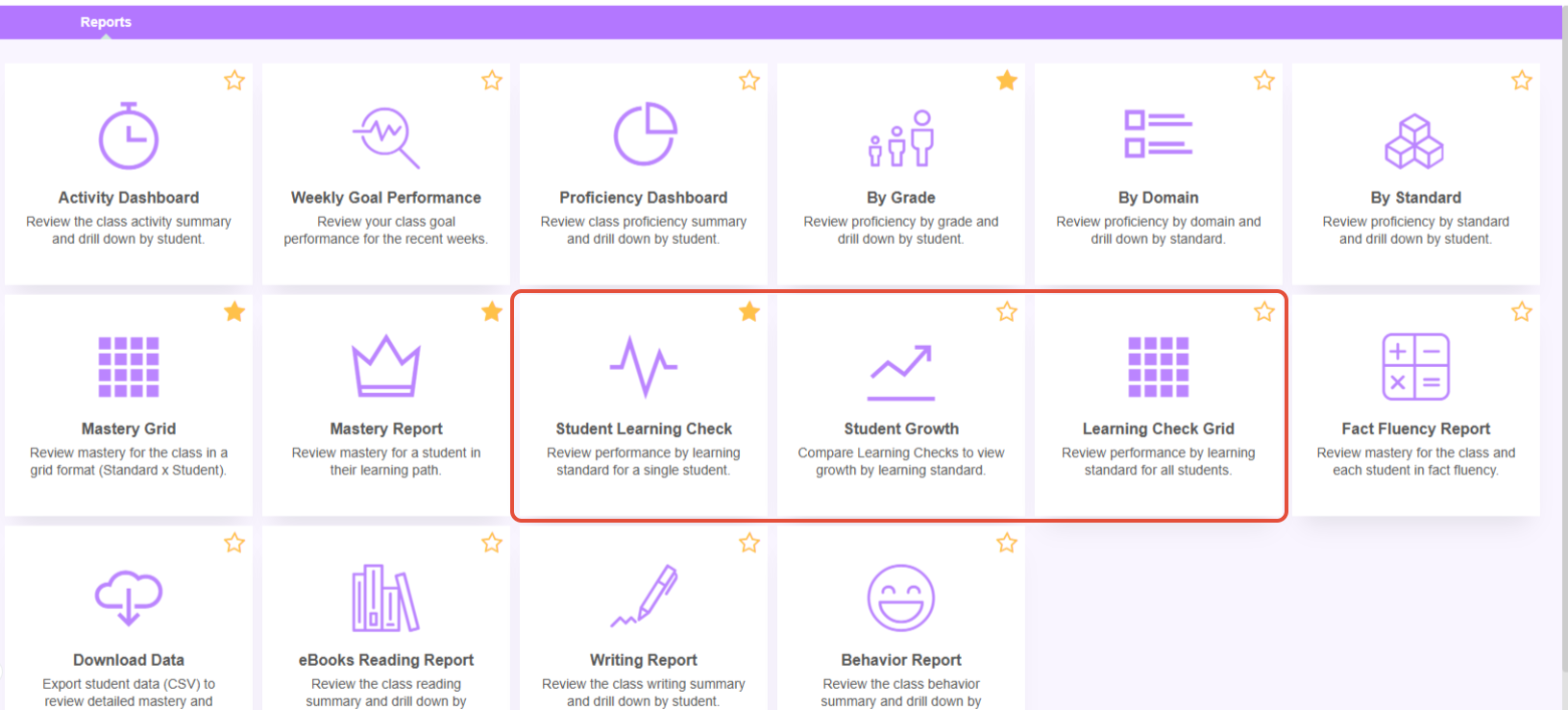
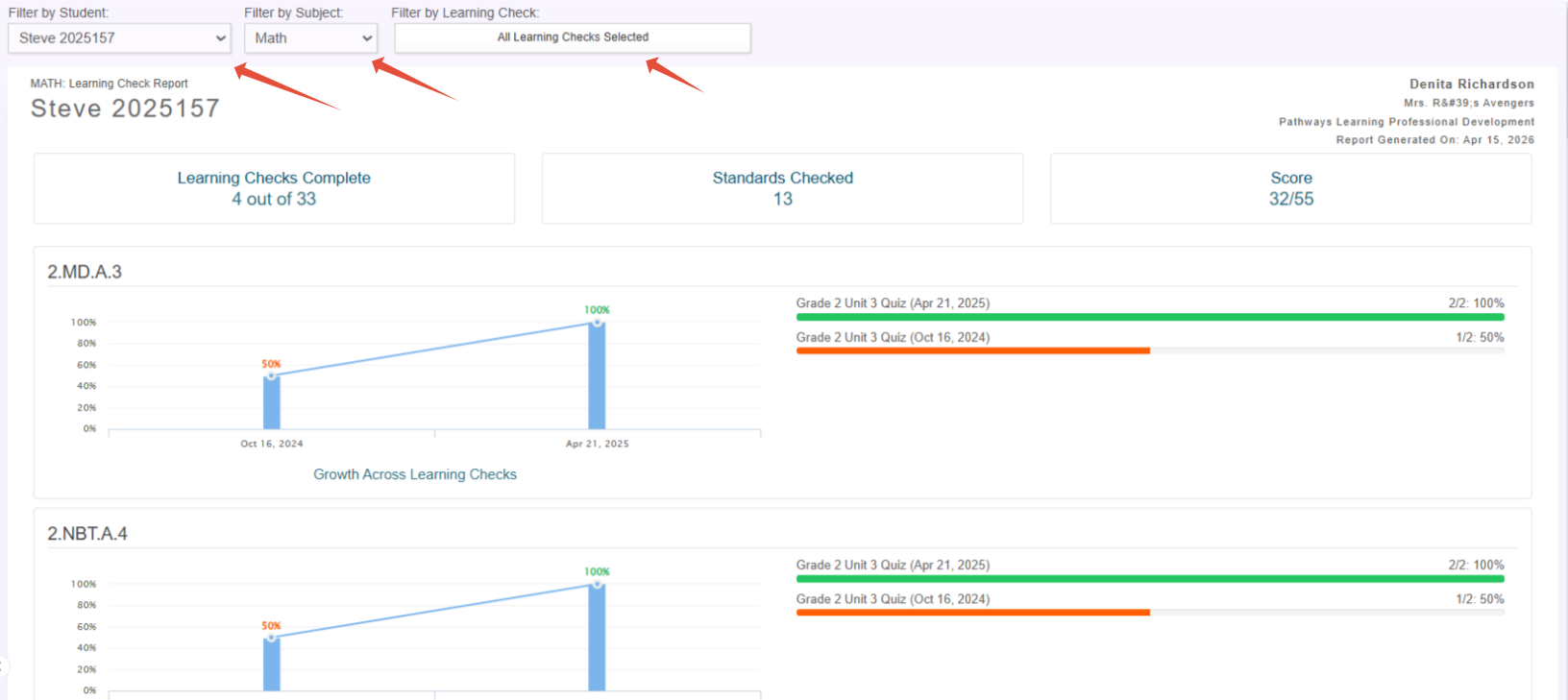
- The Student Learning Checks report displays individual results across Learning Checks and standards. Filters by student and Learning Checks allow you to narrow down the standards displayed. This report is printer-friendly.
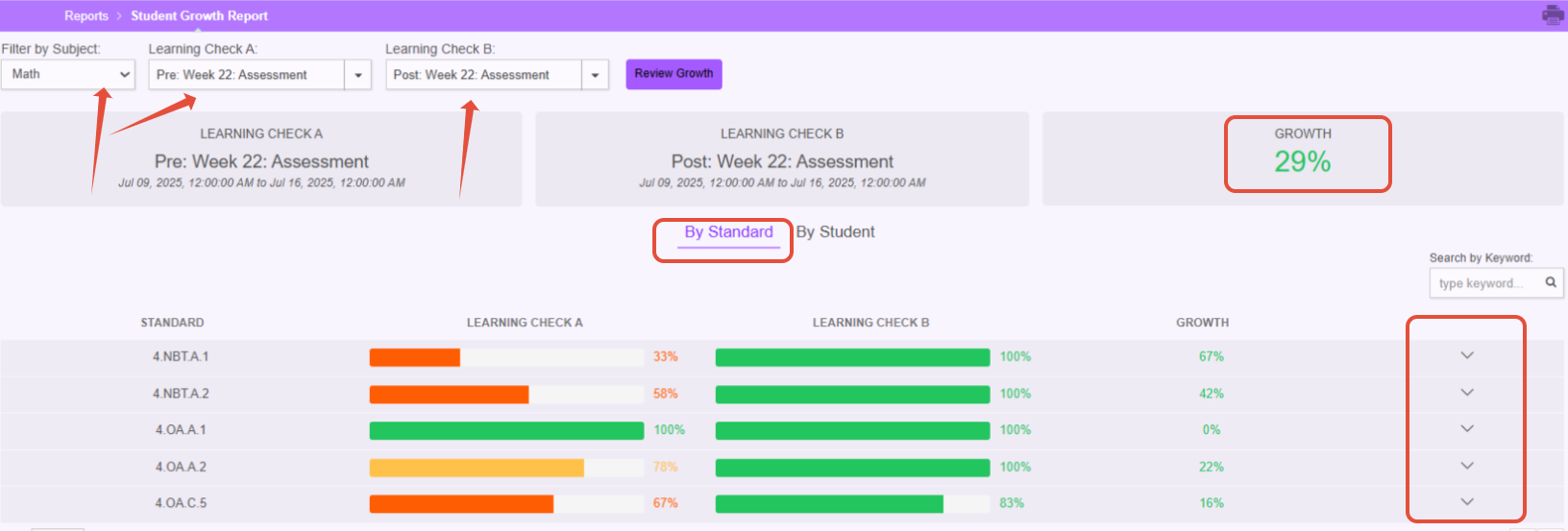
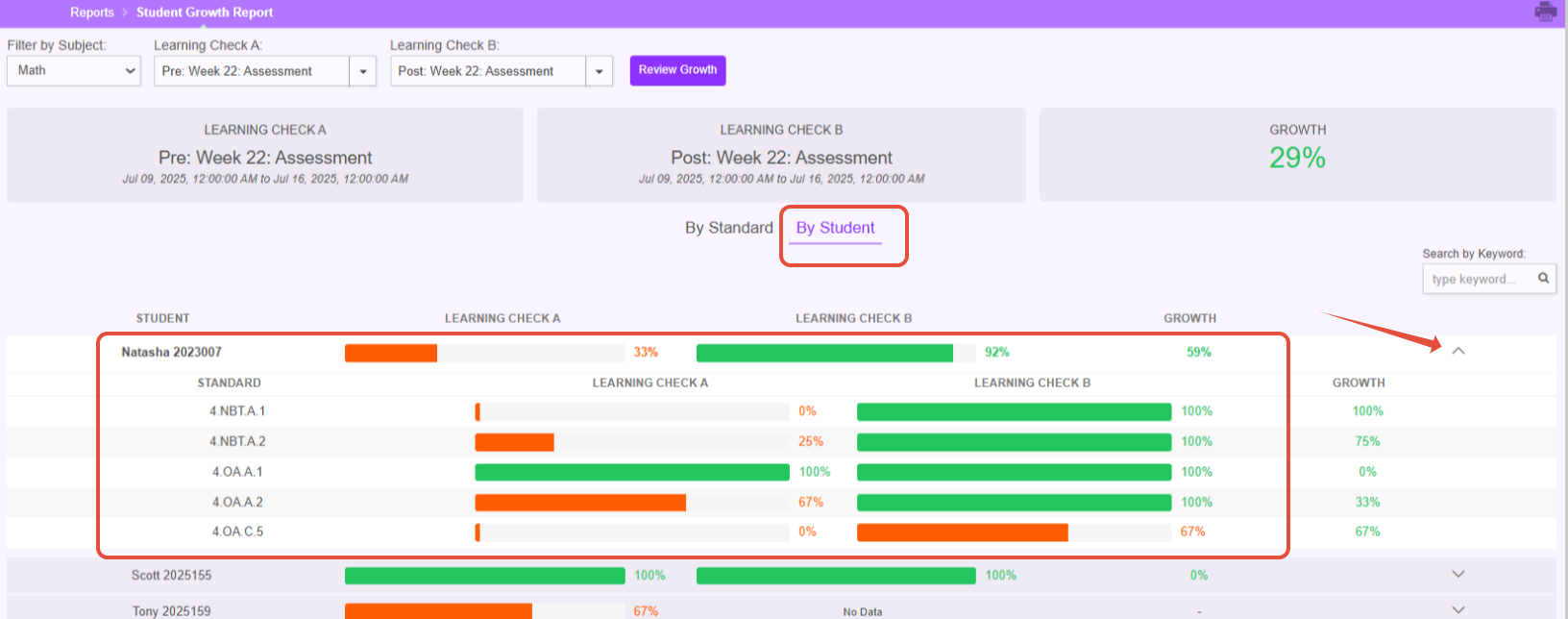
- The Student Growth report displays growth across two Learning Checks. Growth can be visualized by standard and also by student with the ability to drill down as necessary. Printing is not recommended.
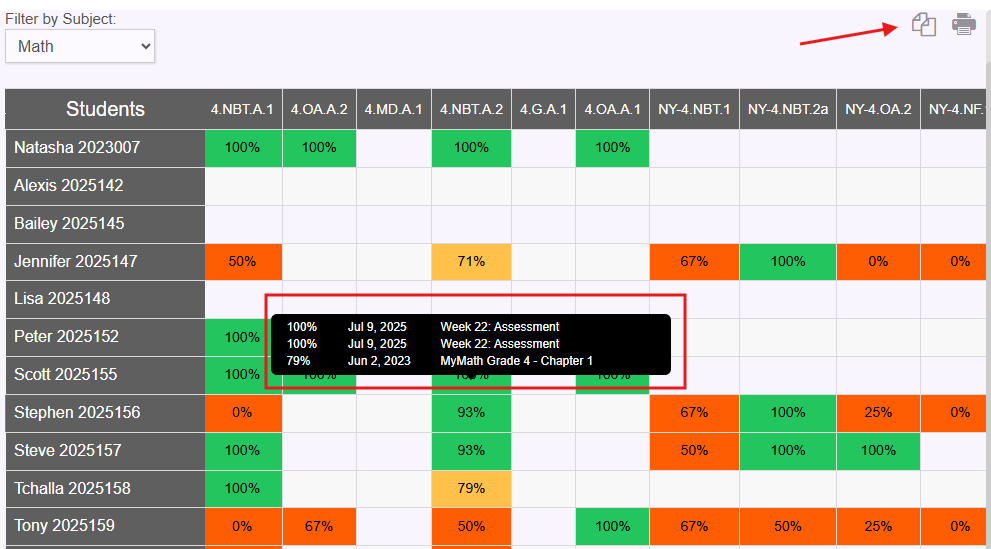
- The Learning Check Grid displays the latest score for an assessed standard. Hovering over a cell shows all the scores for the standard. Printing is not recommended but the copy icon allows for it to be pasted into a spreadsheet.
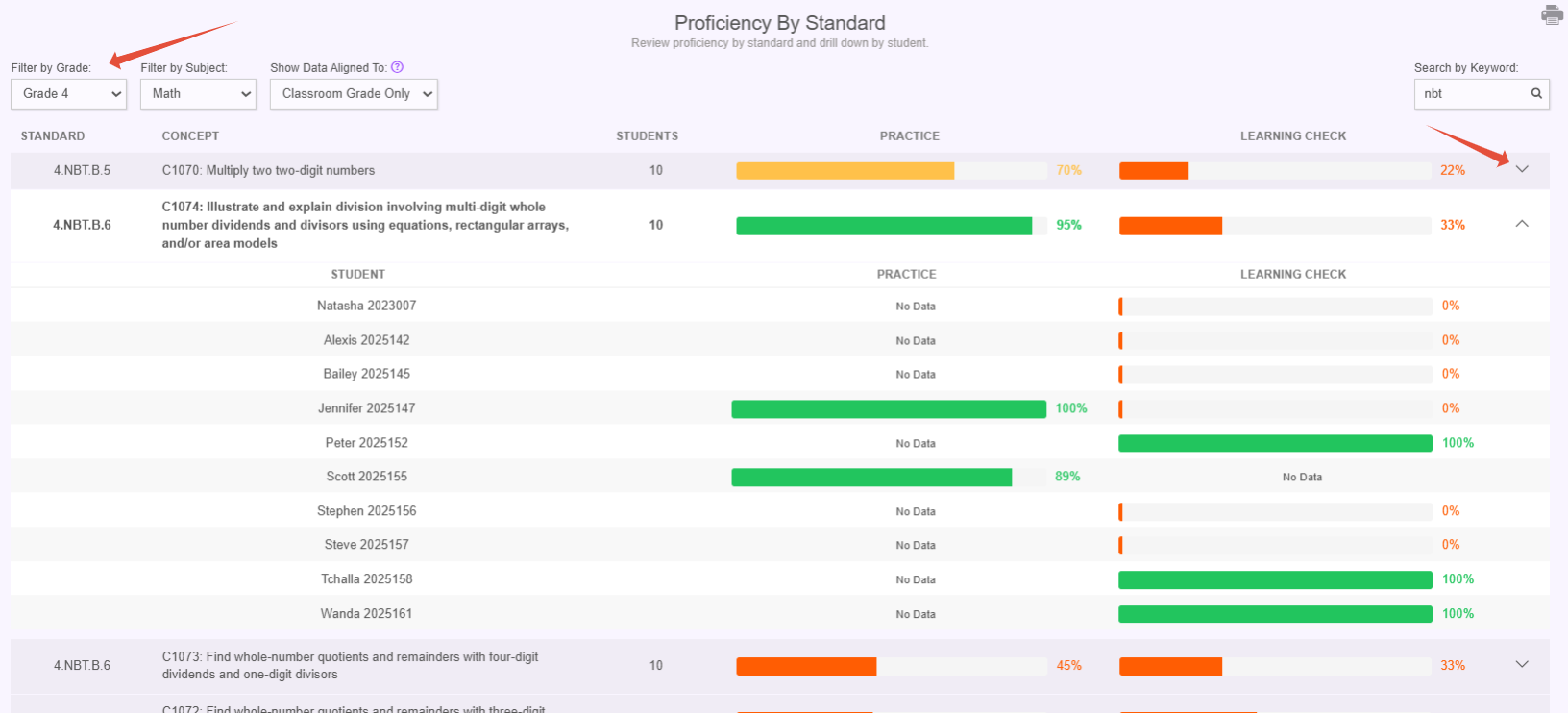
- The Proficiency by Standard report can be a great view to compare student proficiency for the class in practice and Learning Checks. Drill down to see this information per student.
Related Resources
Was this article helpful?
That’s Great!
Thank you for your feedback
Sorry! We couldn't be helpful
Thank you for your feedback
Feedback sent
We appreciate your effort and will try to fix the article