Overview
This article walks through the various features teachers can use to to promote positive behavior and enhance communication with parents and students. Please use the table of contents below to navigate to specific sections for more detailed information.
Table of Contents
- Overview
- The Behavior Dashboard
- Communication to Students Using the Class Wall
- Communication to Students and Parents Using the Message Center
- Related Resources
The Behavior Dashboard
The Behavior feature in Pathways Learning is completely customizable. Teachers can track specific actions and review trends on the dashboard.
- Once the classroom is launched, click on Engagement and then Behavior categories.
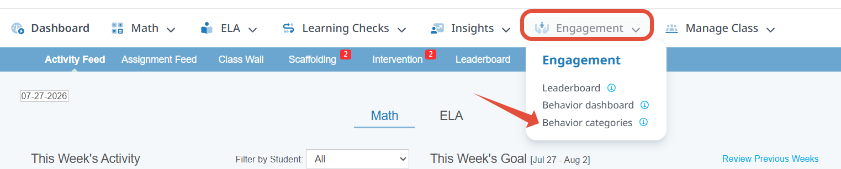
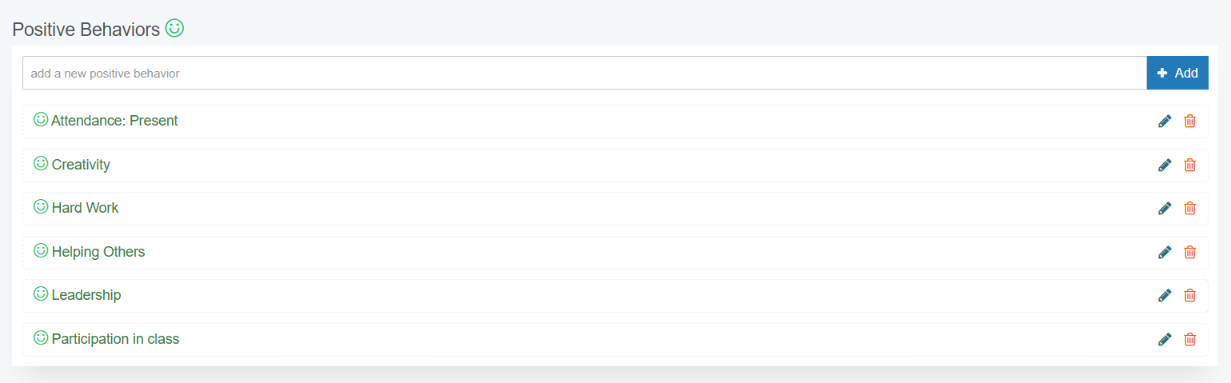
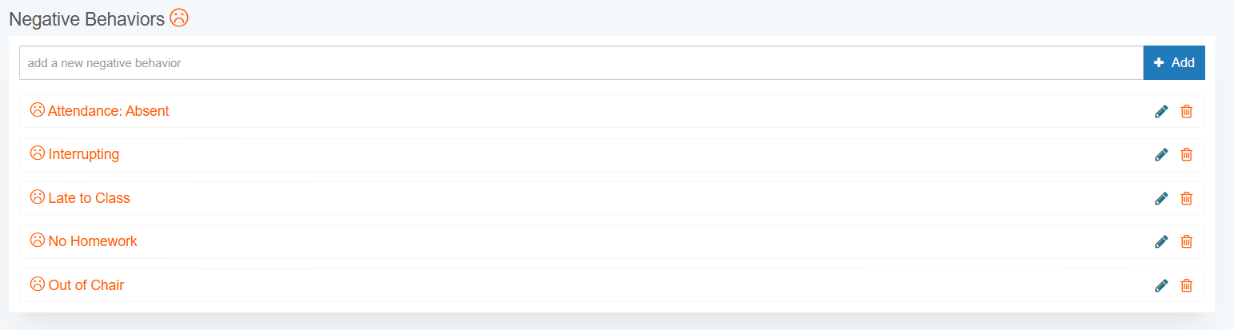
- Create, edit, or delete behaviors at any time.
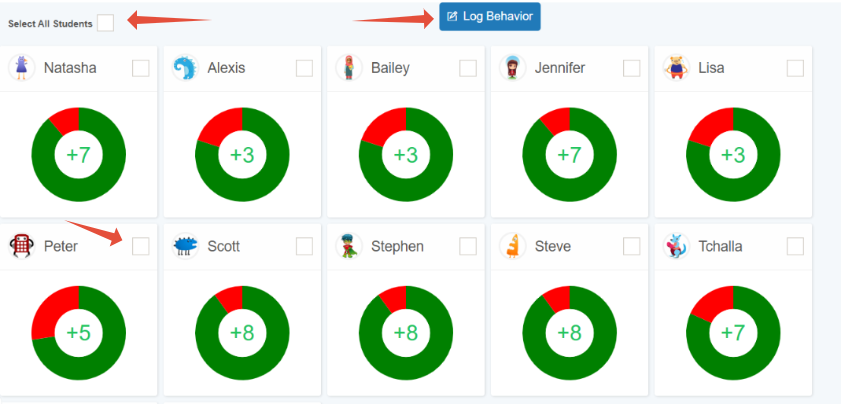
- To log behaviors, navigate to the Behavior dashboard.
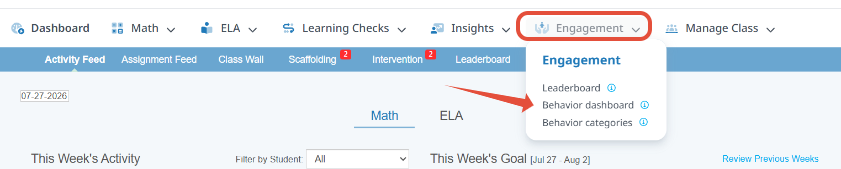
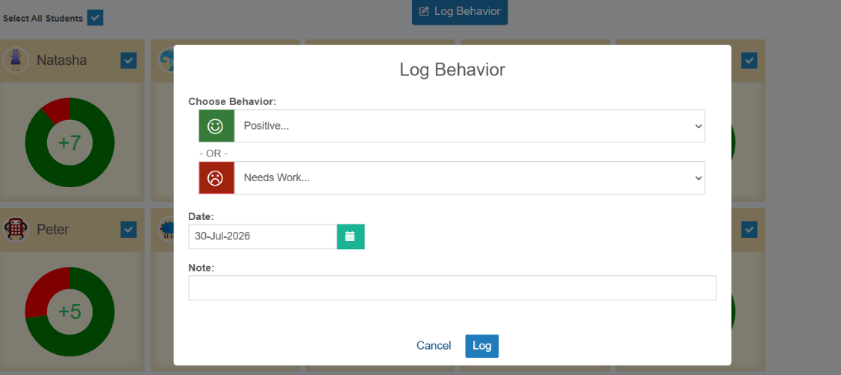
- When on the Behavior page select a student or multiple students and then click Log Behavior. Choose a Behavior out of the drop down options, choose a date, and make the appropriate notes about your selection.
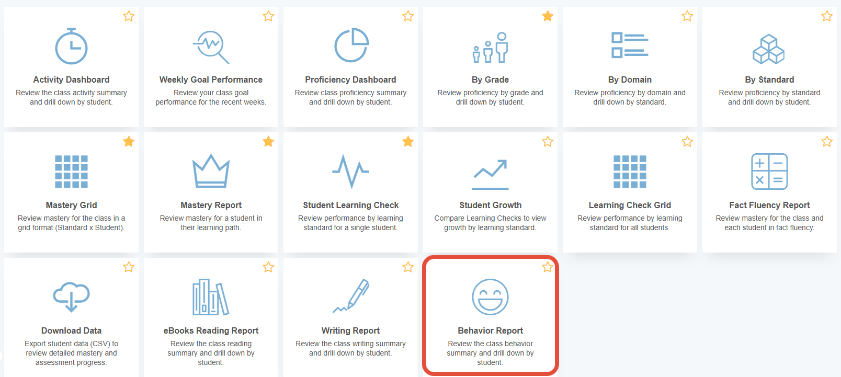
- Click on the Report library under Insights to view Behavior trends across the classroom, by student, and by behavior.
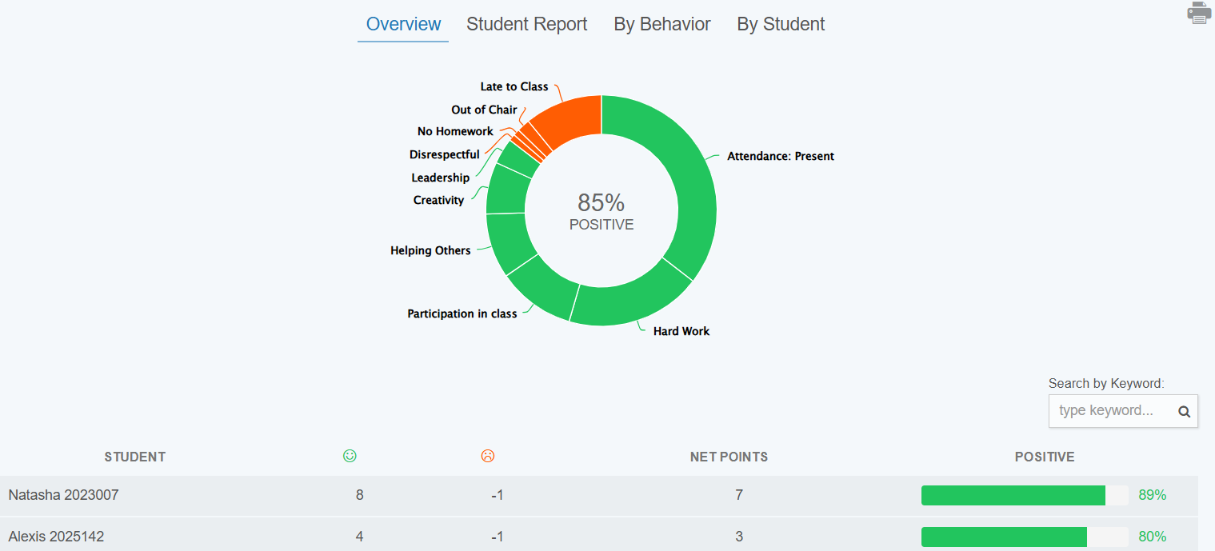
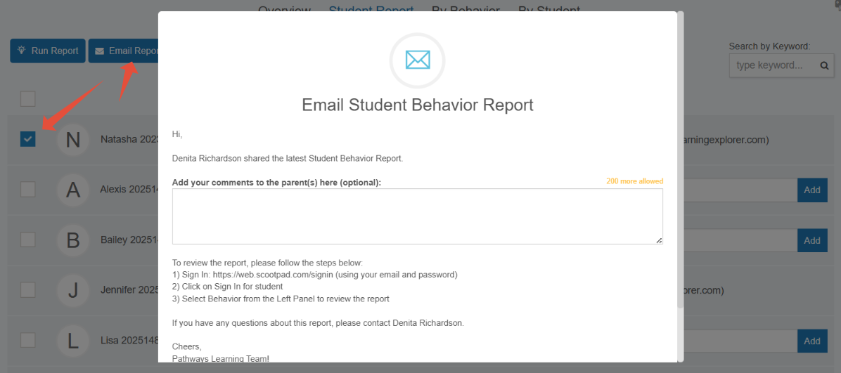
- In addition, teachers can use the Student Report section to email parents.
Communication to Students Using the Class Wall
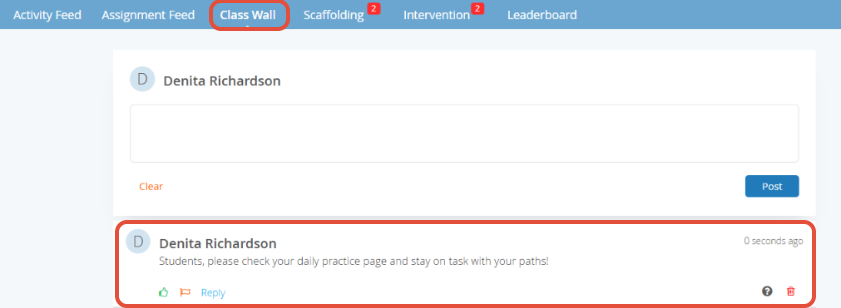
Pathways Learning helps teachers foster classroom community with a dedicated Class Wall. Teachers can post updates, inspire discussions, and encourage student expression through free writing and open dialogue.
- After launching the classroom, click on Class Wall. Type your message.
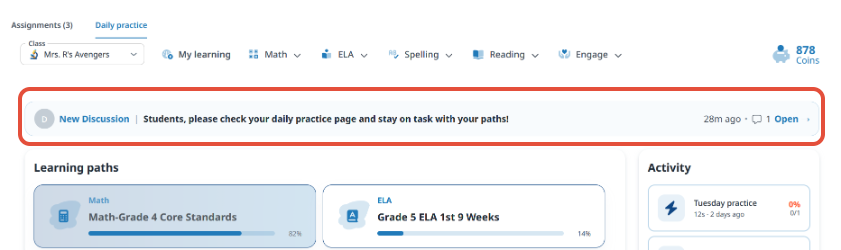
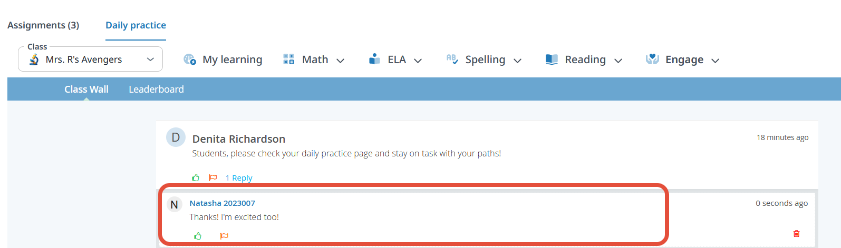
- Students can see the message and can reply or like the message. Students cannot initiate their own messages.
Communication to Students and Parents Using the Message Center
Parents can receive automated reminders for upcoming or overdue assignments and can get instant updates from teachers through the Message Center—ensuring consistent communication and support.
- In the left hand navigation panel, click on Message center under the Learning module. From there, teachers can enter a message to send to parents only (reminders) or students and parents.
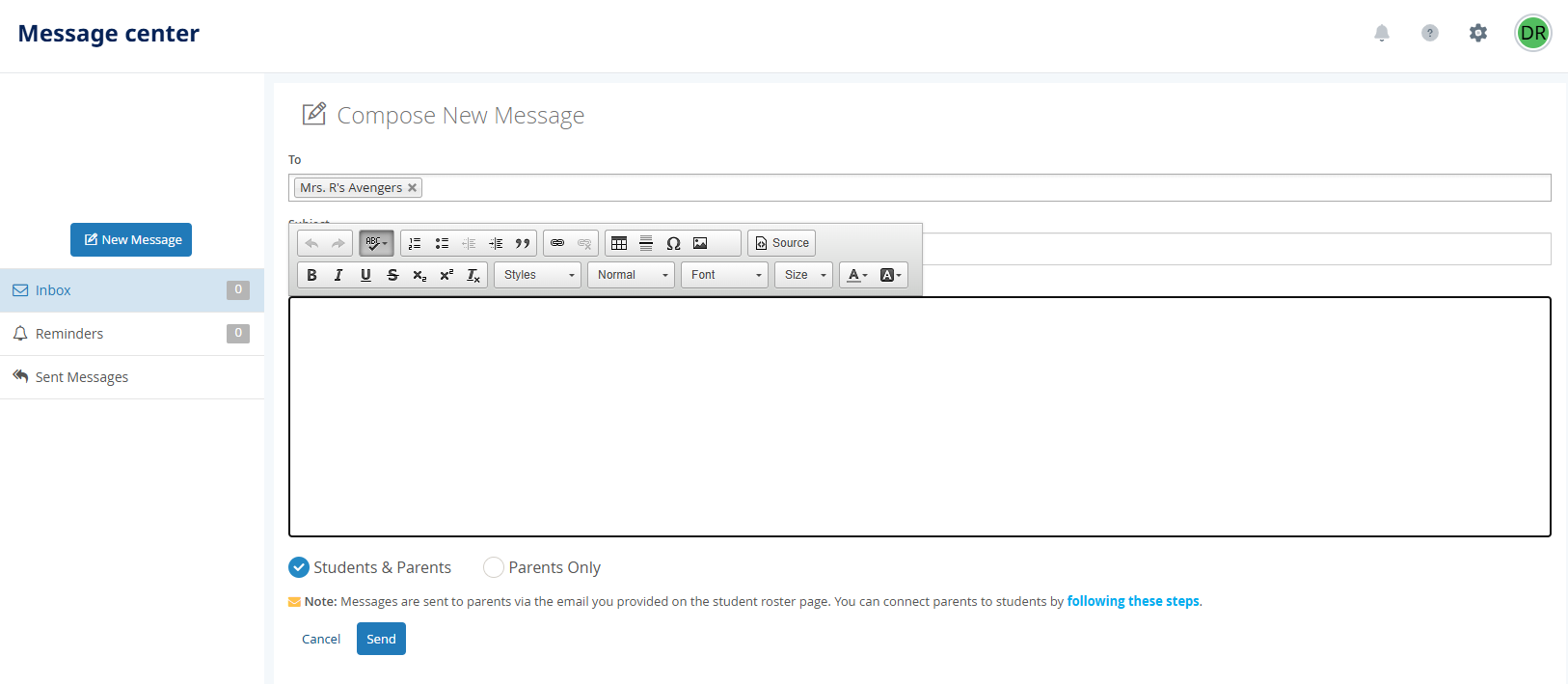
These one-way messages are a great way to ensure students stay on task while keeping parents in the loop.
Related Resources
- Learning Video: User Engagement
- Pathways Learning: Connecting and Engaging Parents
- Pathways Learning: The Student Experience
Was this article helpful?
That’s Great!
Thank you for your feedback
Sorry! We couldn't be helpful
Thank you for your feedback
Feedback sent
We appreciate your effort and will try to fix the article