Overview
Learn more about connecting and engaging with parents in Pathways Learning. Please use the table of contents below to navigate to specific sections for more detailed information.
Table of Contents
Connecting Parents to Students
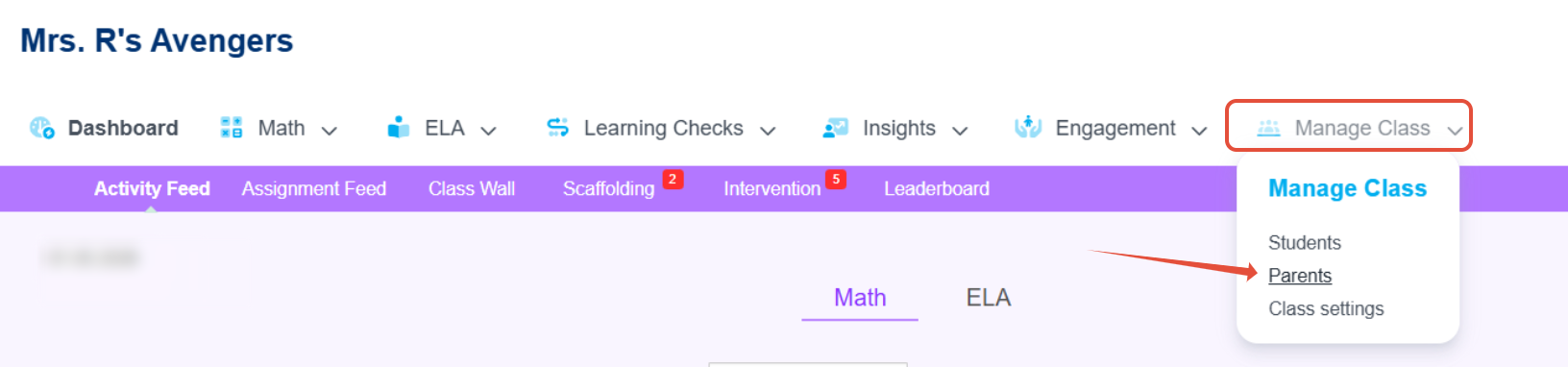
- From the top navigation bar, click on Manage Class and then Parents.
- On the Connect Parents page, you can check each student and print off Parent Invitation Letters to send home, or you can enter the parent email of each student and click connect. After clicking connect, an email will be sent to the parents inviting them to Pathways Learning. To add additional parents, locate the student and click the + sign to connect another parent.
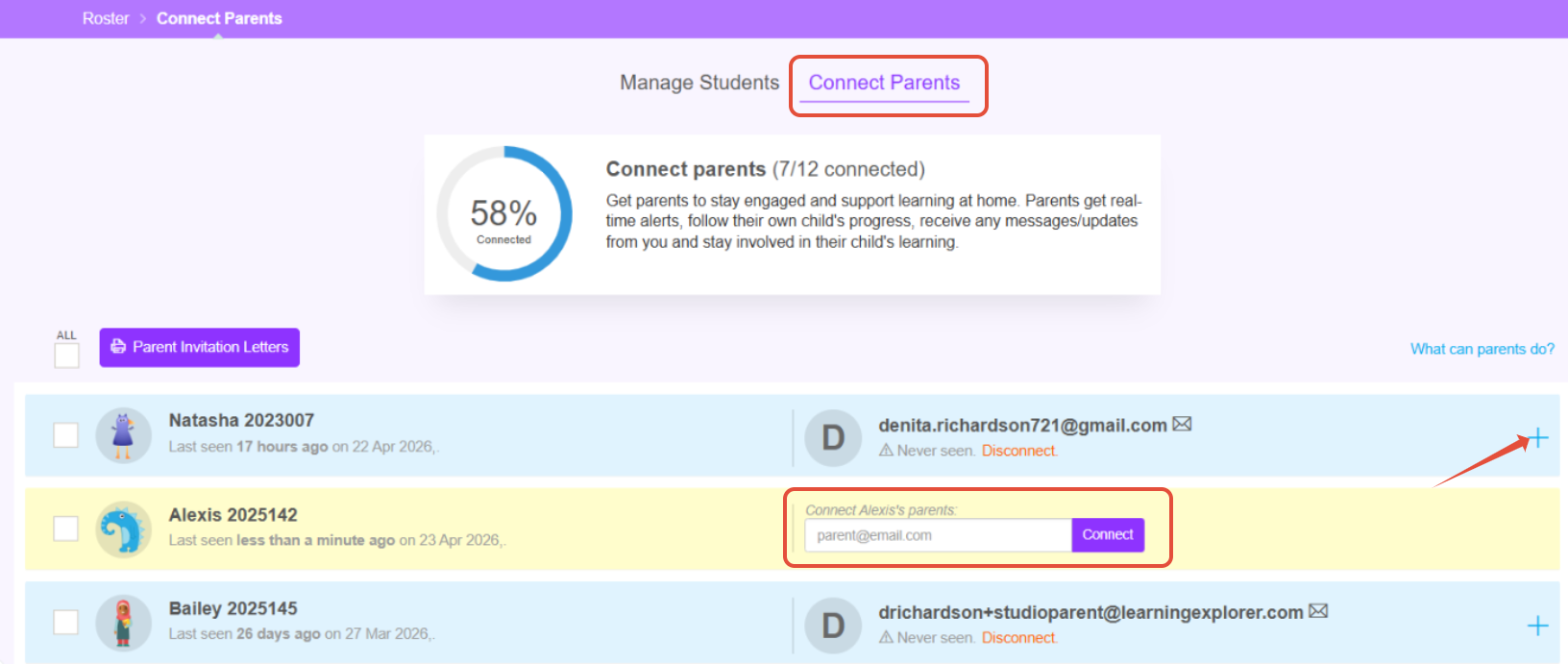
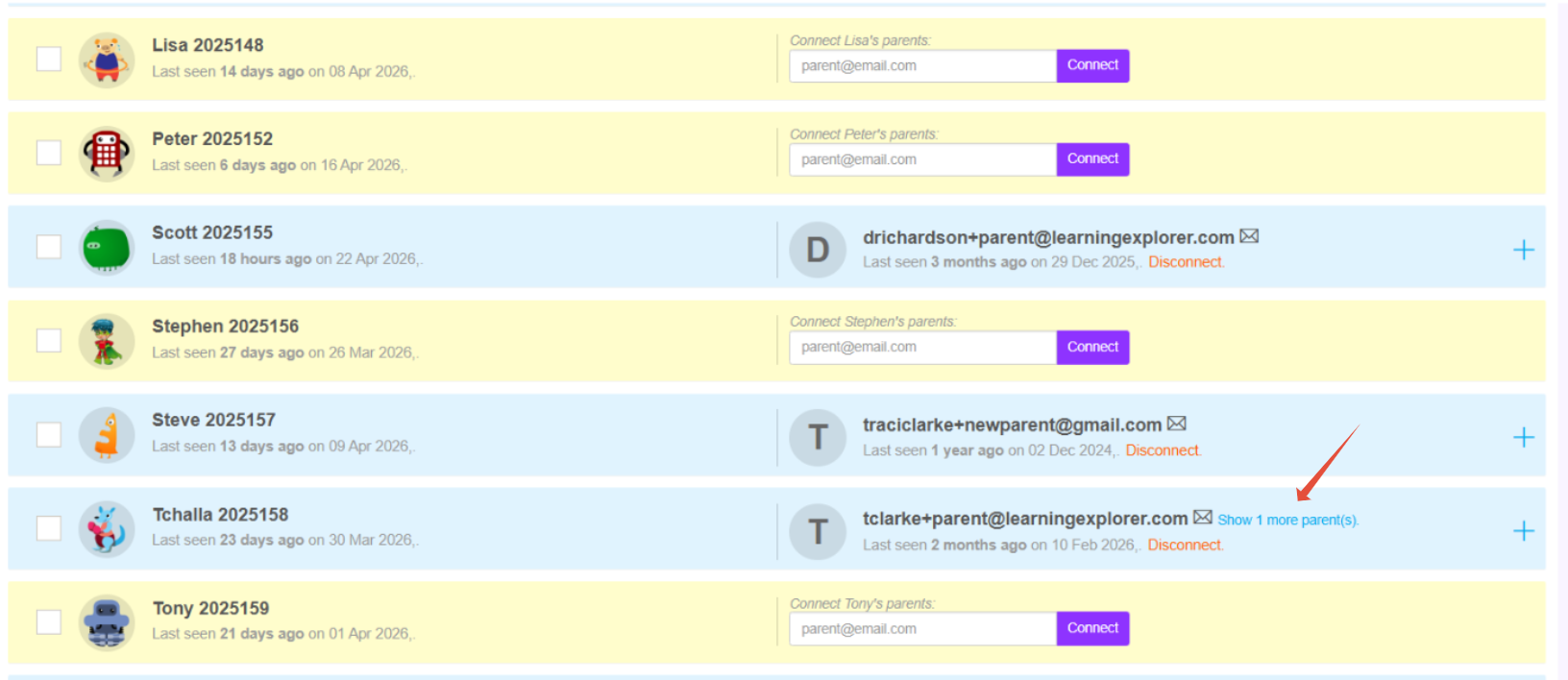
- Enter in the additional address and click connect. Once the email is added, the student's record will show the first parent and a link to "show 1 more parent(s)."
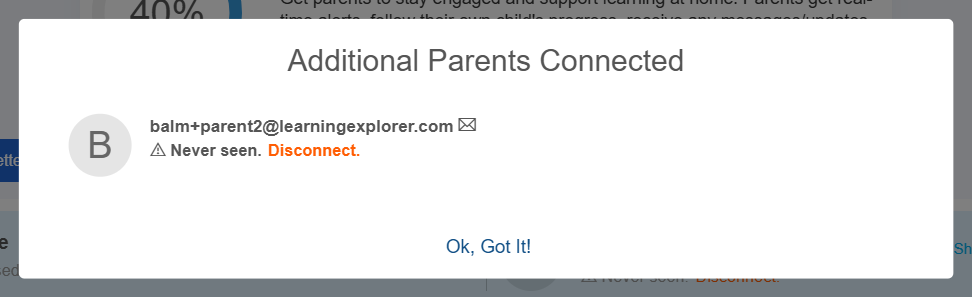
- Clicking on the link displays the additional parents connected. You can easily disconnect here if necessary.
Messaging Parents About Students
Click on Message Center under the Learning module. There you can choose to send the message to students and parents or parents only.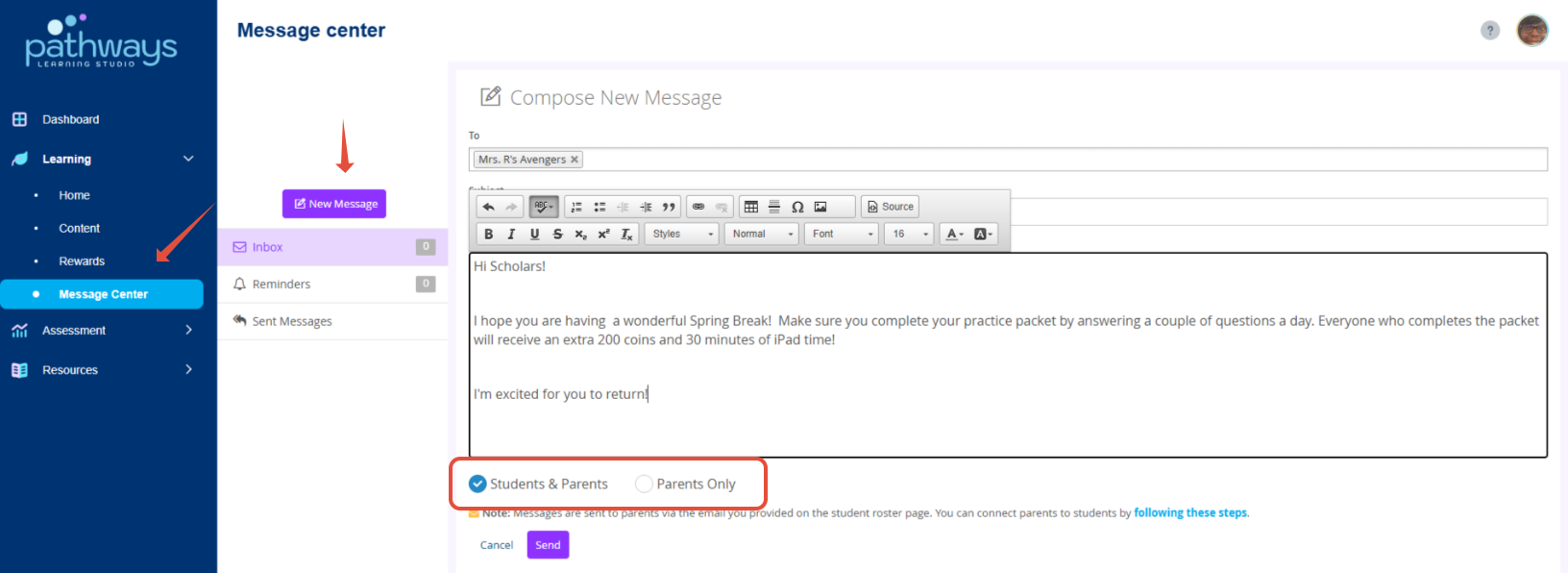
Messages are sent to parents via the email that is linked in the student roster page.
Related Resources
- Learning Video: Managing Students and Connecting Parents
- Learning Video: Engaging Parents
- Pathways Learning: Managing Student Engagement and Messaging
Was this article helpful?
That’s Great!
Thank you for your feedback
Sorry! We couldn't be helpful
Thank you for your feedback
Feedback sent
We appreciate your effort and will try to fix the article